Archive or delete a warehouse
When you stop using a warehouse for good, archive it. Archiving hides it from warehouse pickers and routing but keeps its history, so past orders, transfers and stock movements still show where they happened. You can only delete a warehouse that was never used, such as one created by mistake.
If you use the warehouse only part of the year, don't archive it. Pause it instead, so its stock and settings stay ready for next time. See Pause a warehouse without archiving it.
Before you begin
- You need permission to edit warehouses to archive one, and permission to delete warehouses to delete one.
- To archive, the warehouse must have no available stock. Move it out first with a transfer, or adjust it out.
- A warehouse managed by an integration, such as an Amazon FBA warehouse, can't be archived here.
Steps
To archive a warehouse:
- Go to Contacts → Warehouses, and open the warehouse.
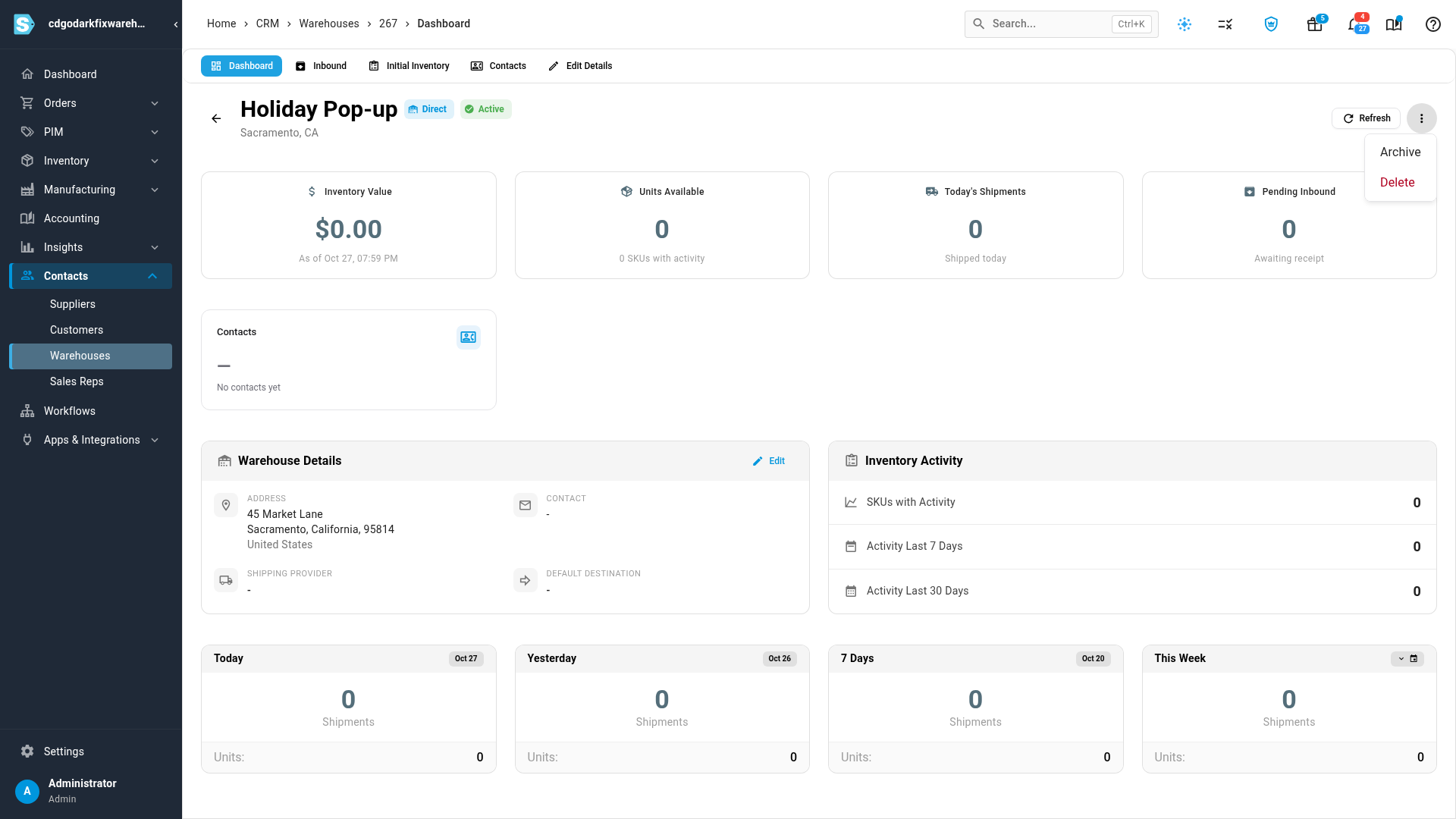
- Click the ⋮ menu at the top right of the page.
- Click Archive.
- Click Archive in the Archive Warehouse dialog to confirm.
The warehouse's status changes to Archived. It's taken out of Warehouse Priority in Settings → Fulfillment → Warehouses, so orders are never routed to it. It no longer appears when you pick a warehouse, and the Warehouses list hides it until you switch the footer toggle to Archived or All.
When Archive is greyed out
Point at Archive to see why. The reason is one of these:
| Message | What to do |
|---|---|
| The warehouse (name) has stock available and can't be archived. | Transfer the stock to another warehouse, or adjust it out, then try again. |
| The warehouse (name) is managed by integration and can't be archived. | The warehouse belongs to the connected integration. Manage it from that integration. |
Unarchive a warehouse
- Go to Contacts → Warehouses, and switch the footer toggle to Archived.
- Open the warehouse, click the ⋮ menu, and click Unarchive.
- Click Unarchive to confirm.
Unarchiving doesn't put the warehouse back in Warehouse Priority. If it should ship orders again, go to Settings → Fulfillment → Warehouses, find it under Not in the priority list, and click Add to list. See Set your warehouse routing priority.
Delete a warehouse
You can delete a warehouse only if nothing uses it: no stock movements, purchase orders, transfers, sales orders, returns or other records. It also can't be your Default Returns Warehouse. In practice, only a warehouse that was created and never used can be deleted.
- Go to Contacts → Warehouses, and open the warehouse.
- Click the ⋮ menu, then click Delete. SKU.io checks whether the warehouse is in use.
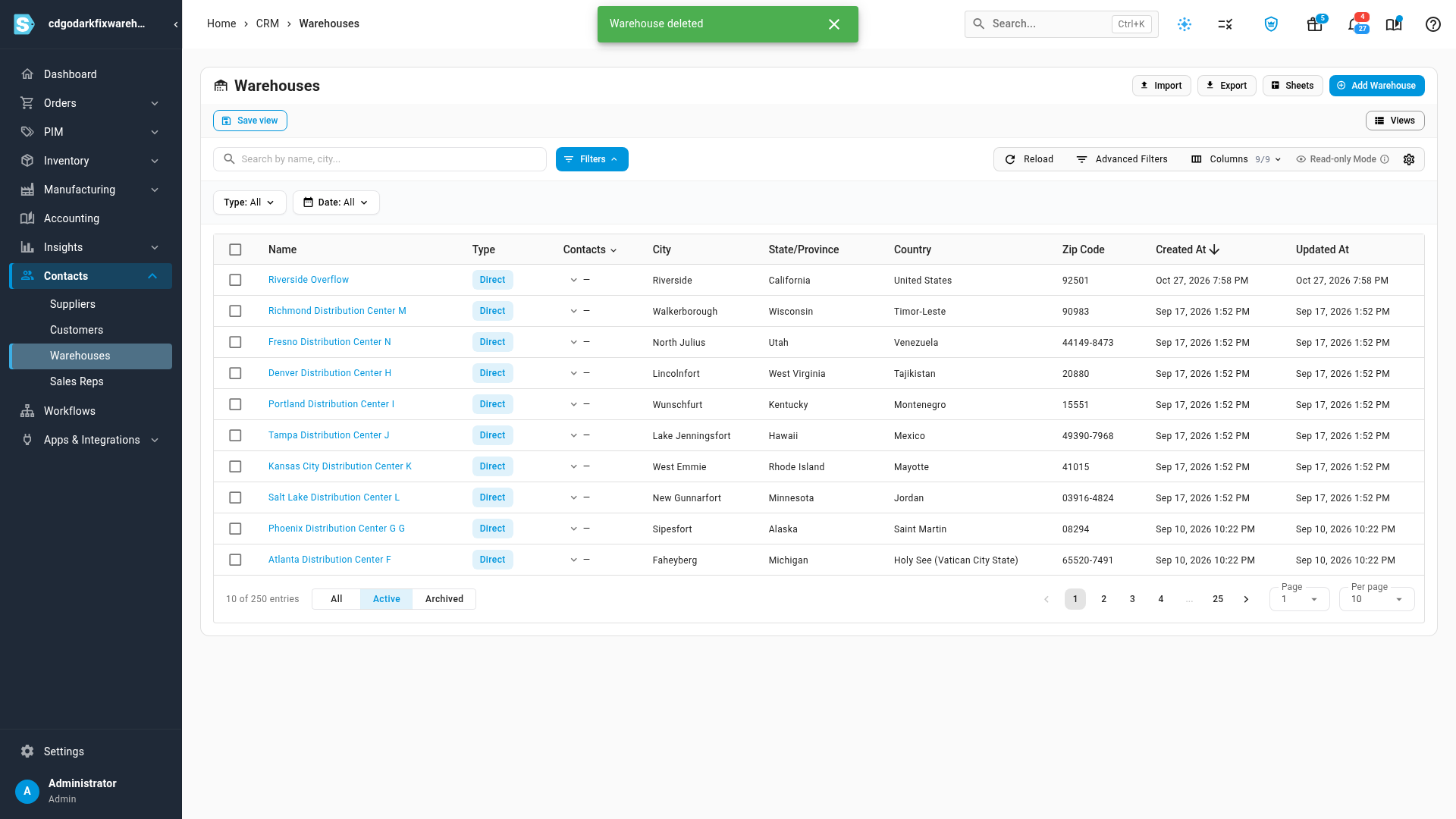
- If it was never used, click Delete in the Delete Warehouse dialog to confirm. Deleting can't be undone.
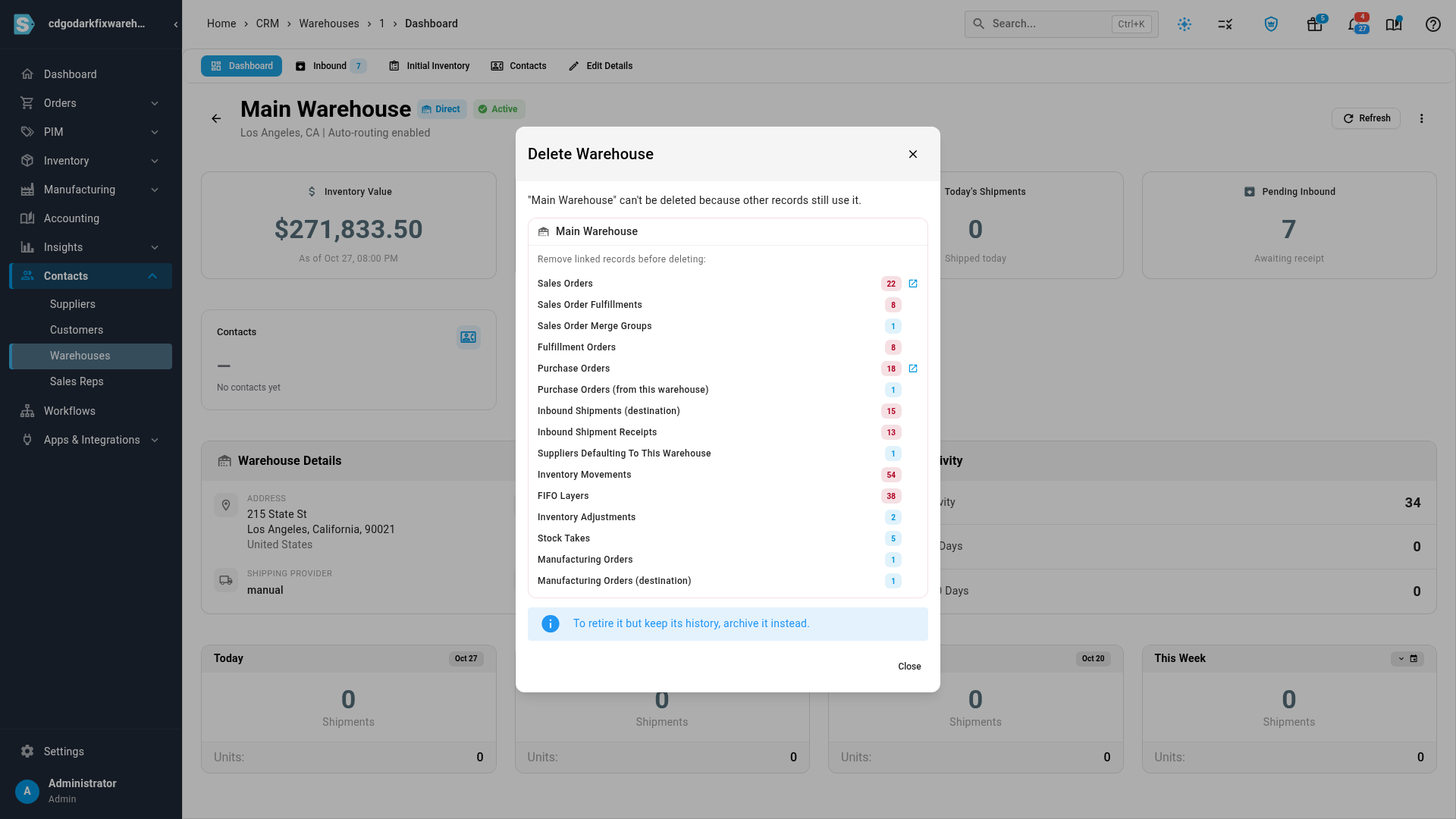
If the warehouse is in use, the dialog lists the records that use it instead, with a count for each and a link to the matching list where there is one. It also suggests archiving the warehouse. Archive it rather than removing that history.
To delete several warehouses at once, tick them in the Warehouses list, and click Delete in the bar that appears over the list. The dialog sorts them into the ones that can be deleted and the ones that can't, with the reasons. Tick I understand this action is permanent and cannot be undone to delete the ones that can.
Next steps
- Set up fulfillment and replenishment warehouses: pause a part-time warehouse instead of archiving it.
- Create & open a warehouse transfer: move stock out before archiving.
- Set your warehouse routing priority: put an unarchived warehouse back in the routing order.
Video transcript
When you stop using a warehouse for good, archiving is the right step. Archiving hides it from pickers and routing, but keeps its history. You can only delete a warehouse that was never used. For a warehouse you use part of the year, pause it instead. To start, open Contacts in the sidebar, and then click Warehouses to see the full list. Search the list for the warehouse you want to retire, and type part of its name. When it shows up, click its name to open the warehouse. When the warehouse page opens, click the menu button at the top right of the page. Archive is here, but it needs the warehouse to have no available stock. If it's greyed out, point at it to see the reason. To delete it instead, click Delete. First, it checks whether anything uses the warehouse. This one was never used, so click Delete to confirm. A warehouse with history can't be deleted. To see why, clear the search, type the name of a warehouse that has orders or stock, and open its page from the search results. This one is already in use. On its page, open the same menu, and choose Delete to try removing the warehouse. The dialog lists the records that use the warehouse, with a count for each. It also suggests archiving the warehouse instead, which keeps that history for your reports and past orders.