Manage your user profile
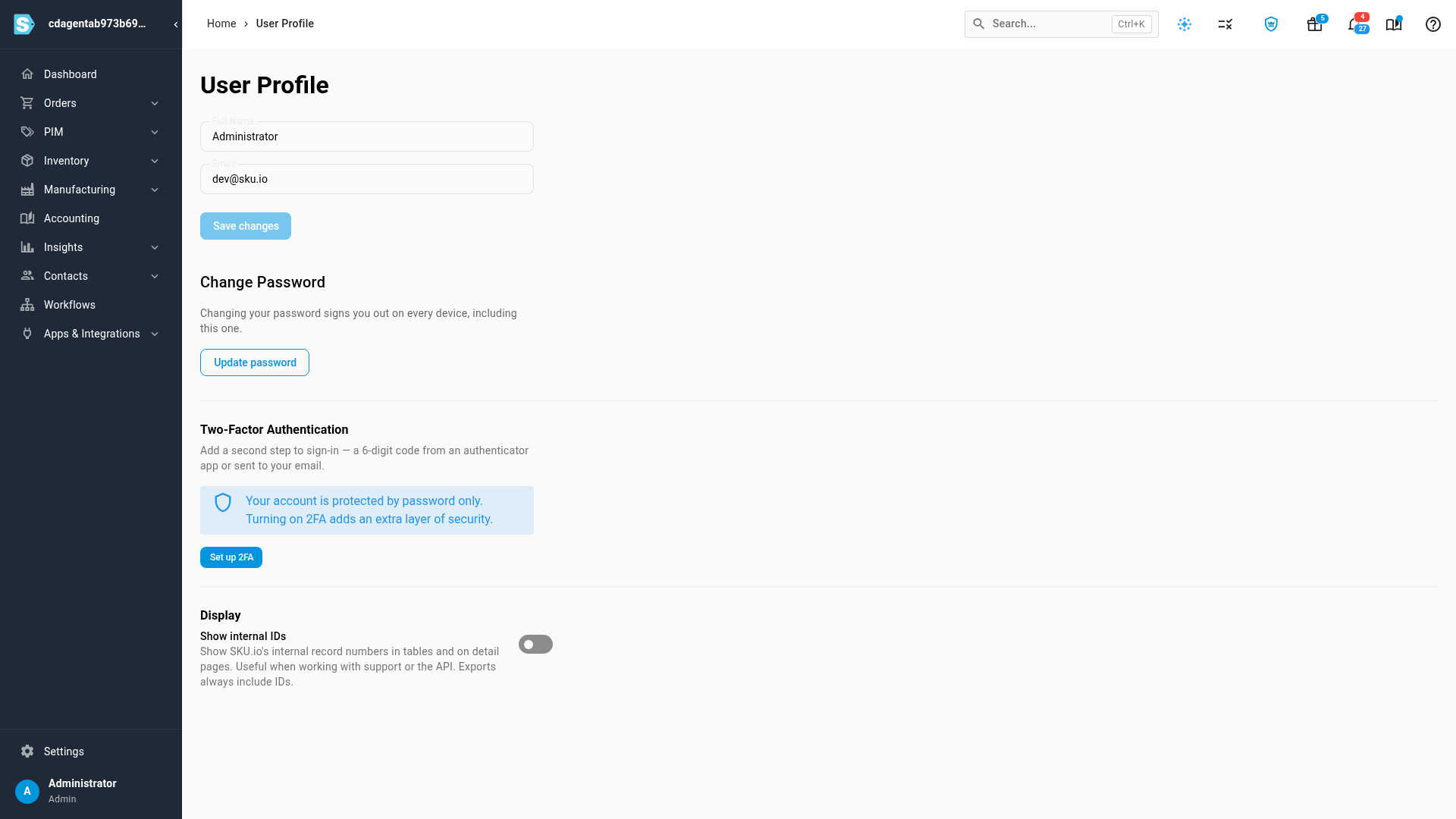
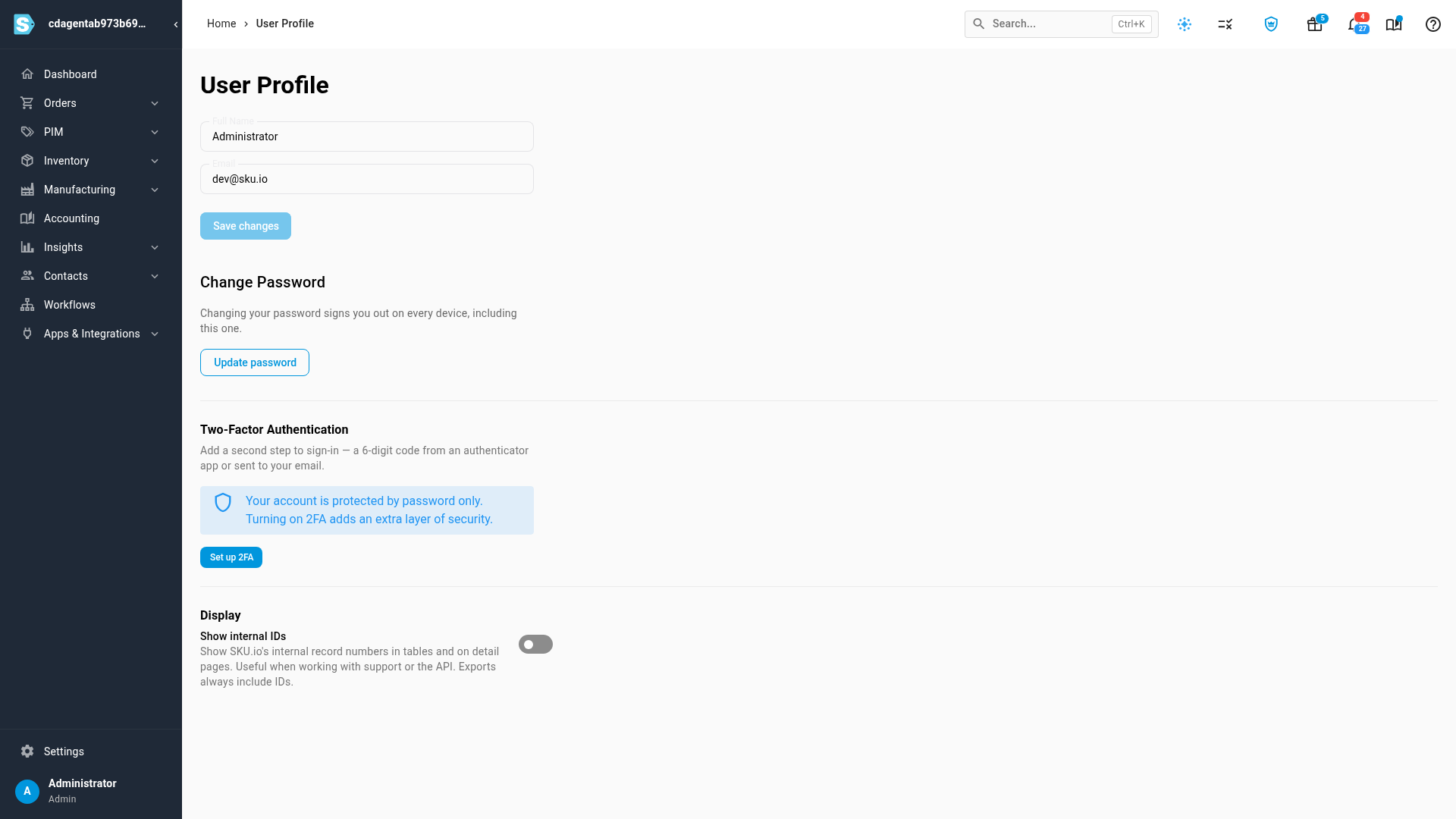
Your User Profile holds the settings that belong to you rather than to your company: your name, the email you sign in with, your password, two-factor authentication, and how SKU.io displays record numbers to you. Nobody else's account changes when you change yours.
Before you begin
- Anyone can change their own profile. You don't need an administrator.
- To change your password, you need your current one. If you've forgotten it, sign out and use Forgot your password? on the sign-in page instead.
Open your profile
-
Click your name at the bottom of the left-hand navigation.
-
Choose User Profile.
Change your name or email
-
Edit Full Name or Email.
-
Click Save changes.
Save changes stays unavailable until you edit a field. A message confirms the change.
Your Email is also the address you sign in with, so sign in with the new address from now on. It must be an address no other SKU.io user has.
Change your password
-
Under Change Password, click Update password.
-
Enter your Current Password.
-
Enter the New Password, at least 8 characters, and type it again in Confirm New Password. The eye icon in each field shows what you typed.
-
Click Save Password.
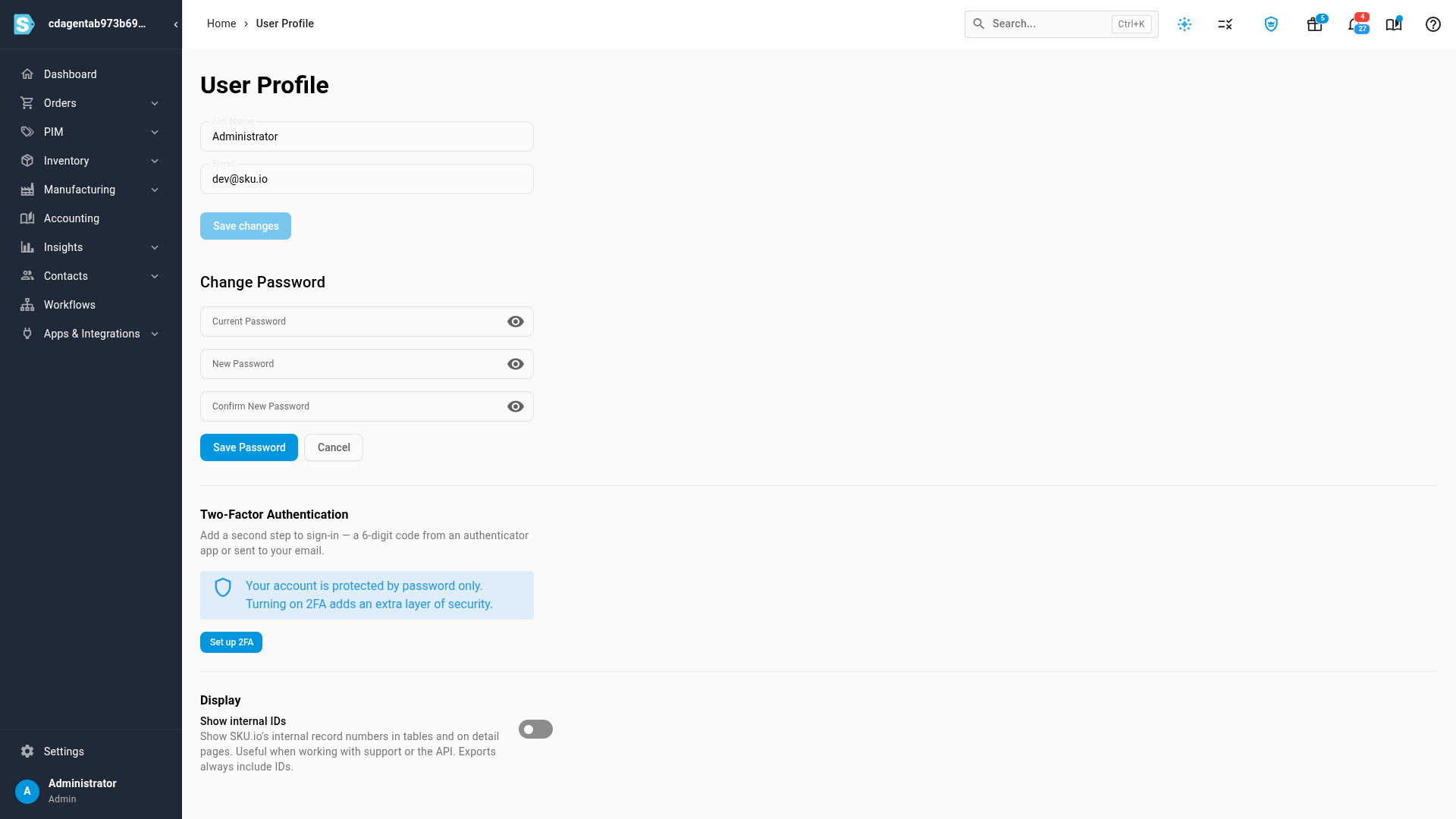
Saving a new password signs your account out on every device and browser, including this one. SKU.io takes you to the sign-in page; sign in again with the new password. You also get an email confirming that your password changed.
Click Cancel to close the password fields without changing anything.
Turn on two-factor authentication
The Two-Factor Authentication section shows whether your account asks for a code when you sign in, and which method it uses.
- Click Set up 2FA. If two-factor authentication is already on, the button reads Manage 2FA.
- Two-Factor Authentication opens in Settings. Choose an authenticator app or emailed codes, and follow the steps there.
The full walkthrough, including your recovery codes, is in Set up two-factor authentication.
Show or hide internal IDs
Under Display, turn Show internal IDs on to see SKU.io's internal record numbers in tables and on detail pages. They help when you work with support or the API. Turn it off for a cleaner screen. Exports always include IDs. See Show or hide internal IDs.
Next steps
- Set up two-factor authentication
- Manage active sessions: see where you're signed in, and sign out other devices.
- Set your company profile: your company's details, rather than your own.
Video transcript
Your user profile holds the settings that belong to you, not your company. To open it, click your name at the bottom of the left-hand sidebar, and then choose User Profile from the menu. The page opens on your name and email. Edit your full name or your email address here, then click Save changes to keep your edits. Remember that this email address is also your sign-in name. To change your password, click Update password. Enter your current password, then type the new one twice, and click Save Password. Saving it signs you out on every device, this one included, so you sign in again with the new password. Click Cancel to close the password form. Under Display, turn on Show internal IDs to see record numbers in tables, which helps when you work with support. Two-Factor Authentication shows whether your sign-in asks for a code. Click Set up 2FA, and choose an authenticator app or emailed codes on the page that opens.