Control what the AI can see
Every AI feature in SKU.io, from the AI Assistant to the document readers, sends data to your AI provider. The Access tab under Settings → AI Assistant decides which kinds of data they may send, and which roles can use AI at all. The Activity tab then shows every AI call, with what was hidden or blocked.
What the AI sees for any one person is the smaller of two things: what that person's role lets them see, and what you switch on here. Turning a kind of data off here never gives anyone more access. It only takes data away from AI.
Before you begin
- To change the data settings, you need to be an admin, or have a role with Settings → Edit.
- Turning AI on or off for a role also needs the Roles → Update permission.
- To open the Activity tab, you need the AI → View activity permission. Admins have it.
- An AI provider key must be saved on the General tab before AI features run. You can set up the Access tab first: the settings apply as soon as AI is turned on.
Steps
-
Go to Settings → AI Assistant, and open the Access tab.
-
Under What AI can see, pick a preset: Open, Balanced or Strict.
Preset What AI receives Open Everything each person's role allows, including customer details. This is the default. Balanced Everything except customer details. Recommended. Strict Products, inventory, purchasing and sales orders only. No customer details, financials or returns. 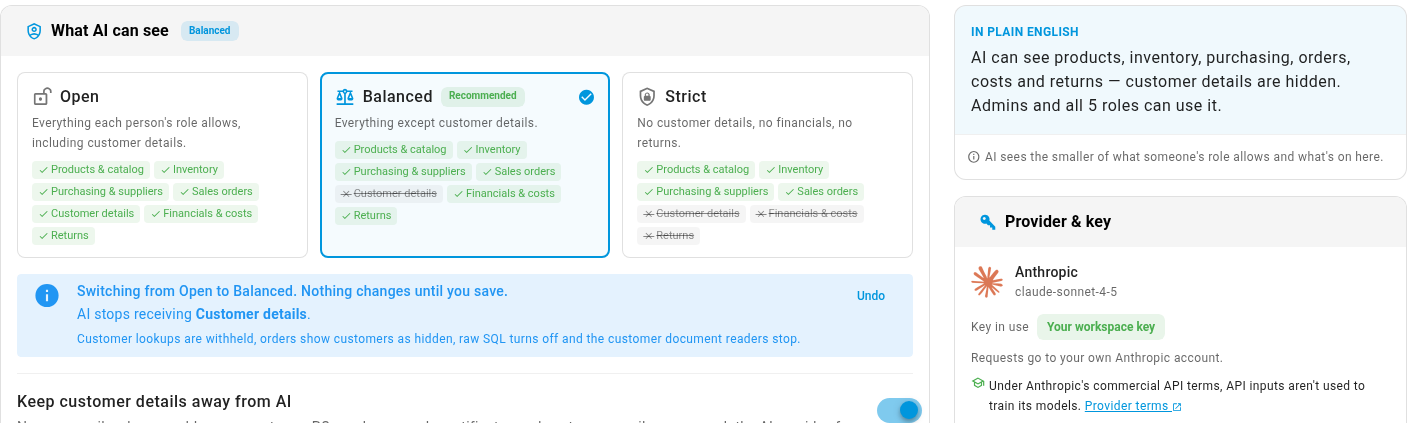
A note under the presets says what the switch changes, and Undo puts it back. Nothing changes until you save. The In plain English box on the right sums up what AI will see and how many roles can use it.
-
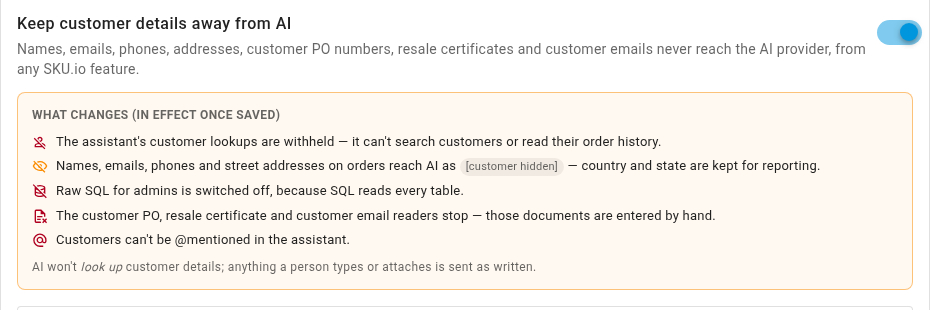
Check Keep customer details away from AI. Balanced and Strict turn it on for you, and you can also turn it on by itself. The What changes panel under it lists what it does. See What keeping customer details away changes.
-
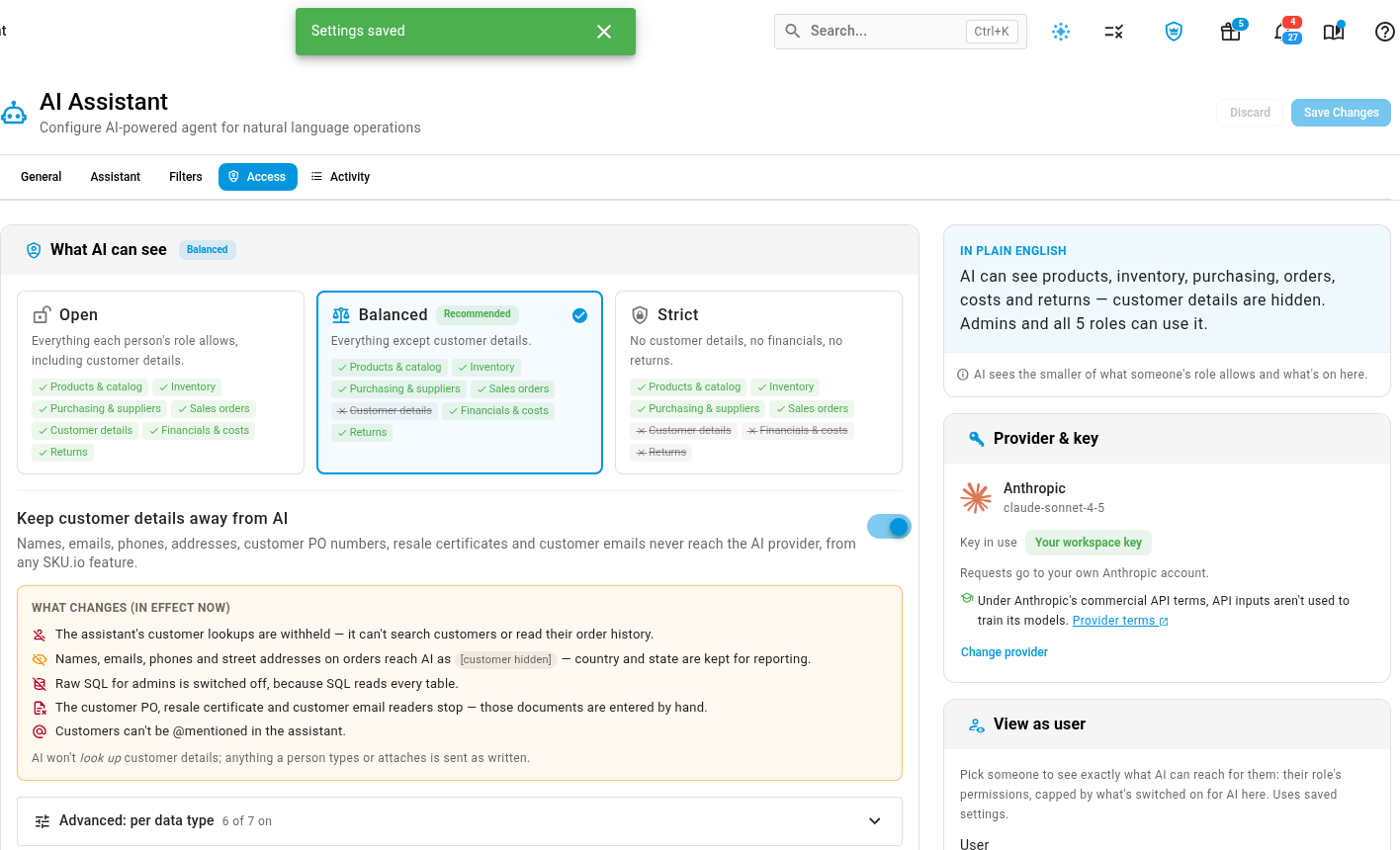
To fine-tune, open Advanced: per data type and switch each kind of data on or off. A mix that doesn't match a preset shows as Custom.
-
Click Save Changes. The heading of the What changes panel now reads In effect now.
-
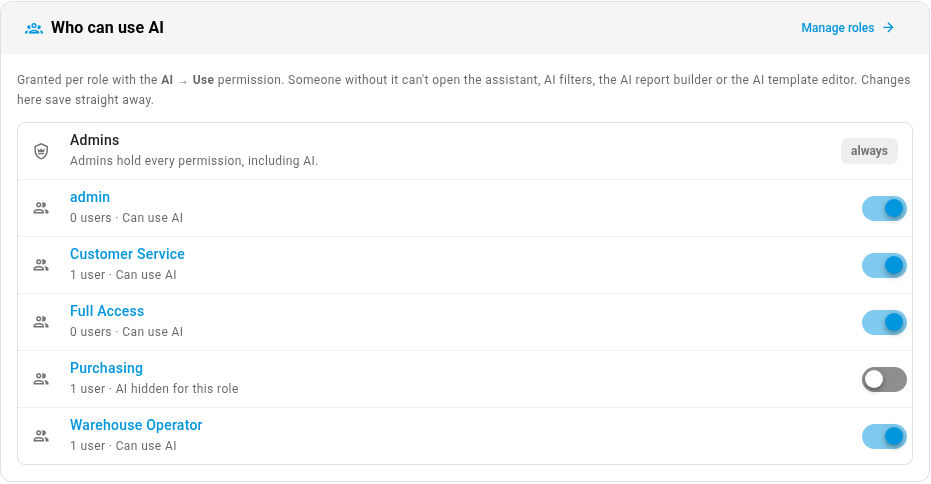
Under Who can use AI, turn each role's switch on or off. The switch grants the AI → Use permission. To take AI away from a role, turn its switch off and click Remove AI to confirm. This saves straight away, and people in that role lose the assistant and the other AI features on their next request. Admins can always use AI.
-
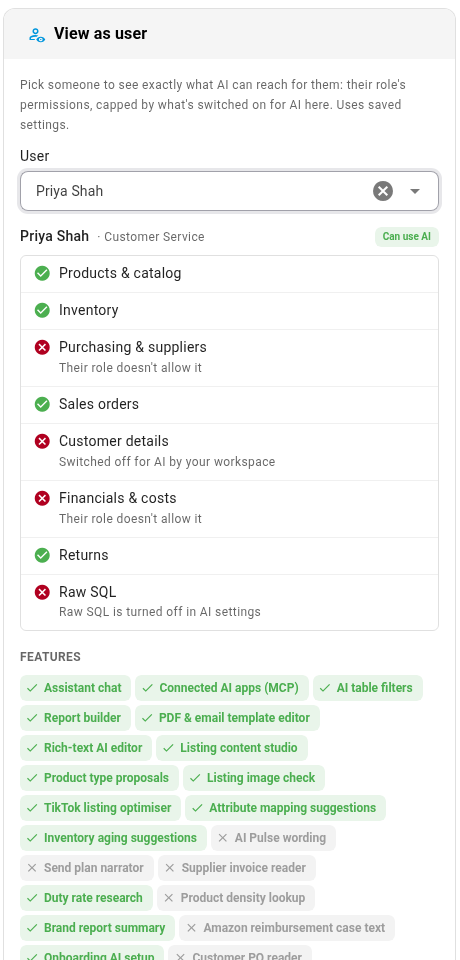
Under View as user, choose a teammate to see exactly what AI can reach for them. Each kind of data shows a tick or a cross with the reason: Their role doesn't allow it, or Switched off for AI by your workspace. The card also shows whether raw SQL is available and which AI features they can use. It reads your saved settings.
-
Open the Activity tab to review every AI call. To keep a copy, click Export CSV. See Read the activity log.
What keeping customer details away changes
When Keep customer details away from AI is on:
- The assistant can't look up customers or read a customer's order history.
- Names, emails, phones and street addresses on orders reach AI as [customer hidden]. Country and state are kept, so regional sales questions still work.
- Raw SQL for admins turns off, because SQL reads every table. On the Assistant tab, the SQL switch is greyed out, and hovering it explains why. It comes back as it was when every kind of data is on again.
- The customer PO reader, the resale certificate reader and the email body reader stop. Enter those documents by hand.
- Customers can't be picked with
@in the assistant.
AI won't look up customer details, but anything a person types or attaches is sent as written. Conversations started before the change are covered too: the hidden details are removed when the conversation continues.
A person can still open a customer or an order themselves, and see everything their role allows. Only what goes to AI changes.
Which features are affected
Feature coverage, at the bottom of the Access tab, lists every feature that sends anything to AI, the kinds of data it sends, and whether it runs under your current choice. It follows your unsaved changes, so you can see the effect before you save.
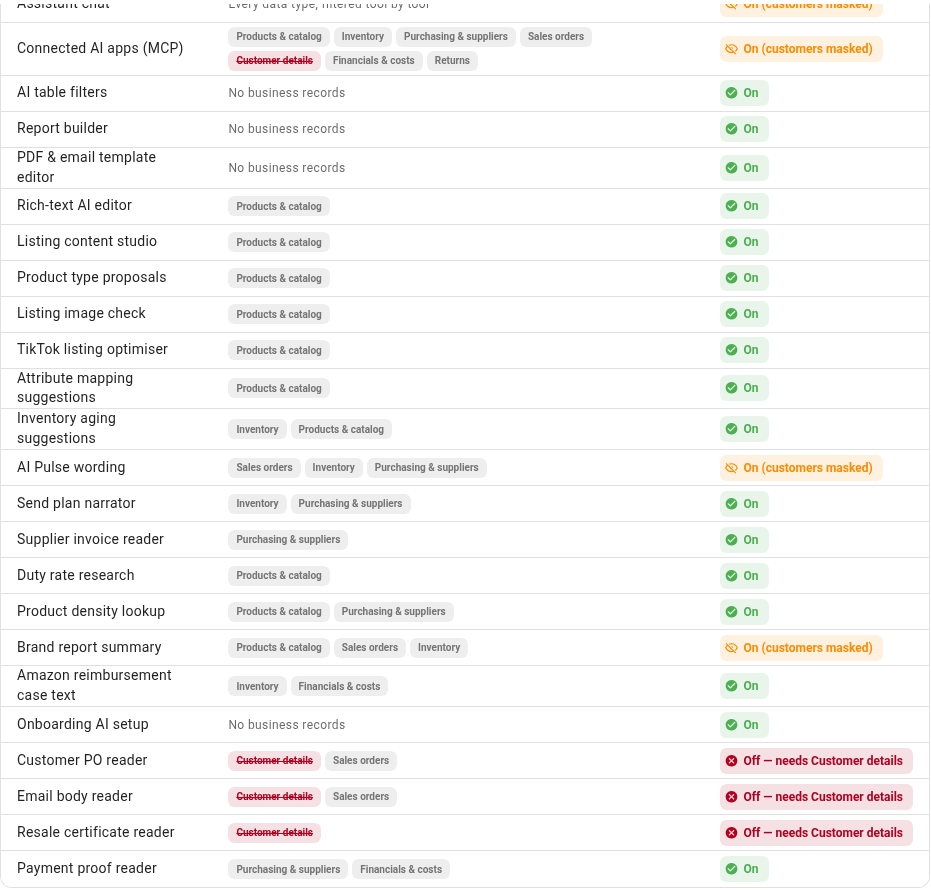
The Provider & key card on the right shows which provider and model receive the data, and whether your own key or SKU.io's is in use.
Assistants you connect from outside SKU.io, such as Claude or ChatGPT, use your API token permissions instead. See Connect an AI assistant.
Read the activity log
The Activity tab lists AI calls from the last 180 days, newest first. Each row shows when it happened, who made it, the feature, the action the AI took, the kinds of data involved, how many records it returned, and the outcome.
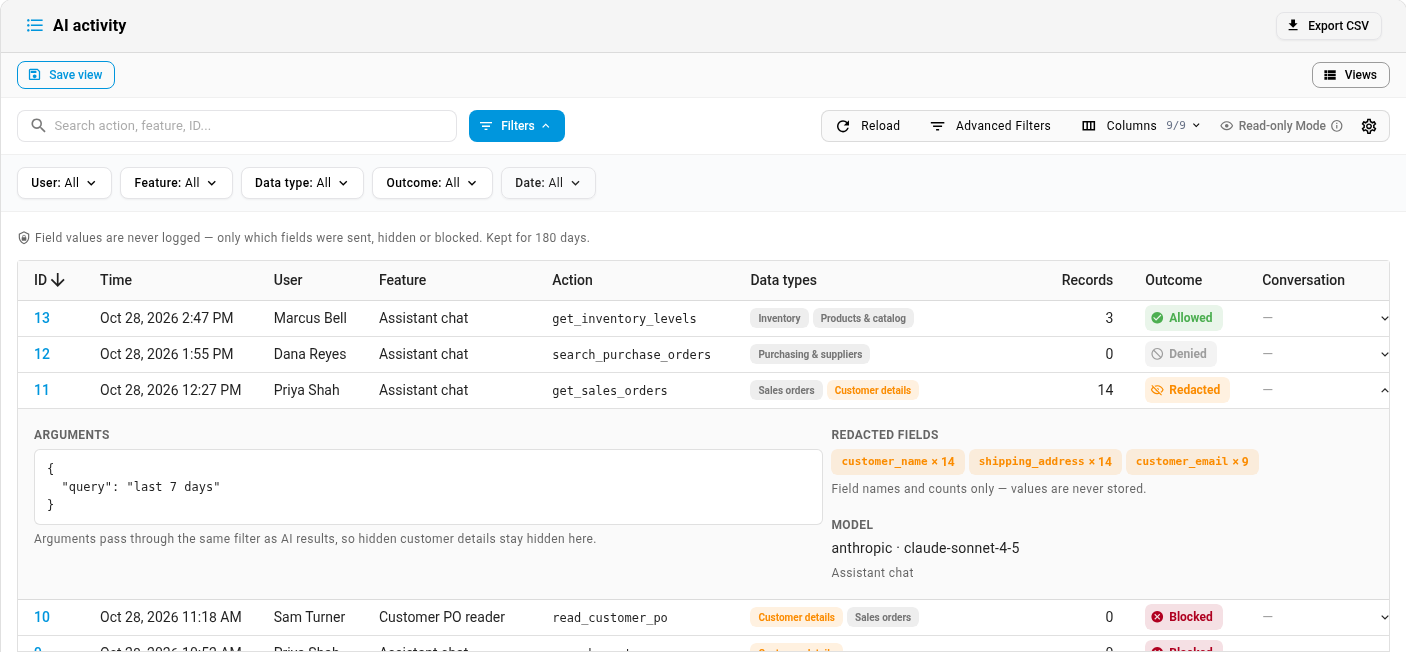
| Outcome | Means |
|---|---|
| Allowed | The call went through as normal. |
| Redacted | The call went through, with customer details hidden. |
| Blocked | The call needed a kind of data that's switched off for AI, so it didn't run. |
| Denied | The person's role doesn't include AI → Use. |
Click a row's ID, or its arrow, to expand it. Redacted fields lists the names of the fields that were hidden and how many times. Values are never stored, so the log never holds the customer details it hid.
Narrow the log with the User, Feature, Data type, Outcome and Date filters. Export CSV downloads what the filters show. A large export is built in the background, and you download it from the job tray.
If you used the old Access level setting
The Access level choice (All Users or Admins Only) on the AI Assistant settings page is gone. Who can use AI is now the AI → Use permission on each role:
- If your account was set to All Users, every role was given AI → Use.
- If it was set to Admins Only, no role was given it, and only admins can use AI.
Change it under Who can use AI, or in the role editor under the AI category. See Roles and permissions reference.
Next steps
- AI & Automation: every AI feature in SKU.io, and what the assistant is allowed to do.
- Ask the AI Assistant: what your team sees once AI is set up.
- Create a role: build roles, including which ones can use AI.
Video transcript
You choose what business data the AI can see, and which roles get AI features. In the sidebar, at the bottom, open Settings. Scroll down the list, and choose AI Assistant to show its pages. Then open Access, the page where you control what the AI can see. Start with the three presets. Open sends everything each person's role allows, and it's the default. Balanced sends everything except customer details, and it's the one we recommend. Strict sends no customer details, no financials, and no returns. Pick the preset that fits your business. Nothing changes until you save, and the In plain English summary says what AI will see. Balanced turns on Keep customer details away from AI. What changes lists each effect of that switch. Customer lookups are withheld, and names and addresses reach AI hidden. Country and state are kept, so regional reports still work. Raw SQL for admins turns off, and the customer document readers stop. For finer control, expand Advanced, where each data type has its own switch. A mix that doesn't match a preset shows as Custom. When you're ready, click Save Changes at the top of the page. Next, choose who can use AI at all. Access is granted per role, with a switch that grants the AI Use permission. Admins hold every permission, so they can always use AI. To take AI away from a role, turn off its switch. A prompt asks you to confirm, so click Remove AI. This saves straight away, and the role now reads AI hidden for this role. People in that role lose the assistant and other AI features on their next request. Feature coverage lists every feature that sends anything to AI, and what it sends. With customer details held back, the customer PO reader is off. To check what AI can reach for one person, use View as user. Open the user list, and choose the teammate whose access you want to check. Each data type then shows a tick or a cross, with a short reason. A cross can say Switched off for AI by your workspace, or Their role doesn't allow it. AI always gets the smaller of the two. To see every AI call, open the Activity tab. Each row shows who, which feature, the data types involved, and the outcome. Allowed means the call went through as normal. Redacted means customer details were hidden from the call. Blocked means a data type was switched off, and Denied means the role lacks AI. Expand a row, and the Redacted fields list shows which fields were hidden in that call. Only the field names and counts are kept, never the values. You can filter the log, and Export CSV downloads it as a spreadsheet. That's it. AI now sees only what each person's role allows, within the limits on this page.