Map product accounts with rules
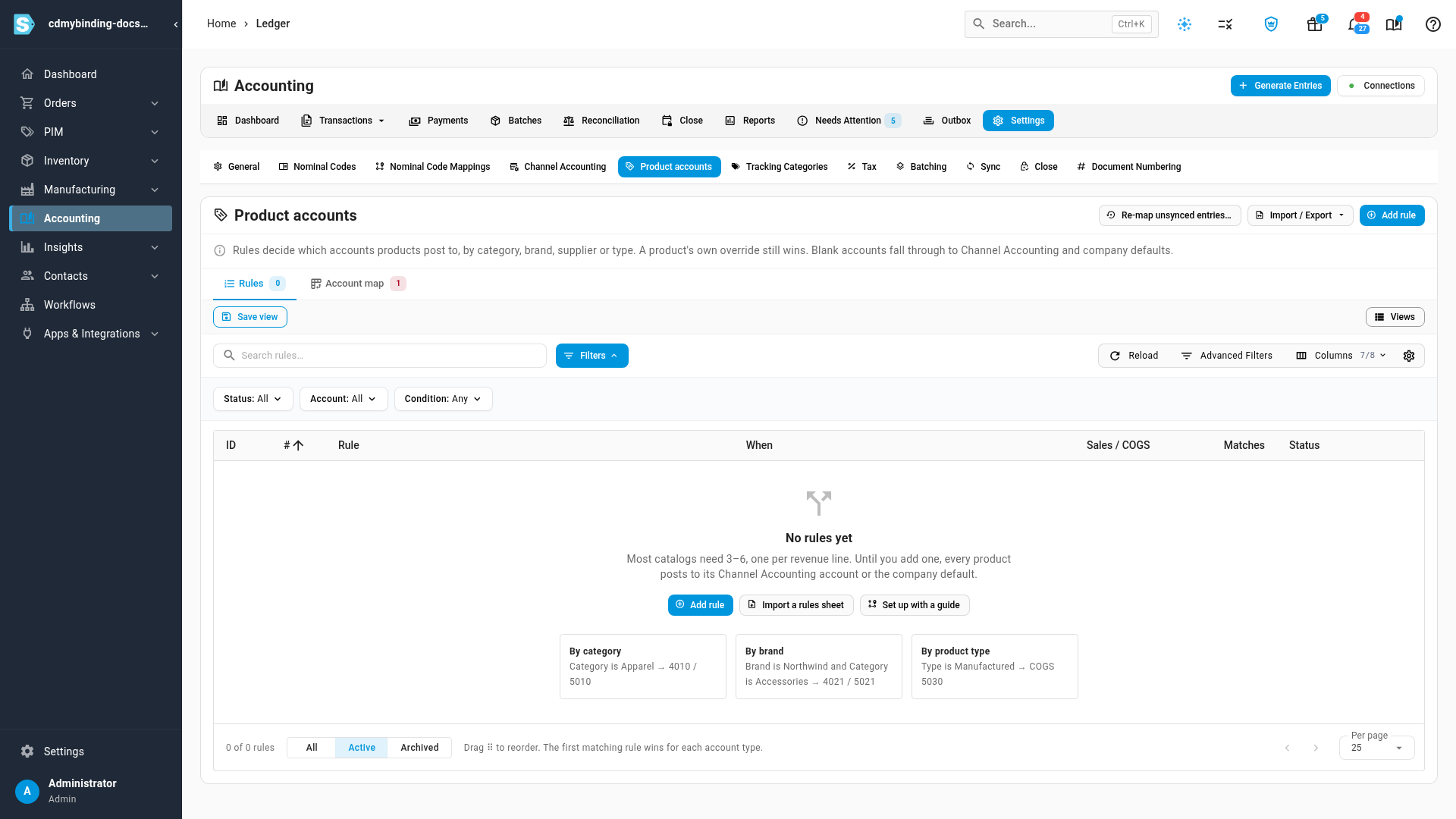
Account rules send whole groups of products to their own accounts. Instead of setting the sales or COGS account on each product, you write a few rules such as "Apparel posts sales to 4010 Apparel Sales". Every product that matches, now or later, follows them. Most catalogs need three to six rules, one per revenue line your accountant reports on.
Before you begin
- To see rules and the account map, your role needs the List permission under Accounting. To add or change them, it also needs Manage Settings under Accounting.
- The accounts must already be in your chart of accounts under Accounting → Settings → Nominal Codes.
- Rules match on what's set on your products, so sort your catalog first: categories, brands, default suppliers, product types or tags.
How an account is chosen
For each of a product's six accounts (sales, COGS, inventory, in-transit, accrued purchases and discount), SKU.io uses the first of these that is set:
- The product's own override, set on its Accounting tab.
- The first matching rule. Rules are checked from the top of the list down, and the first one that matches the product and sets that account wins.
- The sales channel's account, set in Channel Accounting (sales, COGS and discount only).
- The company default, in Accounting → Settings → Nominal Code Mappings.
A rule doesn't have to set every account. Any account it leaves blank falls through to the next level, so a rule can set only Sales and leave COGS to the company default.
Open the rules
Go to Accounting → Settings → Product accounts. The page has two tabs: Rules, the ordered list, and Account map, which shows where every product posts today.
Add a rule
-
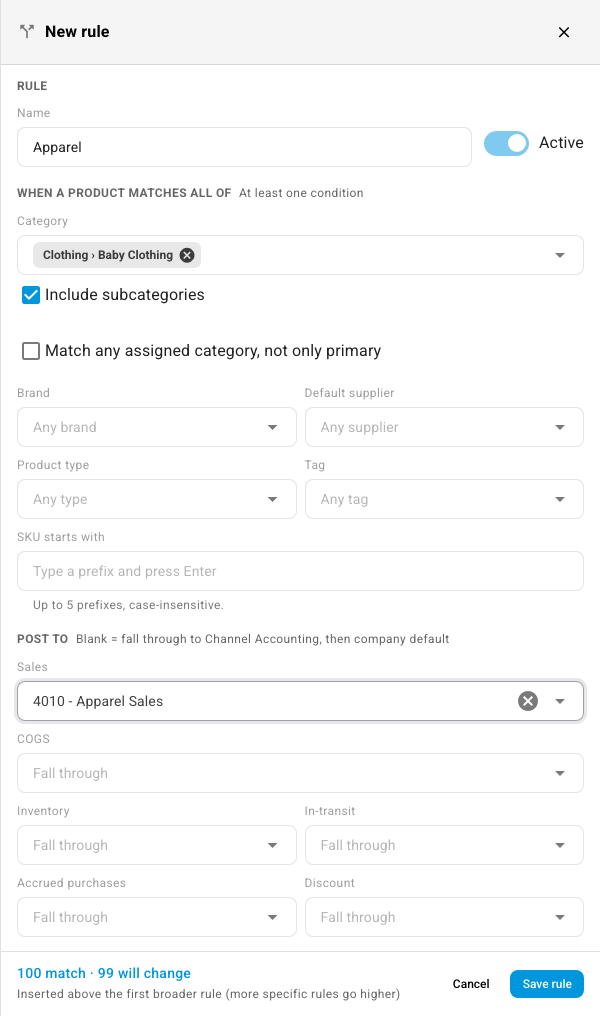
Click Add rule. The rule editor opens beside the list.
-
Enter a Name your team will recognize, such as the revenue line it covers.
-
Under When a product matches all of, set at least one condition:
- Category, with Include subcategories (on by default) and Match any assigned category, not only primary
- Brand
- Default supplier
- Product type
- Tag
- SKU starts with (up to five prefixes, ignoring upper and lower case)
A product must match every condition you set. Several values in one condition are alternatives, so choosing two categories matches a product in either.
-
Under Post to, pick the accounts these products should use. Leave an account blank to let it fall through to the sales channel and then the company default.
-
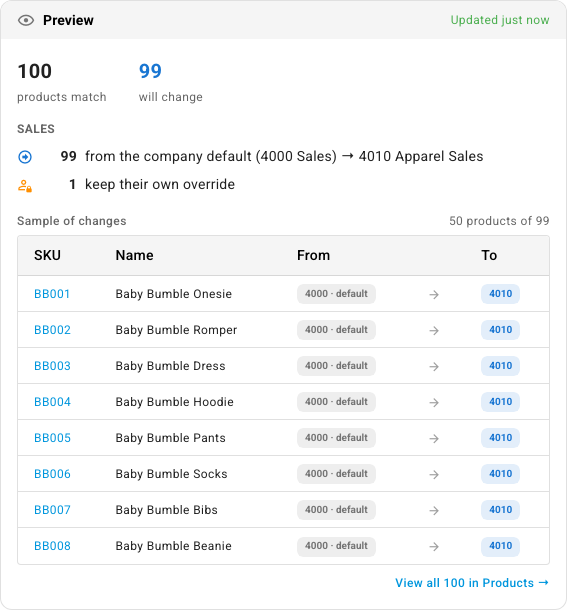
Check the Preview below the accounts. It shows how many products match, how many will change account, and from where to where, with a sample of the products that move. The same two numbers stay visible at the bottom of the editor, next to Save rule; click them to jump to the full preview.
-
Click Save rule.
Nothing changes until you save. After you save, matching products move to their new accounts in the background; you can follow the progress in the job tray. New products, and products whose category, brand, supplier, type, tags or SKU change later, are updated as soon as they're saved.
Where a new rule goes in the list
A new rule is placed above the first broader rule, so more specific rules sit higher and win. The editor tells you where it will go before you save. You can move it afterwards.
Order and manage rules
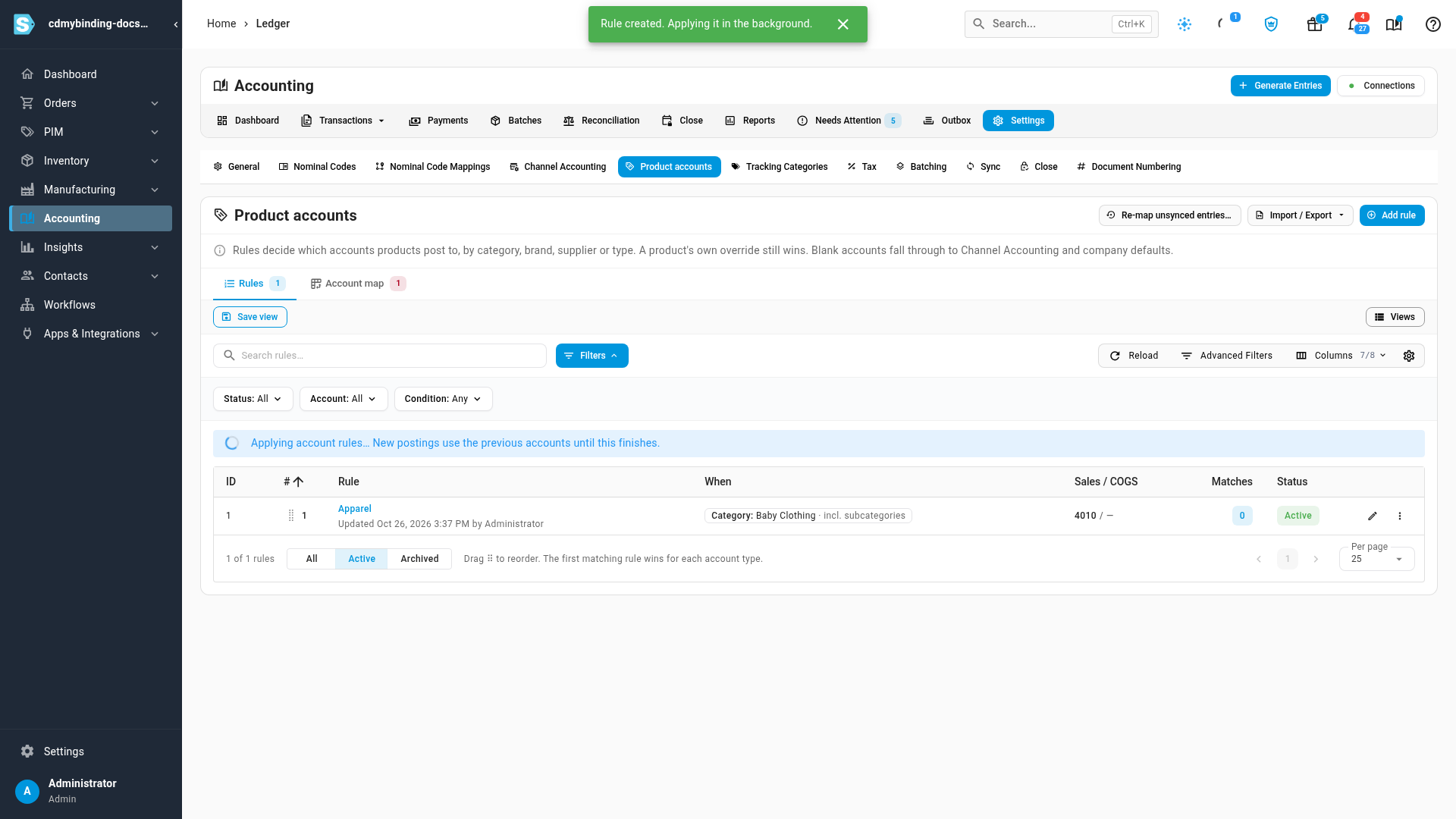
- Reorder by dragging a rule's handle (⠿). The first matching rule wins for each account.
- Edit a rule by clicking its name.
- The ⋮ menu on each rule has Edit, Duplicate, Move to top, Deactivate, Archive and Delete. A deactivated or archived rule stays in the list but matches nothing.
- Matches shows how many active products the rule covers. Click the number to open those products.
- Use Status, Account and Condition to filter a long list, and All / Active / Archived to switch views.

If you delete a category, brand, supplier or tag that a rule uses, the rule drops it from its conditions. A rule that's left with no conditions is deactivated, with a note saying why.
When a channel account should win
By default a rule wins over a sales channel's own accounts. Turn on Channel accounts take priority in the rule editor when you want orders from a channel with its own accounts — wholesale, for example — to keep posting there for Sales, COGS and Discount. A product's own override still wins over both.
Check the account map
Open the Account map tab to see where your whole catalog posts. Choose an account type (Sales, COGS, Inventory, In-transit, Accrued or Discount) and how to group the products: Category, Brand, Default supplier or Product type.
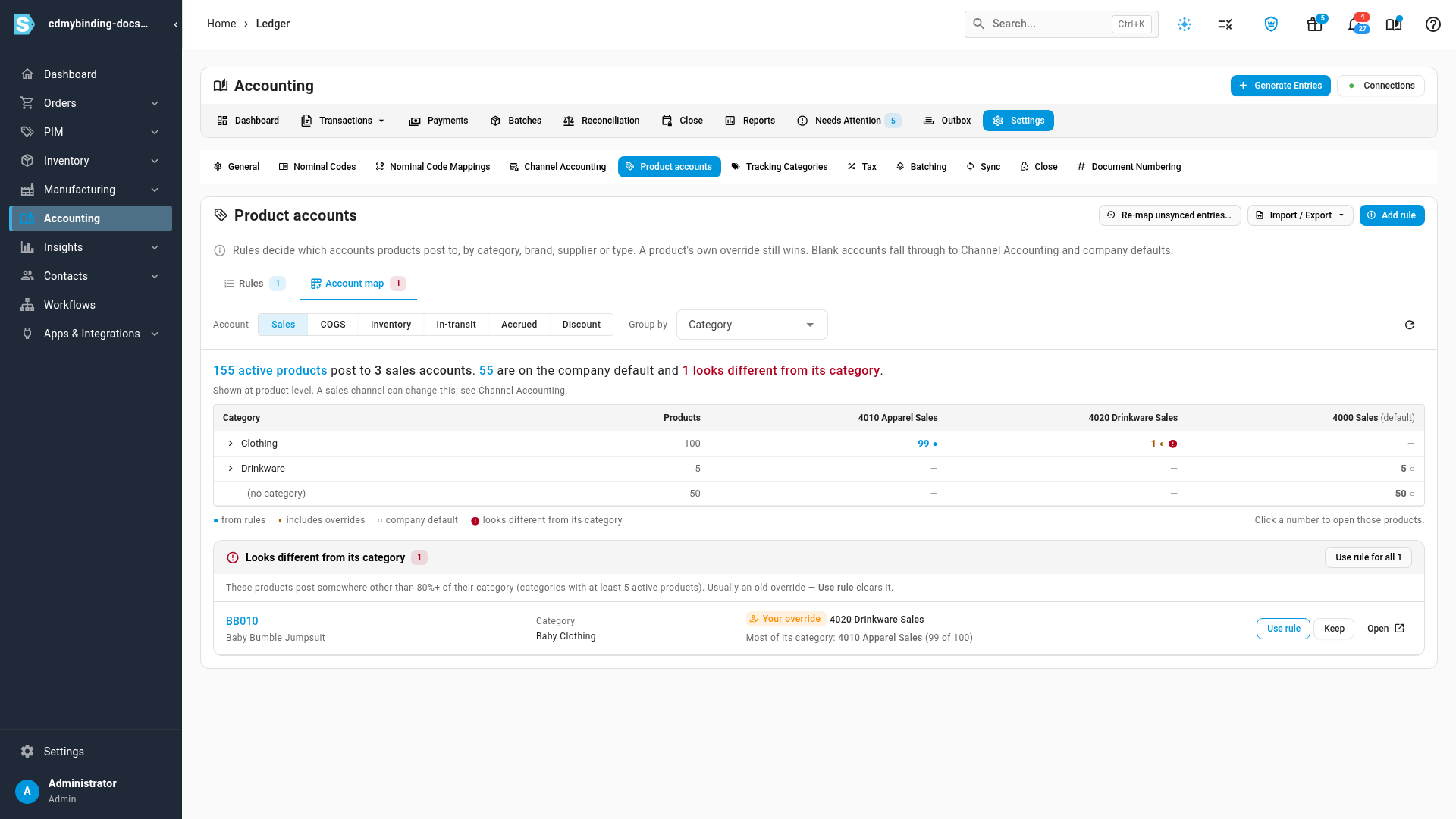
- The sentence at the top answers the question first: how many products post to how many accounts, and how many are on the company default.
- Each cell counts the products in that group posting to that account. A dot shows whether they got it from rules, include overrides, or are on the company default. Click any number to open those products.
- Looks different from its category lists products that post somewhere other than at least 80% of their category, in categories with five or more active products. It's usually an old override set by hand.
For each flagged product you can:
- click its SKU to open it,
- click Use rule to clear its override so it follows the rules again, or
- click Keep if the difference is intentional. A kept product isn't flagged again unless its account changes.
Use rule for all clears the overrides on every flagged product at once.
Read where a product's account comes from
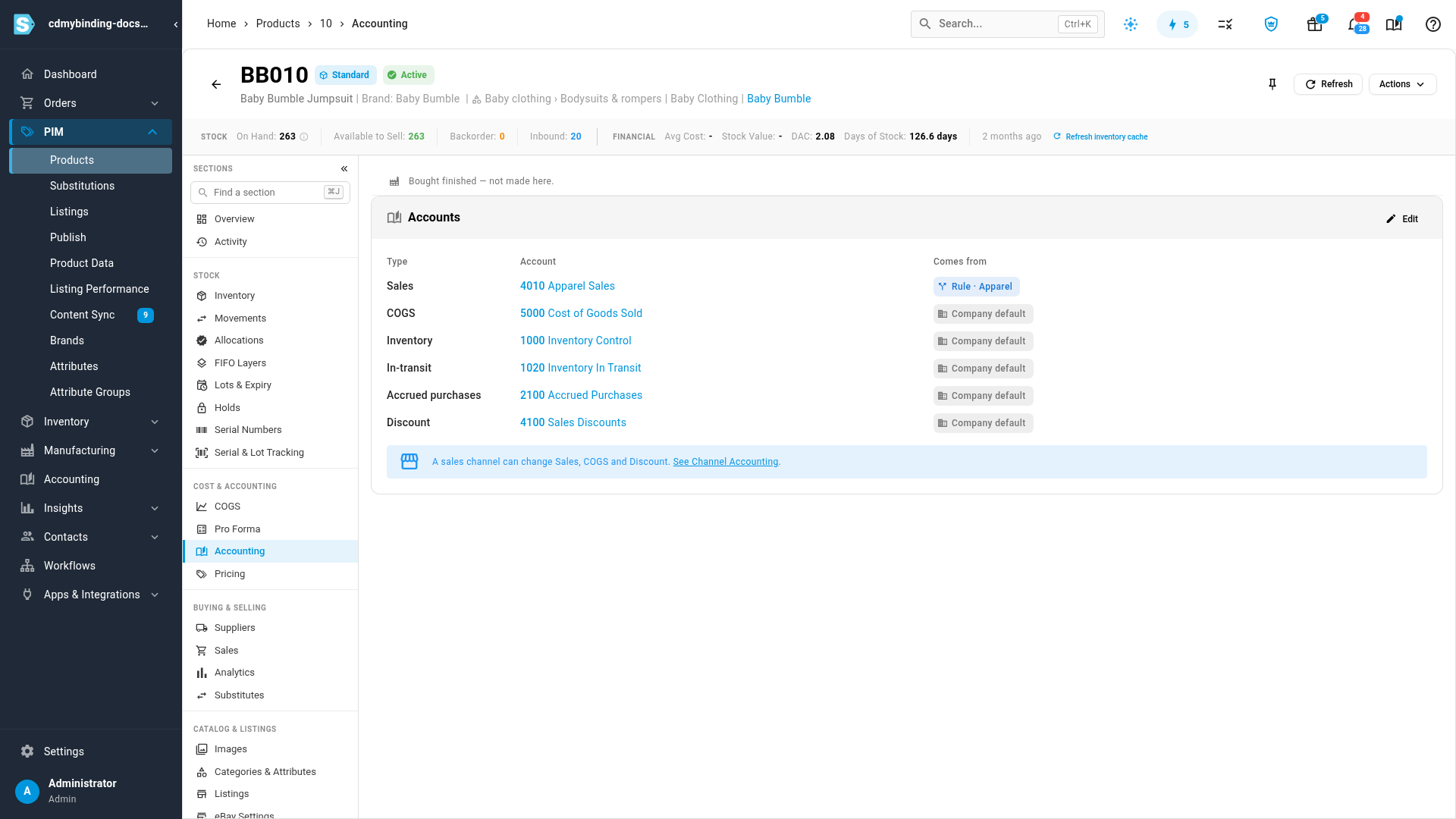
On a product's Accounting tab, the Comes from column says where each account is set: Your override, Rule · name, or Company default. When a product has an override but a rule would apply, the account shows what the rule would set, and Use rule clears the override. See Set a product's accounting.
Set up rules with the guide
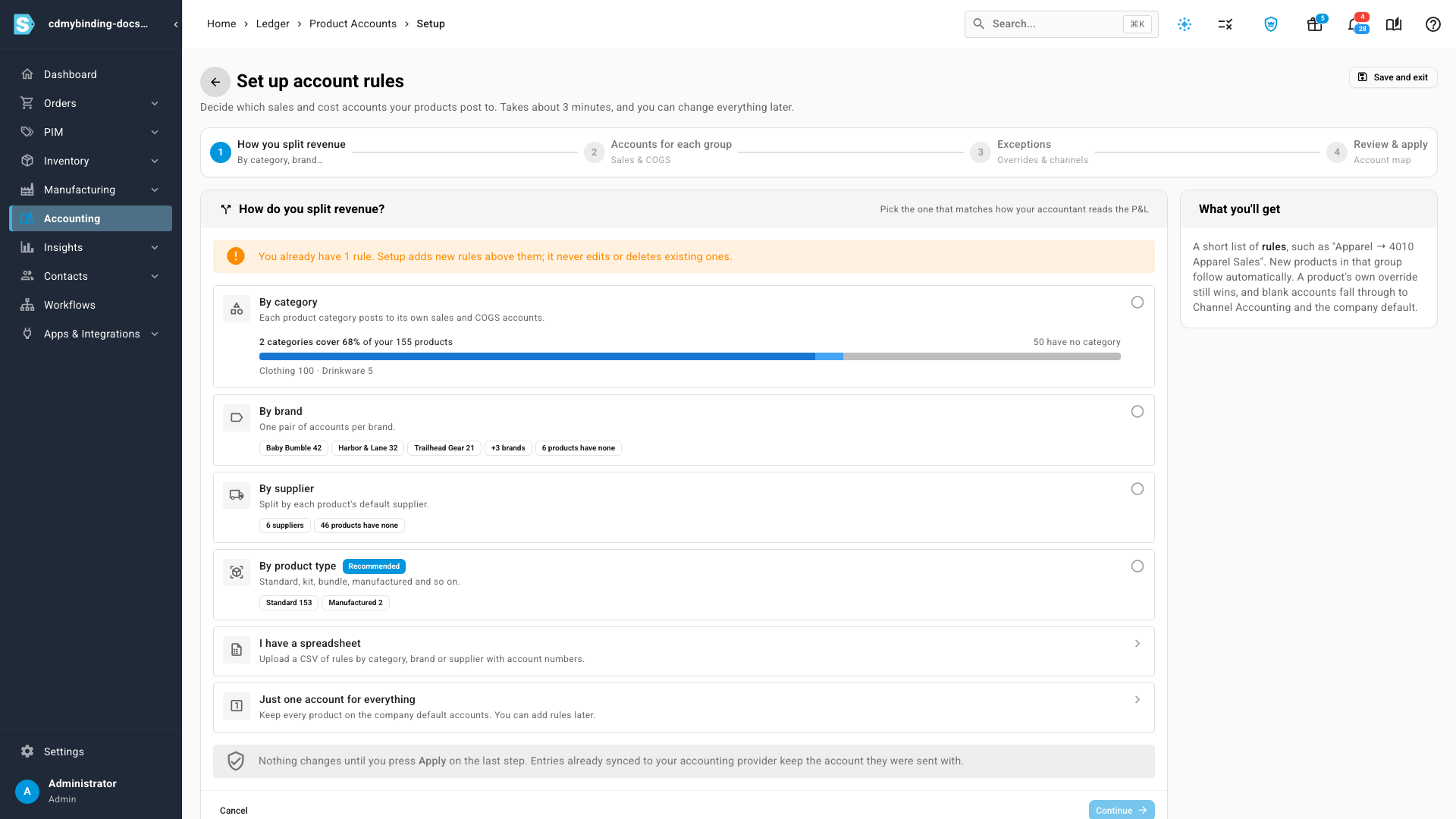
For a first setup, Guided setup (in the Import / Export menu, or Set up with a guide when you have no rules yet) builds the rules for you in four steps. Nothing changes until you click Apply on the last step, and it never edits or deletes rules you already have; it adds new ones above them.
-
How you split revenue. Choose By category, By brand, By supplier or By product type, or Just one account for everything. Each option shows how much of your catalog it covers. I have a spreadsheet opens the rules import instead.
-
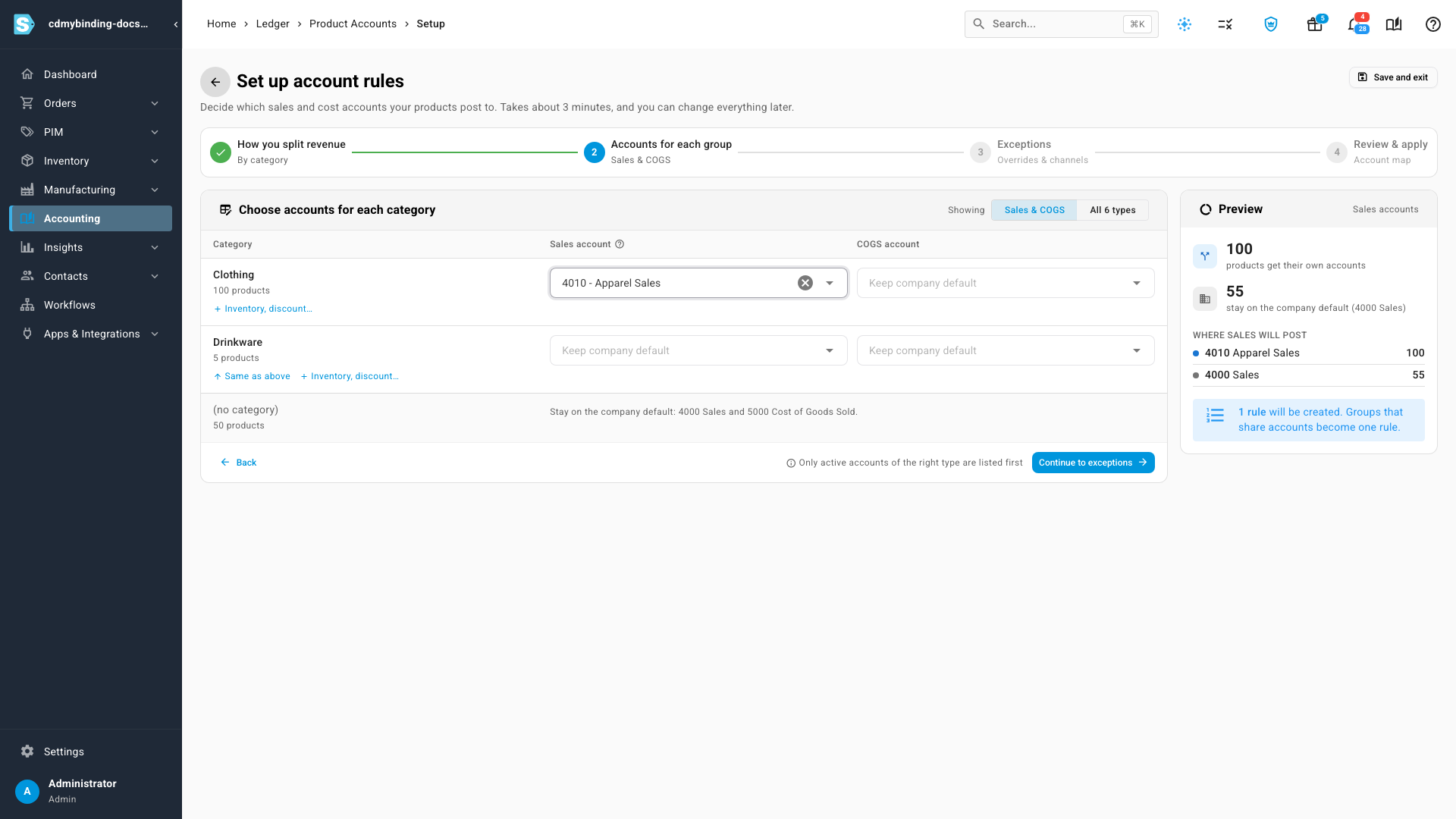
Accounts for each group. Pick the sales and COGS accounts for each group, or All 6 types to set the others too. Same as above copies the previous group's accounts. Groups left on Keep company default get no rule, and the Preview shows where sales will post.
-
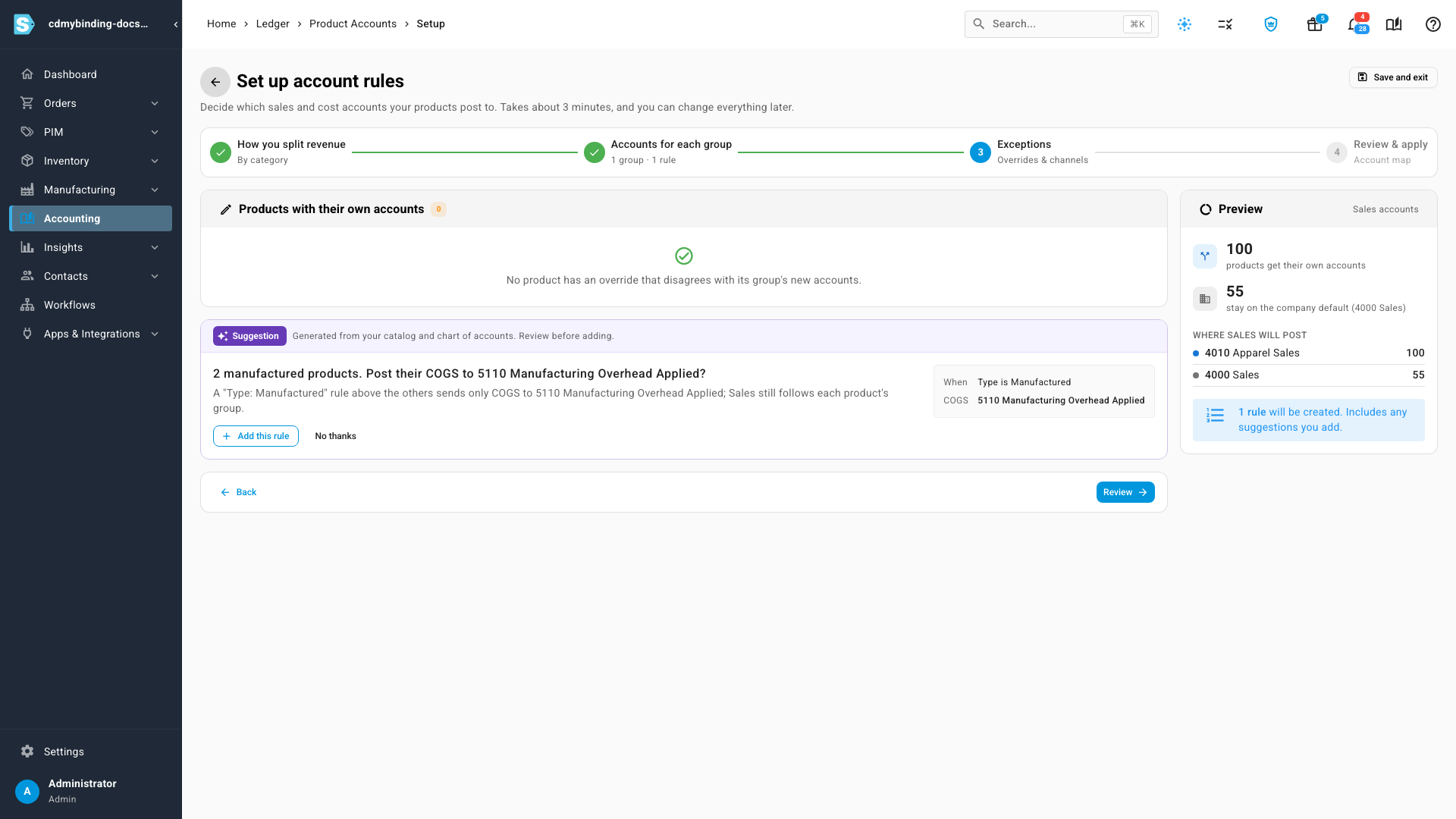
Exceptions. Review products whose own override disagrees with their group's new accounts, and decide whether to replace or keep each one. The guide may also suggest an extra rule it found in your catalog. Nothing is added unless you click Add this rule.
-
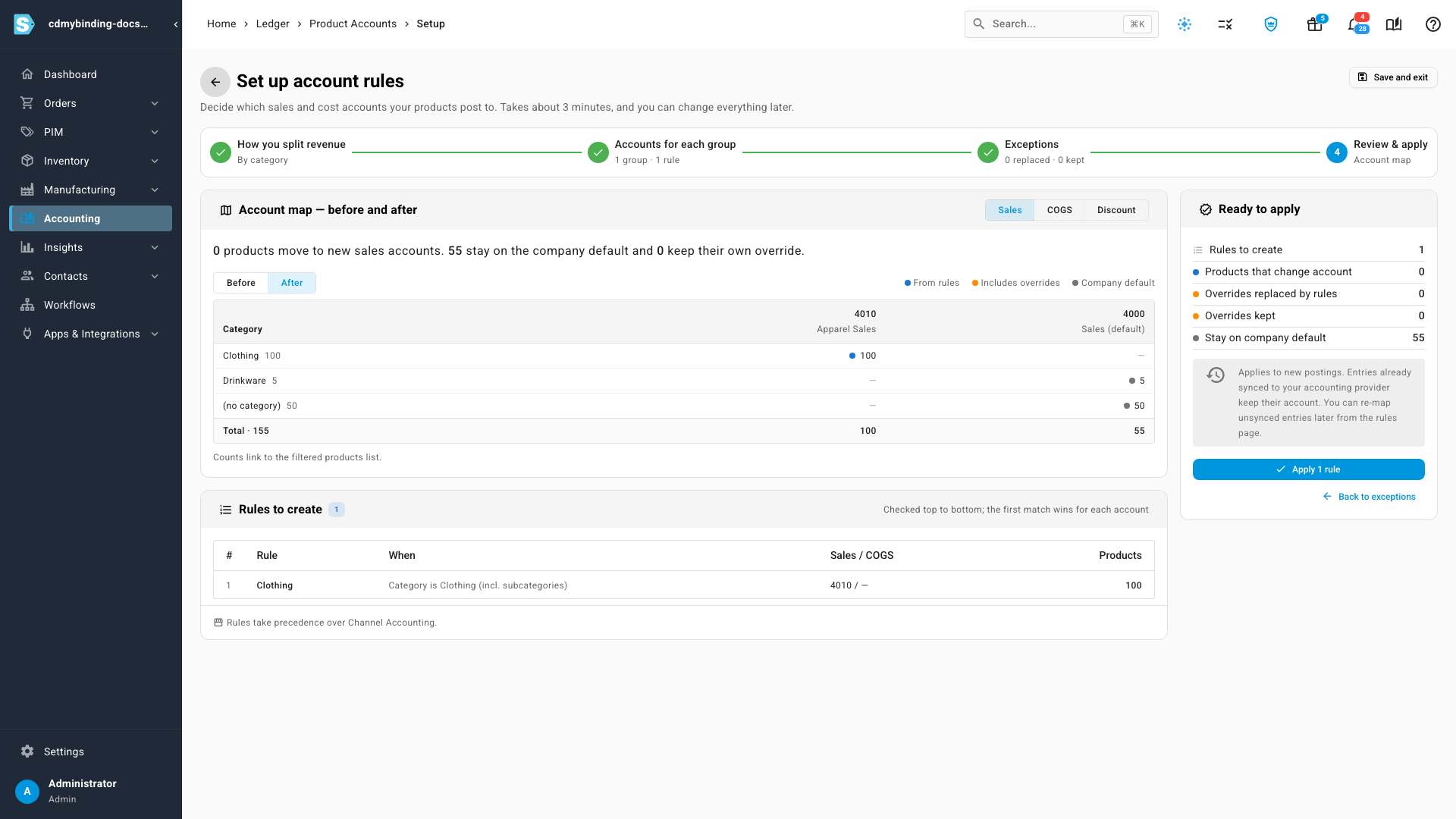
Review & apply. Compare the account map before and after, check the rules it will create and how many products change, then click Apply.
Re-map entries that haven't synced
Saving a rule changes postings from then on. Journal entries already waiting to sync keep their old account until you re-map them.
- On the Product accounts page, click Re-map unsynced entries….
- Check the counts: Entries that will be re-mapped, and the entries skipped because they're already synced or in a locked period. Entries on invoices that are already issued, and kinds of entry that can't be re-mapped, are listed as skipped too.
- Click Re-map N entries.
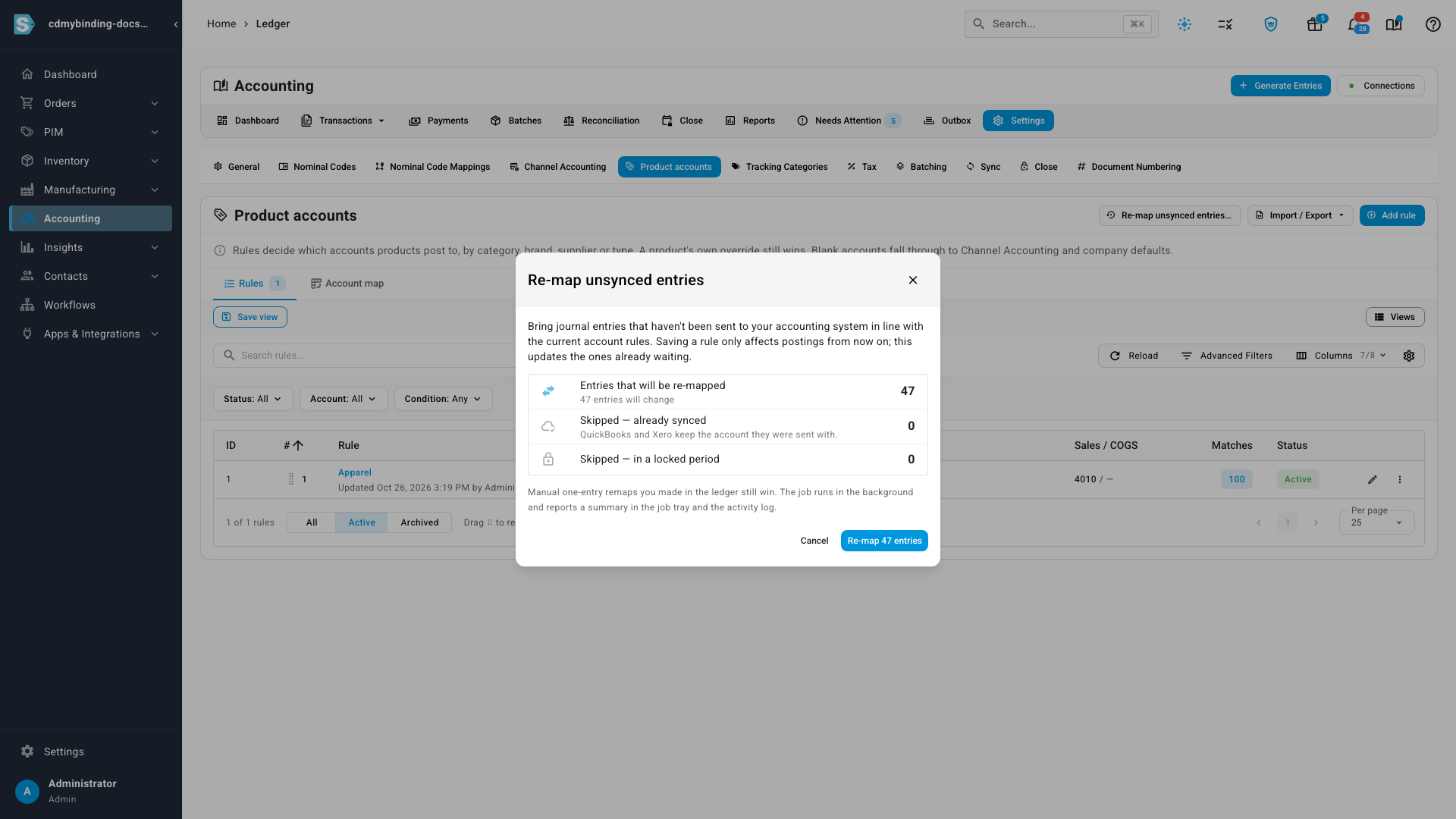
The re-map runs in the background and reports a summary in the job tray and the activity log. Entries already sent to QuickBooks or Xero keep the account they were sent with, and a one-entry re-map you made by hand in the ledger still wins.
Keep rules in a spreadsheet
Import / Export lets you export your rules as a CSV, download a template pre-filled with your top-level categories, and import a rules sheet back. Every column is described in the Account rules import and export reference. To set or clear a single product's accounts from a product sheet instead, see the account columns of the product import.
Next steps
- Set a product's accounting: override one product, or send it back to the rules.
- Use different accounts for each sales channel: the channel level that rules sit above.
- Fix entries posting to the wrong account: correct entries that have already posted.
Video transcript
Account rules send whole groups of products to their own sales and cost accounts. To find them, open Accounting from the sidebar. Then choose the Settings tab, and after that, open the Product accounts tab. Rules are checked from the top down, and the first one that matches wins. To add one, click Add rule, and give it a name your team will recognize. Next, open the category list, and choose the category it should cover. Then open the sales account list, and pick the revenue account for that category. As you build it, the preview counts the matches, and how many will change. Nothing is saved until you click Save rule, so check those numbers first. Switch to Account map to see where your whole catalog posts. Anything posting somewhere other than most of its category gets flagged below. Usually, that's an old override someone set by hand. Click the SKU to open that product's Accounting tab, with every account listed. The Comes from column says where each account is set. To drop the old override, click Use rule next to Sales, and then confirm. From now on, its sales follow the Apparel rule, like the rest of the category.