Product detail page reference
The product detail page is where every facet of a single product lives, split into sections that you open from a rail down the left side. You reach it by opening any row from the products list. This page is a reference map of that screen: what each part shows, when it appears, and where the deeper documentation lives. For how the underlying record is put together, see Product fields & validation reference; for the list you came from, see Products list columns, search & filters reference.
Before you begin
Most read actions on the page require the products read scope. Specific controls are gated by permission:
| Control | Permission |
|---|---|
| View the page and its sections | products read scope |
| Adjust Inventory action | inventory.adjust |
| Create Blemished Product action | products.update |
| Inline edits in any section | products.update (governed by a shared edit lock — see Editing model) |
See Product permissions reference for the full permission list.
Page shell
The shell is the same for every product; only the sections and stats vary by type. Top to bottom, the shell is: the header row and the stats bar, then the section rail on the left with the open section beside it.
Header row
| Element | What it shows |
|---|---|
| Back arrow | Returns to the previous screen (usually the products list, preserving your filters). |
| SKU title | The product's SKU, shown large. Reads Loading… until the record arrives. |
| Type chip | The product type (standard, bundle, kit, matrix, blemished, manufactured), color-coded. See Product types explained. |
| Lifecycle chip | The product's lifecycle state, such as Phasing out (with its end date) or Discontinued. Active products show no chip. Click it to open the lifecycle panel: the reason, dates and successor, any Scheduled change, Recent transitions with Undo, a Change button and See all in Activity. See How product lifecycle works. |
| Replaced by link | Shown when the product has a successor. Opens the successor's page. See Link a successor product. |
| Status chip | Active (green) or Archived (grey). See Archive, unarchive & delete a product. |
| Subtitle | Product name, then Brand, primary category, and default supplier when set. The supplier is a clickable link to its record. |
| Presence avatars | Who else is viewing this product right now. |
| Record navigator | Previous / next arrows to page through the product set you arrived from. |
| Refresh button | Re-fetches the whole record from the server. |
| Actions menu | Type- and permission-gated actions. See Actions menu. |
Not-found state
If the product ID doesn't exist (or was deleted), the page replaces its body with a Product Not Found message — "The product you're looking for doesn't exist or has been deleted." — and a Back to Products button.
Default section
Opening a product with no section in the URL opens Overview. Each section is a real link, so you can right-click it and open it in a new browser tab.
Stats bar
A single strip beneath the header summarizes live stock and financial figures. It's split into a Stock group and a Financial group. Every quantity picks up the product's stock unit-of-measure suffix (for example CASE) when that unit isn't EACH; see Units of measure reference.
Stock group
| Metric | Meaning |
|---|---|
| On Hand | Physical stock across all warehouses. Hover for the full breakdown (see below). |
| Available to Sell | Net promiseable position: On Hand − Allocated − On Hold − Backorder Planned − Backorder PO Covered. Non-Sellable stock isn't subtracted. |
| Backorder | Total backordered quantity. Tooltip splits it into Backorder Planned and Backorder PO Covered. |
| Inbound | Quantity expected from open purchase orders — ordered from suppliers, not yet received. Distinct from In Transit (warehouse-to-warehouse movement). |
The On Hand tooltip shows exactly how the number is built:
  Available
+ Allocated
+ On Hold
+ Non-Sellable
= On Hand
+ In Transit
= Total Inventory
On Hand deliberately includes Non-Sellable stock — it's the count of everything physically in your warehouses, sellable or not. For what each of these stock states means, see Stock states & fields reference and View a product's stock.
Negative Available to Sell
When Available to Sell is below zero, the figure turns red and becomes a clickable menu instead of a plain tooltip. Opening it explains the shortfall — "Overcommitted by N units. Open orders exceed free stock." — and lists two recovery paths:
- Reduce demand — cancel or edit open orders.
- Increase supply — accelerate inbound POs.
Work the shortfall from the backorder queue.
Financial group
| Metric | Meaning |
|---|---|
| Avg Cost | Unit-weighted average across active FIFO layers, refreshed on every inventory change. When the stock unit isn't EACH, it's shown per that unit (for example / CASE). |
| Stock Value | Total valuation of on-hand stock. When on-hold stock has value, a (Reserved: …) figure is appended. |
| DAC | Daily Average Consumption — average units sold per day over the trailing window; drives forecasted demand and stock targets. |
| Days of Stock | How long available stock lasts at the current rate: Available ÷ DAC. Shows ∞ when there's no recent consumption. |
Avg Cost and FIFO valuation are owned by the inventory guide — see FIFO layers & COGS.
Inventory cache freshness
At the end of the bar, the stats show when the inventory cache was last recomputed as a relative time (hover for the exact timestamp), or Not calculated if it has never run. Next to it, a Refresh inventory cache button recomputes the cached stock figures and average cost on demand — see Refreshing the inventory cache.
Actions menu
The Actions menu appears only when at least one action is available for this product and you. Each item is independently gated:
| Action | Shown when | Result |
|---|---|---|
| Adjust Inventory | You have inventory.adjust. Enabled only for inventory-bearing types (standard, kit, blemished, manufactured); for other types it's disabled with the tooltip <type> products don't carry inventory. | Opens the Adjust Inventory dialog. |
| Create Blemished Product | Product is standard or kit and you have products.update. | Opens the create-blemished dialog. See Create a blemished product. |
| Assemble Kit | Product is a kit. | Navigates to the assemblies workflow in the Inventory area, pre-set to assemble this product. |
| Disassemble Kit | Product is a kit. | Navigates to the assemblies workflow, pre-set to disassemble this product. |
| Change lifecycle… | Always listed. Without the Products → Lifecycle permission, this and the three items below are disabled, with a tooltip. | Opens the Change lifecycle dialog. See Discontinue a product. |
| Phase out… | Product is not already phasing out or discontinued. | Opens the dialog with Phasing out chosen. See Phase out with a final buy. |
| Discontinue… | Product is not already discontinued. | Opens the dialog with Discontinued chosen. |
| Reactivate | Product is not Active. | Asks you to confirm, then moves it back to Active. See Reactivate a product or undo a change. |
Assemble / Disassemble build or break down kit stock from its components. Kits carry their own inventory (unlike bundles) — see Kits vs bundles and Build bundles & kits in the Workshop.
Adjust Inventory dialog
The dialog performs a manual stock adjustment against one warehouse. Its fields:
| Field | Notes |
|---|---|
| Product | Defaults to the current product; searchable if you need to switch. |
| Adjustment Date | The effective date of the movement. |
| Warehouse | Required — you must pick one before saving. |
| Location | Shown only for a locations-enabled warehouse. |
| Adjustment Type | Segmented control: increase, decrease, or set (set-to-value). |
| Quantity | For set, the minimum is 0; otherwise 1. |
| Cost | For an increase, choose the cost basis (default COGS or a unit cost). |
| Lot allocation | For a lot-tracked product being decreased (or a "set" that nets to a decrease), a FEFO-suggested, user-overridable lot picker appears. |
| FIFO consumption preview | For a decrease on a non-lot-tracked product, previews which FIFO layers will be consumed. |
Manual adjustments are part of the inventory domain — the concepts, reasons, and ledger effects are documented under Adjust stock, How adjustments work, and Stock adjustment reference.
Section rail
The Sections rail down the left side of the page lists every section of the product, grouped by the job it belongs to. Click a section to open it. The one you're in is highlighted.
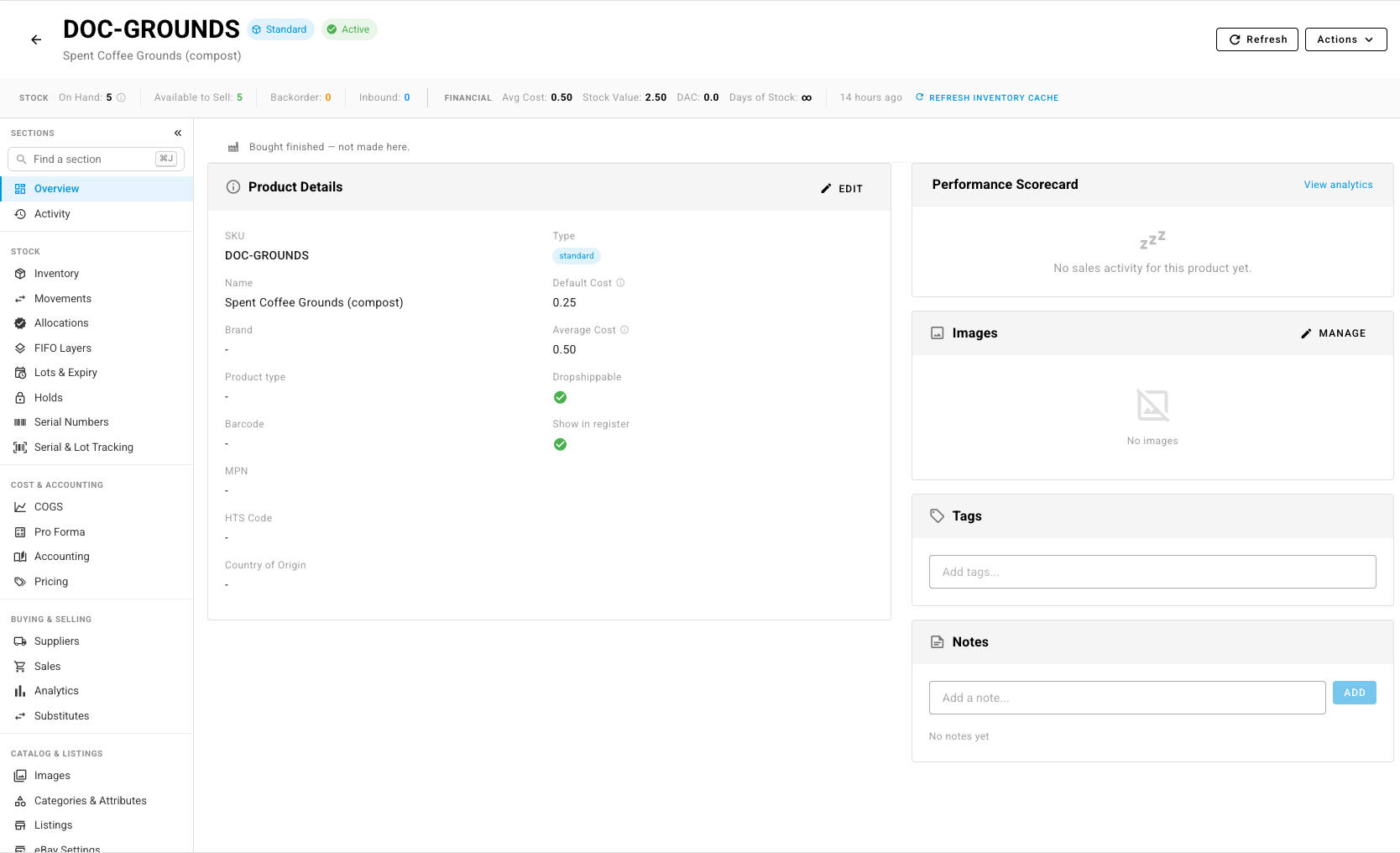
-
Find a section at the top of the rail narrows it as you type. Typing a group's name, such as "cost", keeps that whole group. Use the arrow keys and Enter to open a match.
-
Press ⌘J (Ctrl+J on Windows) anywhere on the page to open Jump to section, type a few letters, and press Enter. It works even while you're typing in a field.
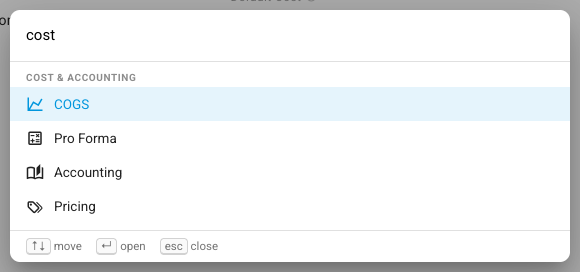
-
Click the double arrow at the top of the rail, or press ⌘\ (Ctrl+\), to collapse it to icons and give the section more room. Point at an icon to see its name. Press it again to expand. The rail remembers your choice in this browser, and starts collapsed on narrower screens until you choose.
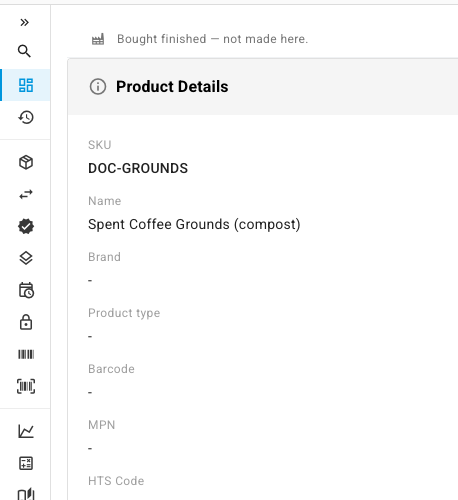
On a phone, the rail is replaced by a section picker at the top of the page.
Section visibility rules
Three rules decide which sections appear for a product:
- Stock sections — Movements, Allocations, FIFO Layers, Lots & Expiry, Holds, Serial Numbers, Serial & Lot Tracking, COGS and Quality Spec — appear only for inventory-bearing types (
standard,kit,blemished,manufactured). They're hidden forbundleandmatrix, which hold no stock of their own. A group left empty, such as Stock on a bundle, disappears from the rail. - Composition appears only for
bundleandkit. eBay Settings appears only when an eBay integration is connected. - Your role can hide sections. COGS and Accounting are shown only to roles that are given access to them. Any other section can be hidden for a role. See Product permissions reference.
The sections
| Group | Section | Purpose | Deeper docs |
|---|---|---|---|
| — | Overview | Landing summary — key fields, performance chip, and (for bundles) bundle potential. | This page |
| — | Activity | Notes and audit history. | Activity section |
| Stock | Inventory | Stock by warehouse, min-stock, preferred bins, POs, transfers, FBA. | Inventory section |
| Stock | Movements | Per-product view of the movement ledger. | The movement ledger |
| Stock | Allocations | Allocations and backorders for this product. | Allocations & backorders |
| Stock | FIFO Layers | The product's FIFO cost layers. | FIFO layers & COGS |
| Stock | Lots & Expiry | Lot and expiry tracking, with a lot-genealogy view. | Set up lot and expiration tracking |
| Stock | Holds | Stock holds placed on this product. | Holds section |
| Stock | Serial Numbers | The serial numbers recorded against this product. | Serial numbers reference |
| Stock | Serial & Lot Tracking | Whether the product is tracked by serial or lot. | Serial numbers reference |
| Cost & Accounting | COGS | Cost-of-goods history and recalculation. | COGS section |
| Cost & Accounting | Pro Forma | Landed-cost and margin modeling. | Pro Forma section |
| Cost & Accounting | Accounting | Financial line type and nominal codes. | Set a product's accounting |
| Cost & Accounting | Pricing | Price, pricing tiers, the product's pricing sync profile, and the Price history card (every price change, including clearance markdowns). | Set a product's price |
| Buying & Selling | Suppliers | Supplier links, costs, and the default supplier. | Manage a product's suppliers |
| Buying & Selling | Sales | The product's sales. | This page |
| Buying & Selling | Analytics | Period-comparison sales KPIs and charts. | Analytics section |
| Buying & Selling | Substitutes | Products that can stand in for this one. | This page |
| Catalog & Listings | Images | Product images. | Add & manage product images |
| Catalog & Listings | Categories & Attributes | Category and attribute assignments. | Set a product's categories & attributes |
| Catalog & Listings | Listings | Sales-channel listings, channel categories, and channel availability. | Keep a product off some or all channels |
| Catalog & Listings | eBay Settings | Per-product eBay listing settings. | eBay Settings section |
| Make & Setup | BOMs | Bills of materials. | BOMs section |
| Make & Setup | Composition | The components of a bundle or kit, with dated revisions. | Change a kit's recipe over time |
| Make & Setup | Units of Measure | The product's units and conversions. | Configure units of measure |
| Make & Setup | Quality Spec | The tests and limits a lot of this product must pass. | Set a product's quality spec |
| Make & Setup | Shipping | Shipping-related fields. | Product fields & validation reference |
Inventory section
Beyond the numbers the inventory guide already owns, the section surfaces product-detail-specific sections:
- Warehouse Inventory table — stock per warehouse, with the reorder point (min stock level) editable inline and preferred bins shown per row.
- Purchase Orders section — open POs feeding this product.
- Warehouse Transfers section — transfers moving this product.
- Preferred Bin dialog — set the preferred storage bin. See Manage preferred storage bins.
- FBA Inventory dialog — Amazon FBA breakdown.
The warehouse stock rows, opening balance, min-stock concept, and per-product stock numbers are documented in the inventory guide — see Set up product inventory and Browse the product inventory list. This section doesn't re-explain them.
COGS section
Shows the product's cost-of-goods-sold history and current valuation, drawn from warehouse FIFO layers only — Amazon FBA inventory is tracked separately (on a weighted-average-cost ledger) and summarized in its own Amazon FBA panel rather than mixed into the warehouse figures. A Recalculate COGS action rebuilds the cost history from scratch; the last rebuild time is shown on the list. COGS rebuild and correction concepts live in the inventory guide — see Rebuild COGS and Correcting COGS.
Holds section
Lists stock holds on the product, with a Released (30d) summary. You can Release or Delete holds one at a time from each active row, or select several and use the bulk Release / Delete actions; each path asks for confirmation first. Releasing requires inventory.adjust. The hold concept and how holds affect availability are documented at Place a stock hold.
Analytics section
Sales and consumption analytics scoped to this product. A period-comparison toggle drives the comparison window, and each metric shows its period label. When the current period isn't yet complete, the section notes "This period is still in progress" and compares against an equivalent partial window so the comparison stays fair.
Pro Forma section
A thin wrapper around the shared Pro Forma Analyzer, keyed to this product — landed-cost and margin modeling. See also Bundle pricing & revenue proration for how bundle economics are apportioned.
BOMs section
Lists the Bills of Materials tied to this product (used by manufactured products). When none exist it shows "No BOMs for this product." Product types are explained in Product types explained.
eBay Settings section
Per-product eBay listing settings, one row per eBay integration. The section only appears when an eBay integration exists, and it still guards for the empty case ("No eBay integration instances found."). Publishing itself is covered in Publish.
Activity section
Two sections: an activity/audit history table and a Notes panel with an Add a note input. See Activity log & notes for what the history captures.
Above them, a Lifecycle card lists every lifecycle change for the product, with its source and any cancelled scheduled changes. See Reactivate a product or undo a change.
Overview widgets
Two small widgets can appear on the Overview section:
- Product performance chip — a composite scorecard (a banded score with a trend chip and sparklines for sales volume and units sold). When there is too little data it shows "Insufficient data" with the sales-order count for the period rather than a misleading score.
- Bundle potential — for
bundleproducts, surfaces the maximum assemblable quantity given current component stock, broken down by component and warehouse. See Kits vs bundles.
Editing model
The detail page has no single edit form — editing is spread across many independent sections. The page holds one pessimistic record lock for the whole product: the first section you open acquires it and the last you close releases it. If another user (or your own other browser tab) holds the lock, a banner explains who is editing and lets you request edit access or take over. If your lock is taken over mid-edit, open sections drop back to read-only and the record is re-fetched so you are never left with unsaveable changes.
Refreshing the inventory cache
The Refresh inventory cache button (in the stats bar) recomputes the product's cached stock figures and average cost synchronously — it runs the inventory recompute immediately rather than queuing a job — then reloads the record and confirms with "Inventory recalculated." If the recompute fails, the server returns an error and the message is surfaced to you. Use it after out-of-band changes when the cache-freshness timestamp looks stale. This is distinct from the header Refresh button, which only re-fetches the record without recomputing.
Activity log & notes
The Activity section's history is an aggregated audit trail: it rolls up events from the product itself plus its supplier products and supplier product pricing, grouped by the product so supplier-side changes appear alongside product-side ones. Logging records only the fields that actually changed, ignores bookkeeping timestamps, and skips empty entries — so the trail stays signal, not noise. You can search the history by the person who made the change, the event, the changed values, or the kind of record it happened on.
Notes are free-text entries attached to the product, newest first, each stamped with its author.
Next steps
- Edit a product's details — how inline editing works across the sections.
- How a product flows through the system — where the record connects downstream.
- Products, channels & reporting (seams) — how the detail page's data reaches channels and reports.
- Products — overview — the map of every product task.