Show barcodes on order lines
A product's barcode is often the quickest way to confirm a line is the right item, whether you're scanning stock in the warehouse or matching a purchase order against a supplier's catalog. Turn on Show barcodes on order lines and the line items on sales orders, purchase orders and sales credits show a Barcode column next to each product.
Before you begin
- You need permission to change settings.
- The column shows the barcode saved on each product. A product without one shows a dash. To add or change a product's barcode, see Edit a product's details.
- The setting is account-wide: it changes the line items for every user.
Show or hide the Barcode column
- Go to Settings → Products → Barcodes.
- Check Show barcodes on order lines to show the column, or clear it to hide the column.
- Click Save Changes.

The setting is on for new accounts.
Where the column appears
With the setting on, the Barcode column sits straight after Product in the line items of:
- Sales orders, on the order's Lines tab.
- Purchase orders, on the Lines tab. A line you add shows its barcode straight away.
- Sales credits, in the credit's Line Items.
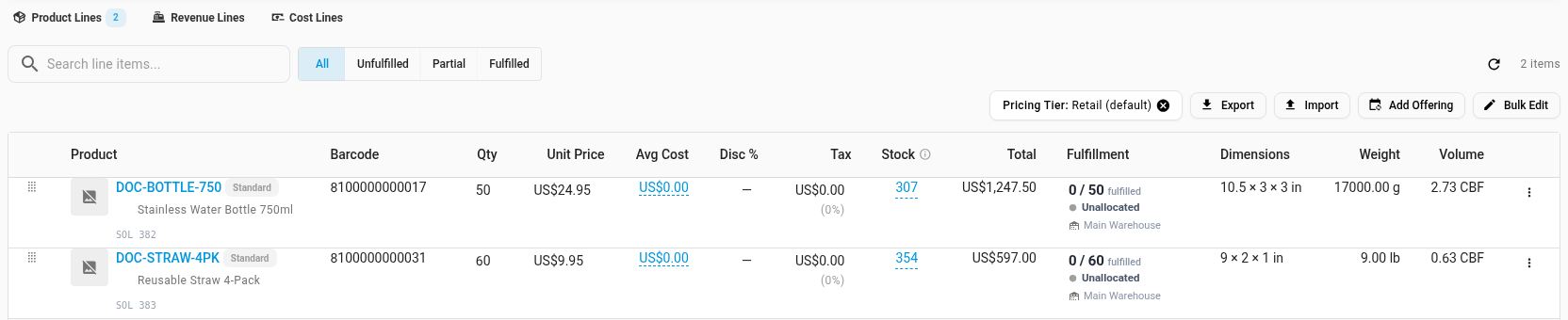

Lines that aren't products, such as a custom adjustment on a sales credit, show a dash.
Next steps
Video transcript
When you check order lines against a scanner or a supplier's catalog, it helps to see each product's barcode. Open Settings, at the very bottom of the left sidebar. Click the Products card to expand its list. A few entries down, choose Barcodes. Its page holds a single checkbox, on the right. Check Show barcodes on order lines. Then click Save Changes, which applies it for everyone on your account. The new column appears on sales orders, purchase orders and sales credits. To see the result, go to Orders in the sidebar, then Sales Orders. Pick the top entry in the list. The order opens with its lines below the details. Each line now shows its product's barcode, in a new column after the product. Buying works the same way. Open Purchase Orders from the Orders menu, and pick the top entry. Its lines load below the order details. The Barcode column sits in the same place, right after the product. To hide it again, clear the setting and save.