Hold an order until it's paid
When a customer's payment term has a release gate, their orders wait for payment before they ship. A waiting order is on a billing hold: it stays Reserved, so your team can pick, pack and create fulfillment orders, but nothing dispatches until the payment condition is met. The hold releases itself when the money lands, and you can release it by hand when you've confirmed payment some other way.
Before you begin
| Requirement | Detail |
|---|---|
| A term with a release gate | Set one up in Bill customers on a schedule. |
| Permission | Releasing a hold by hand needs the Sales Orders → Release billing hold permission. Viewing held orders needs only access to sales orders. |
Find held orders
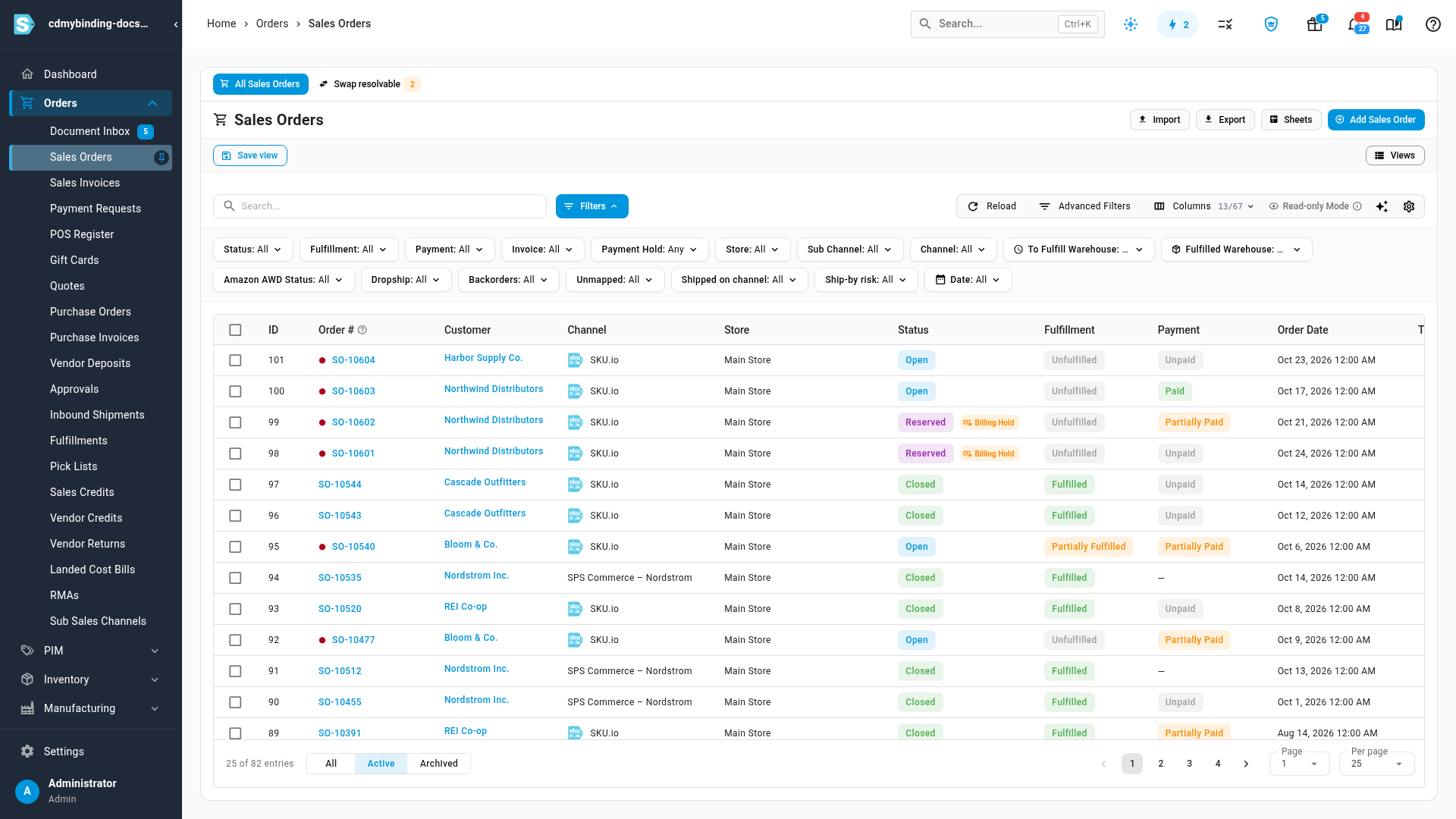
- Go to Orders → Sales Orders.
- Look for the Billing Hold chip beside an order's status. To list only held orders, add an Advanced Filters condition: Hold Reason is Billing Hold.
See what an order is waiting for
-
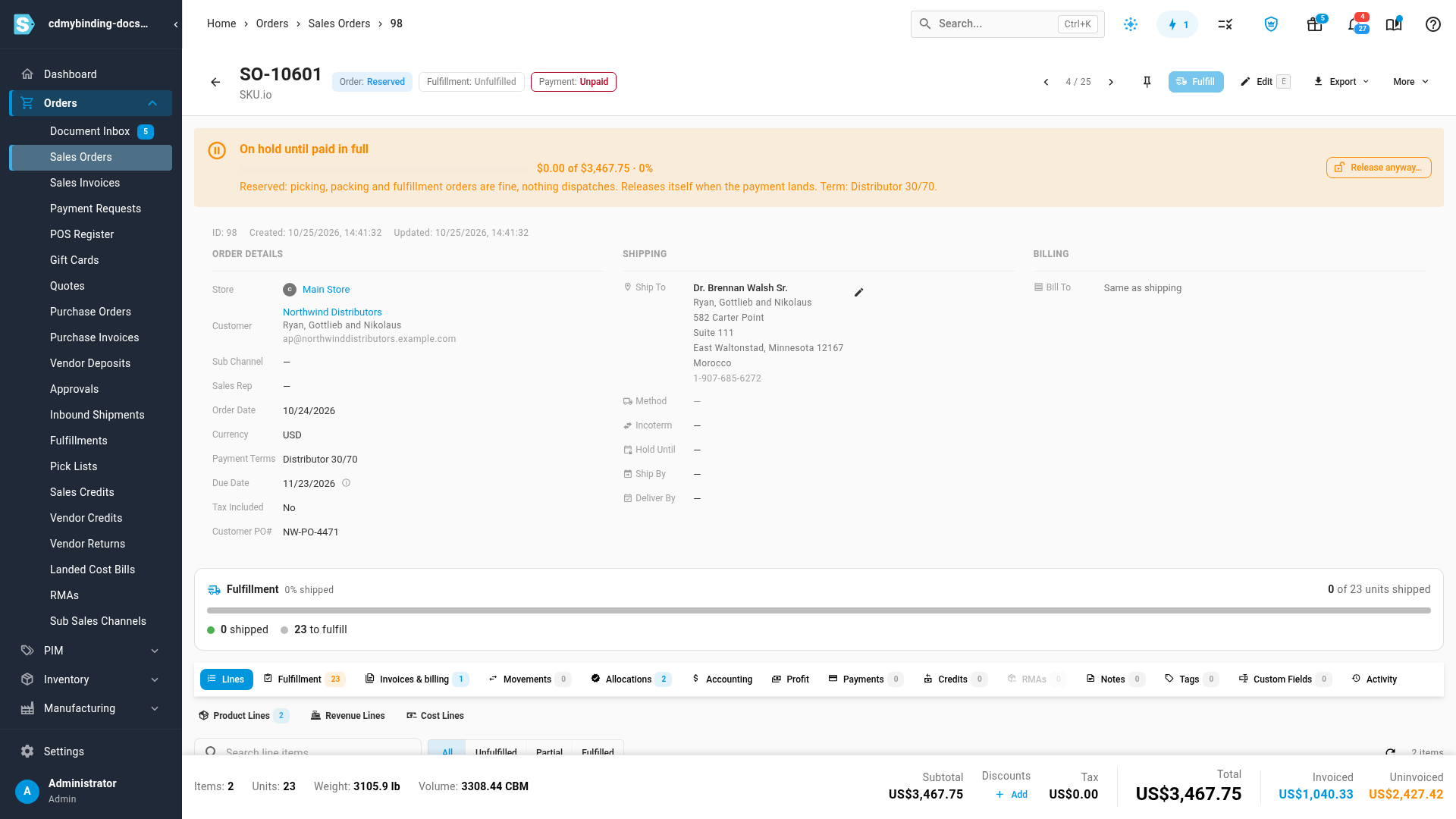
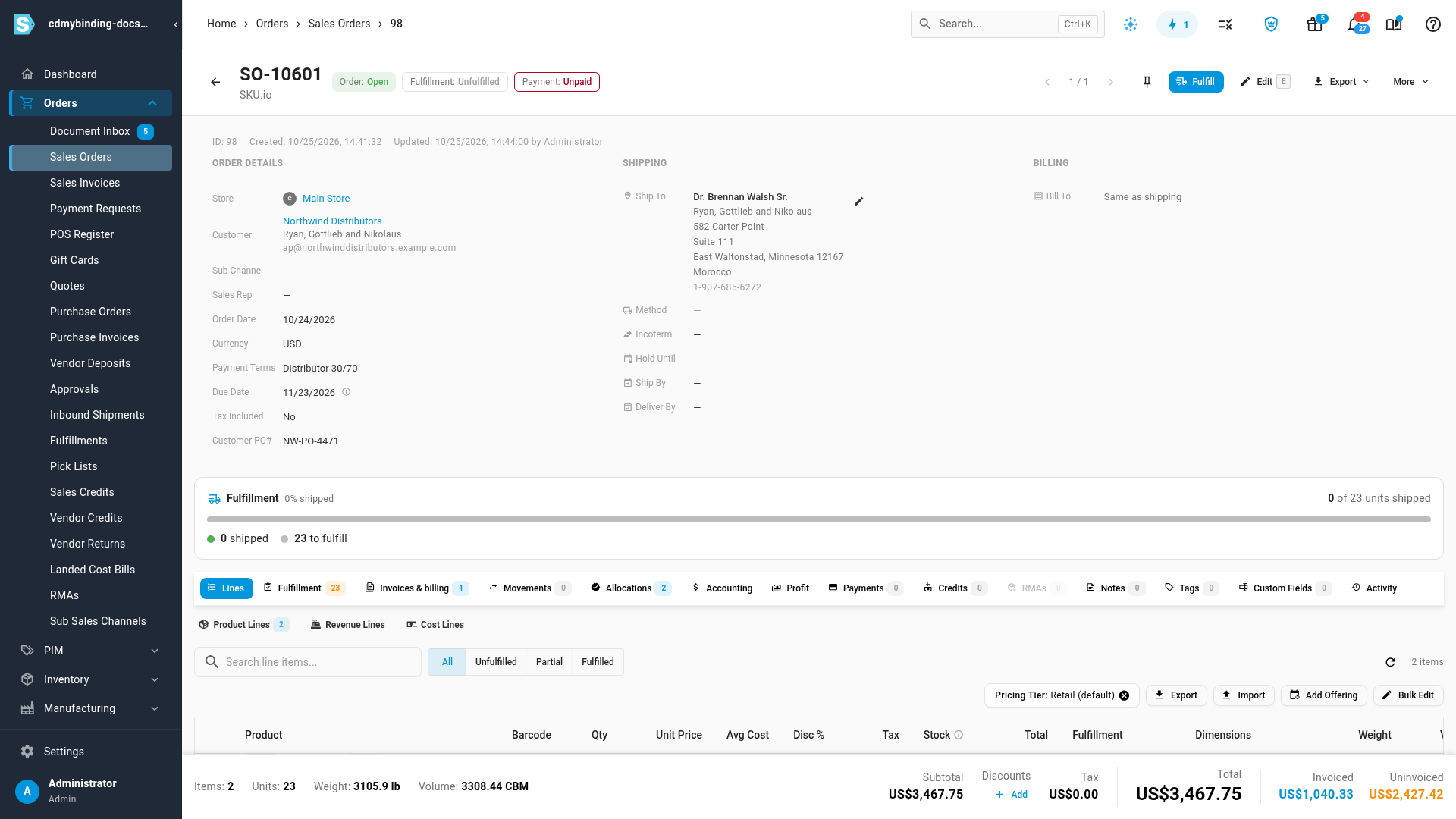
Open a held order. The banner at the top names the condition, for example On hold until paid in full, with how much has been paid so far and the term it comes from.
-
Select the Invoices & billing tab. The Billing panel lists every document the term's schedule raises, in order: what's been raised, what's been paid, and what's still waiting.
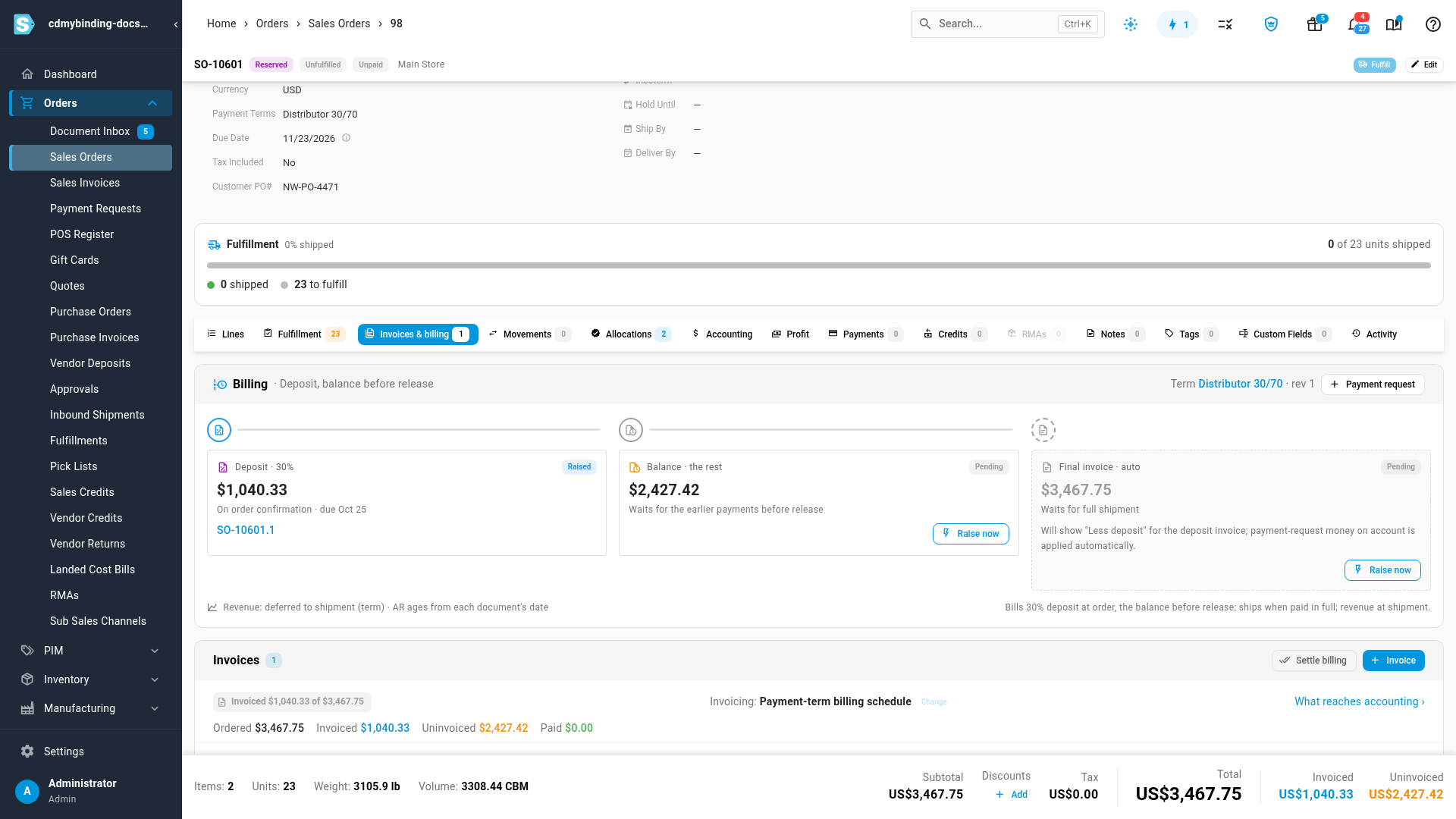
What you'll see: Fulfill is unavailable while the order is held, and its tooltip says why. Fulfillment orders can still be created and picked.
When the hold releases itself
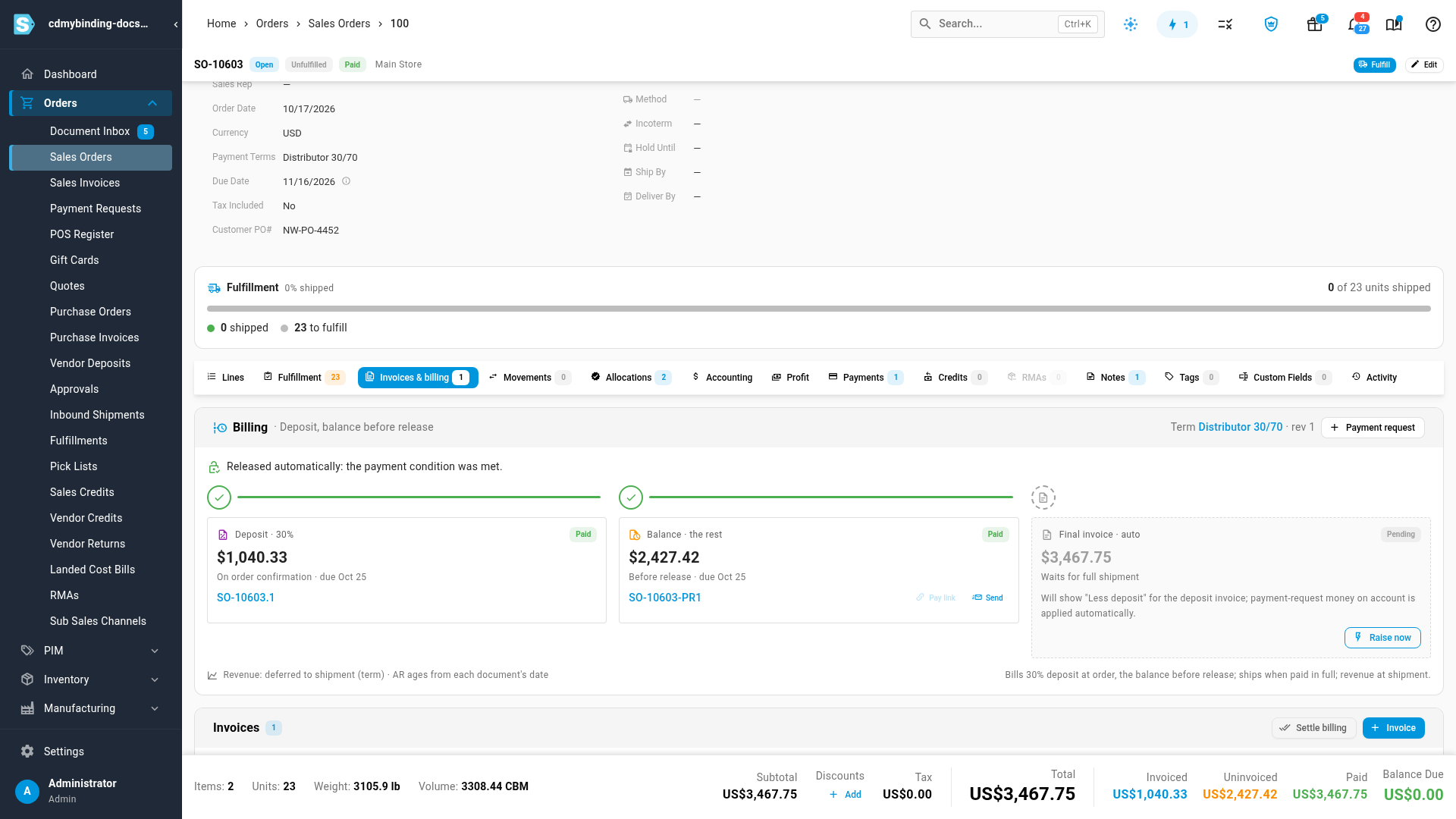
Every payment re-checks the release gate. When the customer has paid enough — the whole order, the percentage you set, or every payment due before release — the order moves to Open and can ship. The Billing panel records it: Released automatically: the payment condition was met.
If a payment that released an order is later refunded or moved, and nothing has shipped yet, the order goes back on hold.
Release a hold by hand
Use this when you've confirmed payment outside SKU.io, or have agreed to ship on credit.
- Open the held order and click Release anyway….
- Enter a Reason, for example Wire confirmed by phone. A reason is required.
- Click Release hold.
What you'll see: the order moves to Open and Fulfill becomes available. The reason is saved on the order and in its activity history, and the Billing panel shows Released anyway with your reason.
Next steps
Video transcript
Some payment terms keep an order waiting until the customer has paid. To see which ones are waiting, open Orders, then Sales Orders. Each row shows the order, its status and what has been paid. A held order also carries a Billing Hold chip. Open a held order. The banner says what it's waiting for, and how much has been paid so far. The order stays Reserved, so picking and packing can go ahead, but nothing ships. Select the Invoices and billing tab. The deposit invoice went out when the order was confirmed. The payment request for the balance waits until the deposit is paid. When the payments land, the hold releases itself. This order was paid in full, so it's already free to ship. To ship before the money arrives, click Release anyway on the held order. Type the reason you are releasing it early, then click Release hold. Moments later, the hold is gone and the order is free to ship. Your note is kept on the order and in its activity history.