Require a clean match and a second approver before paying
Two switches on Settings → Purchasing → Payment Approvals add checks before money leaves your business. Require a clean 3-way match before payment holds back any bill that doesn't match what you ordered and received until someone approves it or overrides it with a reason. Separate who requests a payment from who approves it makes sure a second person always signs off.
Before you begin
- You need permission to change settings.
- To override a bill's match, you need permission to edit purchase orders.
- Separating requests from approvals needs at least two people who can approve payments. With only one, their own payment requests wait for someone else.
- For a second person to sign off on bills, choose a default payment approver or set up an approval policy for bill payments. Without either, bills are approved as soon as they're submitted.
Turn on the payment controls
-
Click Settings at the bottom of the left sidebar, click the Purchasing card, then click Payment Approvals.
-
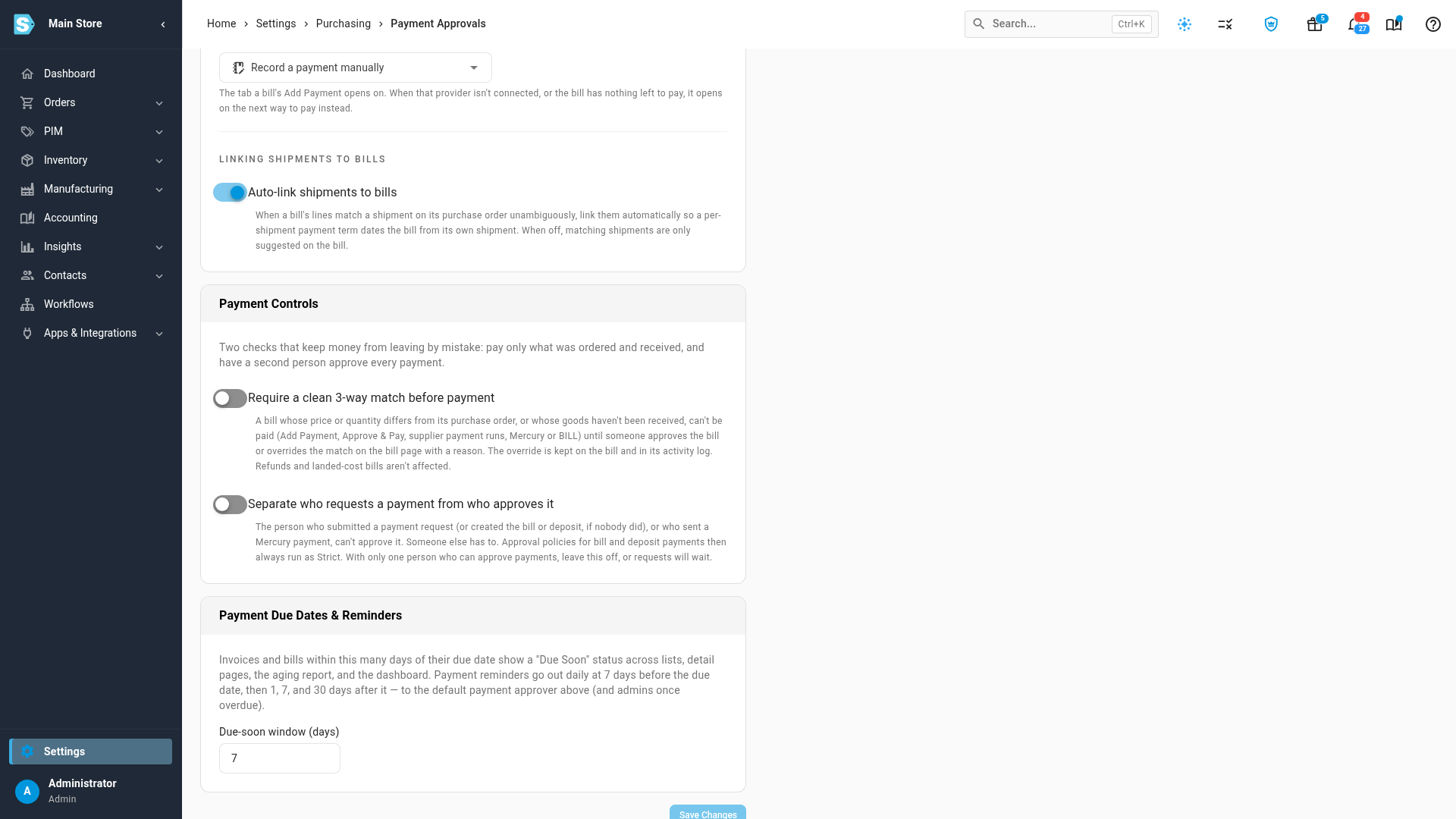
Scroll to the Payment Controls card.
-
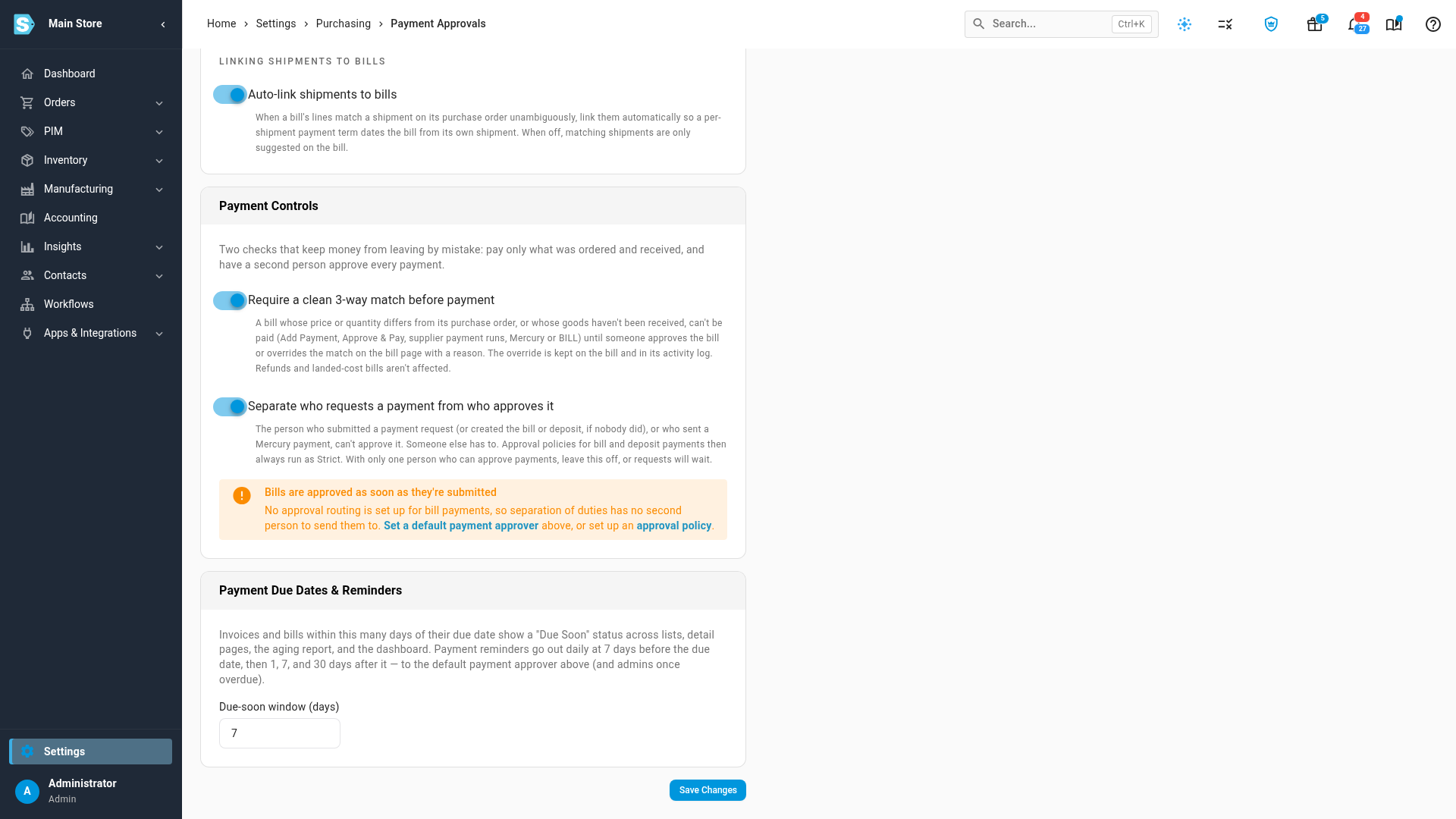
Turn on Require a clean 3-way match before payment.
-
Turn on Separate who requests a payment from who approves it.
-
Click Save Changes. Payment approval settings saved confirms it.
If nobody is set up to approve bill payments
Separating requests from approvals decides who may approve a payment. It doesn't make approval necessary. If your account has no default payment approver, no approval levels and no approval policy for bill payments, each bill is approved the moment someone submits it, and no second person signs off.
When that's the case, a warning under the switch says Bills are approved as soon as they're submitted, and the bill's Payment Authorization card says This bill is approved as soon as you submit it. To give every bill a second approver:
- Click Set a default payment approver and choose a user under Supplier Bills, then click Save Changes. The warning goes away as soon as you choose someone. Or:
- Set up an approval policy for bill payments. The link in the warning takes you there if you can view approval policies; otherwise ask an administrator.
Pay a bill that doesn't match
With the match rule on, a bill whose price or quantity differs from its purchase order, or whose goods haven't been received, shows Can't be paid yet on its Payment Authorization card, with the reason.
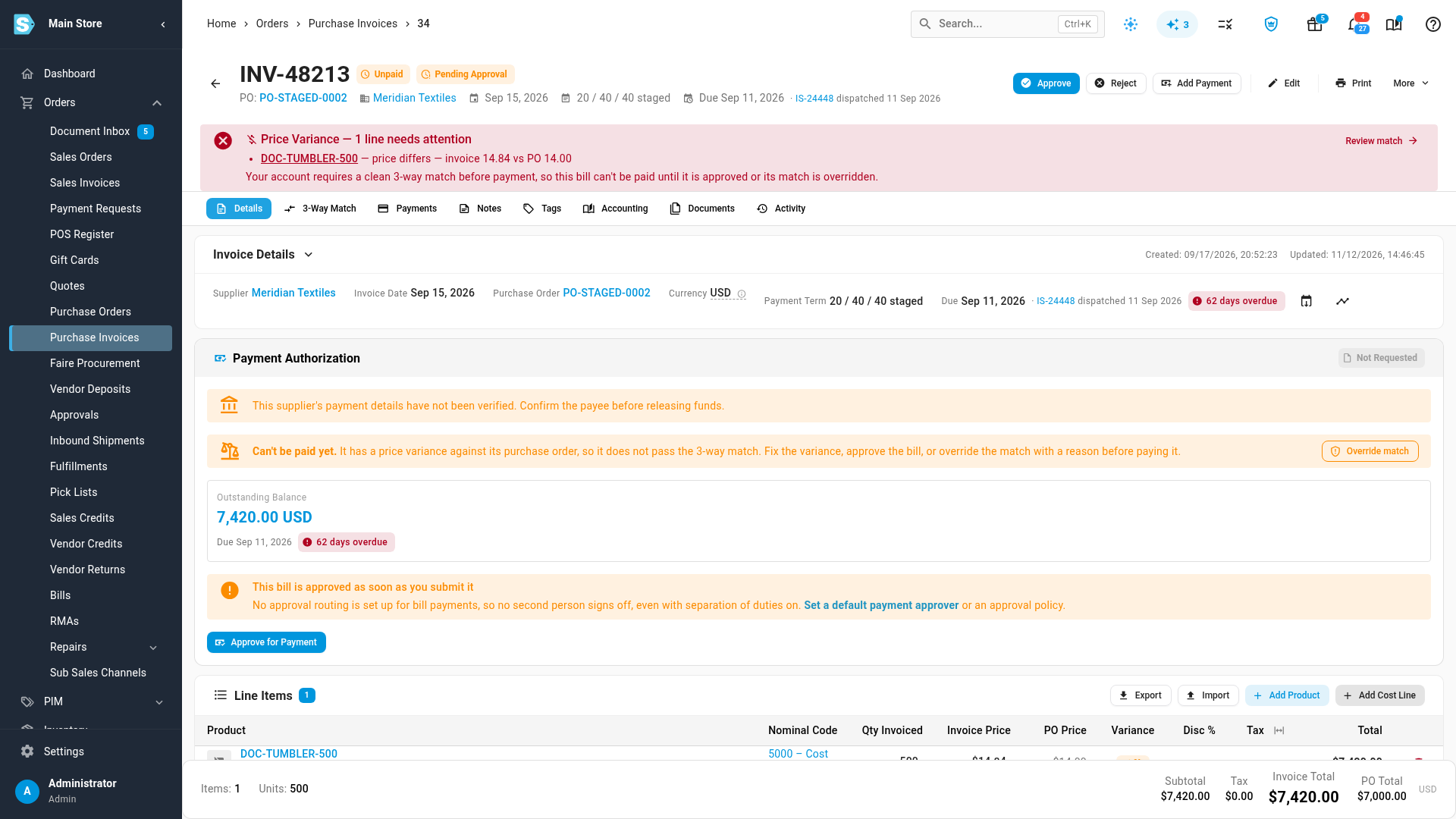
You have three ways to clear it:
-
Fix the variance. Correct the bill or the purchase order, receive the goods, or settle the difference with a vendor credit. The bill can be paid as soon as it matches.
-
Approve the bill. An approved bill can be paid.
-
Override the match. For a bill you've checked and know is right:
- Open the bill from Orders → Purchase Invoices.
- On the Payment Authorization card, click Override match.
- Type why the bill can be paid, then click Override and allow payment.
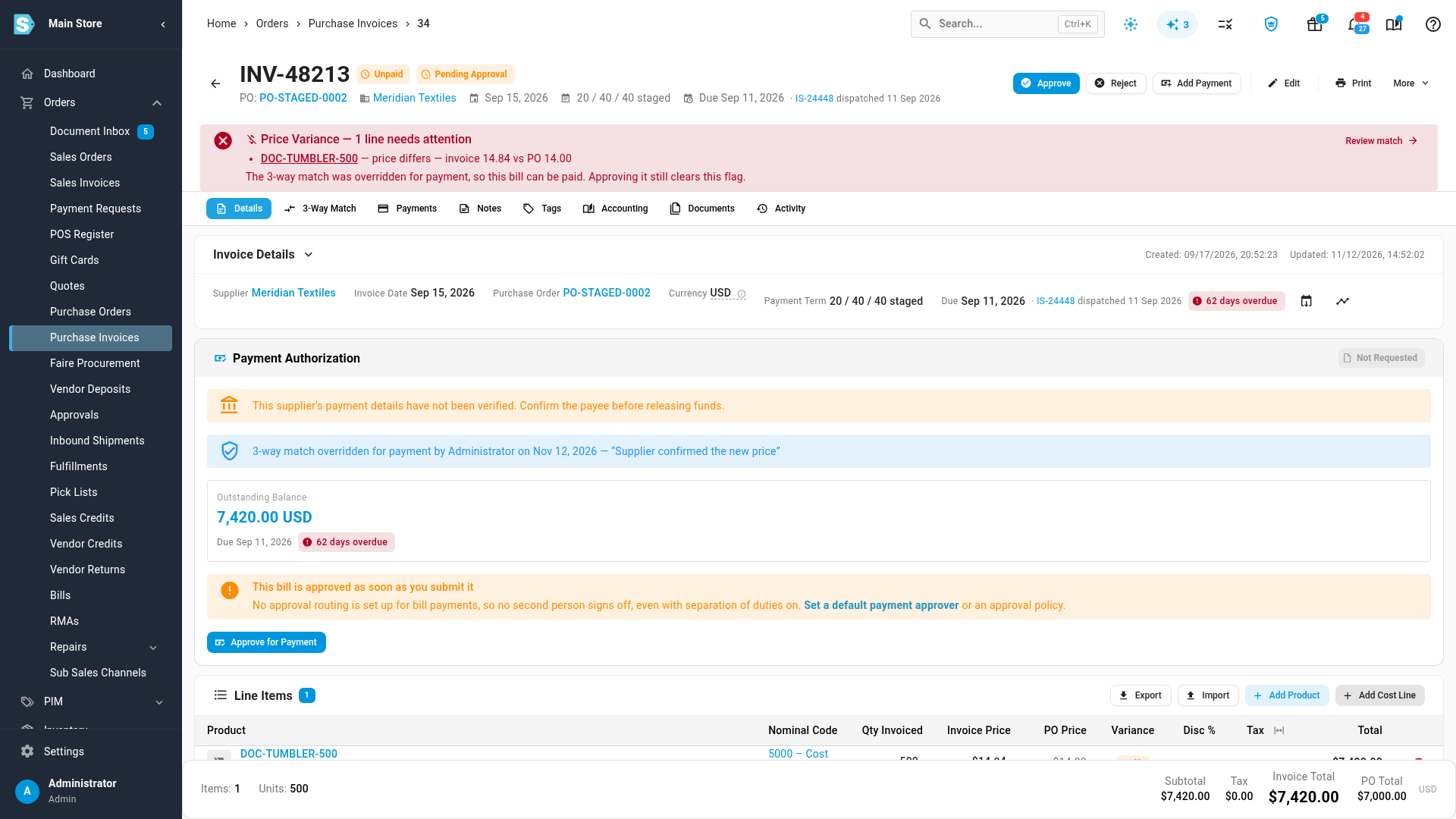
Your name, the date and your reason stay on the bill and in its activity log. The bill's variance banner then says the bill can be paid. If the bill's match changes later, for example because its lines are edited, the override is cancelled and the bill needs a new decision.
What each control does
| Control | What it does |
|---|---|
| Require a clean 3-way match before payment | A bill that fails its 3-way match can't be paid from SKU.io: Add Payment, Approve & Pay, supplier payment runs, Mercury and BILL all refuse it until the bill is approved or its match is overridden. Refunds aren't held back. Landed-cost bills have no purchase order to match, so they aren't affected. Off by default. |
| Separate who requests a payment from who approves it | The person who submitted a payment request can't approve it. When nobody submitted a request, the person who created the bill or deposit can't approve its payment. Landed-cost bills only record who created them from November 2026, so this doesn't apply to landed-cost bills created before then, or ones SKU.io creates automatically. Whoever sent a Mercury payment can't approve it either. With an approval policy for bill or deposit payments, the policy always works as if Strict were chosen, so a requester is never their own approver, and an administrator can't override their own request. On by default for accounts created from November 2026; off for older accounts until you turn it on. |
Next steps
- Track and pay purchase invoices: check a bill's 3-way match and record its payment.
- Route payment requests to an approver: choose who approves deposit and bill payments.
- Invoicing and the 3-way match: how a bill is matched against its purchase order and receipts.
Video transcript
Payment Controls sits on the Payment Approvals settings page. It adds two checks before money leaves your business. Turn on Require a clean three-way match before payment. A bill that differs from its purchase order or receipts then stays unpaid until someone approves the bill. Then turn on the second switch, which separates requests from approvals. Whoever asks for a payment can no longer sign it off. Nobody here is set up to approve payments yet. So a warning says each bill is approved the moment it is submitted, until you choose a default payment approver. When both are on, scroll below the cards and click Save Changes. A message confirms your settings are saved. Now open Orders, then Purchase Invoices, and open a bill that was charged more than its purchase order price. Its Payment Authorization card says it can't be paid yet, and why. If you have checked the bill and it is right, click Override match. Type why it can be paid. Then click Override and allow payment. Your name, the date and your note stay on the bill, and it is cleared to pay.