How committed-spend bills reconcile
Once committed-spend billing is turned on, the bills it creates look after themselves. This page covers what they do as real supplier invoices arrive, how to filter them in the list, and what happens if you switch the policy back off.
Before you begin
- Committed-spend billing must already be on. See Post committed spend when a purchase order is submitted.
- You need permission to record supplier invoices, and access to Settings to change the policy.
Committed-spend bills are managed for you. Their edit, delete, archive, and payment actions are disabled — the bill follows the purchase order, and you never maintain it by hand.

Record the real supplier invoice — nothing special required
When the supplier's actual invoice arrives, record it the way you always do (manually, by import, or from an emailed PDF). The committed-spend bill notices and adjusts on its own.
-
From the order, click Invoice (or use Record supplier invoice on the committed bill). A notice confirms the committed bill will reduce automatically.

-
Save the invoice. The committed bill immediately shrinks to what's still unbilled.

In this example the supplier invoiced $212.50 of a $985.00 order, so the committed bill restated itself to $772.50. Once invoices cover the whole order, the committed bill removes itself — your books then hold only the real supplier invoices.
The committed bill also keeps up when the order itself changes: reducing quantities, short-closing a line, applying a vendor credit, or canceling the order all update or remove it automatically.
Focus the list on committed bills — or hide them
The Purchase Invoices list has a Committed switch next to the archived filter:

- All shows real invoices and committed bills together.
- Hide shows only real supplier invoices.
- Only isolates the committed bills — a live view of everything submitted but not yet invoiced.
Turn it off
-
Return to Accounting → Settings → General → Generation.
-
Set the policy back to Nothing until the supplier invoice is recorded (default).
-
A confirmation states exactly how many committed bills will be removed and their total value. Click Remove and save to proceed, or Cancel to keep the policy on.
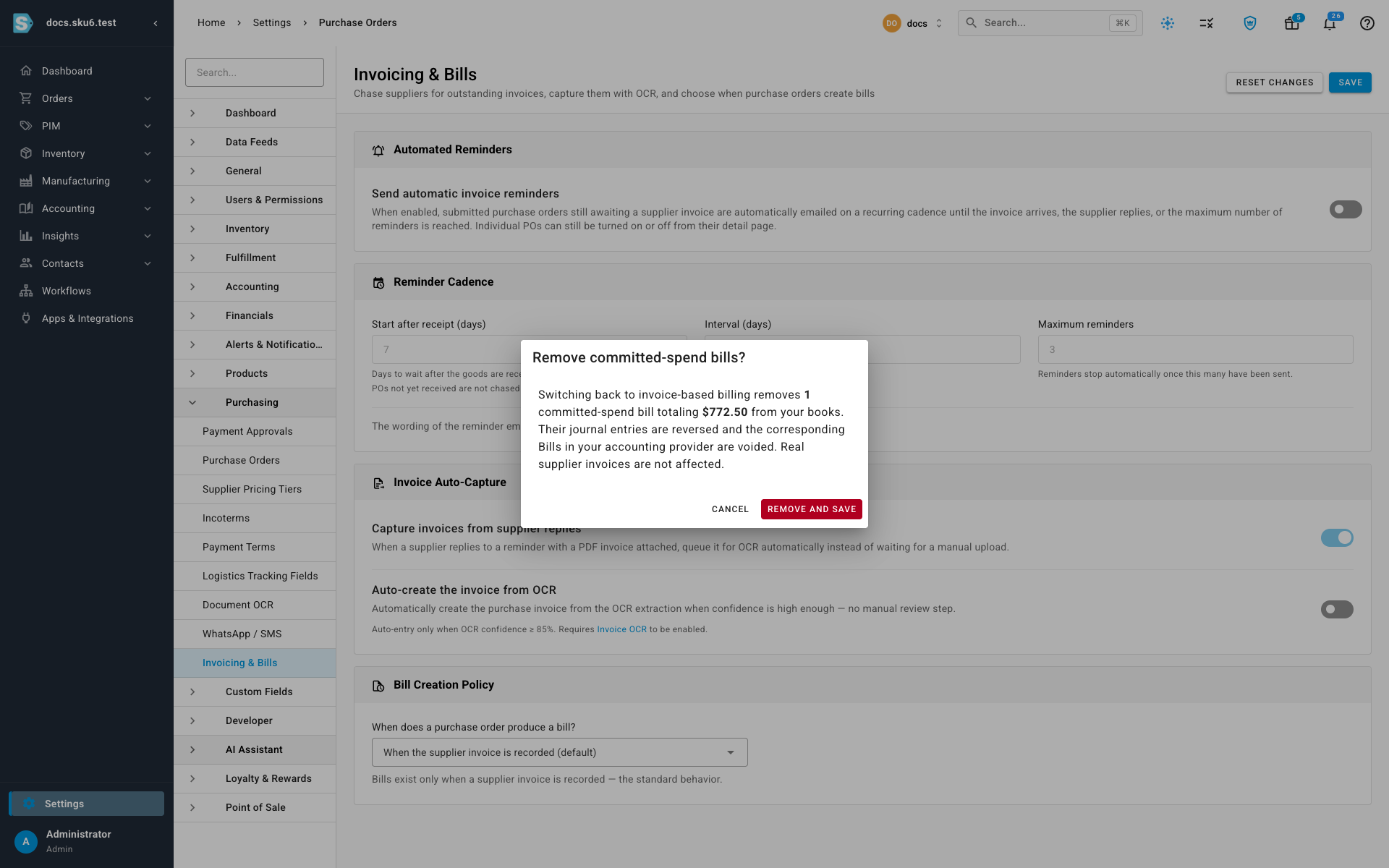
Removing committed bills reverses their ledger entries and voids the matching bills in your accounting provider. Real supplier invoices are never touched.
Next steps
Video transcript
Committed bills are managed for you. They cannot be edited, paid, or deleted, because none of them represents money the supplier has actually asked for yet. Each one simply follows the purchase order it came from, for as long as that order still has something left to be billed. When the supplier's real invoice finally arrives, record it exactly as you always have — nothing about that changes. As you save it, a notice confirms the committed bill will reduce itself to match, without you touching it. After a partial invoice, the committed bill shrinks to whatever is still unbilled, so the figure in your books always reflects what the supplier has yet to charge you for. Once the order is fully invoiced, it disappears entirely, because there is no commitment left to record. If you ever turn the policy off, SKU does not simply drop what it created. A confirmation tells you exactly how many committed bills will be removed and what that does to your books, and nothing changes until you agree to it.