Route payment requests to an approver
Settings → Purchasing → Payment Approvals decides who signs off before a supplier is paid. Pick one approver for vendor deposits and one for supplier bills, and every payment request goes to them for review. The page also controls how deposits and shipments attach to bills, and how early a bill counts as Due Soon.
Before you begin
- You need permission to change settings.
- The approver must be an active user on your account. Add users under Settings → Users & Permissions.
- This page is the only place to set payment approvers. Accounting → Settings shows the vendor deposit approver and links back here.
Steps
-
Click Settings at the bottom of the left sidebar.
-
Click the Purchasing card to expand it, then click Payment Approvals.
-
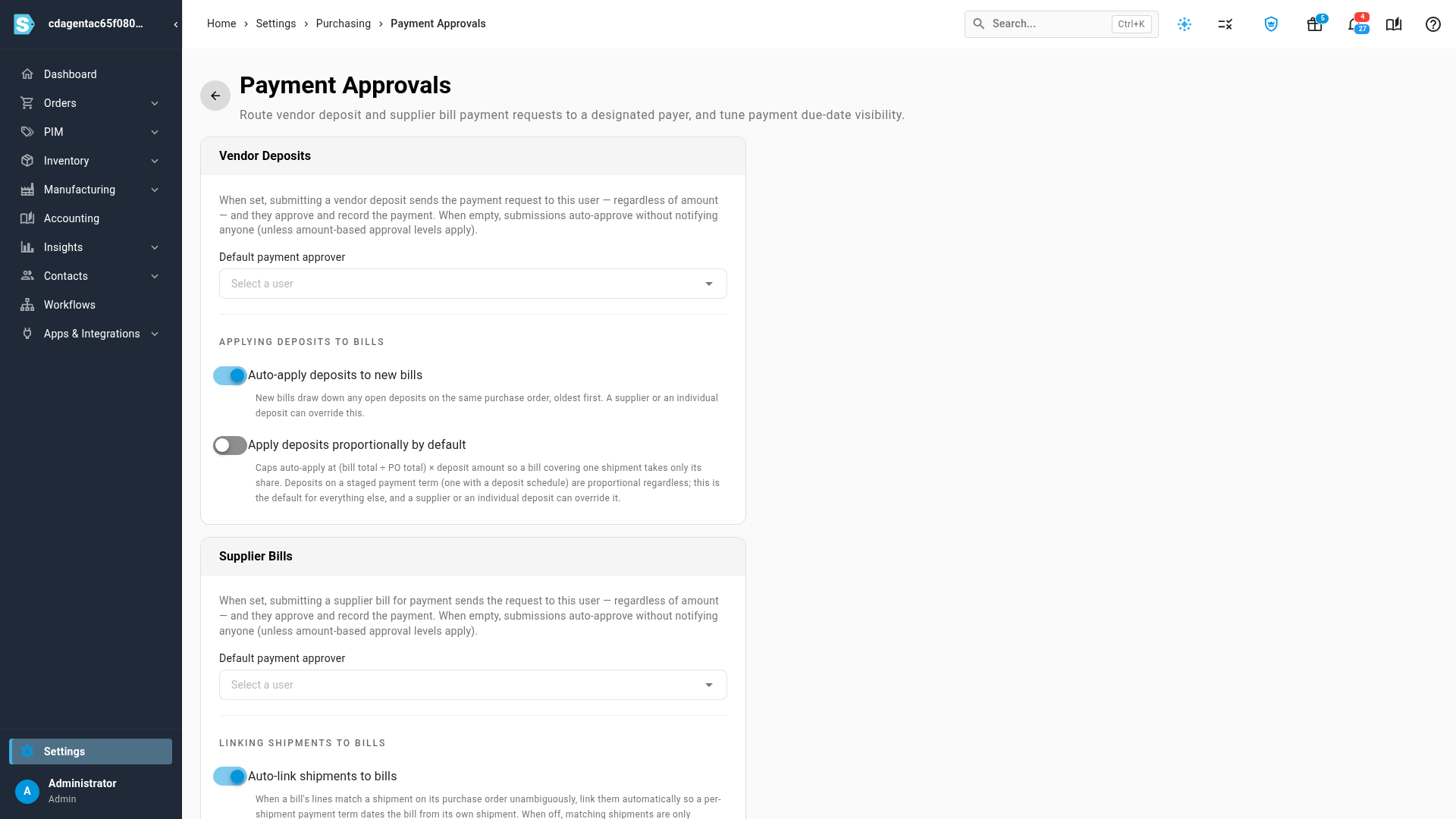
Under Vendor Deposits, choose a Default payment approver.
-
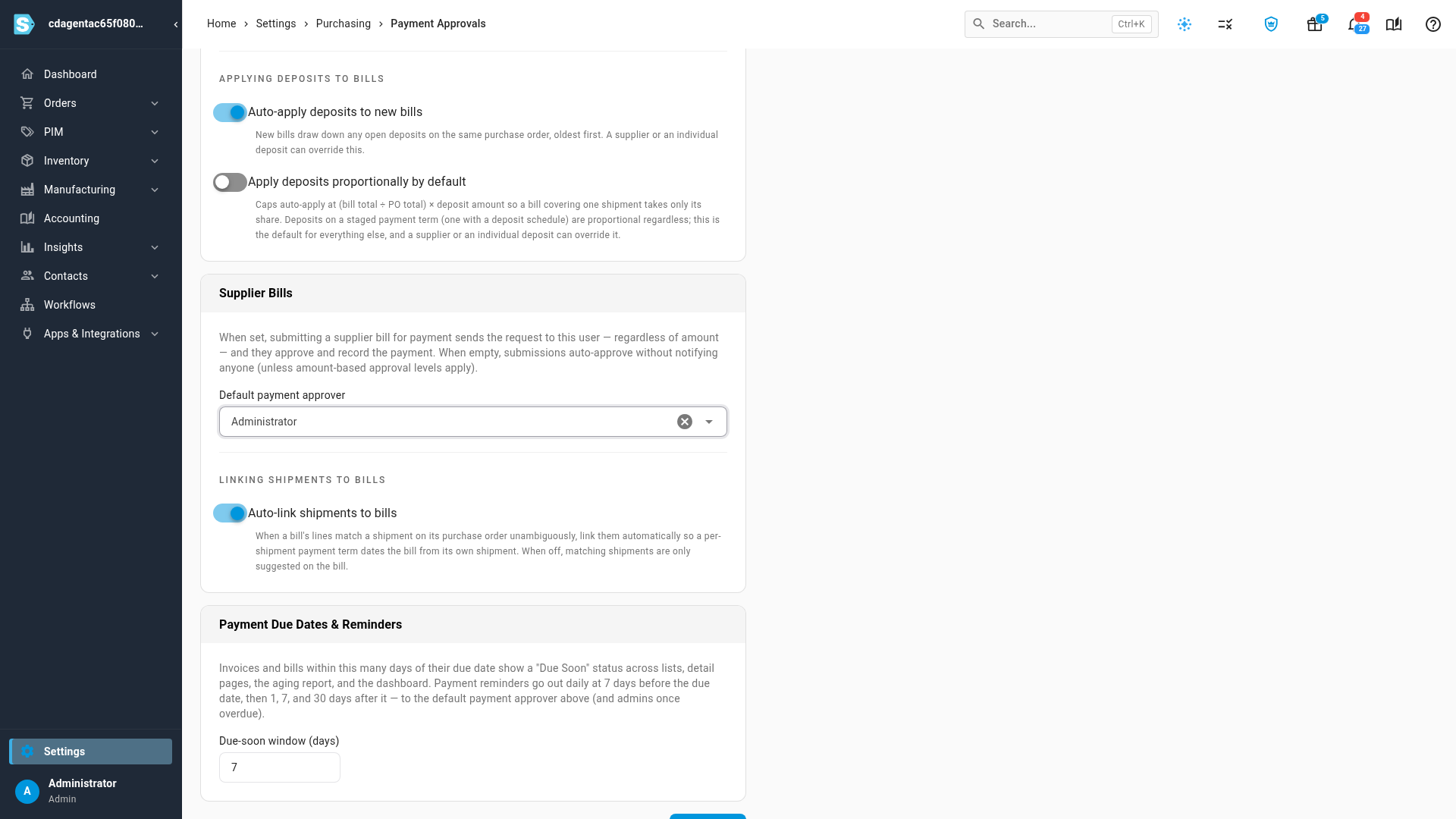
Under Supplier Bills, choose a Default payment approver.
-
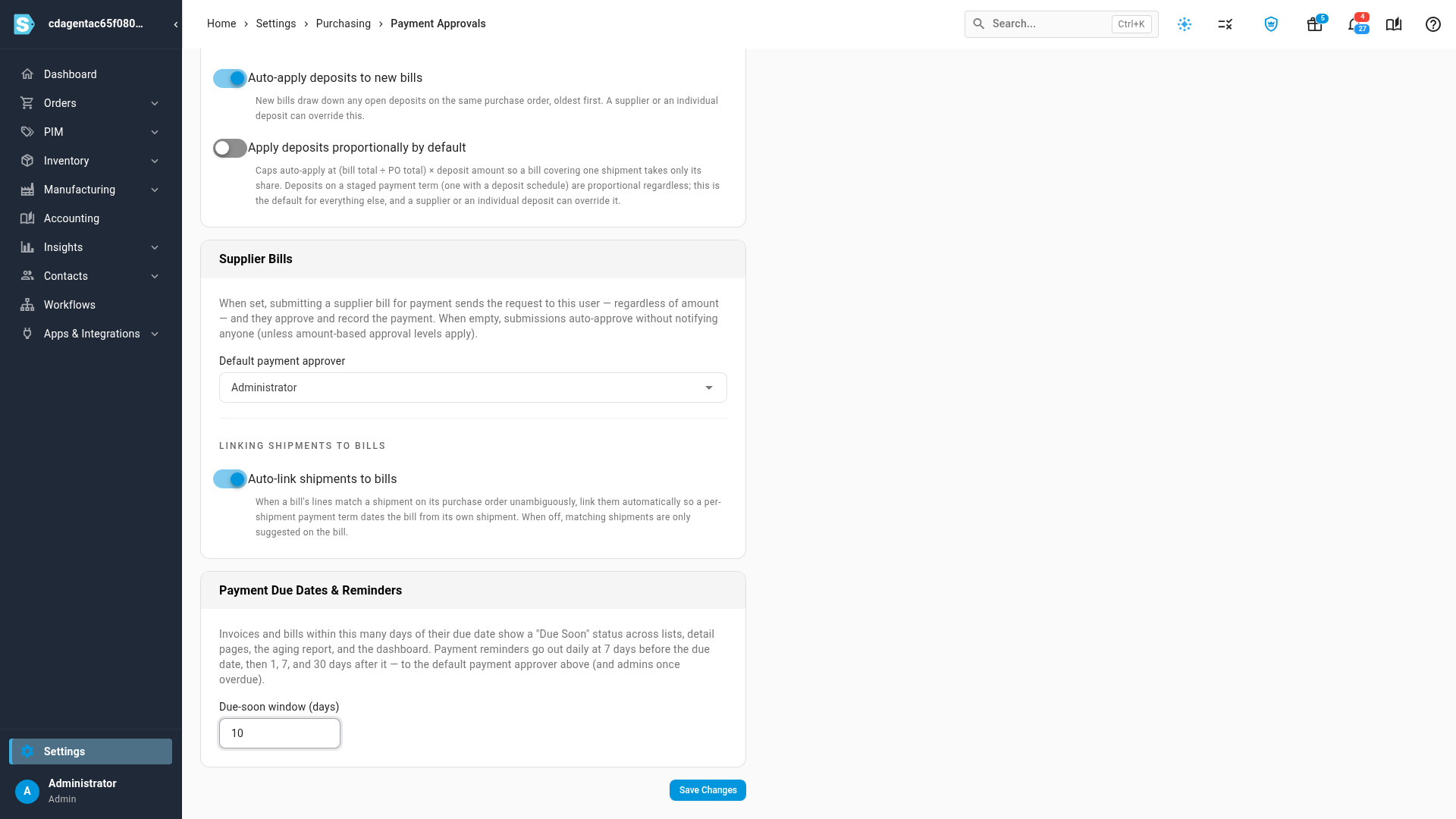
Under Payment Due Dates & Reminders, enter the Due-soon window (days).
-
Click Save Changes below the cards. Payment approval settings saved confirms it.
Vendor Deposits
| Setting | What it does |
|---|---|
| Default payment approver | Every vendor deposit you submit for payment (Save & Request Payment) goes to this person, whatever the amount. They approve it and record the payment. With no approver, a submitted deposit is approved straight away and no one is notified. If your account has amount-based approval levels, set up through the SKU.io API, those still apply. |
| Auto-apply deposits to new bills | Each new bill for a purchase order uses up that order's open deposits, oldest first. A supplier, or a single deposit, can override this. On by default. |
| Apply deposits proportionally by default | Limits the auto-apply to the bill's share of the order: (bill total ÷ purchase order total) × deposit amount. A bill for one of two equal shipments then takes half of each deposit. Deposits on a payment term with a deposit schedule are always proportional. A supplier, or a single deposit, can override this. |
For a worked example of both switches, see Apply a vendor deposit to a bill.
Supplier Bills
| Setting | What it does |
|---|---|
| Default payment approver | Every supplier bill you submit with Approve for Payment goes to this person, whatever the amount. With no approver, the bill is approved as soon as you submit it. |
| Auto-link shipments to bills | When a bill's lines clearly match one inbound shipment on its purchase order, SKU.io links the two. A payment term that pays per shipment then dates the bill from its own shipment. When it's off, matching shipments are only suggested on the bill. On by default. See Link a shipment to a bill. |
Payment Due Dates & Reminders
Due-soon window (days) sets when an invoice or bill starts showing Due Soon: once its due date is this many days away or closer. The status shows in lists, on detail pages, in the aging report and on the dashboard. The default is 7.
SKU.io also sends payment reminders once a day: 7 days before a bill's due date, then 1, 7 and 30 days after it if it's still unpaid. They go to the default payment approver, and once a bill is overdue, to your account admins as well.
Next steps
- Track and pay purchase invoices: submit a bill for approval and record the payment.
- Manage vendor deposits: record a deposit and request its payment.
Video transcript
These settings decide who signs off before a supplier is paid. To get there, open Settings at the bottom of the left sidebar. Click the Purchasing card to expand it. Its list of purchasing settings opens below, so find Payment Approvals there. Click Payment Approvals to open its settings page. Under Vendor Deposits, choose a default payment approver. Every deposit you submit for payment then goes to this person, whatever the amount. They approve it and record the payment. Leave it empty and submitted deposits are approved straight away. With Auto-apply deposits to new bills on, each new bill draws down any unspent deposits on its purchase order, oldest first. Apply deposits proportionally caps that at the bill's share of the order. So a bill for one shipment takes only that shipment's part of the deposit. Supplier Bills works the same way for bills you approve for payment. Choose who reviews them here. Auto-link shipments to bills connects a bill to the matching shipment on its purchase order. That lets a per-shipment payment term date the bill from its own shipment. Under Payment Due Dates and Reminders, set the due-soon window. Bills and invoices due within that many days are marked Due Soon. Reminders are emailed to the approver a week before each due date, and again if it's missed. Click Save Changes, below the last card. From now on, new payment requests are sent to the approvers you chose.