Link a shipment to a bill
Goods usually ship before the supplier bills you, so the shipment already exists in SKU.io by the time you enter the bill. Linking the two tells the bill which shipment it covers. On a staged payment term with per-shipment stages, the bill's Payment Schedule then dates each installment from that shipment's own dispatch and receipt, instead of from the order's estimates.
One shipment can sit on more than one bill. A consolidated container that carries lines for several purchase orders is billed once per order, so you link it to a bill on each of those orders. A supplier who splits one shipment across two invoices can link both bills to it too.
Create Shipment on a bill is for goods that haven't shipped in SKU.io yet. When the shipment is already on the order's Shipments tab, use Link Shipment — creating another one would count the same goods twice.
SKU.io links matching shipments for you
You often don't need to link anything. When a bill's lines match a shipment on its purchase order exactly, SKU.io links the two on its own. It checks when the bill is created or its lines change, when a scanned bill is matched to its order, and when a shipment is created or received.
-
An exact match is linked. The shipment appears on the bill's Inbound Shipments card with Auto in its Linked column.

-
A partial match is suggested, not linked. A banner on the card reads, for example, 1 shipment on PO-0042 looks like it belongs to this bill. Click Review to see the candidates, or Link all matching to link the exact matches. Close the banner to dismiss the suggestion.
-
A shipment you unlinked stays unlinked. SKU.io never links it to that bill again on its own.
-
Paid bills and dates you typed are left alone. Linking never overwrites a manual due date, and a bill that's already paid keeps its dates.
The Linked column says how each link was made: Auto, Manual for one you linked, Created here for a shipment created from the bill with Create Shipment, or Backfill.
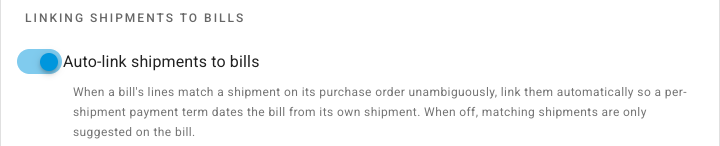
To switch automatic linking off, go to Settings → Purchasing → Payment Approvals. On the Supplier Bills card, under Linking shipments to bills, turn off Auto-link shipments to bills, and click Save Changes. Matching shipments are then only suggested on the bill, and the card notes that auto-link is off.
Find bills still waiting for a shipment
A bill on a per-shipment payment term with no shipment linked is dated from the order's estimates. On the bill, the due date carries a warning, such as Dated from the order's estimate — link a shipment. On Orders → Purchase Invoices, the same bills carry a warning icon, and the Shipment Link filter narrows the list to Needs shipment link.
Before you begin
- The bill must be attached to a purchase order.
- The shipment must carry at least one line for that purchase order. A shipment for a different order is refused.
- A cancelled shipment can't be linked.
Link a shipment
-
Go to Orders → Purchase Invoices and open the bill.
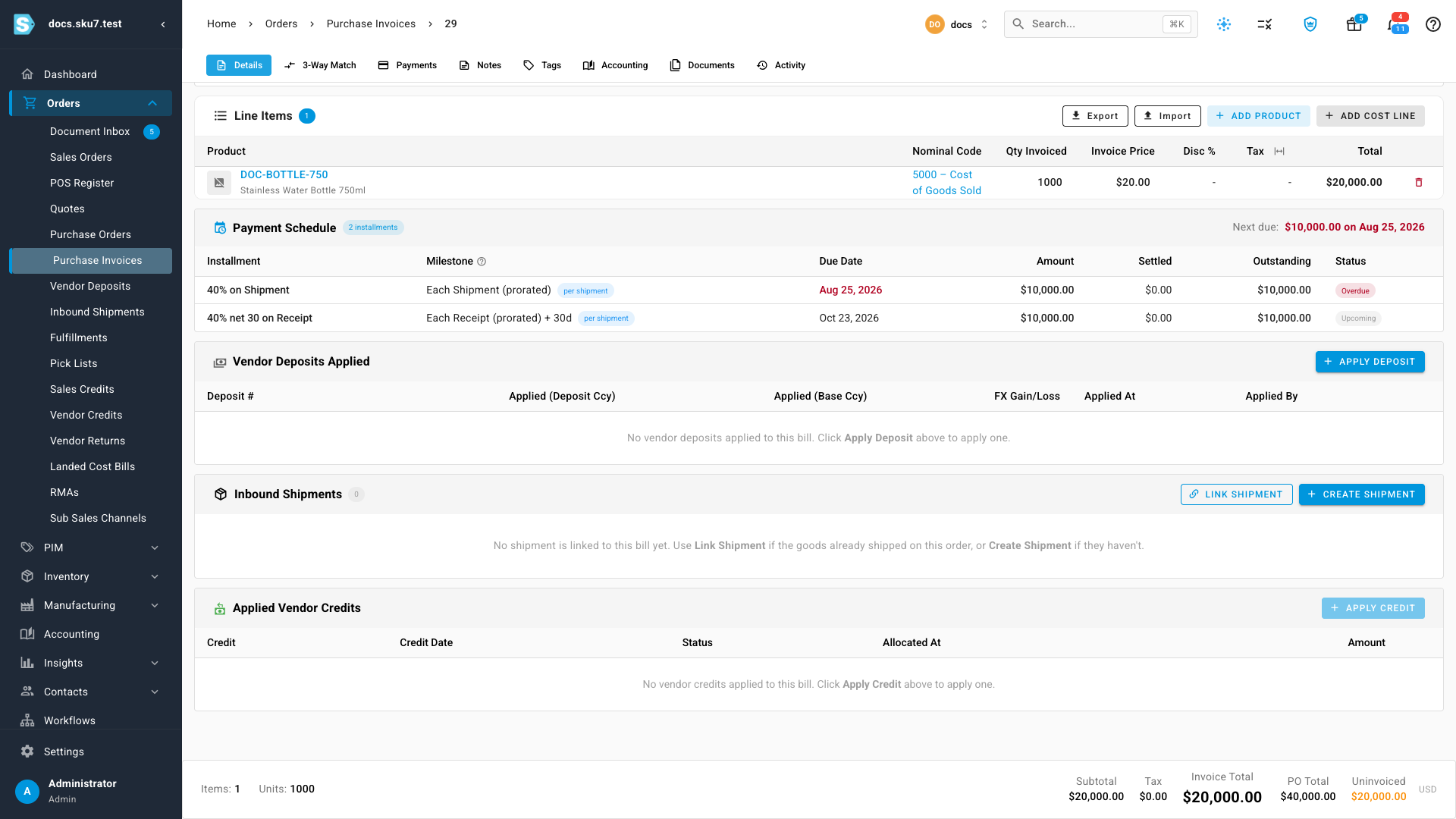
The Inbound Shipments card shows the shipments linked to this bill. On a bill entered after the goods shipped, it starts empty.
-
Choose Link Shipment.
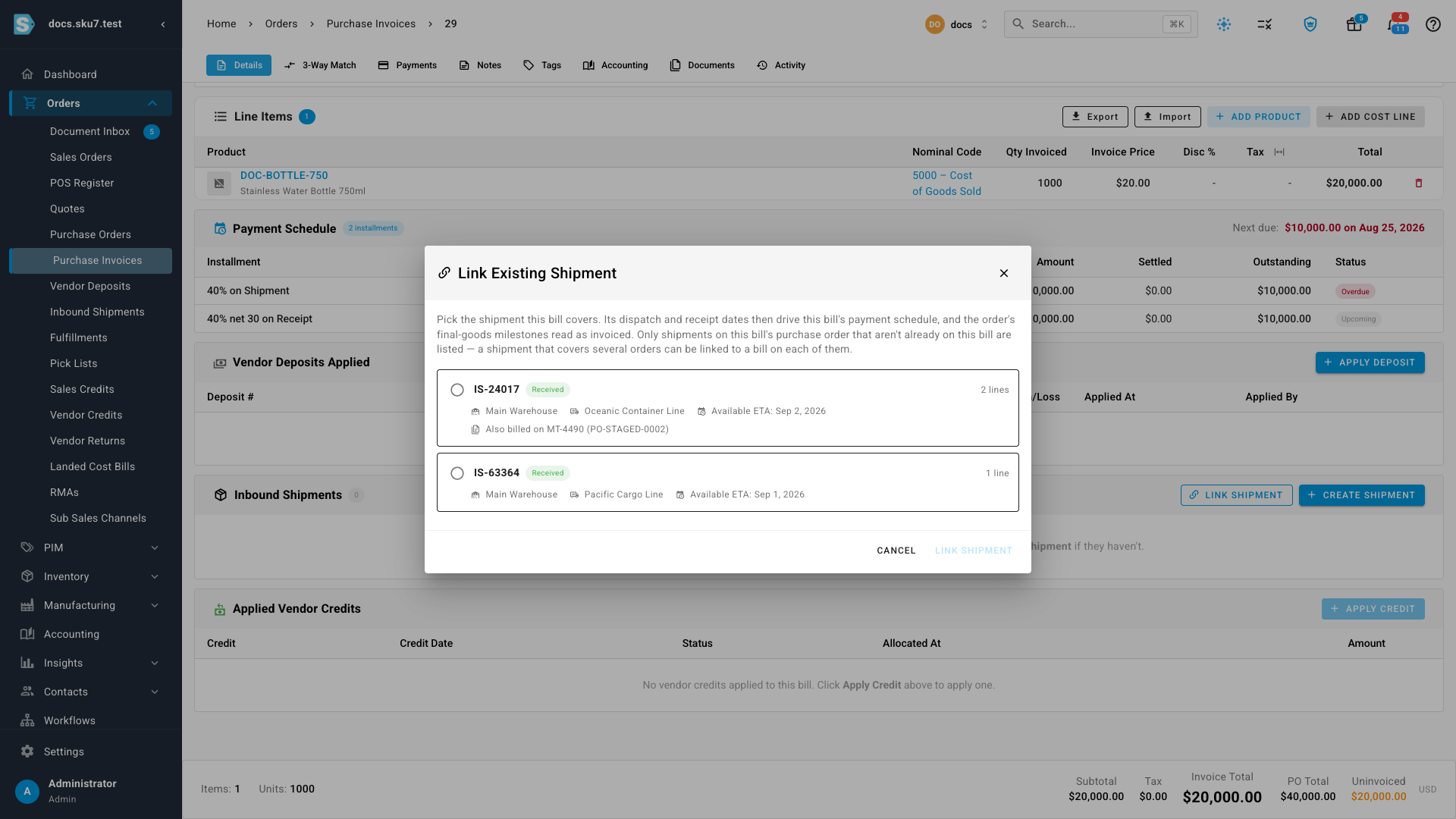
The list shows every shipment on this bill's purchase order that isn't already on this bill, best matches first. Each one carries a match chip: Exact when every shipment line matches a line on this bill, Partial when only some do, and a dash when none overlap. Show matching only hides the rest. A shipment that carries several orders shows Also billed on with the other bills it sits on — it can still be linked here.
-
Pick the shipment that brought the goods this bill covers, and choose Link Shipment. To link every exact match at once, click Link matching instead.
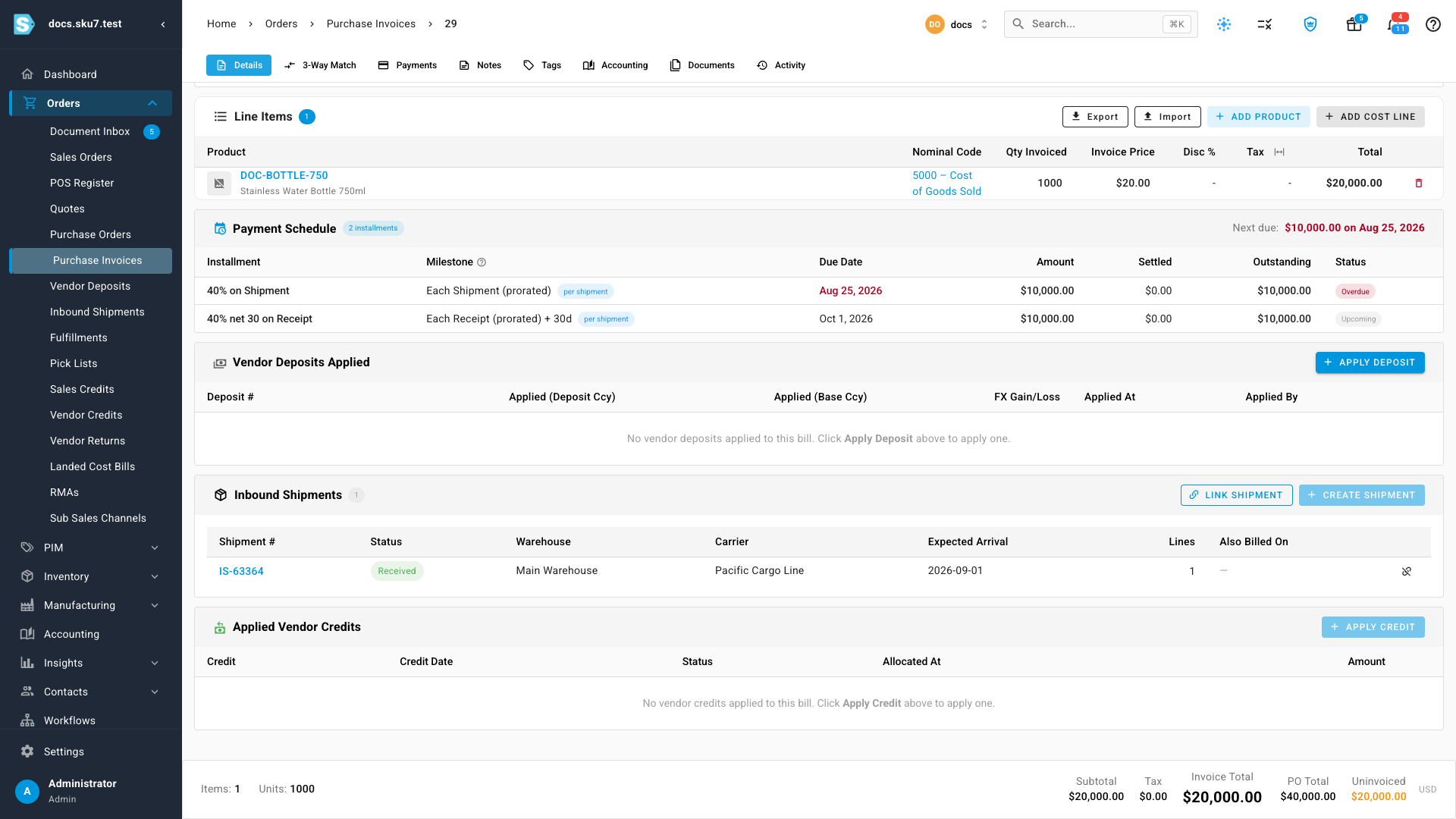
The shipment appears on the card with its status, warehouse, carrier, and line count. The Also Billed On column lists any other bills the same shipment is linked to.
What linking changes
-
Payment dates. On a payment term whose final-goods stages repeat per shipment, each installment on the bill's Payment Schedule now dates from this shipment: the shipment stage from the day it was dispatched, the receipt stage from the day it was received plus the stage's offset. Until the shipment is linked, those dates are projected from the order's estimates. A bill that's already paid keeps its dates.

-
Manual dates stay. A due date you typed in yourself is never overwritten by a link, an unlink, or a shipment date change.
-
The order's milestones. On the purchase order's Deposits tab, the per-shipment Final Goods Invoice rows for this shipment change from Awaiting Invoice to Invoiced, with a link to this bill.
-
Remaining to ship. The shipment's lines are paired with the bill lines for the same order lines, so goods that already arrived no longer count as outstanding to ship on this bill.
A shipment on several bills
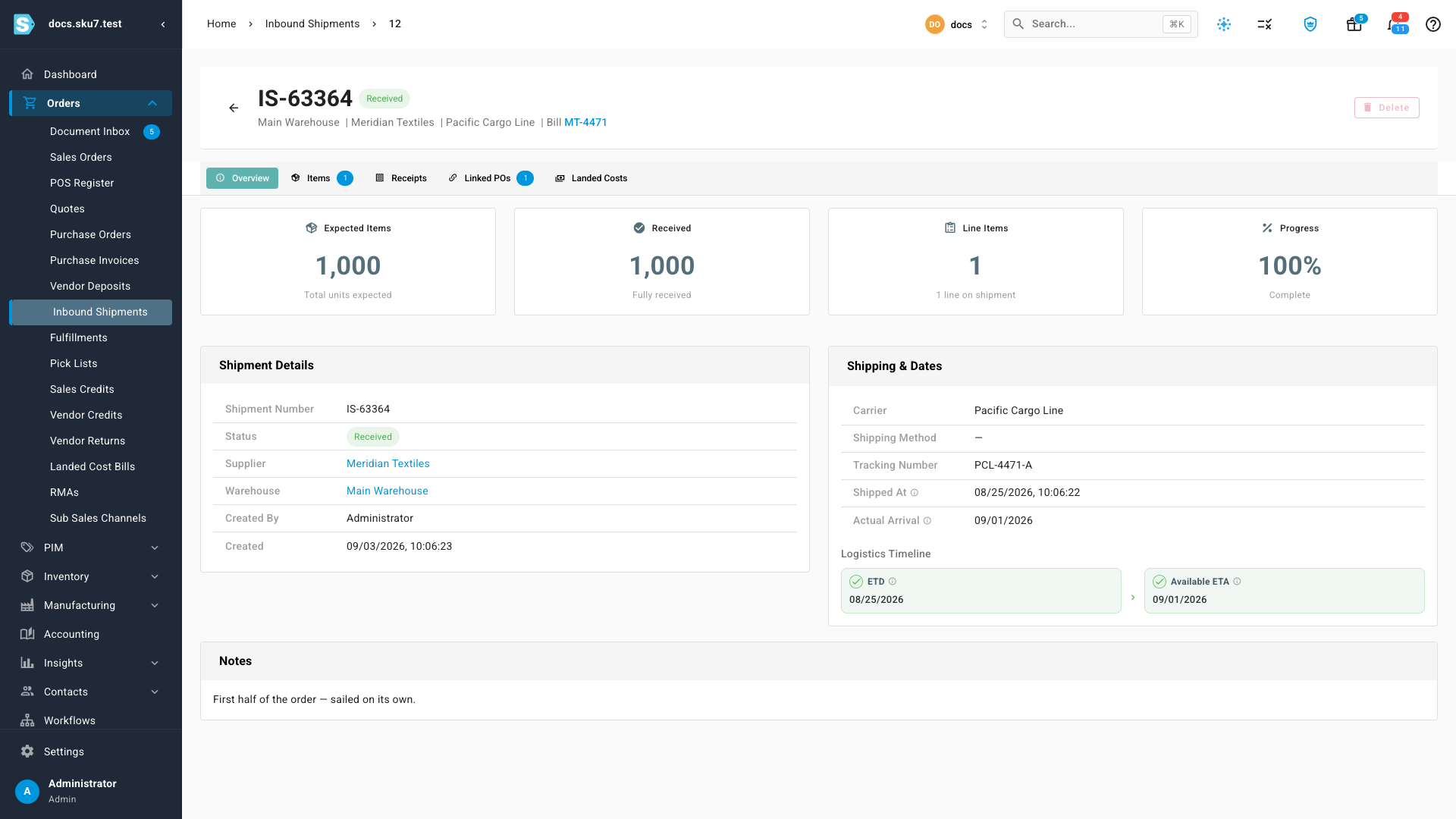
When one shipment carries lines for more than one purchase order, link it from each order's bill. Each bill dates from the same dispatch and receipt, and each order's milestones read as invoiced against its own bill. The shipment's page lists every bill it's linked to.
Unlink a shipment
If you linked the wrong shipment, open the bill and choose the unlink icon at the end of the shipment's row on the Inbound Shipments card. Only that link is removed: the shipment, its receipts, and its links to any other bills are untouched, and this bill's derived dates fall back to the order-level basis.
Next steps
- Track inbound shipments — creating shipments from the purchase order and receiving them
- Apply a vendor deposit to a bill — netting a prepayment against the bill once it's entered
- Track & pay purchase invoices — paying the installments as they fall due
- Vendor deposits on a purchase order — the payment-term milestones the Deposits tab tracks