Give each card processor its own clearing account
Every card sale at the register is recorded under a payment type, and each payment type pays into one bank account in QuickBooks or Xero. Until you change it, every register card sale goes under the one Card type, whichever processor charged it. Square and Stripe each pay out on their own schedule, so a clearing account that holds both can't be matched to either processor's deposits.
The Card payment types setting gives each processor its own type, such as Card – Square and Card – Stripe, and can split them by store as well. You then point each type at its own clearing account.
Before you begin
- You need the permission to change settings (
settings.update). - You need the permission to edit payment types (
payment_types.update). - To give a type its bank account, QuickBooks or Xero must be connected, and the clearing accounts must already exist there.
Steps
-
Go to Settings, scroll down to the Point of Sale card and click it, then click Register.
-
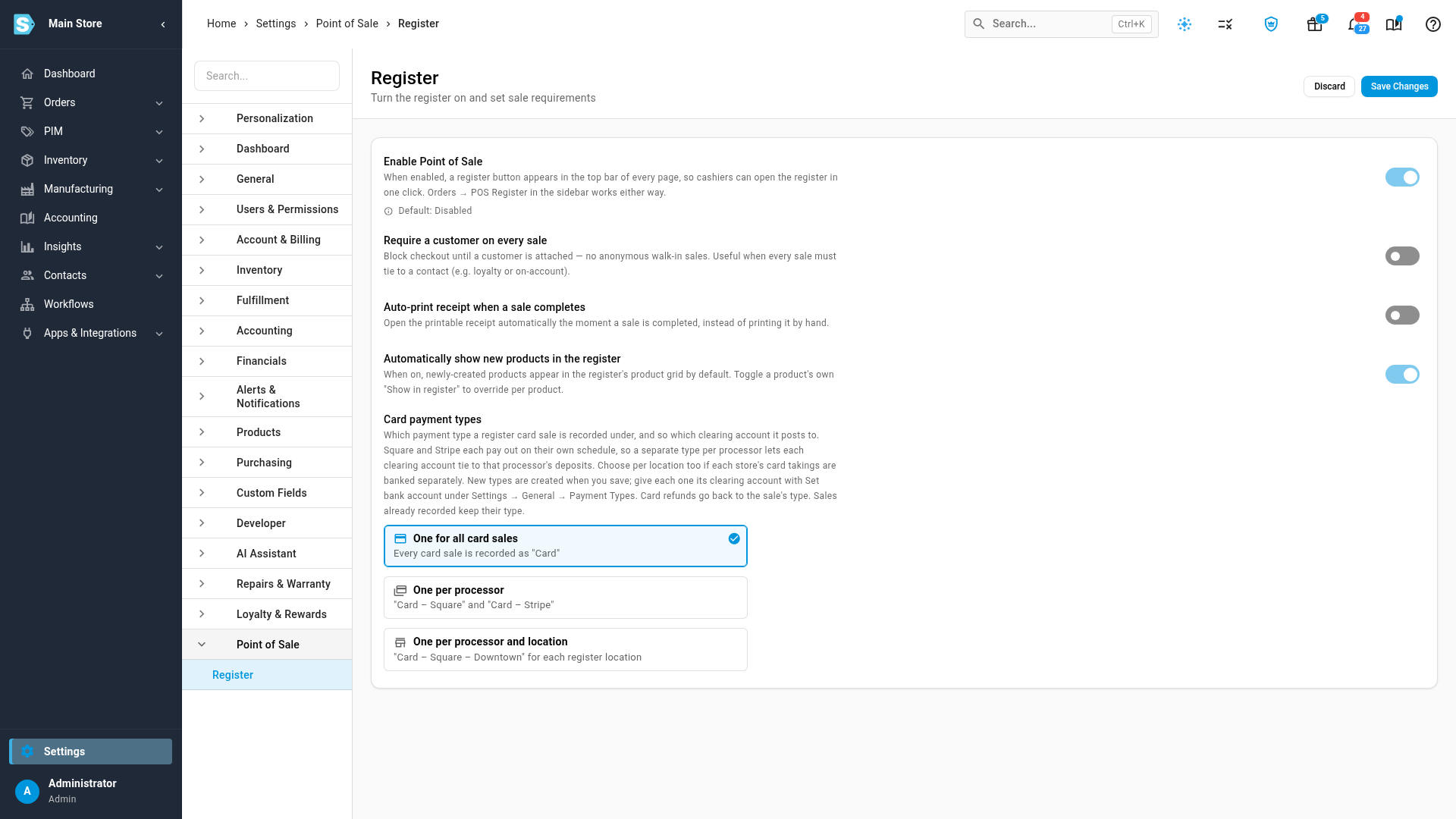
If Enable Point of Sale is off, turn it on. Card payment types appears at the bottom of the page.
-
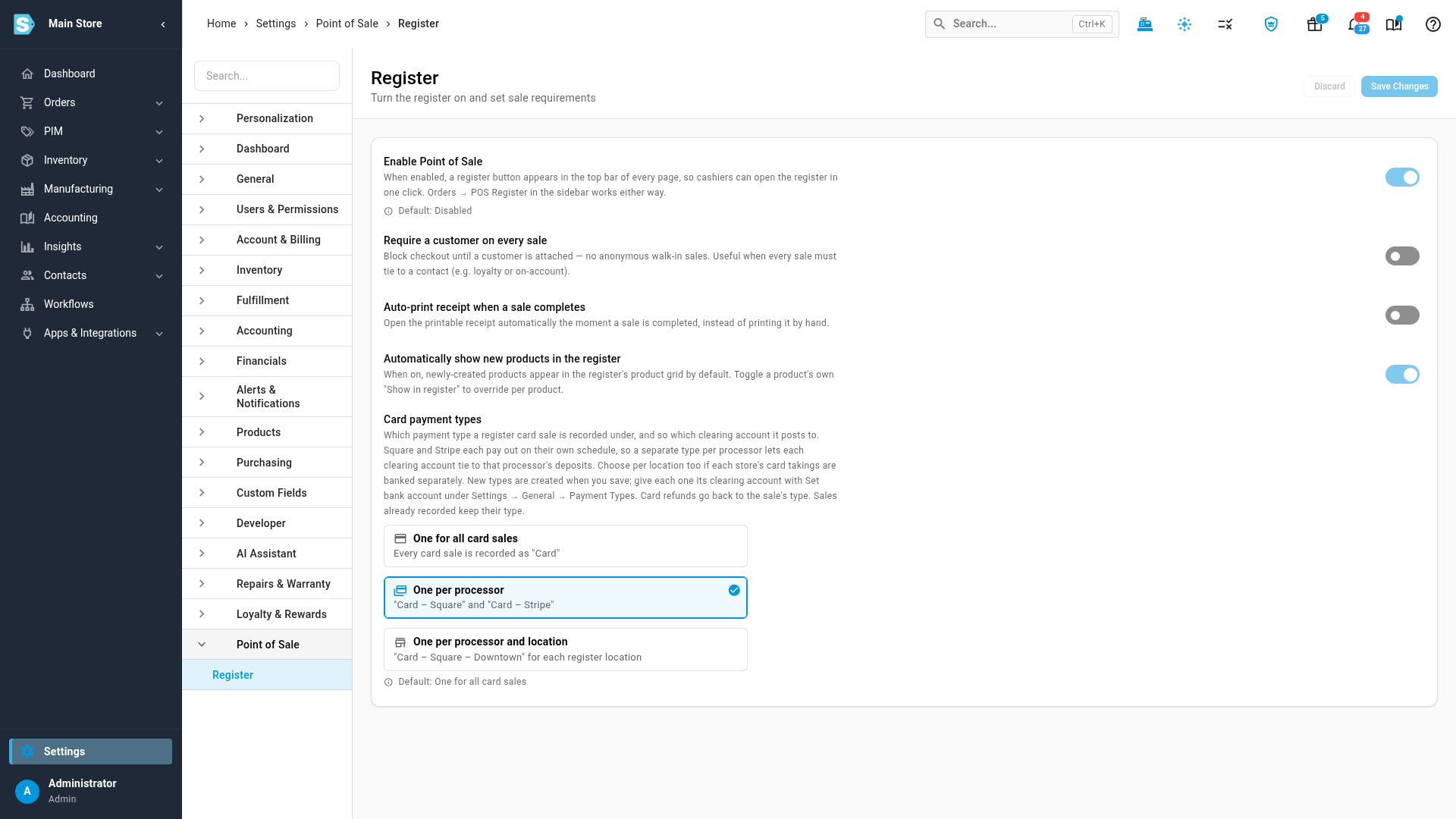
Under Card payment types, click the card for how card sales are split:
Choice Card sales are recorded under Use it when One for all card sales Card, whichever processor charged them. Every account starts here. You take cards through one processor and bank every store's takings together. One per processor A type named for the processor that charged the sale, such as Card – Square or Card – Stripe. You take cards through Square and Stripe, or have switched from one to the other. One per processor and location A type named for the processor and the warehouse the register sells from, such as Card – Square – Downtown. Each store's card takings are banked separately. -
Click Save Changes.
SKU.io creates the new payment types straight away, so you can give each one its bank account before the first card sale is recorded under it.
-
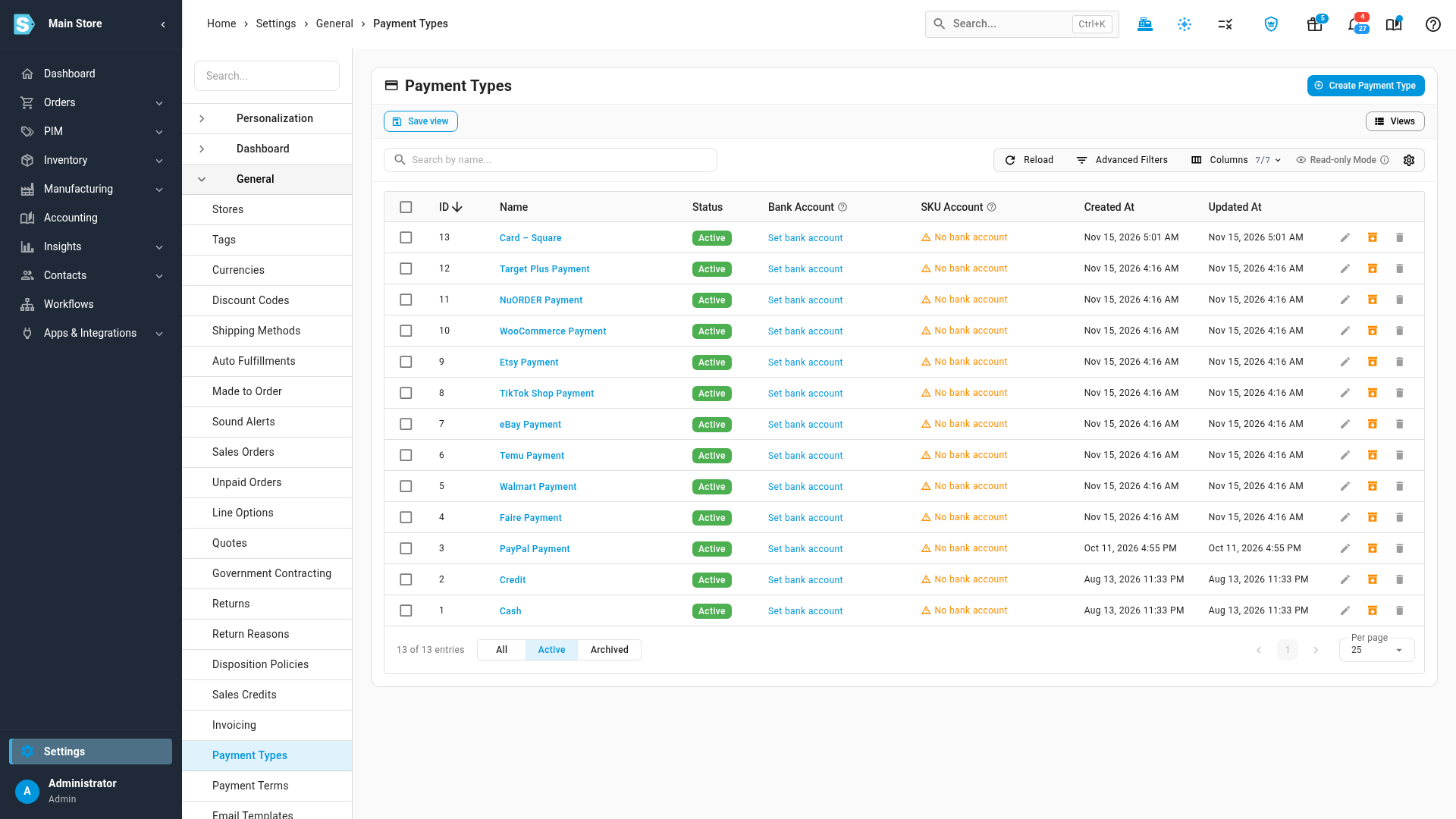
In the settings list on the left, open General, then click Payment Types. The new type, such as Card – Square, is at the top of the list and shows Set bank account instead of a bank account.
-
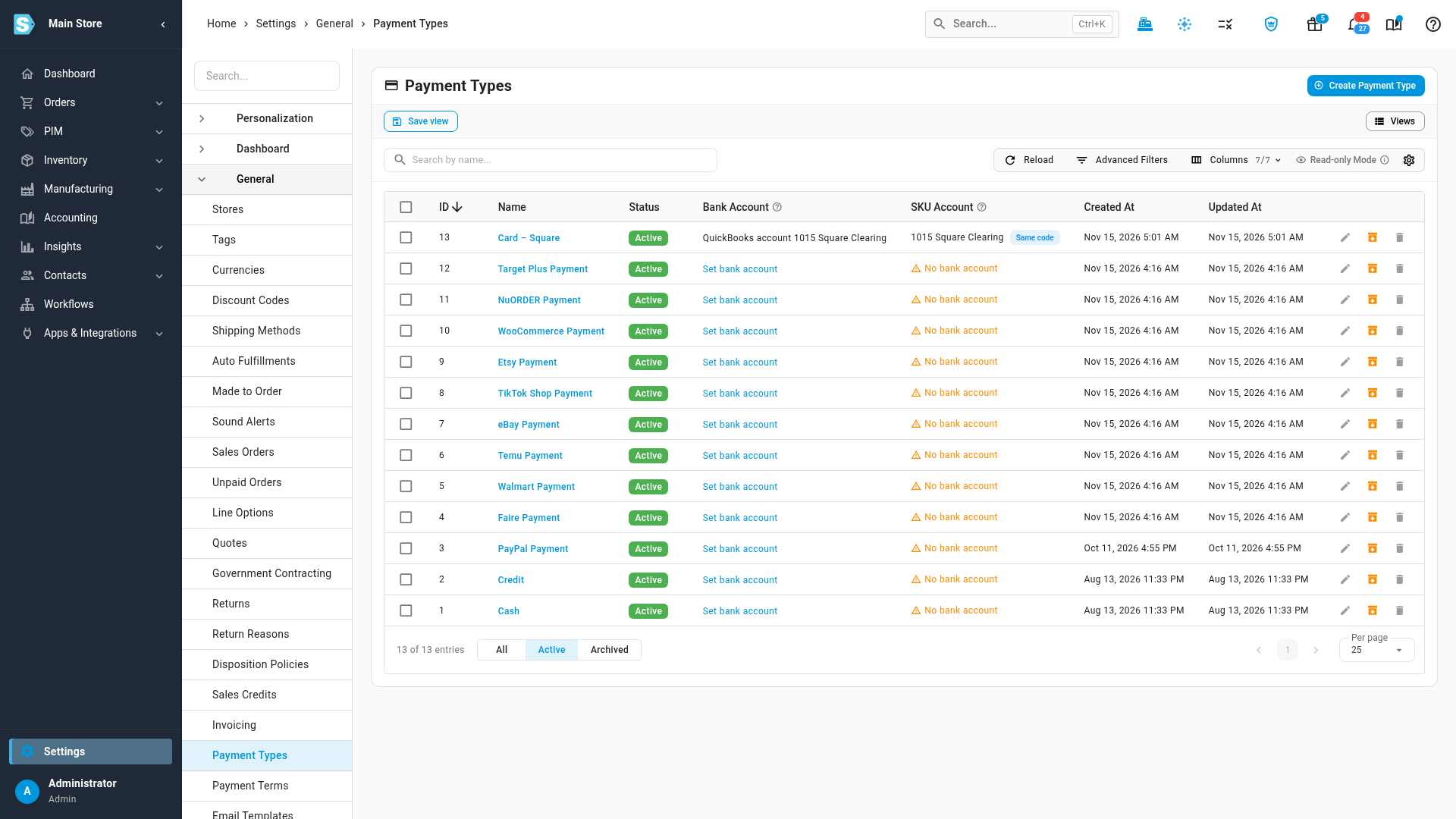
Click Set bank account on its row. In QuickBooks bank account (or Xero bank account), pick the clearing account that processor's payouts land in, and click Update.
What you'll see: a Payment type updated message, and the row's Bank Account column shows the account you picked.
Repeat steps 5 and 6 for each new card type.
Which types are created
| Choice | Types created when you save |
|---|---|
| One per processor | The type for the processor your register charges through now. Switching the register to the other processor creates that processor's type too: open the register, click the gear icon in the top bar, and change Card payment processor in POS Settings (this needs the Manage POS permission, pos.manage). |
| One per processor and location | One type for each warehouse a register has been opened at. Opening a register at a new warehouse creates that location's type. |
| One for all card sales | None. Card sales go back under Card. The per-processor types stay in the list; archive them on the Payment Types page once you no longer need them. |
If you already made a payment type with exactly the name SKU.io would use, such as Card – Square, SKU.io uses that type and its bank account instead of adding a second one.
What changes, and what doesn't
- Refunds made at the register are recorded under the same payment type as the sale, so the refund comes out of the same clearing account. That holds for every way of paying (a per-processor card type, Card, Cash or a split sale's type), and even if you change the setting after the sale.
- Refunds you record on a sales credit, such as a partial refund for one item, start on the sale's payment type too: Add Refund and Record Refund on a register sale's credit pick it for you. Change the Payment Type only if the money really went back another way.
- In Xero, a card refund is paid out of the card type's bank account against the credit note, so the clearing account ties to the processor's deposits. QuickBooks Online gets the credit memo but not the refund payment, so record that refund against the clearing account in QuickBooks yourself.
- Sales already recorded keep the type they were recorded under. The setting applies to card sales from now on.
- Renaming a card type, or the warehouse it is named after, doesn't move sales to a new type. They keep going to the same type and its bank account. The type's name isn't updated for a renamed warehouse, so rename the type yourself if you want them to match.
- Cash, store credit, gift card, on-account and split sales keep their own payment types. A sale paid partly by card and partly another way is not split onto the card type.
Next steps
- Turn on the POS register
- Manage payment types
- Sync payments with your accounting provider
- Sell at the point of sale (POS)
Video transcript
Every register card sale is recorded under a payment type, and each payment type pays into one bank account. So if you take cards through both Square and Stripe, give each processor its own type. Open Settings at the very bottom of the left sidebar. Scroll down until you reach the Point of Sale card, and click the card to open its list. When the list opens, click Register, the page that controls every register in your account. This setting is only shown while Point of Sale is enabled. If Enable Point of Sale at the top of the page is still off, switch it on now. The new Card payment types setting now sits at the very bottom of the form. Below its description are three cards, one for each way to split card sales. One for all card sales is how every account starts, with every sale recorded as Card. Click One per processor to give Square and Stripe a type each. If each store banks its takings separately, pick One per processor and location instead. Then click Save Changes, in the top right corner of the page. SKU.io creates the new payment type straight away, named for the processor your register charges through. Now give it its clearing account. In the settings list on the left, open General, then scroll down its list and click Payment Types. This page lists every payment type in your account. The new Square card type sits at the top of the list, and its Bank Account column says Set bank account, because it has none yet. Click Set bank account on that row to edit the payment type. Click the QuickBooks bank account field, and from your QuickBooks bank accounts, pick the clearing account for this processor's payouts. Then click Update, at the bottom of the dialog, to save the payment type with its new account. The row now shows its bank account. From here on, card sales post to Square Clearing. In Xero, so do their refunds. QuickBooks needs those entered by hand. Sales already recorded keep their type.