Track listing traffic and insights
PIM → Listing Performance shows how each of your channel listings is doing, day by day: how many shoppers viewed it, clicked it and bought, and what it earned. Above the numbers, Insights point out the listings worth a closer look, such as one that gets plenty of traffic but rarely sells.
Use it to decide where to spend your listing effort. For a product's sales totals per channel over the last 30 days, without traffic, see Check listing performance.
Before you begin
- The figures come from the sales channels themselves. A channel only appears once it reports listing analytics to SKU.io, and the product must have a listing there. See Browse your channel listings.
- Metrics sync every night. Click Sync metrics to fetch fresh figures from every channel that reports them, and follow the progress in the job tray at the top of the page.
Read the insights
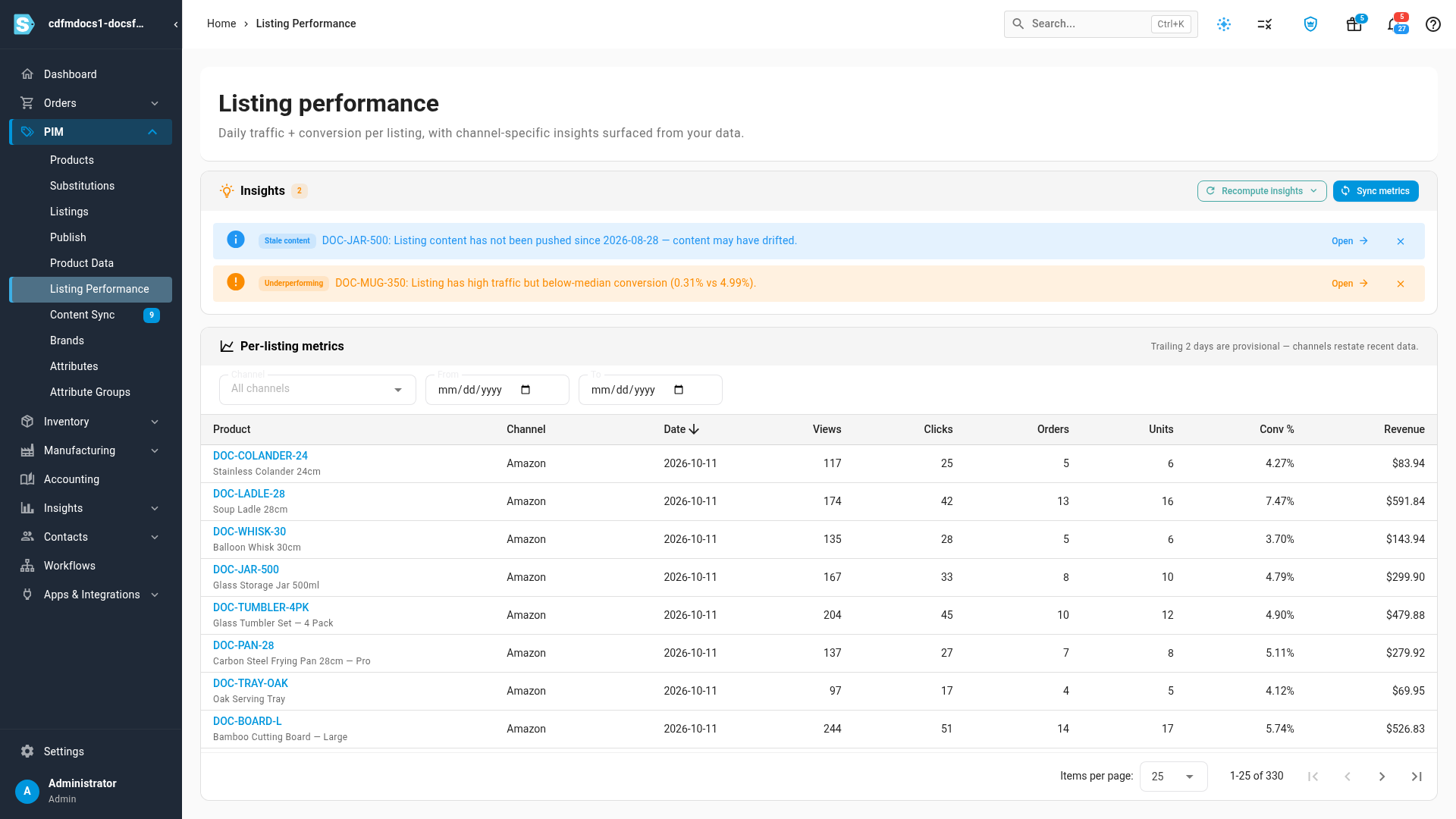
Go to PIM → Listing Performance. The Insights card at the top lists what SKU.io found, with a count beside the title. Each insight names the product's SKU and says what it noticed.
| Insight | What it means |
|---|---|
| Underperforming | Over the last 14 days the listing had plenty of views, but converted at less than half the typical rate for its channel. Its title, images or price may be putting shoppers off. |
| Stale content | The listing's content hasn't been pushed to the channel for more than 30 days, so it may no longer match your catalog. |
| Needs attention | A listing draft for the channel failed to publish and hasn't been retried. |
- Click Open on an insight to go straight to the listing, or to the draft that failed.
- Click × to close an insight once you've dealt with it.
Insights refresh on their own. To check a channel right now, click Recompute insights and choose the channel. A message says how many insights it found.
Read the daily metrics
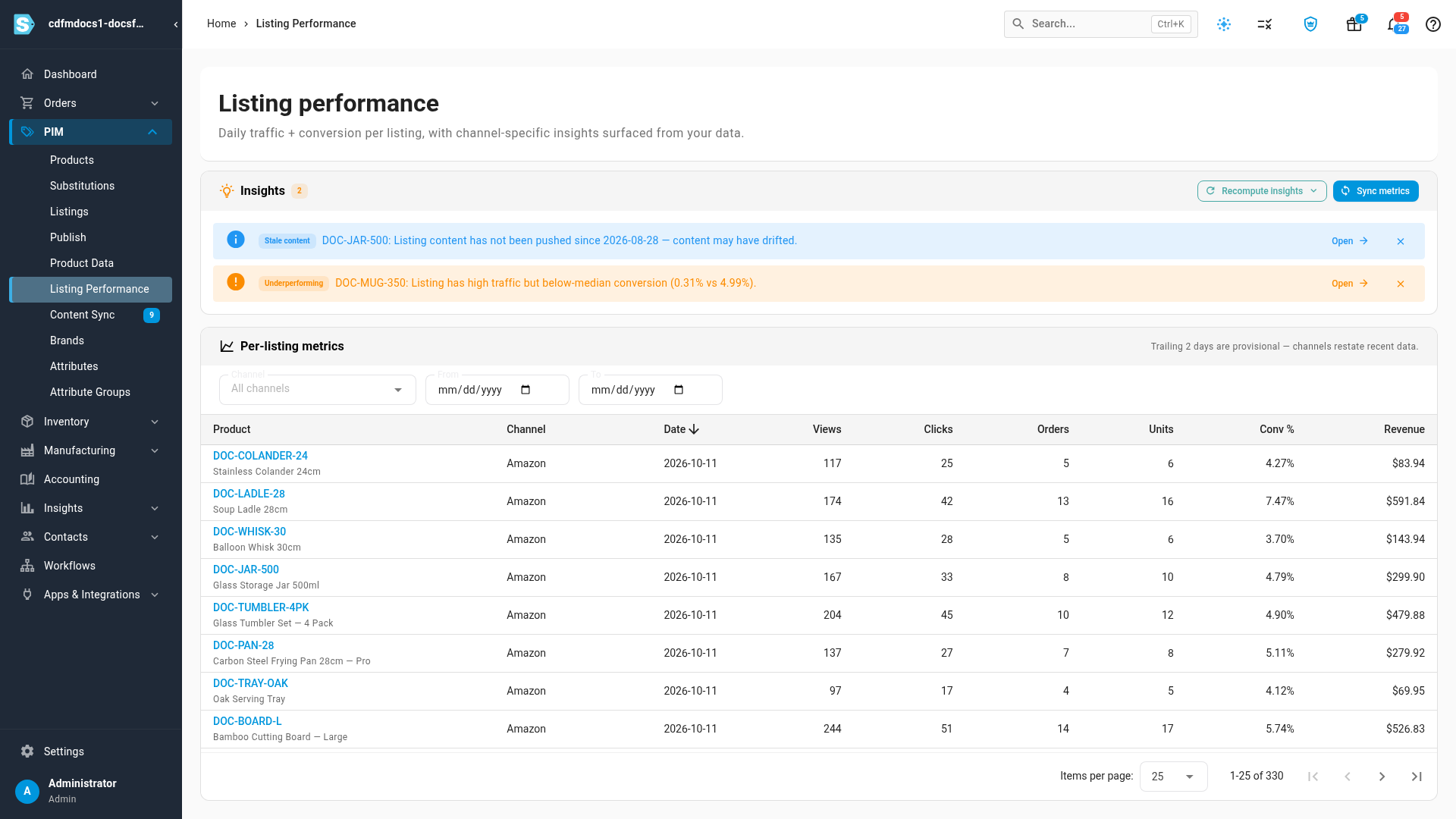
The Per-listing metrics table has one row per listing per day, newest first.
| Column | What it shows |
|---|---|
| Product | The product's SKU and name. Click the SKU to open the product. |
| Channel | The sales channel the listing is on |
| Date | The day the figures cover |
| Views | How many times shoppers saw the listing |
| Clicks | How many times shoppers clicked through to it |
| Orders | Orders placed from the listing that day |
| Units | Units sold from the listing that day |
| Conv % | Orders as a share of views |
| Revenue | What the listing sold that day |
A column shows — when the channel doesn't report that figure. The last two days are provisional, because channels still revise recent figures.
Filter and sort the table
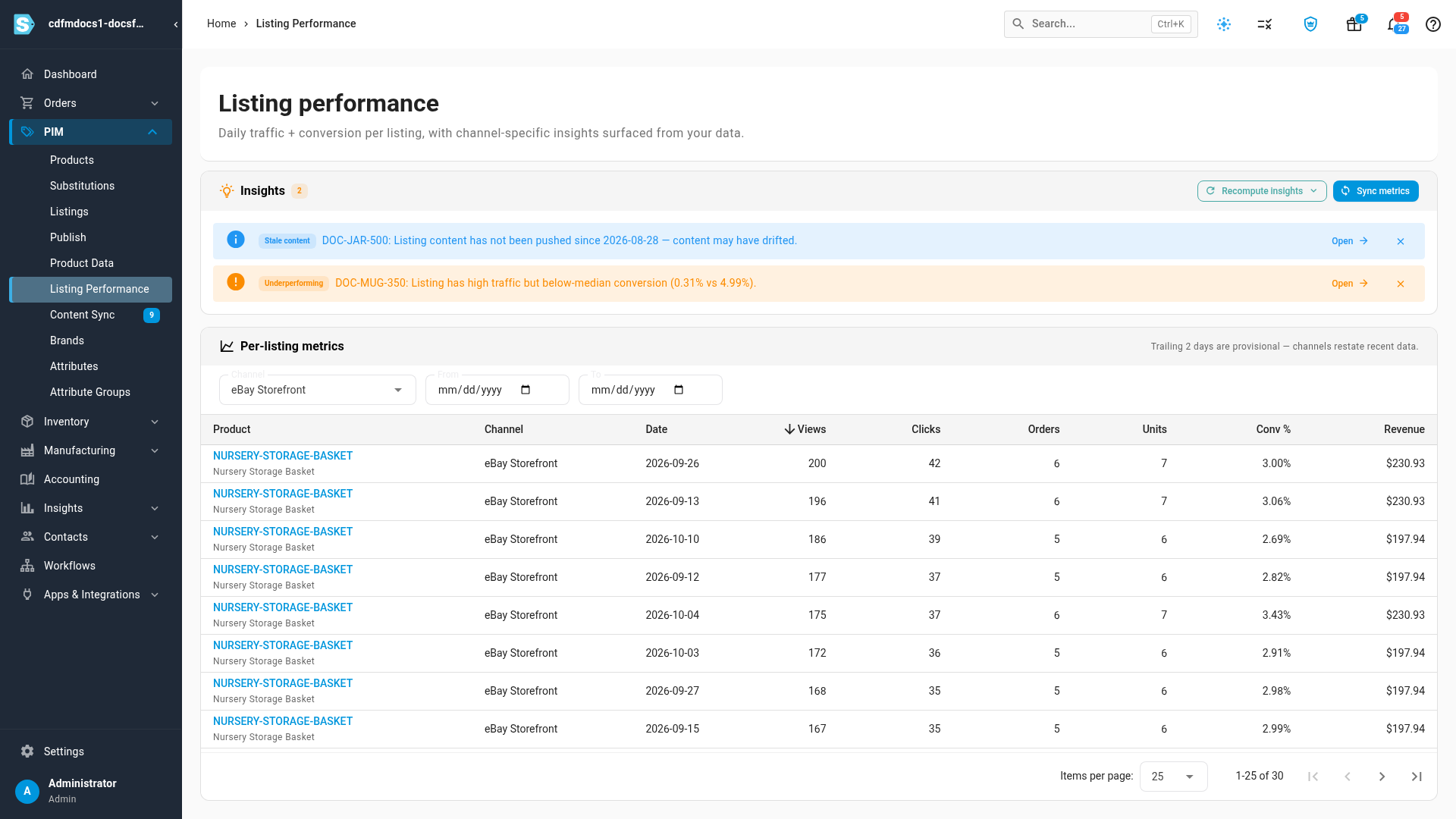
- To see one channel only, choose it under Channel. Clear the field to see every channel again.
- To narrow the dates, set From and To.
- Click a column heading to sort by it. Click it again to reverse the order, for example to put the busiest days first under Views.
The page address keeps your channel and date filters, so you can bookmark or share a filtered view.
Next steps
- Check listing performance: a product's units, orders and revenue per channel over the last 30 days.
- Review channel content changes: bring a listing's content back in line with your catalog.
- Work with listing drafts: retry a draft that failed to publish.
Video transcript
Listing Performance lives in the PIM menu, under the same name. It shows how each of your listings is doing, day by day, on every channel. Insights, at the top, flag the listings worth a closer look. This listing gets plenty of traffic, but converts far below the rest of its channel. This one has not been pushed to the channel in over a month, so its content may have drifted. Click Open to go straight to the listing. Close an insight once you have dealt with it. Insights refresh on their own. To check a channel right now, click Recompute insights, and choose the channel. A message says how many insights it found. Below, each row is one listing on one day. It shows views, clicks, orders, units, conversion rate and revenue. The last two days are provisional, because channels still revise them. To focus on one channel, open the Channel list above the table, and choose the channel you want. The table now shows only that channel's listings. Set From and To to narrow the dates as well. Click a column heading to sort by it. Click Views a second time, and the busiest days move to the top of the table.