Find missing product data for listing
A listing template tells SKU.io which product field or attribute fills each field a channel requires. When a product has nothing in one of those fields, it can't publish through that template. PIM → Product Data gathers every one of those gaps into one table, across every channel, so you can see what to fill in, product by product, before you publish.
The report is organized around what you fill in, not around each channel's name for it. If three channels each ask for a country of origin under different names, and all three read your Country of Origin attribute, the report shows one Country of Origin column.
Before you begin
- The report only covers products that publish through a listing template. See Product types and channel categories for how products are routed to templates. Products with no template on any channel aren't in it.
- Products you've marked Not for sale on sales channels, or switched off for a channel in Channel availability, are left out for those channels. See Keep a product off some or all channels.
Read the report
-
Go to PIM → Product Data. The page is titled Product data for listing.
-
Read the four cards across the top:
Card Meaning products on a listing template How many products publish through at least one template missing at least one data point How many of those have one or more gaps missing exactly one How many are one field away from being complete, so the quickest wins distinct data points How many different fields or attributes the gaps span -
Read the table. Products are grouped by supplier, and each group heading shows how many products it holds and how many gaps it has, such as 3 data points to fill, or complete when there are none.
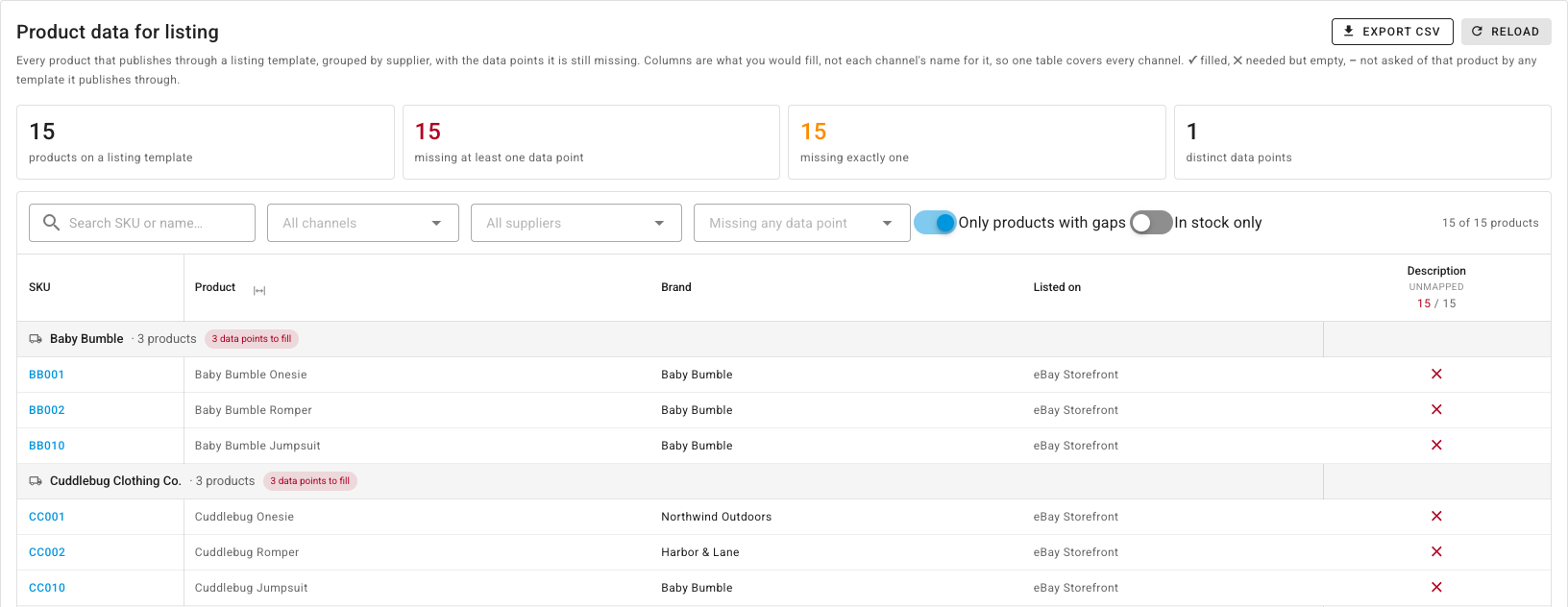
Each row shows the product's SKU, Product, Brand, and the channels it's Listed on. Then there's one column per data point:
| Mark | Meaning |
|---|---|
| ✓ | Filled in |
| ✗ | Needed by a template, and empty |
| – | Not asked of this product by any template it publishes through |
The column heading shows the data point's name, what kind it is, and how many products are missing it out of how many are asked for it, such as 15 / 15. Point at a heading for the full story, including which channel and field need it.
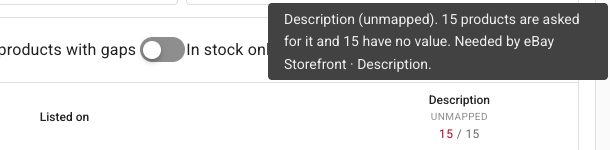
The kind under the name tells you where to fix it:
| Kind | Fix it by |
|---|---|
| attribute | Filling in that attribute on the product |
| field | Filling in that product field, such as barcode or weight |
| unmapped | Editing the listing template. The channel needs this field, but the template doesn't point it at any product field or attribute yet, so no product can supply it. |
Narrow it down
Use the filters above the table:
- Search SKU or name… to find one product.
- All channels to look at one channel's gaps only.
- All suppliers to work through one supplier's products, for example before you ask them for data.
- Missing any data point to show only the products missing one particular field.
- Only products with gaps (on by default) hides complete products. Turn it off to see every product on a template.
- In stock only to start with the products you can actually sell today.
Your filters are kept in the page address, so you can bookmark a view or send it to a colleague.
Fix the gaps
Click a SKU to open the product and fill in the missing field or attribute, then come back and click Reload. For an unmapped column, open the channel's template from PIM → Publish → Templates and map the field.
To work through the gaps somewhere else, or send them to a supplier, click Export CSV. It downloads the table as you've filtered it.
Next steps
- Set up listing profiles: the field mappings your templates start from.
- Work with listing drafts: publish the products once they're complete.
- Keep a product off some or all channels: take products you don't want listed out of the report.