Build a listing template
A listing template holds the field defaults for one category on one sales channel. A channel asks for different fields in different categories: a clothing category might want a size and a department, and a drinkware category a capacity and a material. A template records, once, where each of those values comes from. Every product you then publish in that category fills them in automatically, so you don't map the same fields product after product.
A template sits on top of a listing profile. The profile holds what every listing on the channel shares, such as the title, price and selling policies. The template adds only what this category needs.
Before you begin
- The sales channel is connected. See Manage a connected app.
- The channel's categories are in SKU.io. If the category picker is empty, use Re-sync at the top of the picker to pull them from the channel.
- Optional: a listing profile for the channel, so the template only has to cover what's specific to its category.
Find your templates
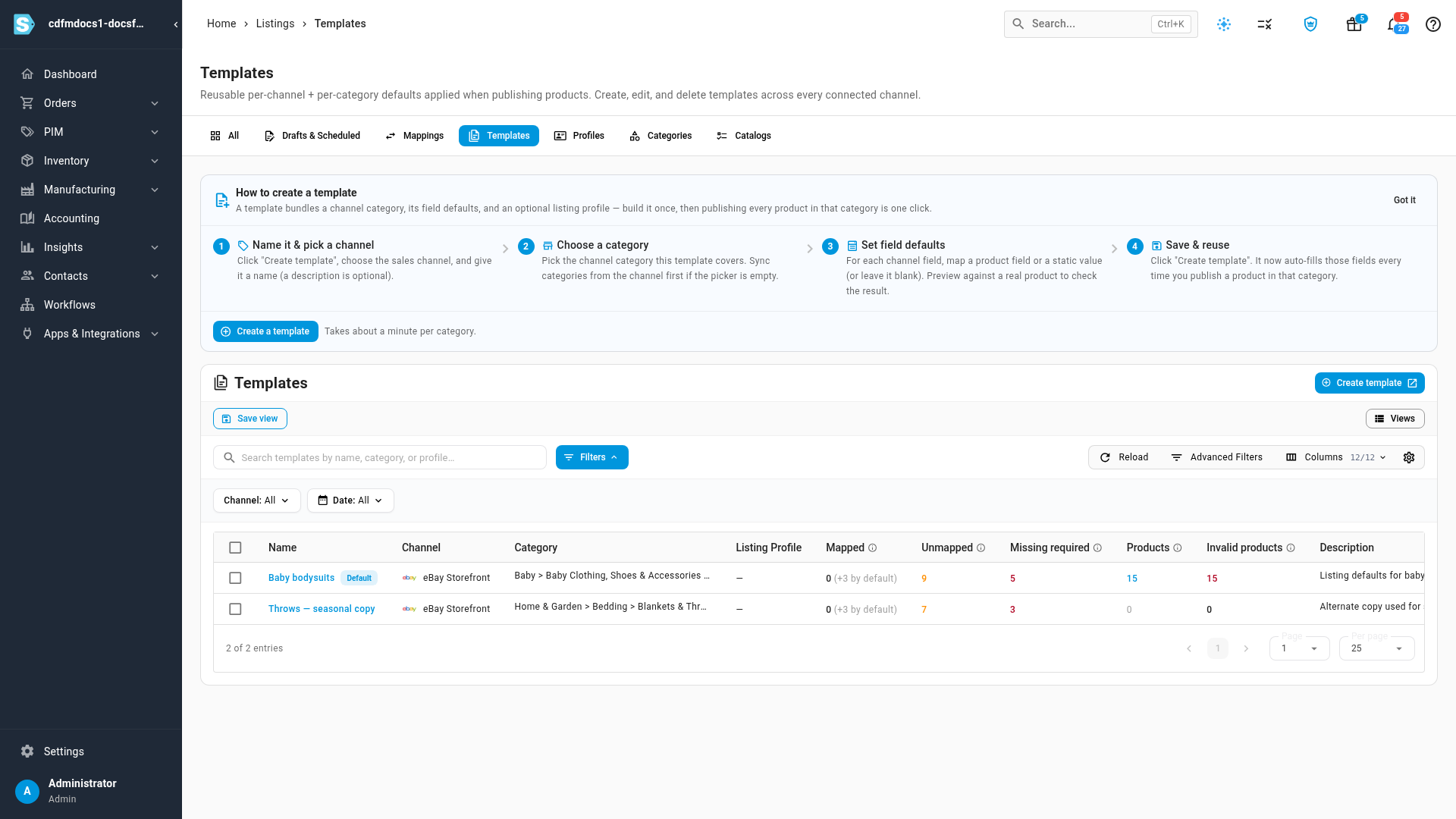
Go to PIM → Publish and open the Templates tab. Each row is one template, with its Channel, Category and Listing Profile, and these counts:
| Column | What it counts |
|---|---|
| Mapped | Channel fields that already resolve to a value, set on the template or inherited from its listing profile. A number marked by default counts the extra fields the channel fills from the product itself, such as the title from the product name. |
| Unmapped | Channel fields nothing fills yet. Optional ones can stay empty. |
| Missing required | Required channel fields with no value anywhere. A product can't publish through the template until these are filled. |
| Products | How many products publish through this template. Click the number to see them. |
| Invalid products | How many of those products can't publish yet because a field is empty. Click the number to open the template's readiness view. |
Create a template
-
On the Templates tab, click Create template. The template editor opens as its own page.
-
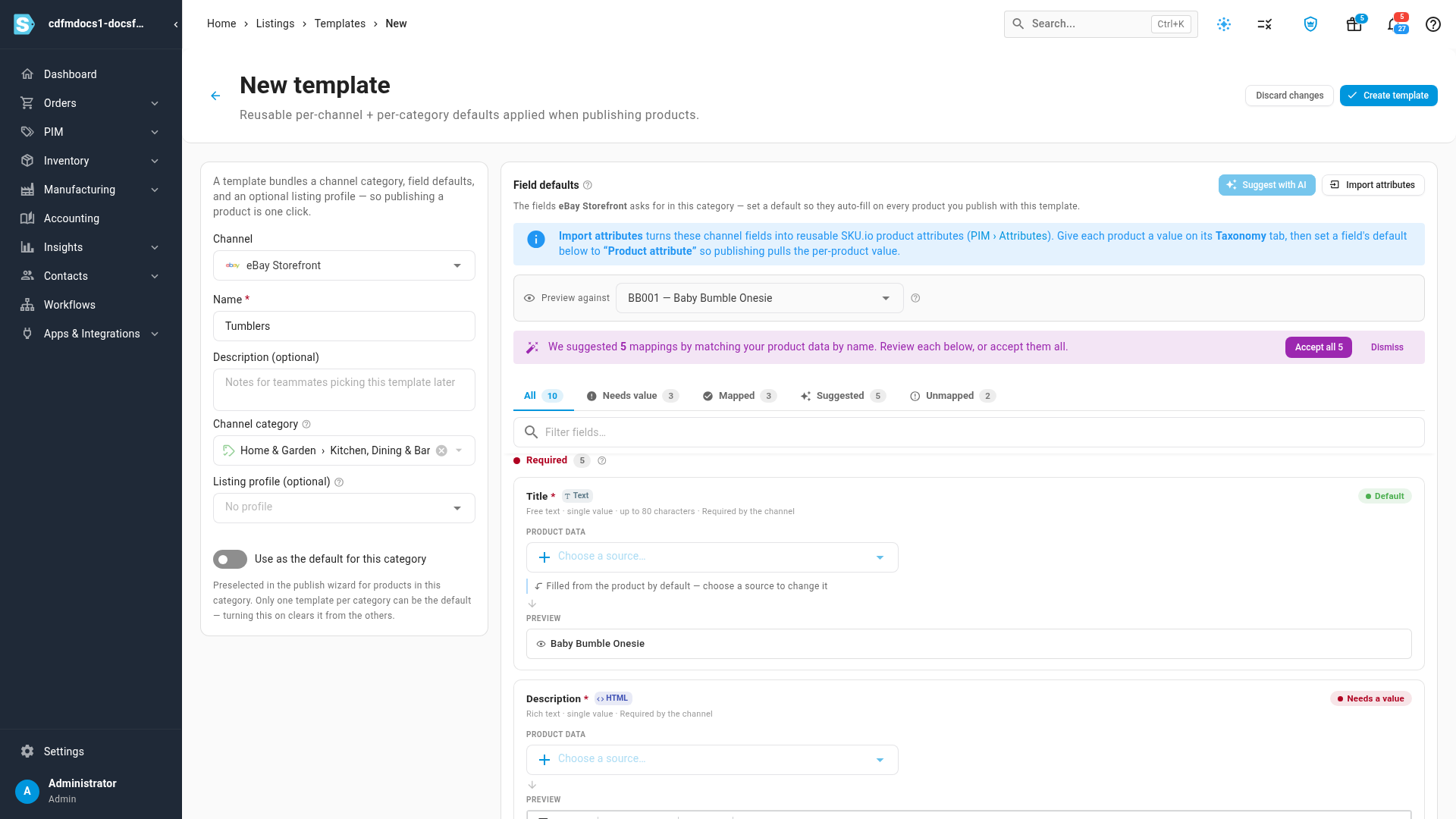
Under Channel, choose the sales channel.
-
Enter a Name your team will recognize, for example the category it covers. Description (optional) is a note for whoever picks the template later.
-
Under Channel category, search for the category and choose it. You can only choose a final category, not a group of categories. The fields the channel asks for in that category appear under Field defaults on the right.
-
Optional: under Listing profile (optional), choose a profile. The template then inherits the profile's field mappings and settings, and those fields show Inherited. With no profile, the template uses the channel's default profile.
Set the field defaults
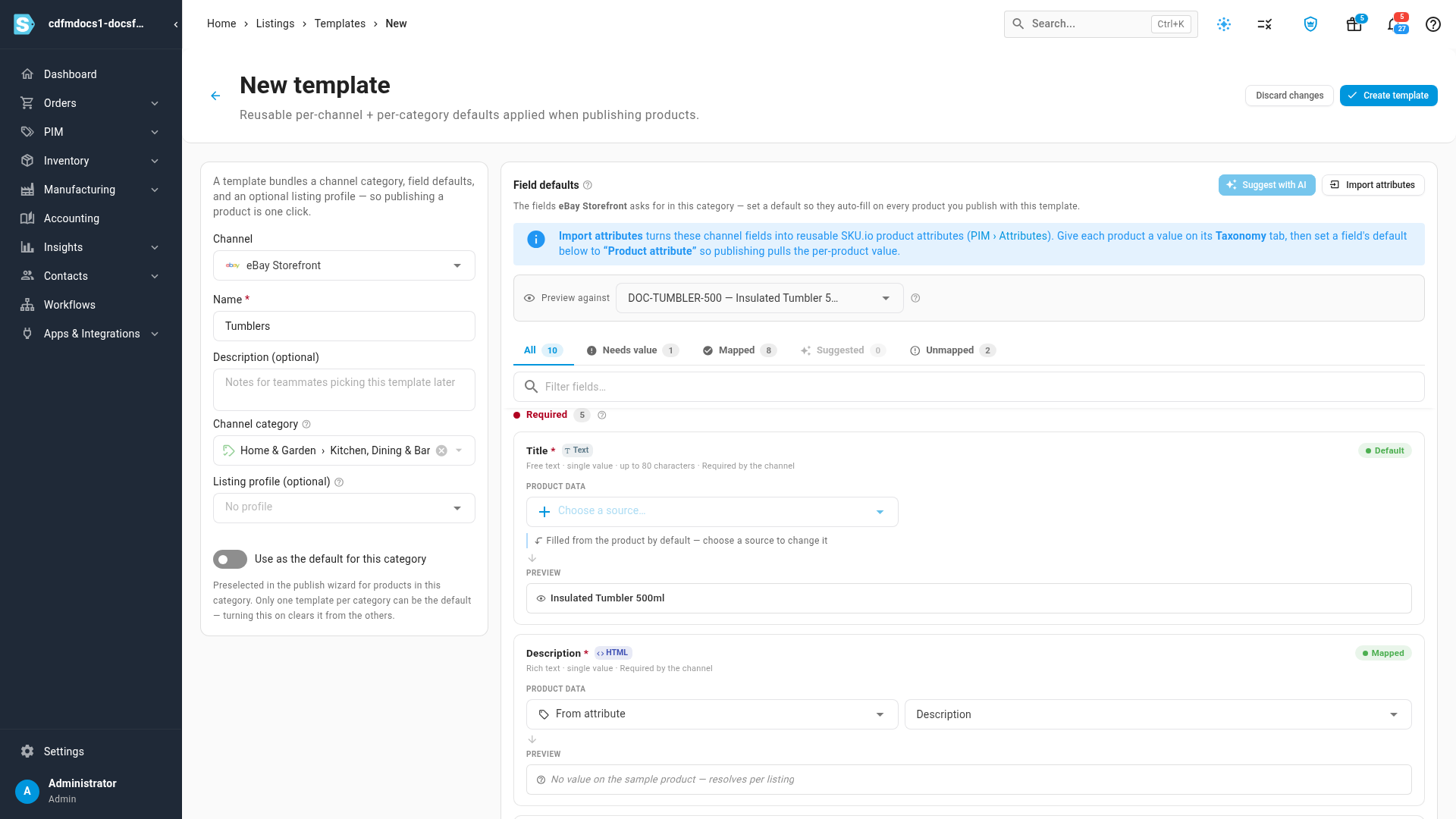
The fields are grouped as Required, Recommended and Optional, in the order the channel ranks them. The tabs above the list filter them: Needs value, Mapped, Suggested and Unmapped.
-
Under Preview against, choose a product from this category. Every field then shows, under Preview, the value that product would send. Previewing saves nothing.
-
If SKU.io matched channel fields to your product data by name, a banner says how many it suggested. Click Accept all to take them, or Accept or Ignore on each field.
-
Click Needs value to see the required fields that still have nothing behind them.
-
For each one, open Choose a source… and pick where the value comes from:
Source Use it when Static value Every product in the category sends the same value. A field that only accepts a fixed list shows those values to pick from. From product The value is in a product column, such as the brand or the barcode. From attribute The value is in one of your product attributes, such as Capacity or Material. Combine fields The value is built from several product values. Leave empty The field should have no default. 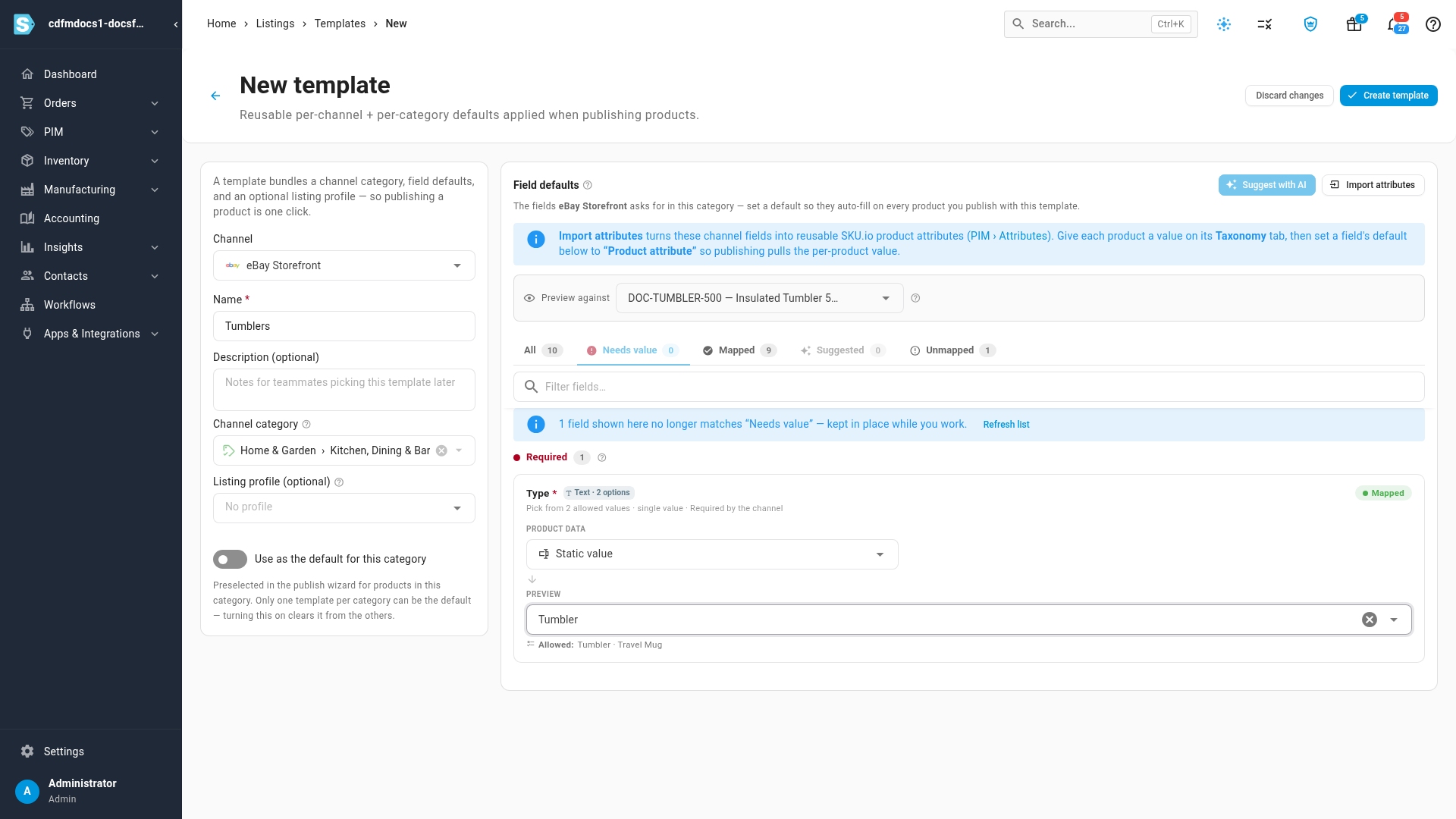
Fields marked Default, such as Title, Price and UPC on eBay, need nothing from you. The channel fills them from the product itself, and the row says Filled from the product by default. Choose a source only when you want to send something else.
A channel field you'd like to fill per product, but that has no matching attribute yet, can become one. Click Import attributes to turn this category's channel fields into product attributes. Give each product its value, then set the field's source to From attribute.
Save the template
- To have publishing pick this template automatically for products in this category, turn on Use as the default for this category. Each category has one default template, and turning this on takes the flag off any other template for the category.
- Click Create template. You return to the Templates tab, where the new template shows its field counts. Its category's default template is marked Default.
Check which products are ready
Click a template's Invalid products count to open its Readiness view. The cards across the top count the products on this template, how many cannot publish, the fields with gaps and the suppliers involved. The table lists each product grouped by supplier, with a ✓ or ✗ under every field the template sends.
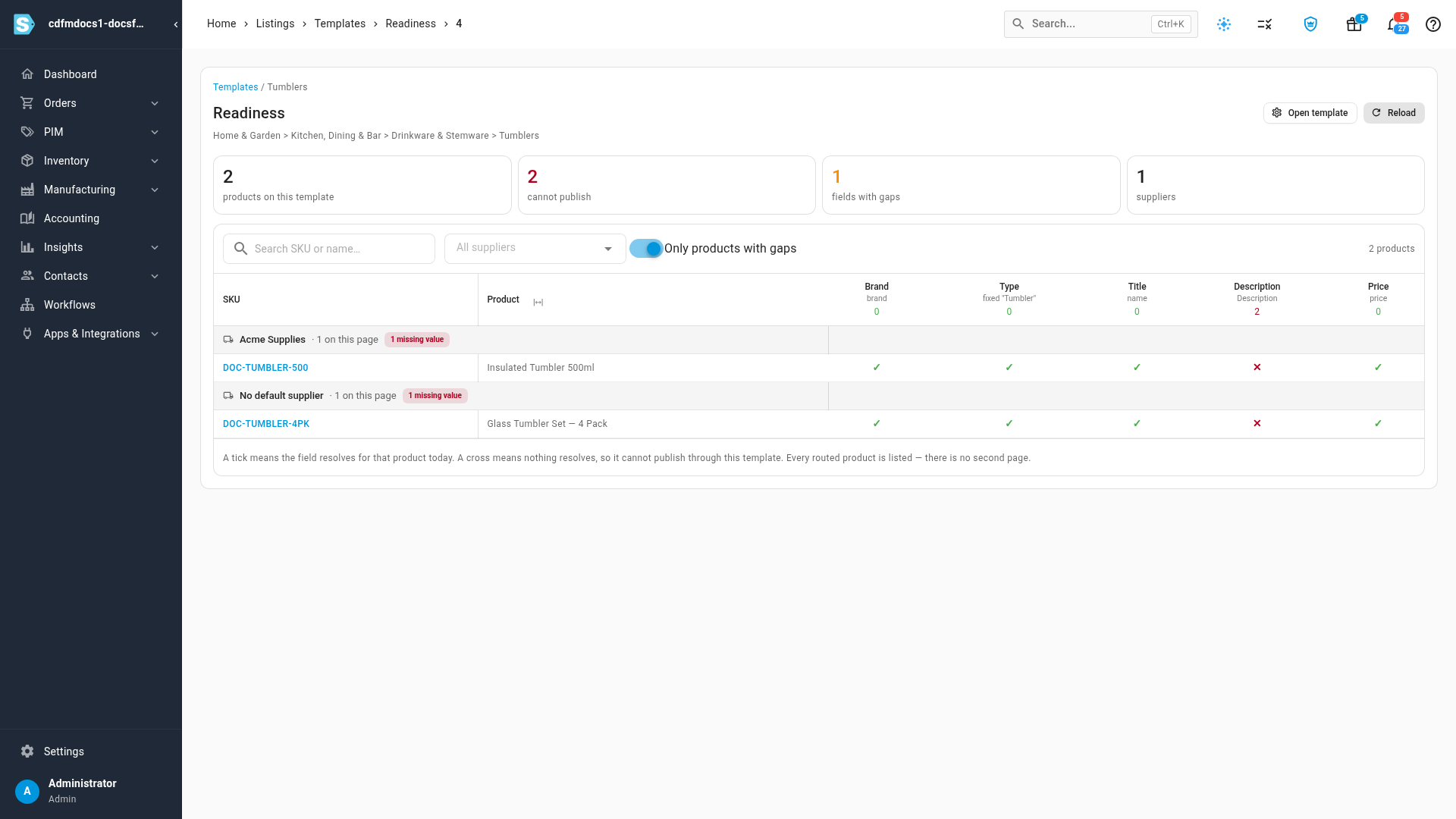
Click a SKU to open the product and fill in the missing value, then come back and click Reload. A column marked not mapped is a field the template doesn't fill at all. Click Open template and set its source. Find missing product data for listings shows the same gaps across every template at once.
Change or delete a template
- To change a template, click its name on the Templates tab, make your changes, and click Save changes. Reload throws away unsaved changes and loads the saved template again. Discard changes returns to the list.
- To delete a template, click the delete icon at the end of its row and confirm. To delete several, tick them and use the bulk delete action. Drafts that used a deleted template keep their data but lose the link to it. Deleting can't be undone.
If the channel can't be reached when you open a template, for example because its connection needs re-authorizing, a warning above the fields says so. The editor still shows the fields it already has, and saving leaves the template's saved defaults as they were.
Next steps
- Map product types to channel categories: send each product to the right category, and so to the right template.
- Work with listing drafts: review and publish the listings your templates fill in.
- Generate listing content with AI: write the descriptions and other copy a template is still waiting on.
Video transcript
Listing templates live in PIM, under Publish, on the Templates tab. Each template holds the field defaults for one channel category. The table shows each template's channel and category. Mapped is the number of fields that already have a value. Missing required flags required fields that still have no source. Invalid products shows how many of its products cannot publish yet. Click Create template, at the top right of the list. The editor opens as its own page. Under Channel, choose the template's sales channel. Then give it a name your team will recognize, such as its category. Next, pick the channel category this template covers. Search for it, and choose it from the list. The fields the channel asks for in that category then load on the right, under Field defaults. To check your work as you go, choose a product under Preview against. Each field then previews the value from that product. Nothing is saved by previewing. SKU.io matches channel fields to your product data by name, and suggests each match. Review the suggestions, then click Accept all. Fields marked Default, like Title, need nothing from you, because the channel fills them from the product. Click Needs value to see the required fields that still have no source. This field only accepts a fixed list, so pick the value every product should send. You can also pull a value from a product column or an attribute, or combine several. Turn on Use as the default for this category, so publishing preselects this template. Then click Create template, at the top right of the page. You return to the list, where the new template appears with its field counts. To see which products are held back, click the template's Invalid products count. Readiness lists each product that cannot publish yet, and the field it is missing. Fill those in on the product, and it is ready to publish.