Check listing performance
Before you spend time improving a listing, check which channels actually sell the product. Listing performance totals a product's sales on every channel over the last 30 days, so you can see where it earns and where its listings sit idle.
Before you begin
- The product has listings on at least one channel, and orders from those channels have come into SKU.io. The figures come from your orders, so a channel only shows up once it has sold the product.
Steps
-
Go to PIM → Publish.
-
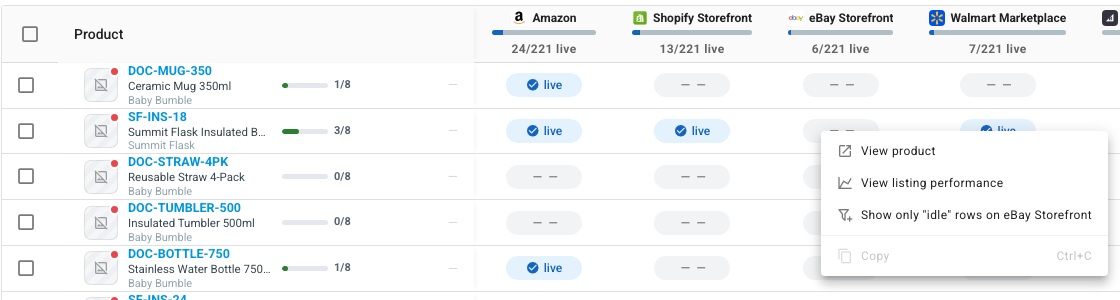
Find the product in the Publish matrix. Use Search products by SKU or name… to narrow the list.
-
Right-click the product's row and choose View listing performance. On a phone, tap the row's ⋮ menu instead.
-
Read the Listing performance window. Its header names the product and the date range it covers.
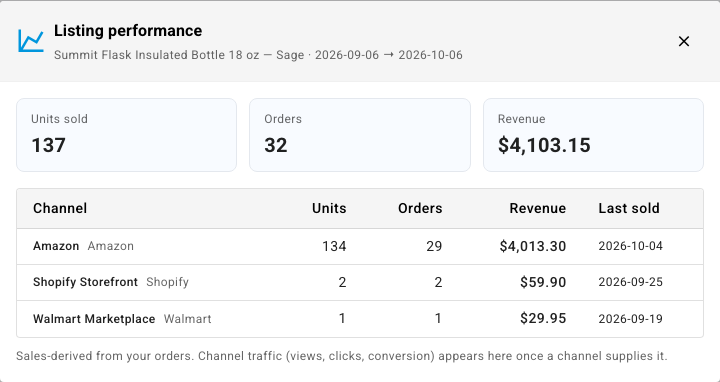
| Part | What it shows |
|---|---|
| Units sold, Orders, Revenue | The product's totals across every channel for the period |
| Channel | Each channel that sold the product, with its integration beside it |
| Units, Orders, Revenue | That channel's share |
| Last sold | The date of the most recent sale on that channel |
If the product hasn't sold anywhere in the last 30 days, the window says No sales recorded for this product in the last 30 days.
The figures are worked out from the orders SKU.io holds. Channel traffic, such as views, clicks and conversion rate, isn't shown here.
Next steps
- Browse your channel listings — see every live listing and where your catalog isn't listed yet.
- Work with listing drafts — list a product on a channel where it's missing.