Limit a channel to part of your catalog
By default every connected channel can carry your whole range. A channel catalog narrows that down. You write rules (include this brand, exclude that category, add these products) and assign the catalog to one or more channels. From then on, those channels only carry the products the catalog admits, and SKU.io stops offering the rest for publishing there.
Use one for a niche storefront that sells a single brand, a marketplace that only allows certain categories, or a clearance outlet.
Before you begin
- Catalogs are optional. A channel with no catalog carries every product, exactly as before.
- A channel can follow one catalog at a time. One catalog can govern several channels.
- Not to be confused with the Add to Catalog action on the products list, which builds catalogs for your B2B portal. Channel catalogs live under Publish.
Create a catalog
-
Go to PIM → Publish and open the Catalogs tab. The page explains: "Limit which products a sales channel may carry. A channel with no catalog carries your whole range — catalogs are entirely opt-in."
-
Click New catalog.
-
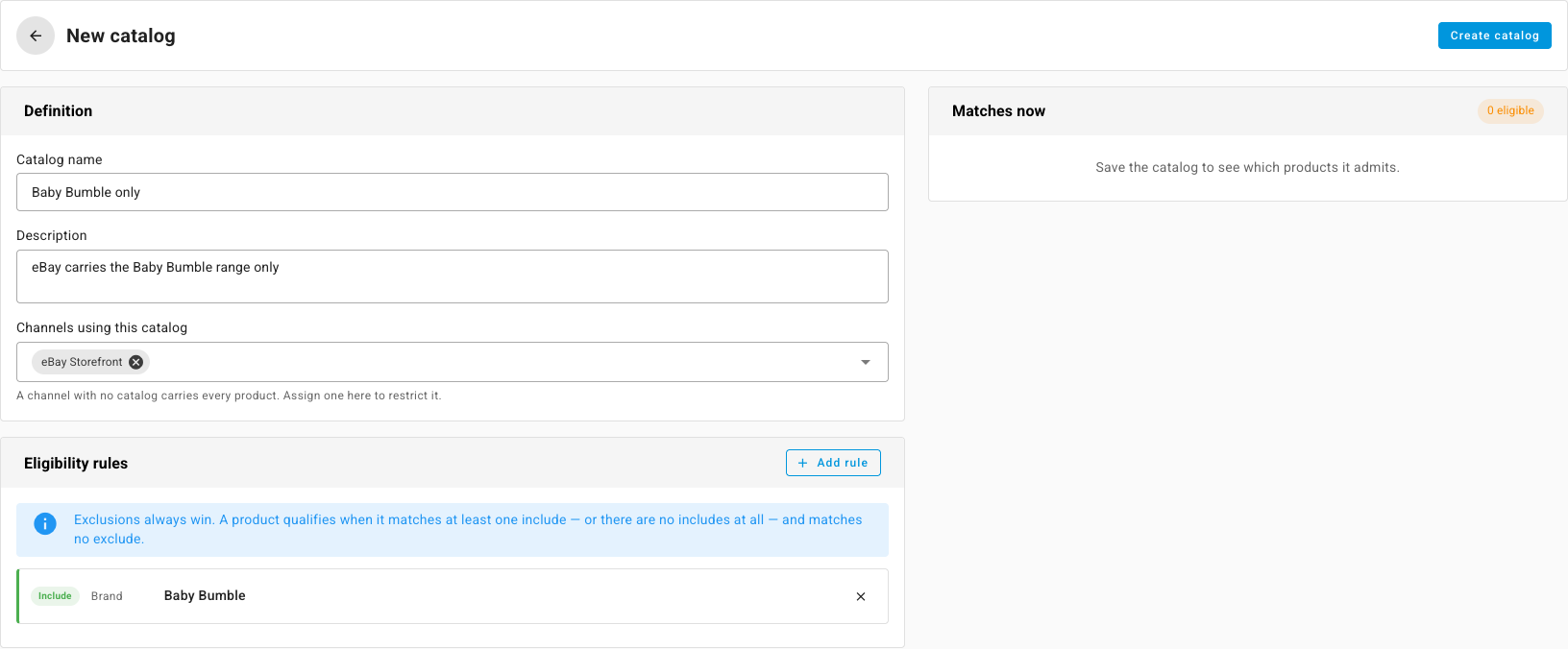
Under Definition, fill in:
- Catalog name, for example "Baby Bumble only".
- Description, a note on what the catalog is for. Optional.
- Channels using this catalog: pick the channels it should restrict. You can leave it empty and assign channels later.
-
Under Eligibility rules, click Add rule.
-
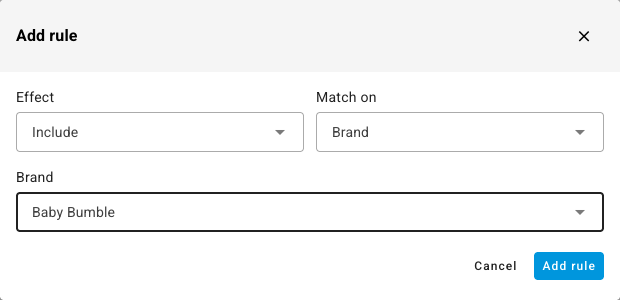
In the Add rule window, choose:
- Effect: Include or Exclude.
- Match on: Brand, Category or Product.
- The brand, category or product itself. Start typing to search.
-
Click Add rule. Repeat for every rule you need.
-
Click Create catalog.
How the rules combine
The blue note above the rules sums it up: exclusions always win.
- A product qualifies when it matches at least one Include rule and no Exclude rule.
- A catalog with only Exclude rules carries everything except what they exclude.
- A catalog with no rules at all carries your whole range, the same as having no catalog.
Rules are checked again every time the catalog is read. A new product from an included brand qualifies on its own, with no edit to the catalog.
Check what the catalog does before it bites
Once the catalog is saved, two panels on the right show its effect.
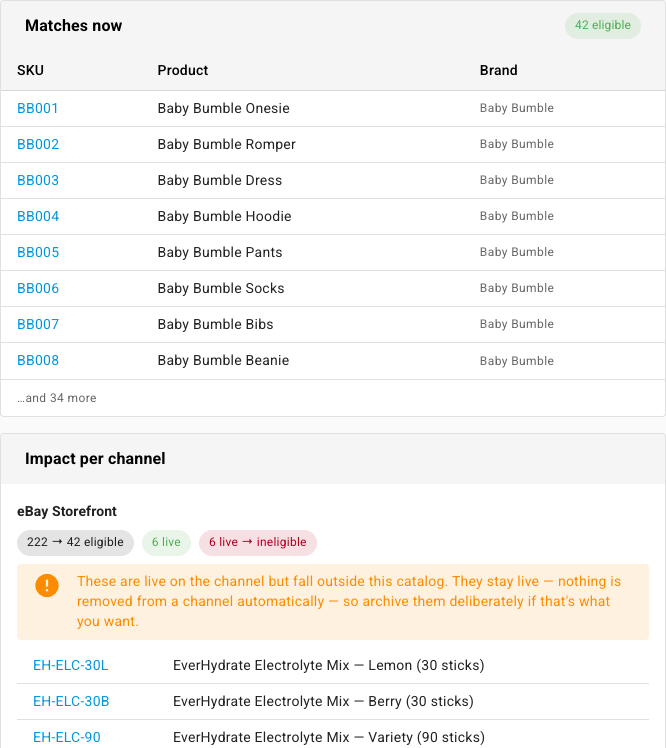
- Matches now lists the products the catalog admits, with a count such as 42 eligible.
- Impact per channel shows, for each assigned channel, how far the range shrinks (for example 222 → 42 eligible), how many listings are live there, and how many of those live listings fall outside the catalog.
Live listings outside the catalog stay live. The warning says so: "nothing is removed from a channel automatically — so archive them deliberately if that's what you want." The panel lists them, so you can work through them.
Edit the rules or channels at any time and click Save catalog.
What changes on Publish
On the All tab of Publish, a product the catalog doesn't admit shows not in catalog in that channel's cell, greyed out and in italics. Point at it for the reason: "this channel only carries part of your range, and this product isn't part of it. Publishing here is blocked until the catalog says otherwise."
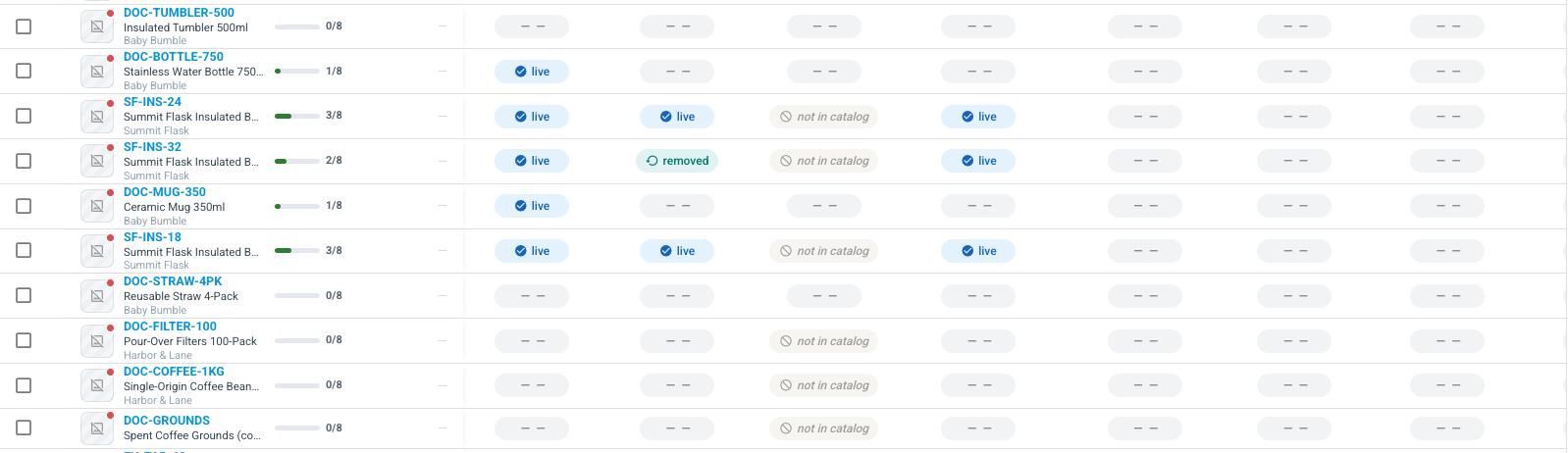
These cells aren't gaps to fill, so they don't count against the channel's coverage. The channel's header counts only the products the catalog admits, for example 6/42 live.
If you try to publish a product to a channel whose catalog doesn't admit it, SKU.io refuses and names the catalog, such as "This product isn't in Baby Bumble only, the catalog that limits which products this channel carries." With one channel picked in the matrix, those rows can't be selected for bulk publishing at all. A scheduled publish is checked again when it runs, in case the catalog changed in the meantime.
Manage catalogs
The Catalogs tab lists every catalog with its Rules, the Channels using it and when it was Last updated. Filter by Assignment (All, Assigned or Unassigned) to find catalogs that do or don't govern a channel.
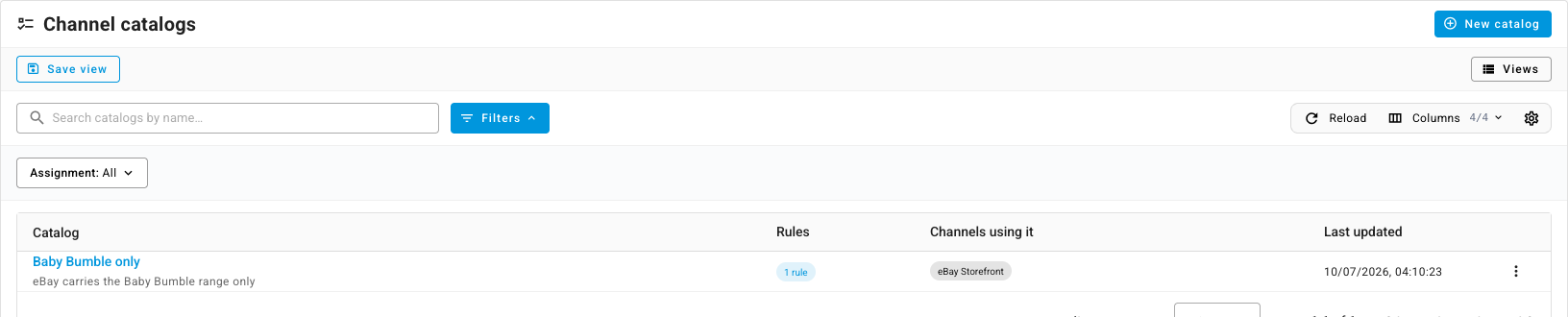
Open a row's menu to Edit or Delete a catalog. Deleting asks you to confirm, and says what happens next: the channels using it "go back to carrying every product. No listings are removed."
Next steps
- Keep a product off some or all channels: exclude a single product without writing a rule.
- Work with listing drafts: publish what the catalog admits.
- Browse your channel listings: find and archive the live listings a new catalog leaves outside.