Generate listing content with AI
A product often can't be listed because a channel wants copy you haven't written yet: a description, bullet points, a longer title. SKU.io can write it for you with AI, working from the product data you already have. You can generate content for a whole selection of products on a channel in one go, or draft it for a single listing and choose what to keep.
Before you begin
- The AI Assistant is turned on for your workspace, with an API key for one of the supported AI providers (OpenAI, Anthropic, Gemini or DeepSeek). See Ask the AI Assistant.
- For bulk generation, the channel's template must map at least one content field (such as a description) to a product attribute. That attribute is where the generated text is saved. See Set up listing profiles.
Generate content for many products
Use this when a batch of products is held back only by missing copy. The generated content is saved onto the products, in the attributes the channel's template reads, so those products can then be listed without writing anything by hand.
-
Go to PIM → Publish.
-
Under Publish to:, click the channel, for example eBay Storefront. The channel's page shows how much of your catalog is live there, with counts for Live, Needs data and Needs a template.

-
Tick the products you want content for. The products marked Needs data are the ones a template is waiting on.
-
Click Generate AI content in the bar above the table.
-
Read the confirmation, then click Generate.
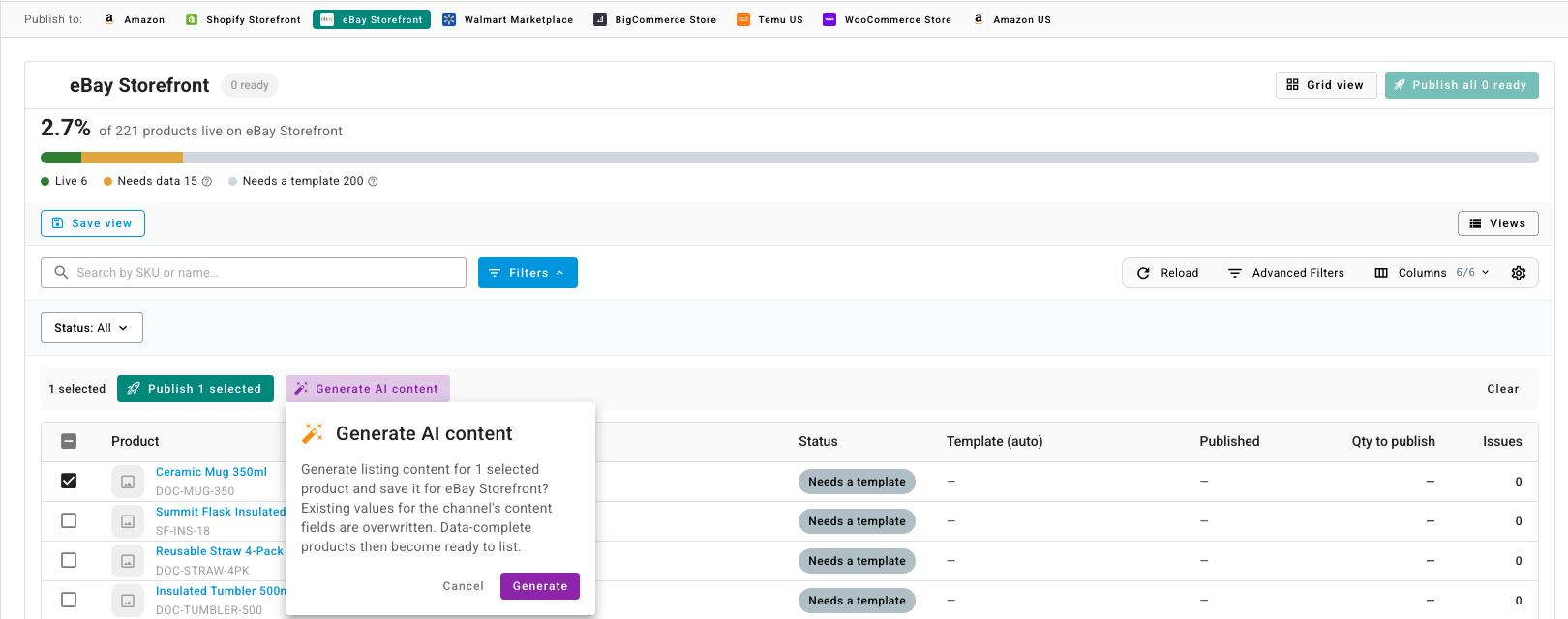
Existing values in the channel's content fields are overwritten for the selected products. Check the selection before you click Generate.
Generation runs in the background, and you can follow it in the job tray. Products that now have every field their template needs become ready to list. Publish them with Publish selected, or with Publish all n ready at the top of the page.
If the channel's template doesn't map any content field to a product attribute, SKU.io stops before generating and tells you to map one first.
Draft content for one listing
When you edit a listing's fields from the Publish listing window, the AI Content Studio panel sits at the top of the field editor. It drafts content for that listing only, and nothing changes until you apply it.
- Click AI Content Studio to expand it. If the panel shows Setup needed or Off, use its button to finish setting up the AI Assistant.
- Choose a Tone, and add any Target keywords (optional).
- Under Generate, pick what to write: Title, Description, Bullets, Keywords.
- For an Amazon listing, tick Optimize for Amazon Rufus to phrase the copy for Amazon's shopping assistant, in natural language that answers shoppers' questions.
- Click Generate content.
- Review each result. Click Apply to put it into the matching listing field, or Copy to copy it. If the channel has no matching field, the content is copied to your clipboard instead, and a message says so.
- Click Regenerate for another version.
Next steps
- Work with listing drafts — review and publish the listings once they have their content.
- Set up listing profiles — decide which product data fills each channel field.