Transfer serials between warehouses
A warehouse transfer moves serialized units the same way it moves any stock, and the serials travel with them. When the transfer ships, its serials change to In Transit. When it's received, they change to In Stock at the destination warehouse. At any point you can see where a unit is.
Before you begin
- Serial tracking is on for your account and for the product. See Turn on serial tracking.
- The transfer is open. See Create a transfer.
Ship the transfer
- Open the transfer and click Ship.
- In Create Shipment, set the Ship Qty for each line.
- Under each serialized line, a Serial Numbers field shows how many serials the shipment needs (for example 0 of 2). Either:
- enter the serials that are leaving, one per unit, or
- leave the field blank to send the oldest serials in stock at the source warehouse.
- Click Create Shipment.
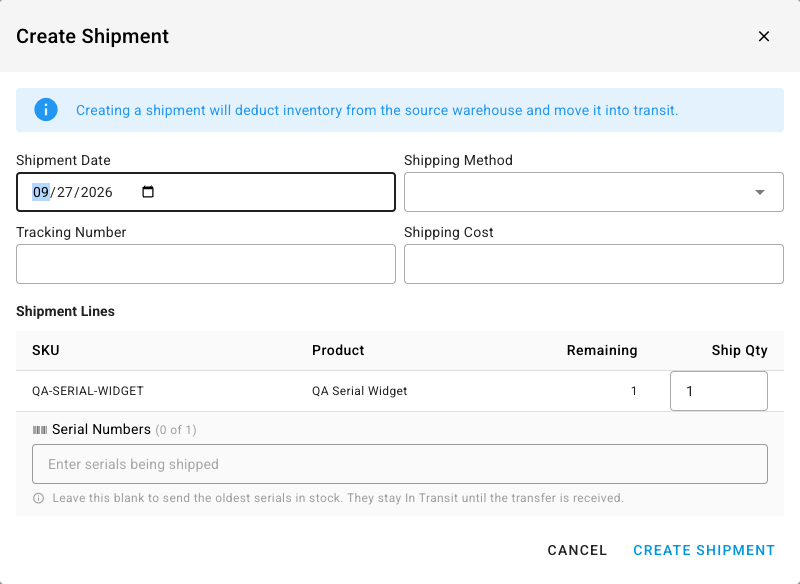
A partial list isn't accepted: Create Shipment stays disabled, and its tooltip explains why, until the field is blank or has one serial per unit. When Outbound Serial Match Mode requires an exact match, a serial that isn't in stock at the source warehouse is refused and named.
The serials that ship change to In Transit. They still show the source warehouse, because the units haven't arrived anywhere yet, and they can't be picked for another order while they travel.
Receive the transfer
- Click Receive, set the quantities in Receive Items, and click Receive Items.
- Click Confirm.
You don't enter serials when you receive. SKU.io takes the serials that are in transit on this shipment, oldest first, and changes them to In Stock at the destination warehouse. A partial receipt takes only as many serials as the units you received; the rest stay In Transit until the next receipt.
When the transfer arrives short
If some units never arrive, open Actions and choose Close with Receiving Discrepancy to close the transfer. The serials still in transit for the missing units change to Scrapped, with the reason Lost in transit. The units that did arrive keep their serials, In Stock at the destination.
Delete a receipt or a shipment
- Delete a receipt (on the Receipts tab): the serials it brought in go back to In Transit, on the source warehouse, as if the units had never arrived.
- Delete a shipment (on the Shipments tab): the serials go back to In Stock at the source warehouse. That includes any the shipment had already delivered, and any scrapped as lost in transit.
Transfers to Amazon and other externally managed warehouses
A transfer to a warehouse that SKU.io doesn't receive into, such as an Amazon fulfillment center, never has an In Transit stage. Its serials change to Shipped when the transfer ships, because the units leave your control. Deleting the shipment puts them back in stock.
Next steps
- Find a serial and its history: follow a transferred unit's movements.
- Serial numbers reference: every status and what moves a serial into it.