Receive serials
When a serialized product comes into stock, each unit gets its own serial number. You record them at the moment you receive: on a purchase order, on an inbound shipment, or with an inventory adjustment. The serials land In Stock in the warehouse you received into, ready to be picked and shipped.
Before you begin
- Serial tracking is on for your account and for the product. See Turn on serial tracking.
- Know the product's serial generation mode:
- Manual — you enter one serial for every unit you receive. The receive stays blocked until the count matches.
- Auto — leave the field blank and SKU.io generates a serial for each unit, or type your own. You can enter fewer serials than units; SKU.io generates the rest.
Enter serials
Every receive screen uses the same Serial Numbers field under the product line. The label shows how many you've entered against the quantity, for example Serial Numbers (2 of 3).
- Type a serial and press Enter to add it.
- Paste a list: serials separated by new lines, commas, tabs or semicolons are split into one entry each, and duplicates in the paste are dropped.
- Scan with a barcode scanner that sends Enter after each scan.
- Remove an entry with the × on its chip.
If the number of serials doesn't match the quantity, a warning under the field says so, for example "2 serials entered for a quantity of 3."
Receive on a purchase order
- Open the purchase order and click Receive.
- In the Receive Items drawer, check the Received Date and the Destination Warehouse. The serials are recorded in the warehouse you pick here, so change it if the units are going somewhere other than the PO's warehouse.
- Set the Receive Qty for each line.
- For each serialized line, enter the serials in the Serial Numbers field under the line.
- Click Receive Items, and confirm if asked.
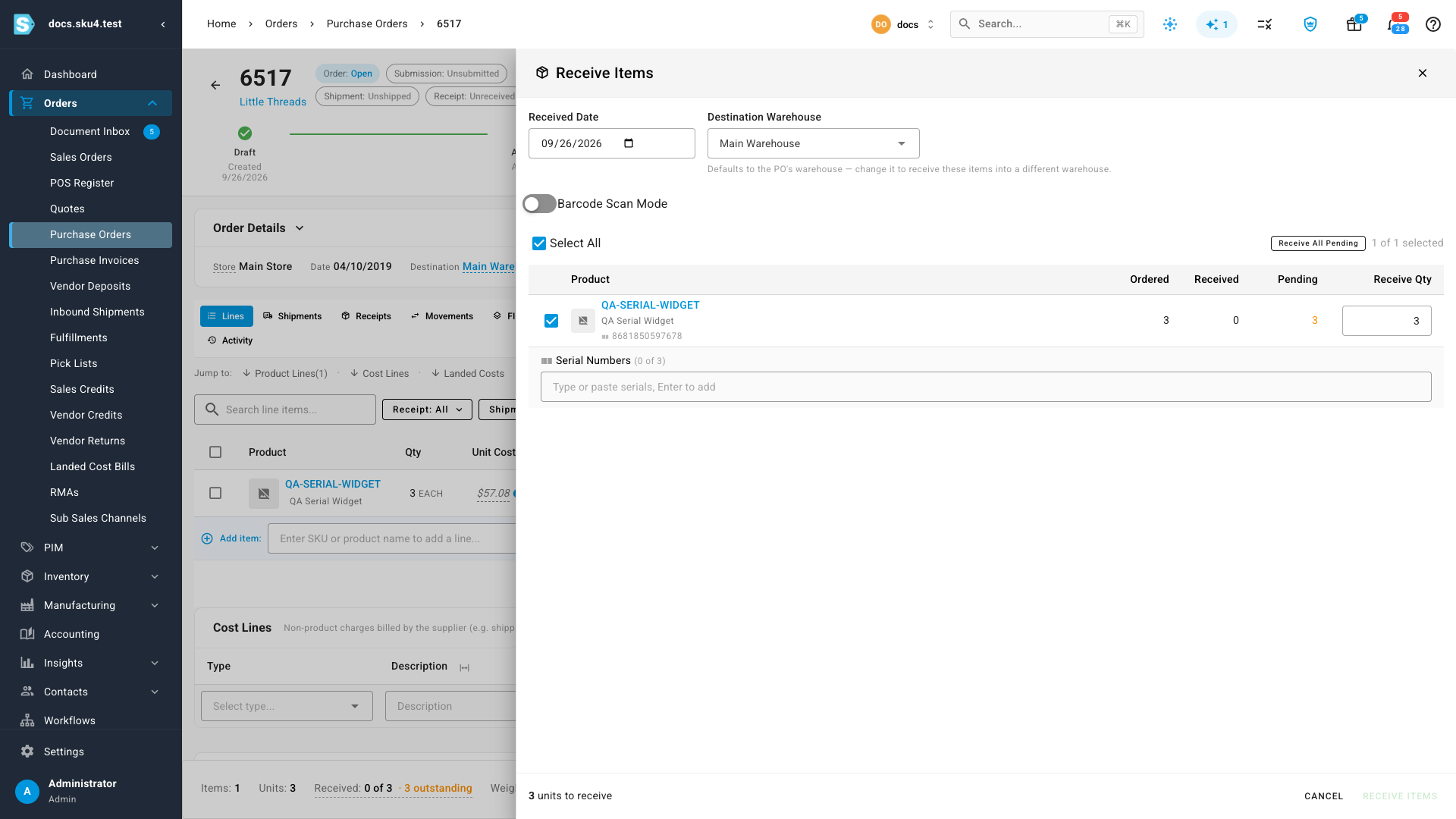
While a Manual line is missing serials, Receive Items is disabled. Hover over it to see why: "Enter one serial number per received unit on every serialized line before receiving."
The receipt is processed in the background, so the serials appear on the product a moment after you click Receive Items. For everything else about PO receiving, see Receive stock against a purchase order.
Receive on an inbound shipment
- Open the inbound shipment and click Receive Items.
- Select the lines you're receiving and set their quantities.
- Enter the serials under each serialized line.
- Click Receive N Items (the button counts the lines you selected).
The warehouse is locked to the shipment's destination, so the serials are recorded there.
Add stock with an inventory adjustment
Use this for opening balances, found stock, or anything you receive outside a purchase order.
- Go to Inventory → Adjustments and click the add button (or press C).
- Pick the Product and the warehouse, and choose Increase as the Adjustment Type.
- Enter the quantity in Increase By.
- Enter the serials in the Serial Numbers field.
- Click Increase Inventory.
For a Manual product the button stays disabled until there's one serial per unit ("Capture a serial number for every unit before saving."). See Adjust stock for the rest of the dialog.
Found units in a stock take
When a stock take counts more units than SKU.io expected, you enter the serials of the extra units on the stock take itself, and they're received when you finalize. See Stock takes.
If a serial is rejected
- "Serial "X" already exists for [SKU]. Each serial can only be received once." — that serial is already on record for this product. Check whether you scanned the wrong unit, or look the serial up on the Serial Numbers page to see where it is.
- "Serial "X" for [SKU] is listed more than once." — the same serial appears twice in what you entered. Remove the duplicate.
- "N serial numbers were entered for [SKU], but the quantity is M." — add or remove serials until the count matches the quantity.
Nothing is received until every serial on the receipt is accepted. The full list of messages is in the Serial numbers reference.
Undo a receipt
Deleting a receipt or an adjustment, or reversing a stock take, also removes the serials it received, as long as they're still in stock. They disappear from the Serial Numbers list, and you can receive the same serials again later — for example, after you correct a receipt that went to the wrong order.