Remove serials from stock
Units don't only leave on customer orders. You write stock down with an adjustment, a stock take finds units missing, or you send units back to a supplier. In each case the serials of those units leave stock too, so the Serial Numbers list keeps matching what's on the shelf.
Before you begin
- Serial tracking is on for your account and for the product. See Turn on serial tracking.
- If your account uses Require exact match for outbound serials, every serial you name must be In Stock in the warehouse the units leave from. See the Serial numbers reference for the setting and its messages.
Decrease stock with an inventory adjustment
- Go to Inventory → Adjustments and click the add button (or press C).
- Pick the Product and the warehouse, and choose Decrease as the Adjustment Type.
- Enter the quantity in Decrease By.
- In the Serial Numbers field (Enter serials being removed), enter the serial of each unit you're removing.
- Click Decrease Inventory.
For a Manual product the button stays disabled until there's one serial per unit ("Capture a serial number for every unit before saving."). For an Auto product you can leave the field blank, and SKU.io takes the oldest serials in stock at that warehouse.
The serials you remove are marked Scrapped with the reason "Inventory adjustment", and the adjustment shows as their source. Deleting the adjustment puts them back In Stock. For the rest of the dialog, see Adjust stock.
Stock takes
A stock take compares what you counted with what SKU.io expected. For a serialized product with a difference, a Serial Numbers field appears under the item's quantity — Adjustment (+/-) in an adjustment stock take, or Qty Counted in a full count once the snapshot is taken.
When you count more than expected (found units):
- Enter the serials of the extra units. The caption reads "Enter the serials of the extra units."
- For a Manual product, the stock take can't be finalized until there's one serial per found unit.
- For an Auto product you can leave the field blank; SKU.io generates serials for the found units when you finalize.
- The found serials are received In Stock in the stock take's warehouse.
When you count fewer than expected (a shortfall):
- Enter the serials of the missing units, or leave the field blank. The caption reads "Leave blank to scrap the oldest serials in stock."
- When you finalize, the named serials — or, if you left it blank, the oldest serials in stock — are marked Scrapped with the reason "Stock take shortfall". Missing units weren't sold, so they don't show as shipped.
If the serials don't match the difference, the finalize button (Finalize Adjustment in an adjustment stock take) stays disabled. Hover over it to see which items need attention: "Enter one serial per unit of variance on serialized items (found units need their serials unless the product generates them; a shortfall may be left blank)."
Serials you enter are saved with the item as you type, so you can come back to the stock take before you finalize.
Reversing a stock take (Reverse on a closed stock take) undoes both sides: found serials are removed again, and serials a shortfall scrapped go back In Stock. For the rest of the stock-take flow, see Finalize a stock take and Amend a stock take.
Return units to a vendor
When you ship a vendor return, the serials of the returned units leave stock and are marked Returned.
- Open the vendor return. If it's a draft, click Authorize first.
- Click Ship.
- In the Ship Return dialog, fill in the shipment details.
- Under Serial Numbers, each serialized line has its own field. Enter the serials of the units you're sending back, or leave it blank to send the oldest serials in stock.
- Click Ship.
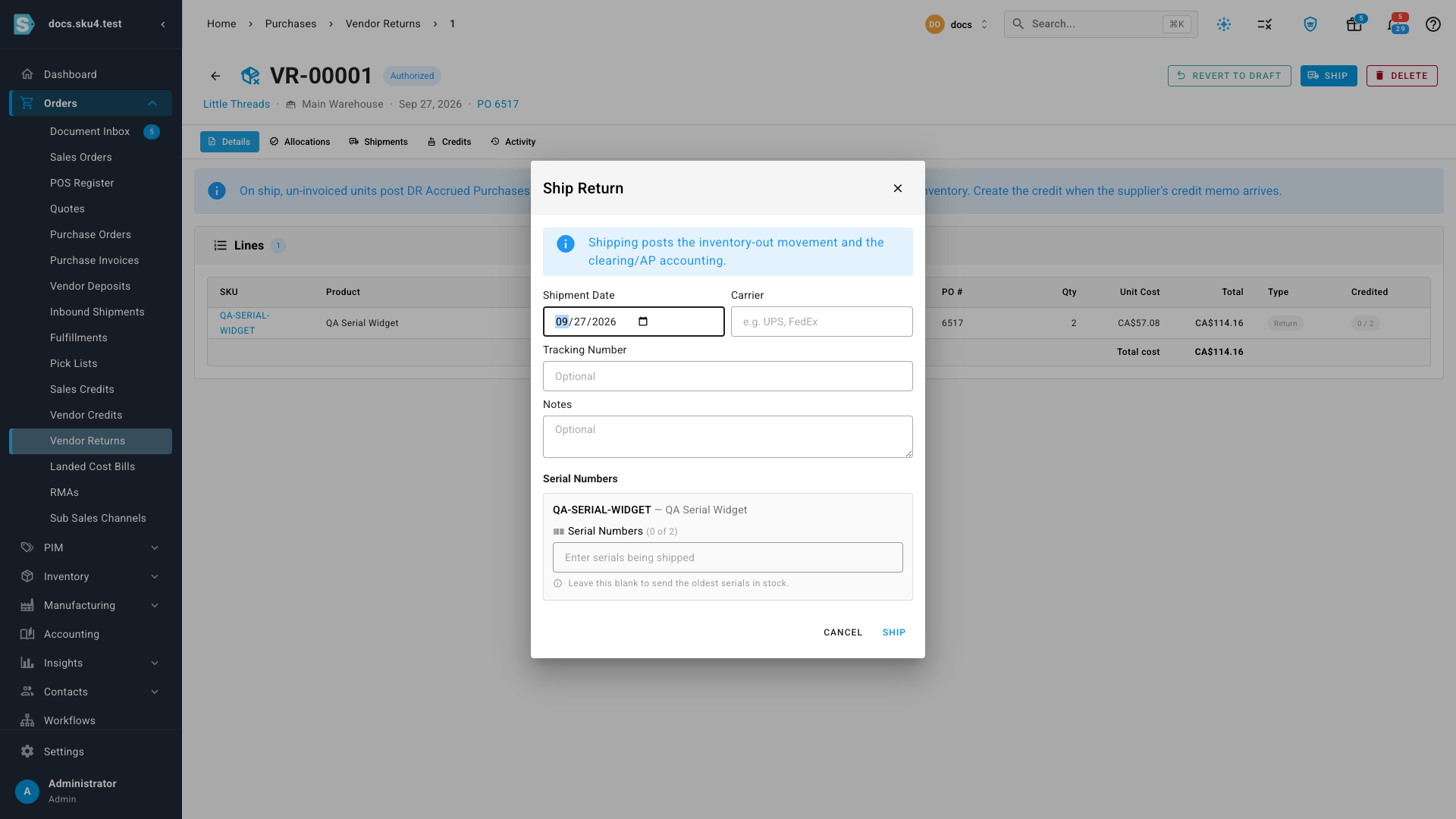
A field needs either no serials or exactly one per unit. With a partial list, Ship stays disabled, and its tooltip says "Enter one serial for each unit on the line, or leave the serials blank to send the oldest in stock."
Voiding the return (Void) puts its serials back In Stock. For the rest of the vendor-return flow, see Return goods to a vendor.
Next steps
- Find a serial and its history — the timeline shows every adjustment, stock take and return a serial went through.
- Serial numbers reference — what each status means.