Find a serial and read its history
When a customer calls about a unit, a supplier issues a recall, or a count doesn't add up, you need to find one specific serial fast and see where it's been. Inventory → Serial Numbers lists every serial across all your products and warehouses. Open any serial to see its current status and warehouse, and a timeline of every receipt, shipment, transfer and return behind it.
This page shows how to find a serial and read its history. To take a serial out of circulation while you investigate, see Quarantine and release serials. For what each status means, see the Serial numbers reference.
Before you begin
- Serial tracking is on for your account and for the product. See Turn on serial tracking.
- Serials exist once units have been received with them. See Receive serials.
Find a serial
- Go to Inventory → Serial Numbers. The list shows the newest serials first.
- Type in Search by serial... to find a serial. A partial match works, so
SN-00finds every serial containing it. Click into the box to see what you can search by: Serial or ID. - Narrow the list with the quick filters under the search box:
- Status shows only serials in one status, for example In Stock or Quarantined.
- Warehouse shows only serials at one warehouse.
- For more conditions, click Advanced Filters. You can filter on ID, Serial, Status, Received At, Shipped At and Created At, for example every serial received in a date range. Each active condition shows as a chip above the list; click a chip to edit it, or its × to remove it.
- To keep a filter set you use often, click Save view and name it. Open it later from Views.
Each row shows:
| Column | What it shows |
|---|---|
| Serial | The serial number. Click it to open the serial. |
| Product | The product's SKU and name. Click it to open the product. |
| Status | Where the unit is in its life, such as In Stock, Shipped, In Transit or Quarantined. |
| Warehouse | The warehouse the unit is at, or the one it last left. |
| Received | When the unit came into stock. |
| Shipped | When the unit left stock. Empty for units still in stock. |
| Order | The order the unit shipped on, when there is one. Click it to open the order. |
Use Columns to hide columns you don't need.
Read a serial's history
Click a serial to open it. The header shows the serial, its current status, its Product and its Warehouse. When a serial left stock for a reason, or was quarantined, the header also shows it as Disposition, for example Returned to vendor, Stock take shortfall or the reason typed when it was quarantined.
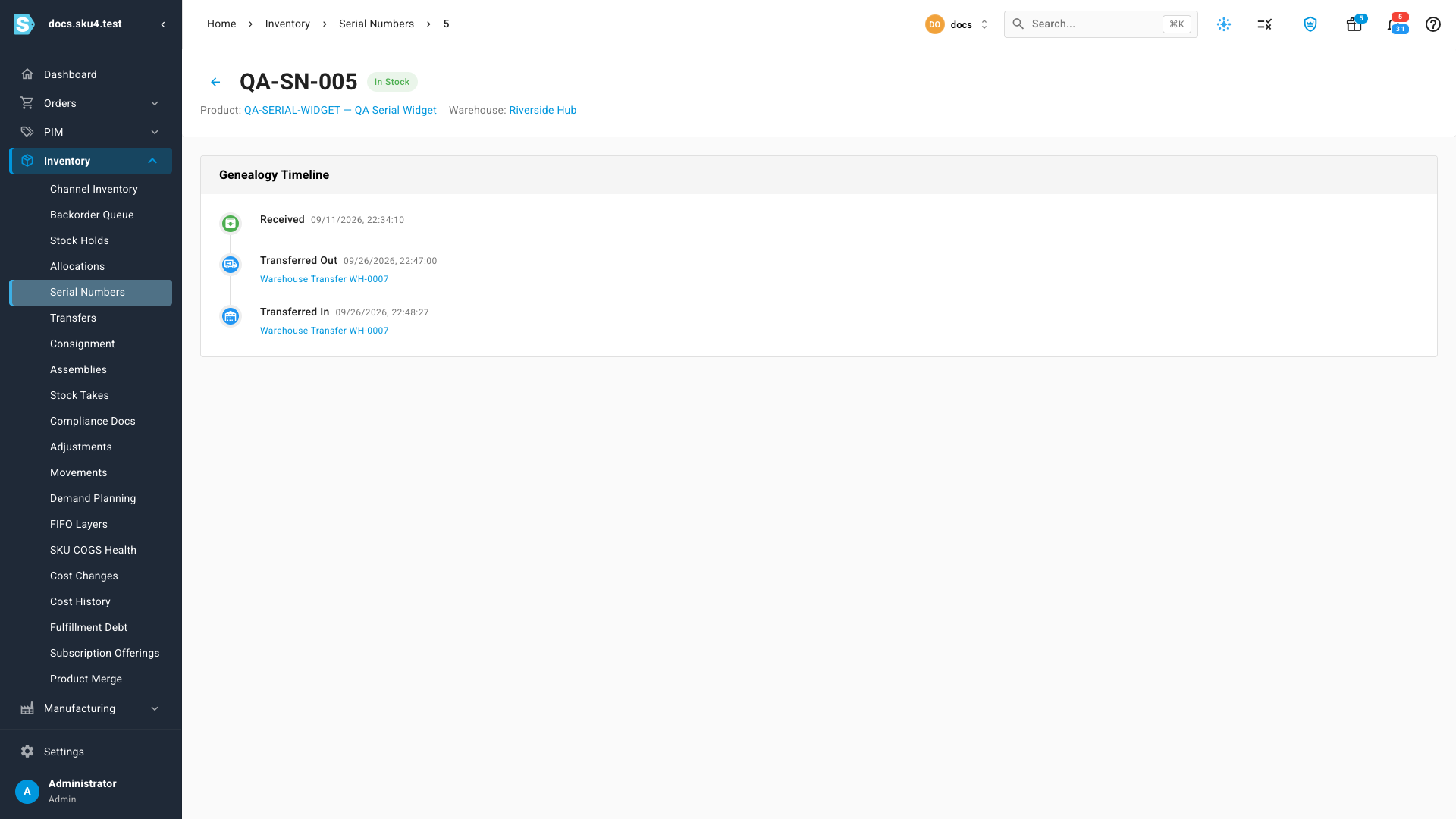
The Genealogy Timeline lists everything that happened to the unit, in the order it happened. Each event shows what happened and when, and links to the document behind it. For example:
- Received, with the purchase order, inbound shipment, stock take or adjustment that brought it in.
- Shipped, with the order that sent it to a customer.
- Returned, with the customer return that brought it back.
- Transferred Out and Transferred In, with the warehouse transfer that moved it between your warehouses.
- Returned To Vendor, with the vendor return that sent it back to a supplier.
- Consumed, with the manufacturing order or assembly that used it as a component.
- Scrapped, when a stock take shortfall, an inventory decrease or a lost transfer took it out of stock.
- Quarantined, when someone held it back from sale.
Click a document link to open that order, transfer or receipt. Hover the link to see exactly which record it points to.
See one product's serials
To see only one product's serials, open the product and go to its Serial Numbers section. It has the same search, Status filter and row actions as the main list, scoped to that product.