Turn on serial tracking
Serial tracking has two switches: one for your whole account, and one on each product. Set the account defaults first, then turn tracking on for the products you want to follow unit by unit.
Before you begin
- You need permission to change settings and to edit products.
- Decide how you'll get serials into SKU.io. If your units arrive with serials printed on them, you'll type or scan them (Manual entry). If you label units yourself, let SKU.io generate them (Auto-generate). How serial tracking works compares the options.
Set your account defaults
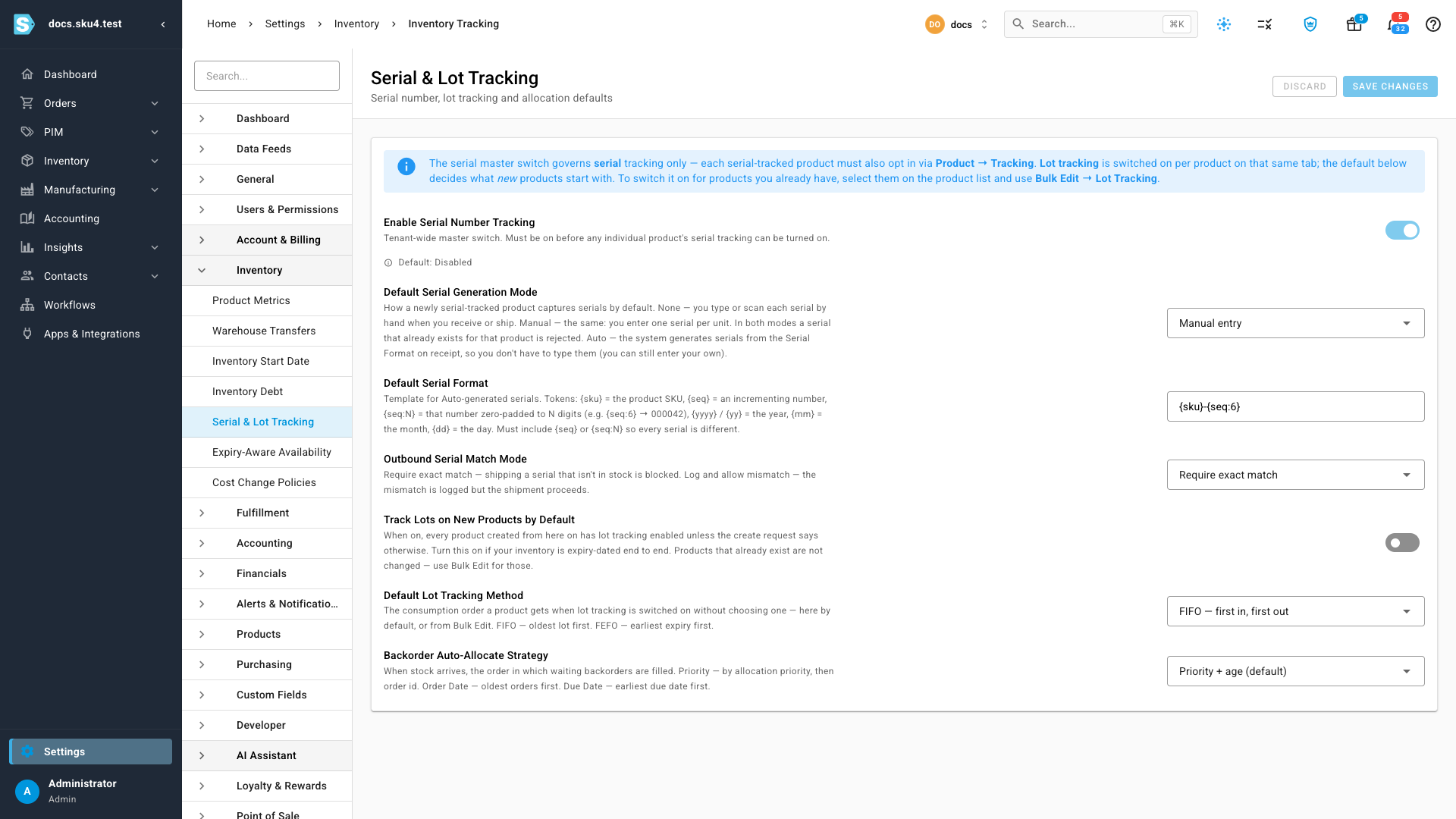
- Go to Settings → Inventory → Serial & Lot Tracking.
- Turn on Enable Serial Number Tracking. Until this is on, no product can track serials.
- In Default Serial Generation Mode, choose how newly serial-tracked products create serials: Manual entry, Auto-generate or None. Each product can override this.
- In Default Serial Format, enter the template SKU.io uses to generate serials, for example
{sku}-{seq:6}. It only matters for products that auto-generate. The format must include a sequence token ({seq}or{seq:6}), and SKU.io won't save a format without one. You can also use the date tokens{yyyy},{yy},{mm}and{dd}; see Format tokens. - In Outbound Serial Match Mode, choose what happens when someone names a serial that can't ship:
- Require exact match blocks the action.
- Log and allow mismatch records the mismatch and lets it go ahead.
- Click Save Changes.
Start with Log and allow mismatch if you're adding serials to stock you already hold. Switch to Require exact match once every unit on your shelves has its serial recorded.
Turn it on for a product
- Open the product, and in its sections menu, under Stock, choose Serial & Lot Tracking.
- In the Serial Number Tracking card, click Edit.
- Turn on Track serial numbers for this product.
- Choose the product's Generation Mode:
- Manual (user enters, system validates uniqueness): you enter each serial when units arrive.
- Auto (system generates via format): SKU.io generates serials when units arrive.
- None (manual entry at movement time): you type serials by hand.
- Optional: if this product's serials look different from your account default, enter a Format Override (optional), for example
DRL-{yyyy}-{seq:5}. It only applies when the Generation Mode is Auto, and like the account default it must include a sequence token. - Click Save Changes.
From now on, every screen that moves this product's stock asks for its serials, and the product's Serial Numbers section lists every serial it has.
Turning tracking on doesn't create serials for the stock you already hold, and there's no screen that adds serials to existing units without changing the quantity. Serials start with the next stock you receive. Until the older units have sold through, their shipments show Serials missing. Keep Outbound Serial Match Mode on Log and allow mismatch during that time.