Edit and move lots
When a lot number was typed wrong, a supplier corrects an expiry date, or a split case belongs back with its main lot, fix it from Inventory → Lots. You can change one lot or many at once. Editing a lot changes only its number and dates. Moving quantity takes on-hand units out of one lot and adds them to another lot of the same product, in the same warehouse. Nothing already shipped, sold or used in production changes, and each change is kept in the lot's history.
To change many lots from a spreadsheet instead, see Bulk edit lots from a CSV.
Before you begin
- Your role has the Inventory Adjust permission (
inventory.adjust). Without it, the row checkboxes and the lot actions don't appear. - The products are lot-tracked. See Set up lot and expiration tracking.
Rename a lot or correct its dates
-
Go to Inventory → Lots. Each row is a lot in one warehouse, with its batch number, quantity on hand, manufacture date and expiry date.
-
Tick the row of each lot you want to change. A bar above the table shows how many you selected. You can also open a single row's menu (⋮) and choose Edit Lot.
-
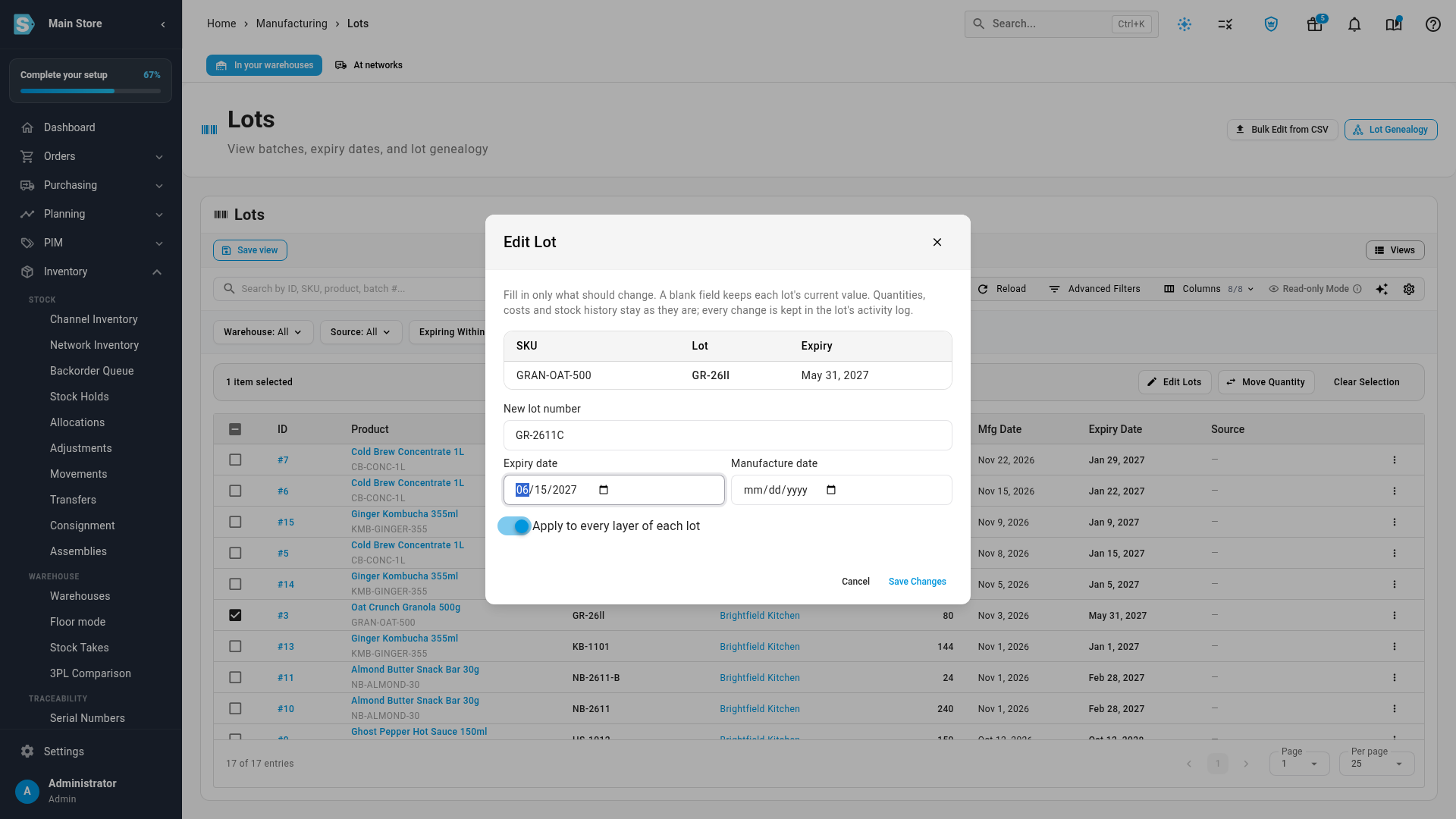
Click Edit Lots. The Edit Lot dialog lists the lots you selected.
-
Fill in only what should change. A blank field keeps each lot's current value:
- New lot number: the corrected batch number. If you selected several lots of the same product, they all take this number.
- Expiry date and Manufacture date: the corrected dates. The manufacture date can't be after the expiry date.
-
Leave Apply to every layer of each lot on. A lot can sit on several rows (one per receipt, per warehouse, or after a move), and this keeps them all in step. Turn it off to change only the rows you ticked.
-
Click Save Changes. The list shows the new number and dates.
If a lot can't change, the dialog stays open and says why, while the others are saved. A lot can't be renamed:
- while it's on an open recall. Close the recall first, because the recall follows the lot by its number. You can still correct its dates.
- to a number another lot from the same receipt already uses. Move the quantity into that lot instead.
Move quantity to another lot
-
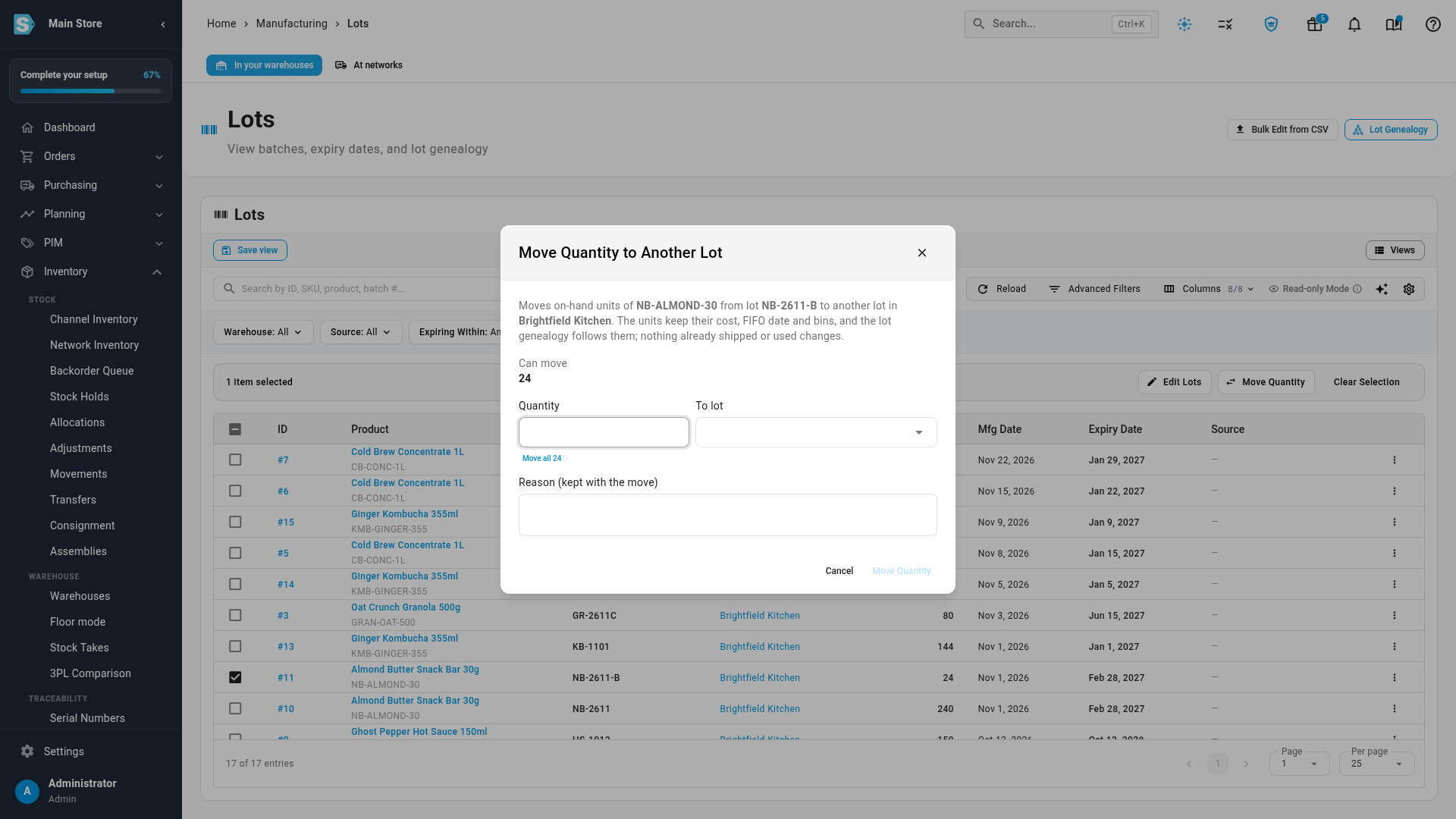
On Inventory → Lots, tick the one lot the units come from, and click Move Quantity. With more than one row ticked, the button is greyed out and tells you why.
-
Can move shows how many units can leave the lot. Quarantined units stay where they are.
-
Type a Quantity, or click Move all.
-
Under To lot, pick one of the product's other lots, or type a new lot number:
- An existing lot keeps its own dates. The list shows each lot's expiry and how much of it is in this warehouse.
- For a new lot, fill in its Expiry date and Manufacture date if you know them.
-
Optionally, add a Reason. It's kept with the move.
-
Click Move Quantity. SKU.io confirms the move, and the units appear as a new row of the lot they moved to.
The moved units keep the cost they had and their place in FIFO order, and they stay in the same bins. Your stock and inventory value don't change. Lot genealogy follows the move, so a forward trace from the old lot leads to the new one, and a recall still finds the units.
You can't move:
- stock from a lot that's on an open recall;
- quarantined units, or stock that was written down;
- units of a product tracked by serial number;
- while a stock take is counting that product in that warehouse.