Recall lots at Amazon and other networks
When a lot you recall was sent to Amazon or another marketplace network, part of it may still be there, and the network's own orders may have shipped it to customers. A recall shows that lot at each network, lets you start an Amazon removal for it, and can add the orders the network shipped while the lot may have been there. Those orders are kept apart from the ones the trace found: they only may hold the lot, so they're never counted as affected orders and never emailed.
Before you begin
- The recall is open. See Run a recall.
- SKU.io follows the lot at the network. That starts when you send lot-tracked stock to Amazon FBA or AWD with SKU.io transfers: read See which lots are at Amazon.
- To start an Amazon removal, your role needs the Integrations Update permission (
integrations.update).
Steps
-
Go to Inventory → Recalls and open the recall.
-
Click the Lots tab. Under each lot, At networks lists every network location that may hold it, with the lot's Expiry, how SKU.io knows the lot is there (Lot known by), the units On hand, and the units On the way. ≈ before On hand marks an estimate: the network doesn't say which lot it ships, so SKU.io works out the units from what was sent and sold.
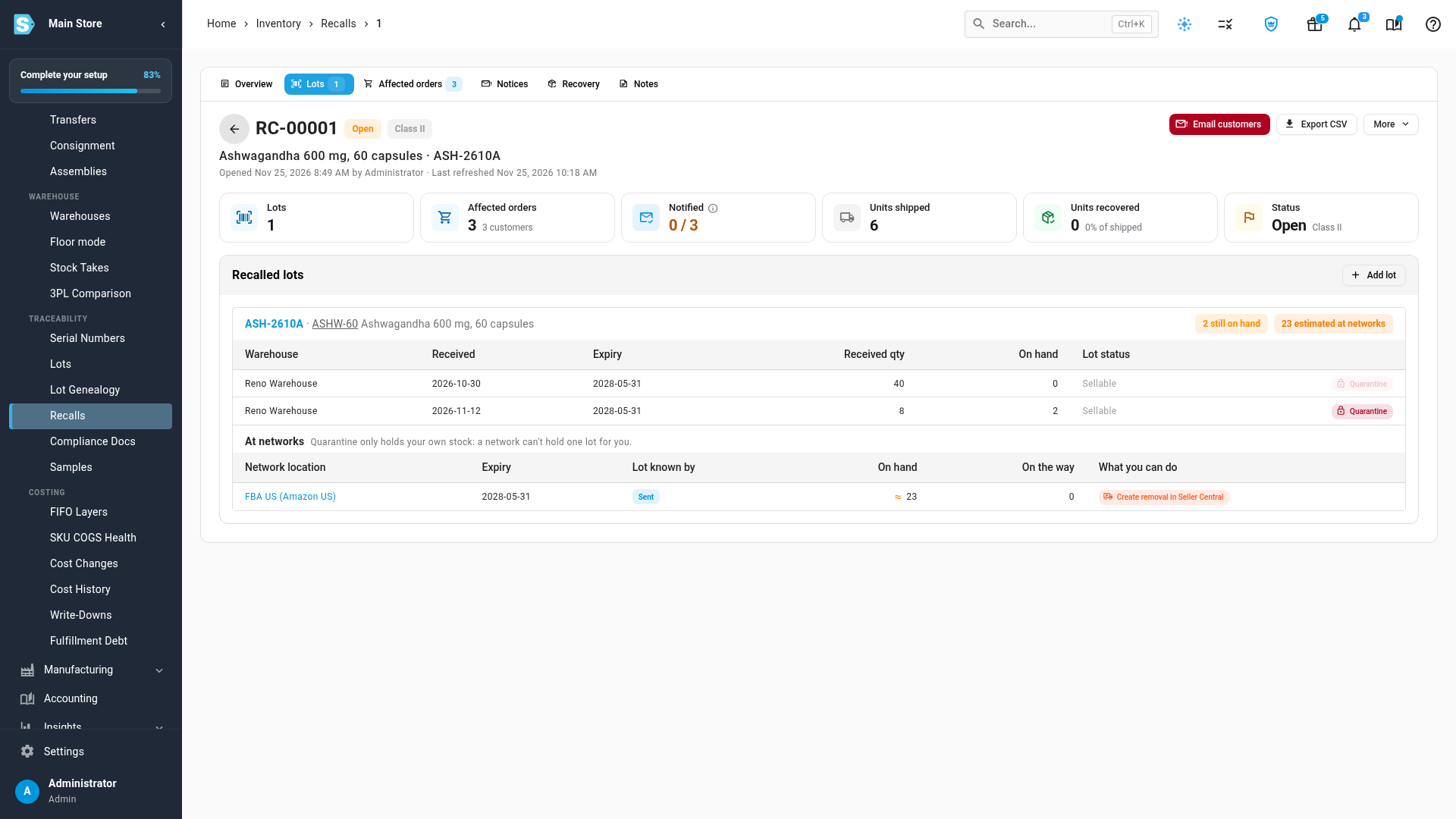
Quarantine only holds your own stock. A network can't hold one lot for you, so the units there have to come back.
-
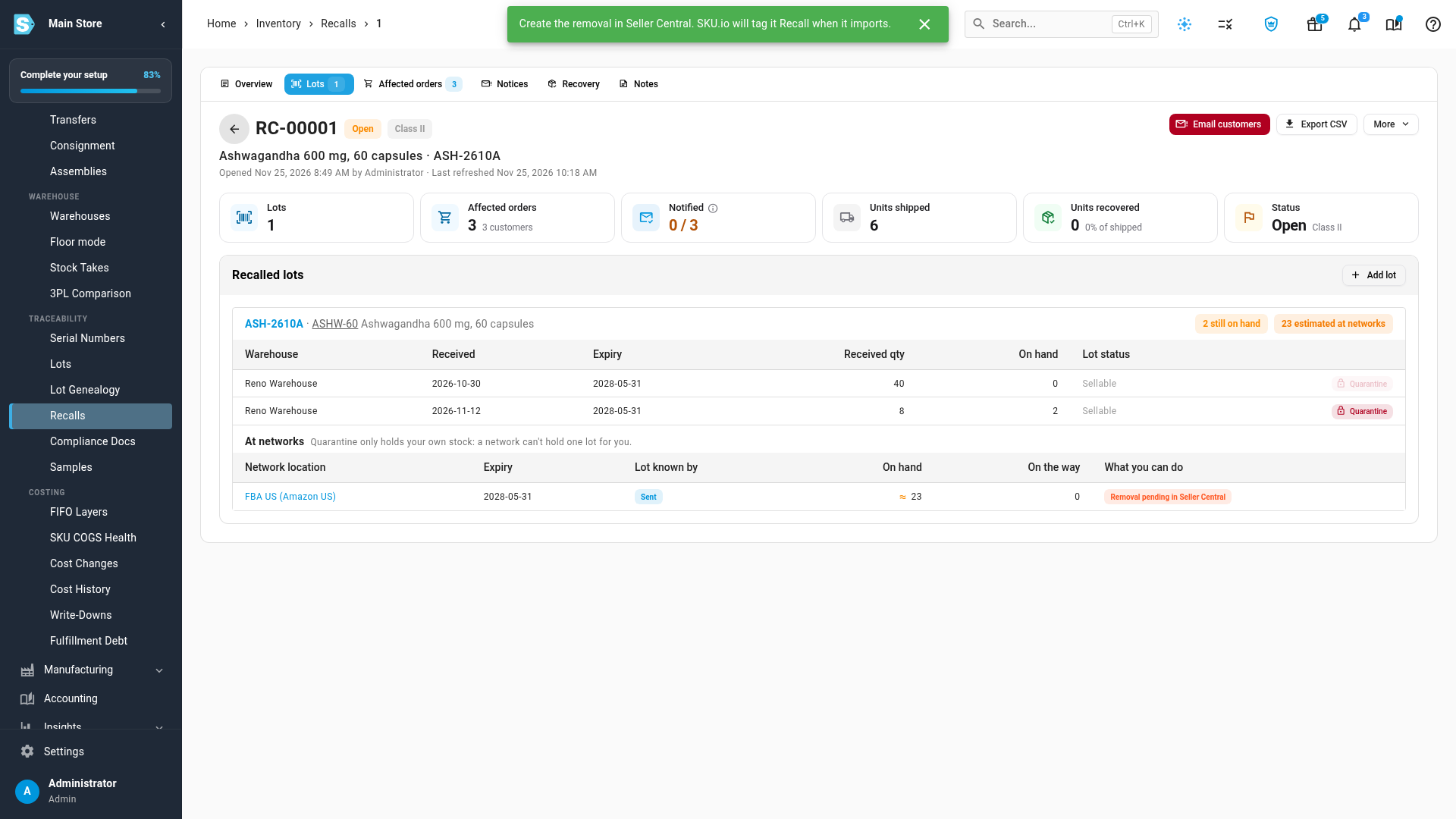
On an Amazon FBA row, click Create removal in Seller Central. Amazon removes by FNSKU and can't pick a lot, so the removal takes units of the product, which may come from any of its lots. Units to remove starts at the lot's units there, and the dialog says how many units of the FNSKU Amazon holds at that location.
-
Click Open Seller Central, and create the removal order in the new tab. The row now reads Removal pending in Seller Central. When the removal order imports from Amazon, SKU.io tags it with the reason Recall.
-
Click the Affected orders tab. It lists the orders the trace found shipping the lot from your own warehouses and 3PLs. Orders Amazon ships from its own warehouses aren't on it.
-
Click Include network orders. SKU.io adds the orders each network shipped while the lot may have been there, and a message says how many: "14 network orders added as Possible. They aren't counted as shipped or emailed."
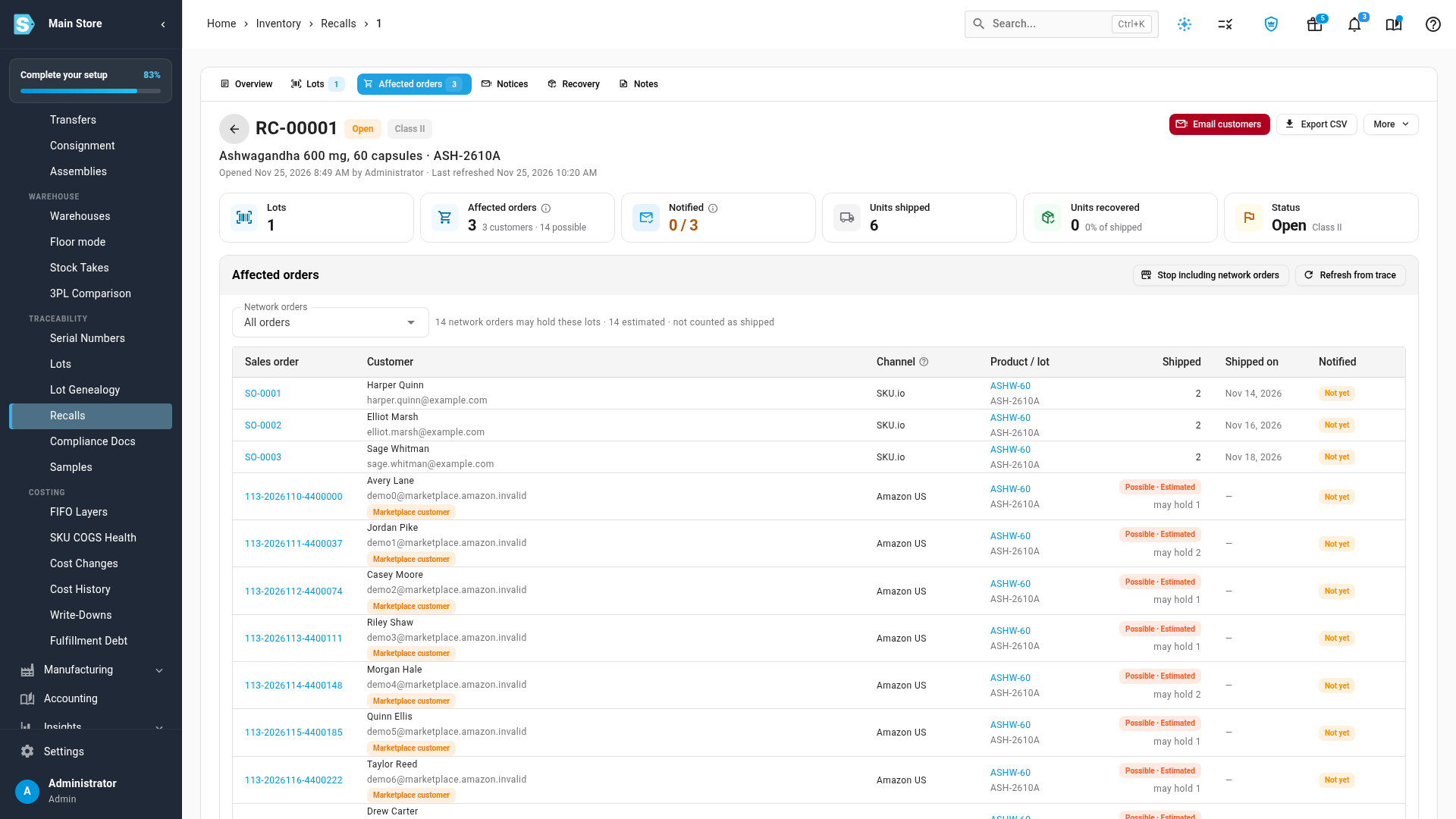
Each network order is marked:
- Possible: it shipped from the network while the lot may have been there. The network doesn't say which lot it took, so it may or may not hold it.
- Possible · Estimated: it shipped on a day the lot is estimated to have gone out in orders. It's more likely to hold the lot than other possible orders, but it still isn't known.
Instead of units shipped, a network order shows the units of the product on it, as may hold. The line above the table counts them, for example "14 network orders may hold these lots · 14 estimated · not counted as shipped". To see only some of them, use Network orders: All orders, Network orders: possible, Network orders: estimated or No network orders.
How network orders are counted
Network orders never count as affected orders, customers, units shipped or units recovered. The Affected orders tile shows them on a second line, and its tooltip says how many are estimated. Notified counts only the traced orders.
While the recall includes network orders, every refresh keeps them current: it adds the network orders shipped since, and removes the ones that no longer may hold the lot, unless a notice or recovery was recorded on them. The Notes tab logs who included them and when, and what each refresh added.
If a lot shipped more orders from one network than SKU.io reads at once (20,000), only the most recent are listed, and nothing already on the recall is removed. A message says so when you include them, and the Notes tab records it. Export the recall, and check older orders in the marketplace.
Network orders are never emailed
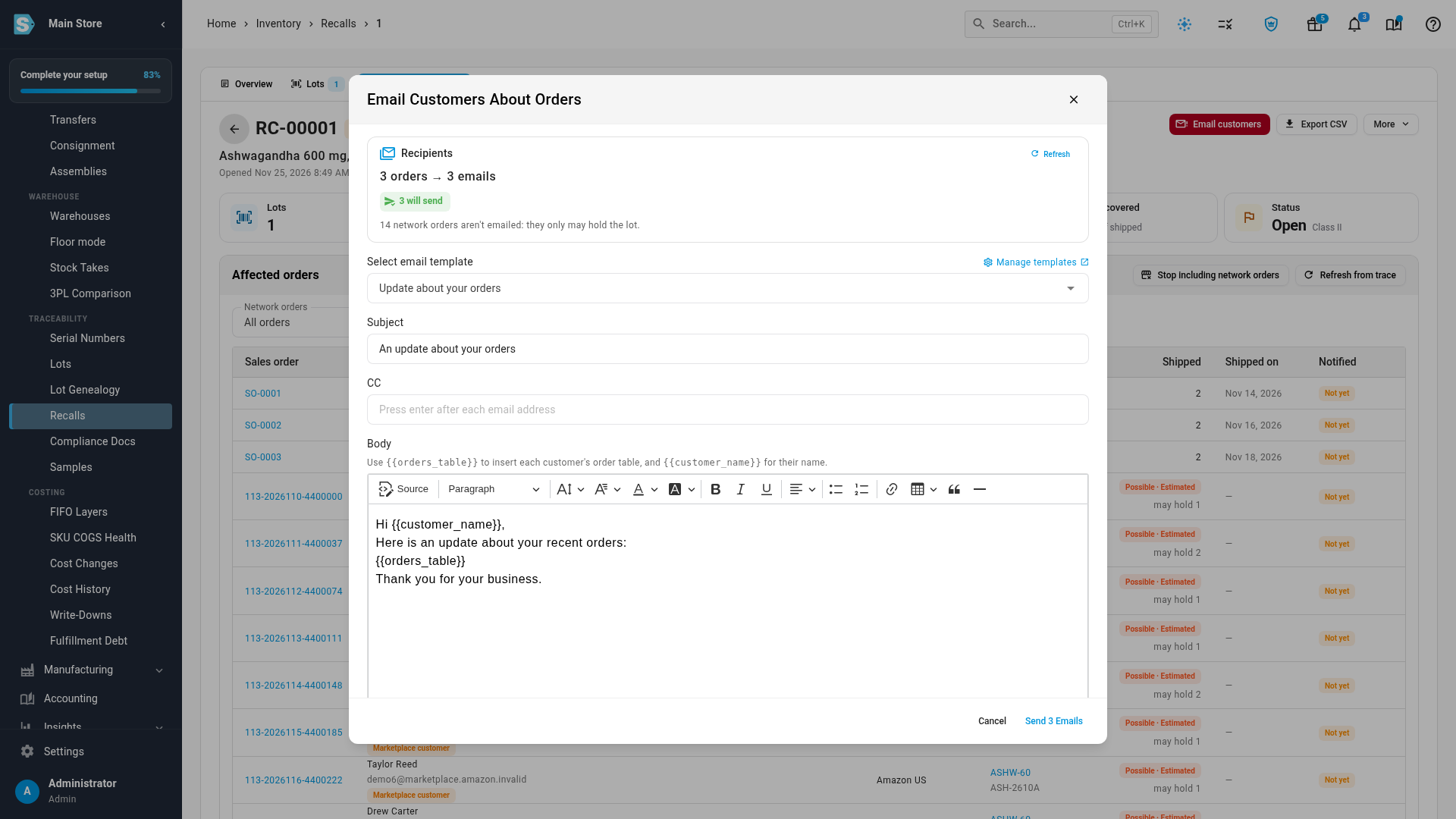
Email customers on the recall leaves network orders out, and its window says how many, for example "14 network orders aren't emailed: they only may hold the lot." Reach those buyers through the marketplace's buyer messaging.
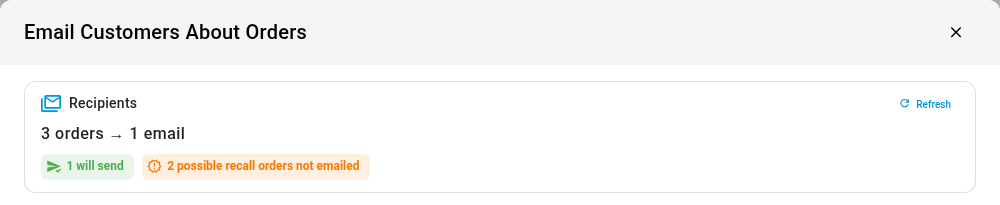
The email from Orders → Sales Orders leaves them out too, as long as the recall is open. Select orders, choose Bulk actions → Send Email, and the window shows how many it skips, for example 2 possible recall orders not emailed. An order the recall's trace also lists is still emailed. Once the recall is closed, its network orders can be emailed again from the sales order list.
AWD, Walmart WFS and TikTok FBT
SKU.io can only start removals at Amazon FBA. For a lot at Amazon AWD, Walmart WFS or TikTok FBT, the What you can do column says what to do in that network's seller tools instead. For example, for Walmart WFS: "In Seller Center, go to Walmart Fulfillment Services > Inventory and create a removal order (return to you or dispose) for this item."
Stop including network orders
On the Affected orders tab, click Stop including network orders, then confirm. The network orders are removed, except any with a notice or recovery recorded on them, and refreshes stop adding them. A message says how many were removed and kept.
Next steps
- Run a recall: notify customers, record what comes back, and close the recall.
- See which lots are at Amazon: the lots each network holds, and the orders that may hold one.
- Remove expiring lots from Amazon: start a removal for a lot that's about to expire.
Video transcript
Open the recall — When a recalled lot went to Amazon, the recall shows the lot at each network. To find it, open the Inventory menu in the sidebar, and choose Recalls near the bottom. The list shows every recall, with its status and its lots. Click the recall for your lot to open it. It opens with a tab for each part of the work.
The lot at networks — Click the Lots tab, at the top of the recall. Each lot lists the stock still in your own warehouses first. Below that, At networks lists each Amazon location that may hold the lot. Amazon doesn't say which lot it ships, so the units there are an estimate. Quarantine only holds your own stock, so Amazon has to send those units back.
Start a removal from the recall — Click Create removal in Seller Central. Amazon removes by product, and can't pick a lot. Units to remove starts at the lot's estimated units. Click Open Seller Central, and create the removal in the new tab.
Removal pending — The row now shows the removal as pending. When the removal order imports from Amazon, SKU.io tags it with the reason Recall.
Add the network orders — Now open the Affected orders tab. These are the orders your own warehouses shipped from the lot. Orders shipped from a network's own warehouses aren't on it yet. Click Include network orders, at the top of the list, to add the ones that may hold the lot. The recall finds every order each network shipped while the lot may have been in its stock.
Possible orders — Each one is marked Possible. Possible, Estimated means the lot is estimated to have gone out on the day it shipped. They're counted apart, never as affected orders, customers, or units shipped.
Never emailed — Network orders are never emailed. Click Email customers, at the top of the recall. Its window covers only the traced orders, and says how many network orders it leaves out. Reach those buyers through Amazon's buyer messaging instead.