Find and trace lots
Manufacturing → Lots lists every batch of lot-tracked stock you hold, across all products and warehouses. Use it to find a batch by its number, see what's about to expire, open the order a batch arrived on, and start a trace when you need to know what went into a batch or where it went.
Lots appear here once lot tracking is on for a product and stock arrives with a batch number. To set that up, see Set up lot and expiration tracking.
Before you begin
- You need access to Manufacturing.
- At least one product has lot tracking on and has received stock with a batch number.
Find a lot
-
Go to Manufacturing → Lots.
-
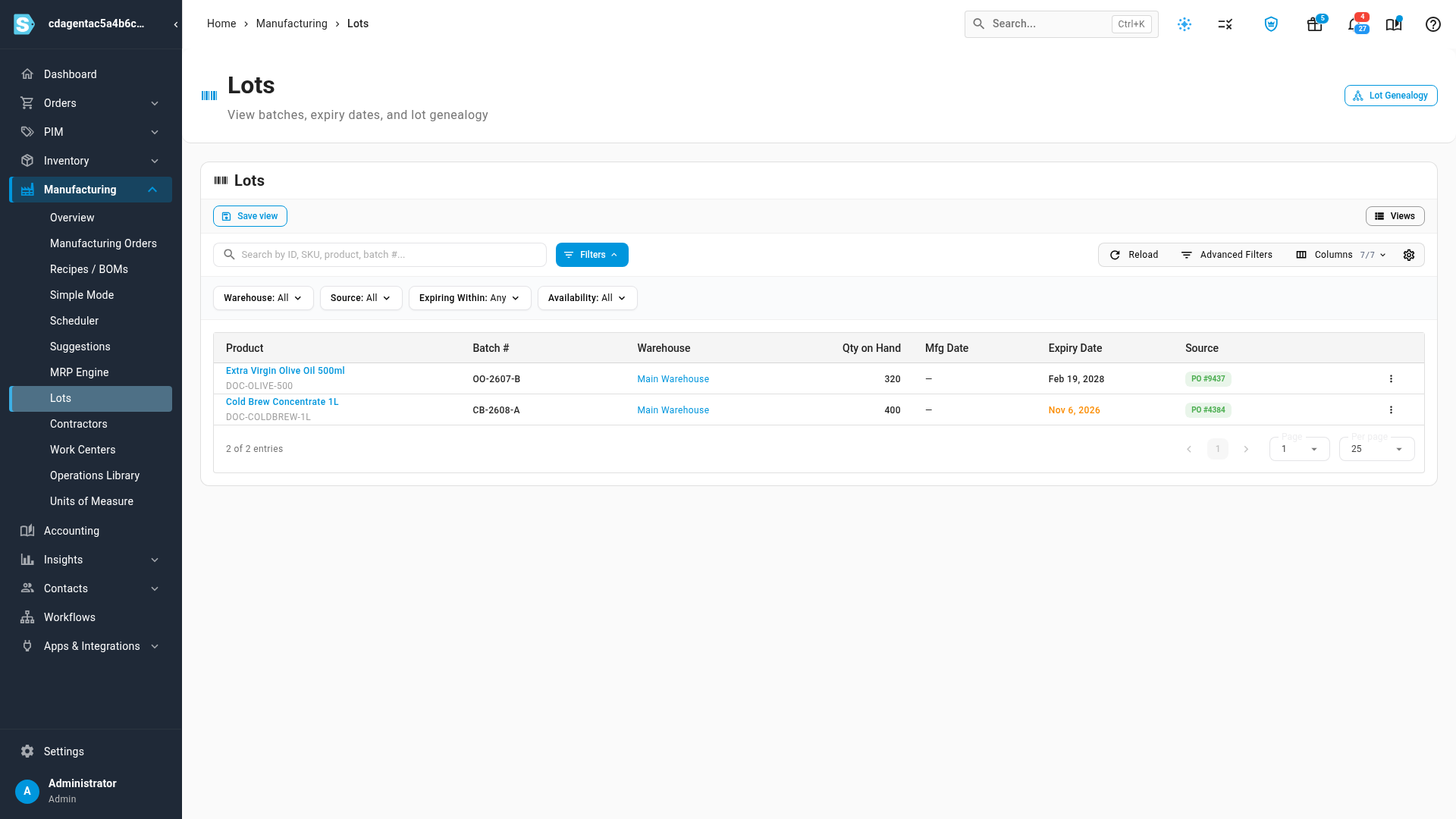
Search by ID, SKU, product name or batch number, or use the filters below the search box:
Filter Shows Warehouse Lots held in one warehouse. Lots sitting at a contract manufacturer's site show under that warehouse too. Source Purchase Order for lots that were received, Manufacturing Order for lots you produced. Expiring Within Lots that expire within 7, 30, 60 or 90 days. Availability Available (stock left), Depleted (all used or shipped), Used (some or all drawn down) or Unused (none drawn down yet). -
To see what's about to expire, set Expiring Within to Within 30 days.
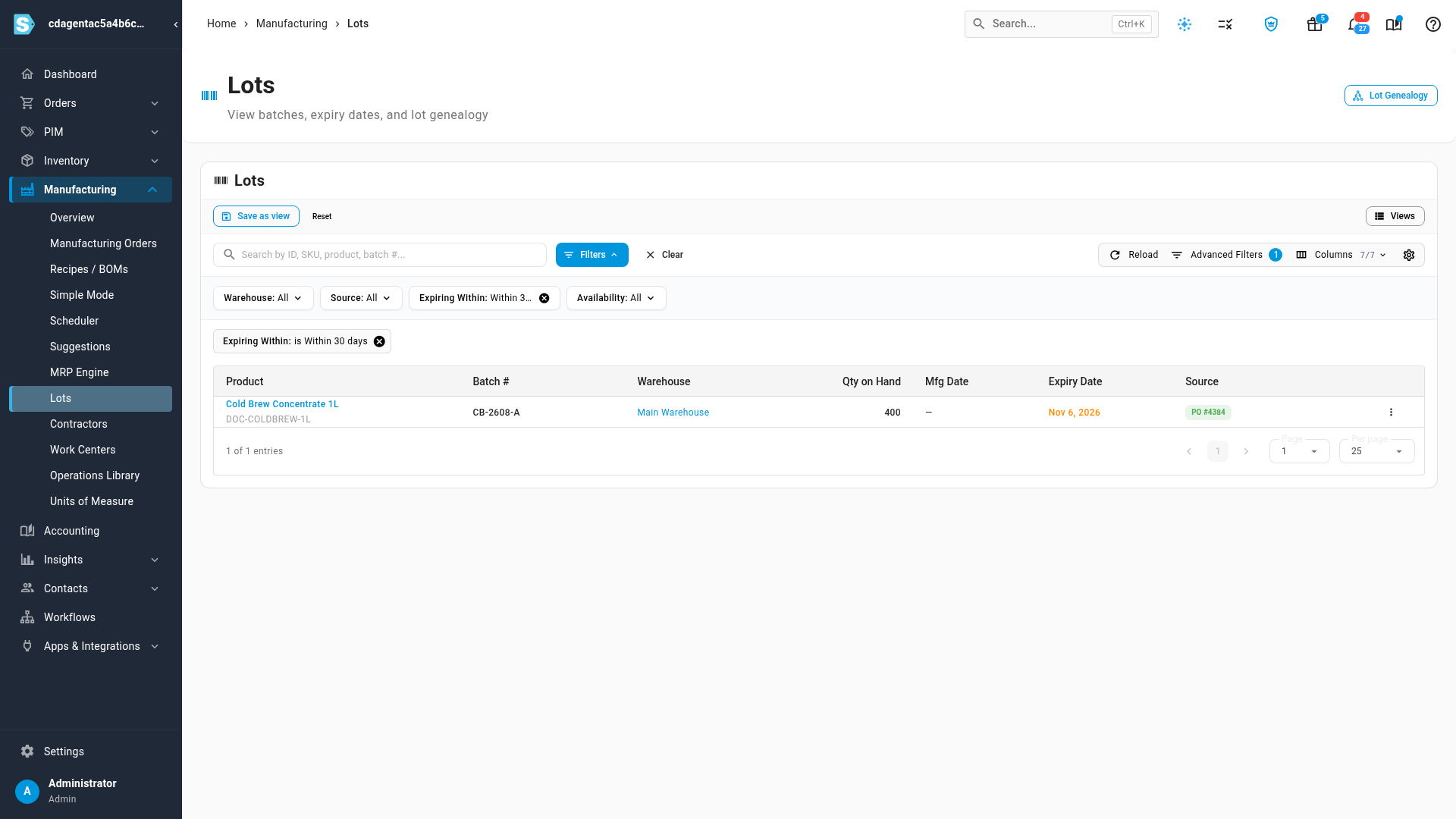
Each row shows the Product, Batch #, Warehouse, Qty on Hand, Mfg Date, Expiry Date and Source. Hover an expiry date to see how many days it has left, or how long ago it expired. With Show internal IDs turned on from your user menu, an ID column also appears, and it opens the lot's own record with its full movement history.
Open where a lot came from
The Source column names the order the lot arrived on, and clicking it opens that order:
- PO #… opens the purchase order it was received on.
- MO #… opens the manufacturing order that produced it.
A lot made by a contract manufacturer arrives on their purchase order, so it shows PO like a purchase. It also carries a second chip with a factory icon, MO #…, for the manufacturing order it was produced on. Click that chip to open the build.
Trace a lot
-
Click the menu at the end of the lot's row.
-
Choose Backward Genealogy to see what the lot was made from, or Forward Genealogy to see where it went.
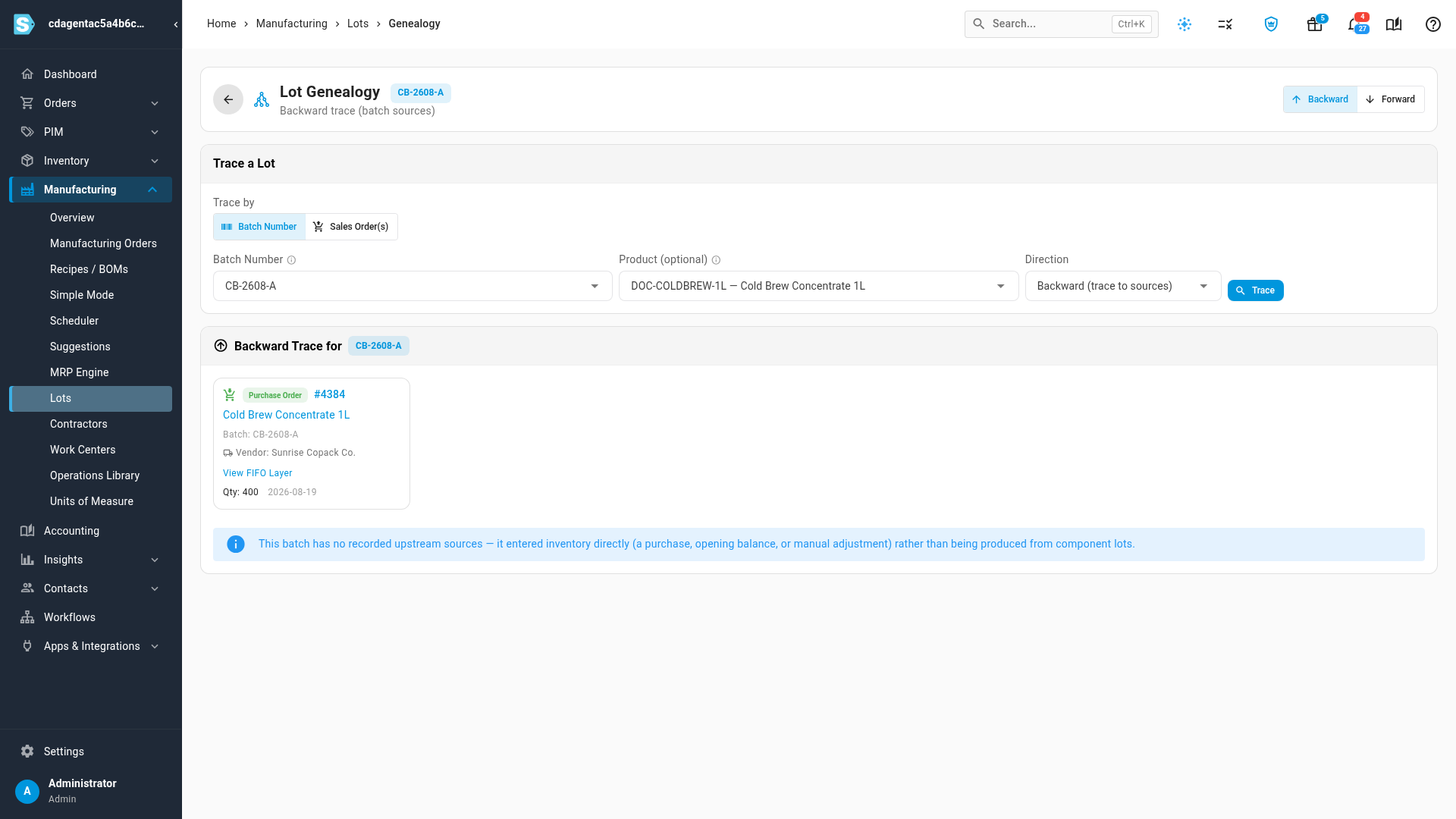
The Lot Genealogy page opens with the batch filled in. You can also open it at any time with the Lot Genealogy button at the top of the Lots page.
| Direction | What it shows |
|---|---|
| Backward | What went into the batch: each component lot consumed, its supplier, the purchase order it came in on, and the quantity. A purchased lot has no components, so its trail stops at the purchase order and supplier. |
| Forward | Where the batch went: the manufacturing orders that consumed it, and the sales orders it shipped on, with an Affected Customers list you can export or email. |
Set Trace by to Sales Order(s) to trace from the other end. Pick or paste the orders a complaint came in on, and SKU.io traces every finished good they shipped back to its raw-ingredient lots and suppliers. For a worked recall from start to finish, see Trace a lot backward and forward and Recall by sales order.
Next steps
- Set up lot and expiration tracking: turn on lots, capture them on receipt, carry them through manufacturing, and run a recall.
- Build with a manufacturing order: produce a new batch from component lots.