Keep a customer's own SKUs
A wholesale customer often orders by its own item number and name. Record it once on the customer, and their orders find your product. You don't need a second product with the customer's code, and your packing slips and invoices can print what the customer calls it.
Before you begin
- You need permission to edit customers to add or change a customer SKU. Importing and exporting have their own customer permissions.
- A customer SKU belongs to one product per customer. Two customers can use the same code for different products.
Steps
-
Go to CRM → Customers and open the customer.
-
Under Sales, choose Customer SKUs.
-
Click Add customer SKU.
-
In Product, search for your product by SKU or name.
-
In Customer SKU, type the code the customer uses.
-
In Customer's name for it (optional), type what the customer calls it.
-
Click Save.
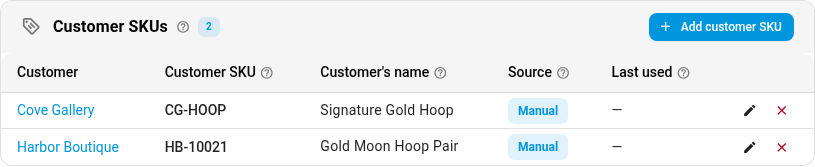
You can also start from the product. Its Overview tab has a Customer SKUs card that lists every customer's code for that product.
To change several at once, switch the customer's list to Editable Mode, edit the cells, and click Review & save. A code the customer already uses for another product is refused, and that cell stays marked as not saved.
Read the list
| Column | What it tells you |
|---|---|
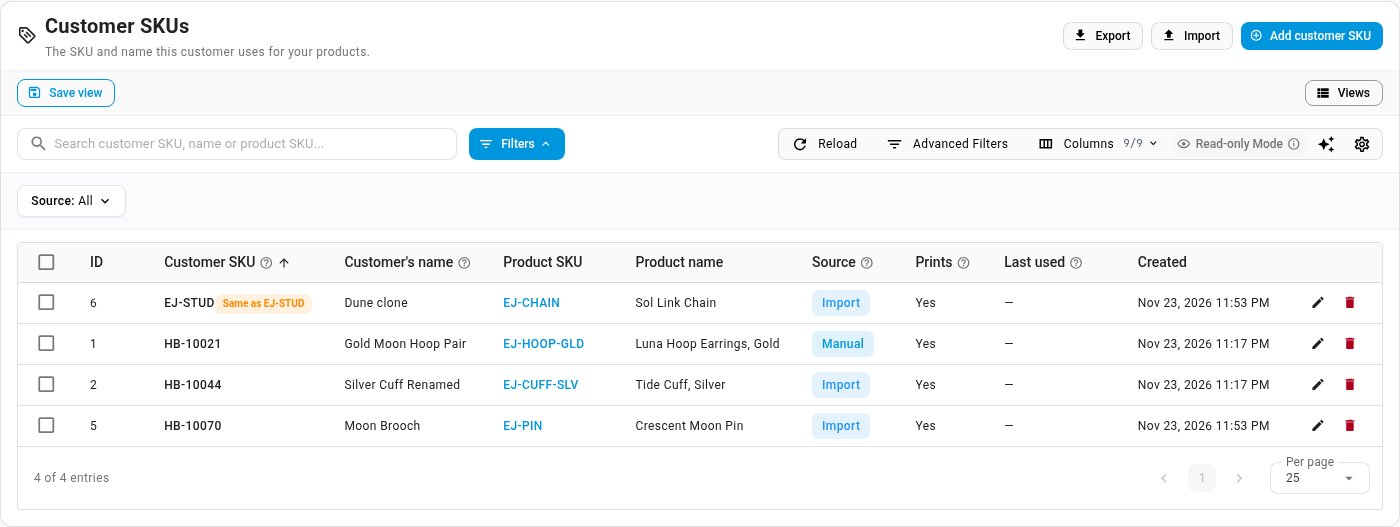
| Customer SKU | The code the customer uses. A warning chip means another product has the same code as its own SKU, so orders match that product first. |
| Customer's name | What the customer calls the item. |
| Source | Manual (entered by hand), Import (from a file), EDI (saved on an EDI screen), or Learned from orders (saved when a purchase order line was matched to the product). |
| Prints | Whether this is the one that prints on documents when the customer has several codes for one product. Manual and import come first, then EDI, then learned; within those, the most recently used. |
| Last used | When it last matched a line on a new order, quote or portal cart, or was learned from a purchase order. |
Import and export
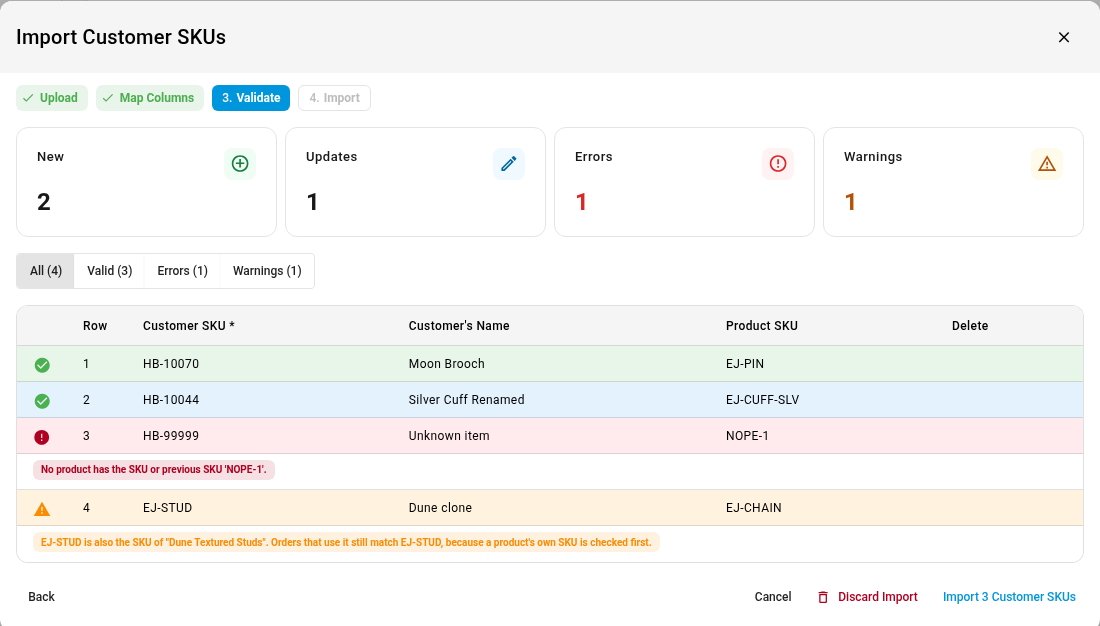
Click Export to download the customer's list as CSV, edit it, and click Import to bring it back. You can also import a CSV or Excel file you built yourself. You review every row before anything is saved.
| Column | Required | What to enter |
|---|---|---|
| Customer SKU | Yes | The customer's code, up to 255 characters. Once per customer in a file. |
| Customer's Name | No | What the customer calls the item, up to 255 characters. |
| Product SKU | Yes for a new code | Your SKU, or a previous SKU of the product. Leave it blank to keep the product of a code the customer already has. |
| Delete | No | yes, true, 1 or y removes the code. |
A row is matched on the customer and the customer SKU: a code the customer already has is updated, and any other is added. A row with an error isn't imported, and the rest are. A row with a warning still imports.
Where orders use it
When the customer is known, a line is matched in this order:
- A product's own SKU. It always wins.
- The customer's SKU for that customer.
- A product's previous SKU.
This applies to sales order file imports, orders created through the API for a customer, the customer portal (quick order, files and quotes), quote line imports, order line files and dropship orders. On a quote line import, a barcode is still matched before the customer's SKU. The import preview shows which lines were matched by a customer SKU.
EDI orders and scanned purchase orders keep matching the customer's SKU first, as before.
Codes SKU.io learned by itself
Only the codes you enter or import match the orders above. Codes learned from purchase orders, or saved on an EDI screen, keep working on EDI and scanned purchase orders only. To use those everywhere, go to Settings → General → Sales Orders and turn on Match learned customer SKUs on every order. It's off unless you turn it on.

What isn't matched
Orders that carry no customer item number have nothing to match. NuORDER and Faire orders identify products their own way and don't send the retailer's code, so customer SKUs aren't used for them.
Print the customer's code and name
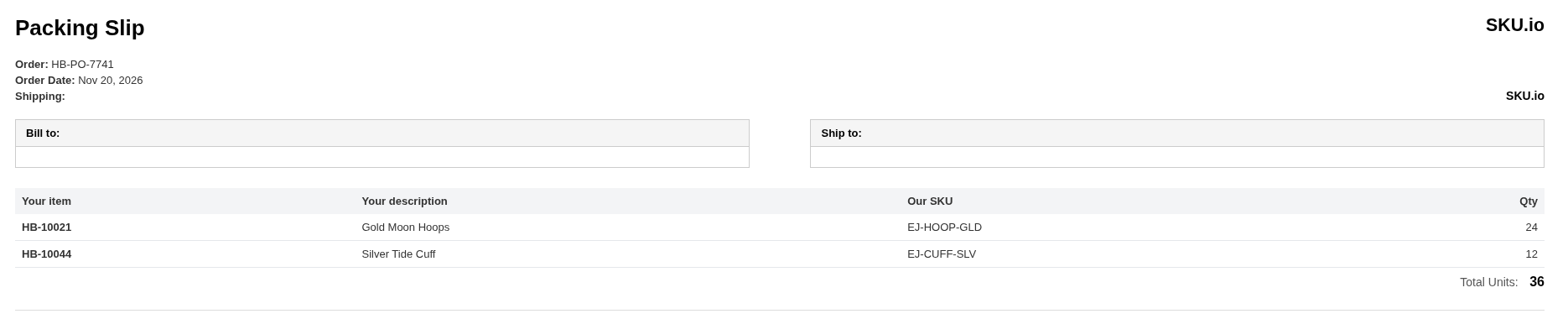
In Settings → PDF Templates, put these in the lines of your packing slip, sales order or sales invoice template. The built-in templates don't print them until you add them.
| Variable | What it prints |
|---|---|
{{customer_sku}} | The customer's code for the product. Blank when the customer has none. |
{{customer_product_name}} | The customer's name for the product. Blank when there is none. |
Next steps
- Find possible duplicate products — replace products you made only to hold a customer's code. Merging moves their customer SKUs to the product you keep.
- Keep a product's previous SKUs — for codes that aren't one customer's.
- Edit a PDF template