Attach documents to a customer
A customer's Documents section keeps the files that belong to that customer: a signed dealer agreement, an approved credit application, a resale certificate, a price list you agreed on. Everyone who works with the customer finds them in one place, instead of in someone's inbox.
Before you begin
- To add or delete files, you need permission to edit customers. With view-only access you can still open and download them.
- If you only see your own customers, you only see those customers' documents.
Add a file
-
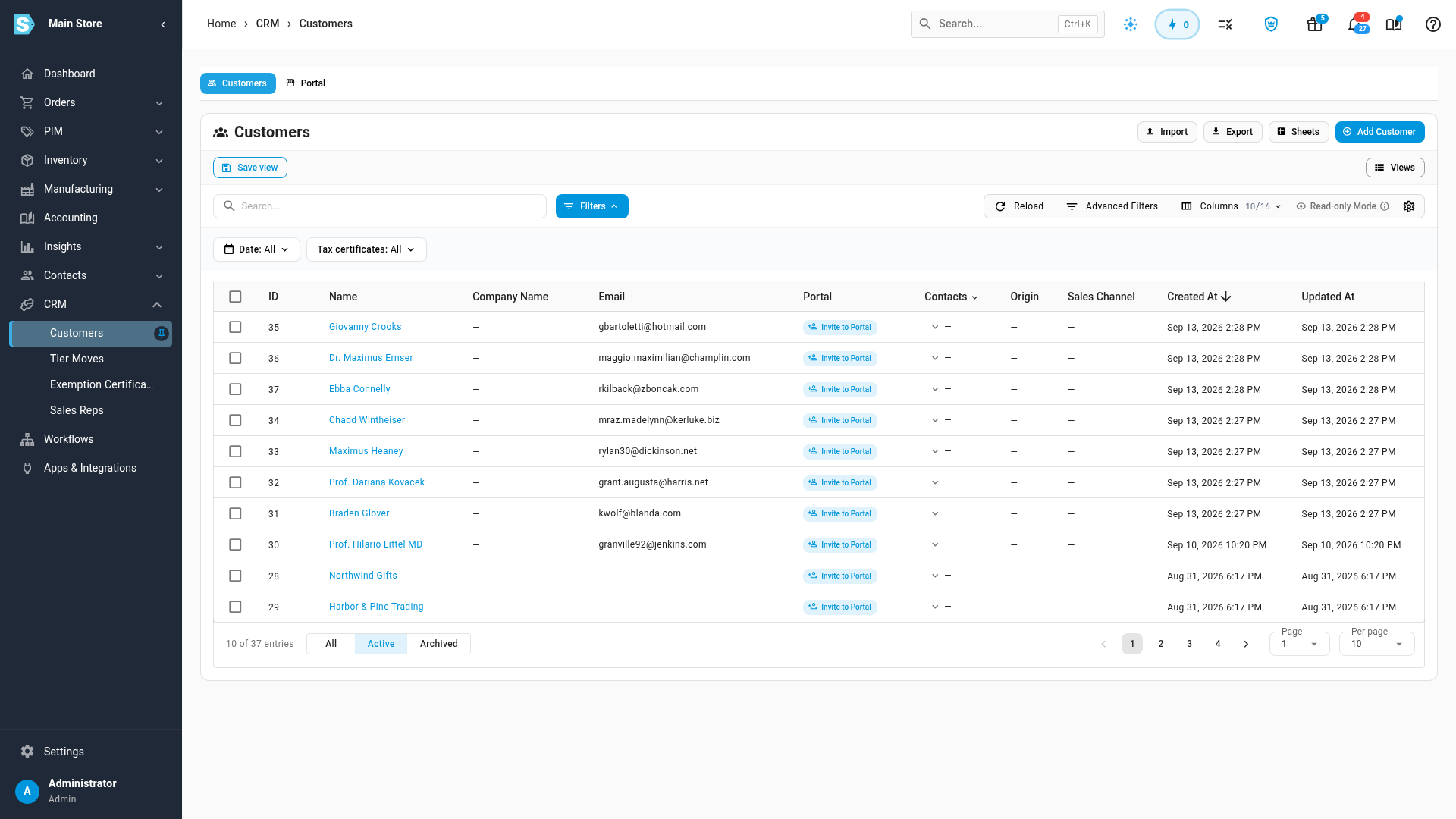
Go to CRM → Customers, search for the customer by name, and open it.
-
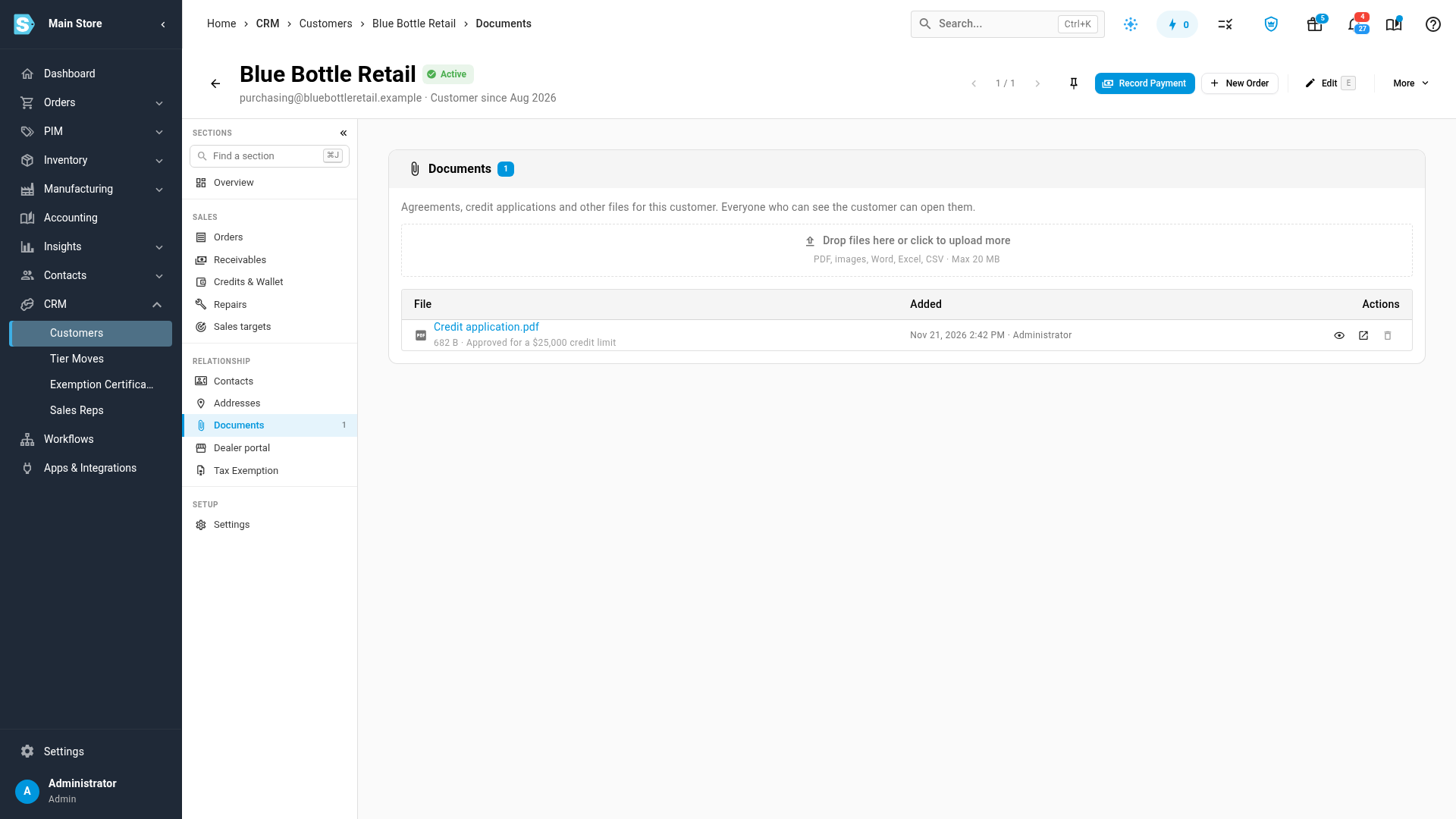
In the customer's sections, under Relationship, choose Documents. The number beside Documents is how many files are on record.
-
Drop a file onto the upload area above the list, or click the area to choose one from your computer. You can add several at once. Each file uploads straight away and appears in the list.
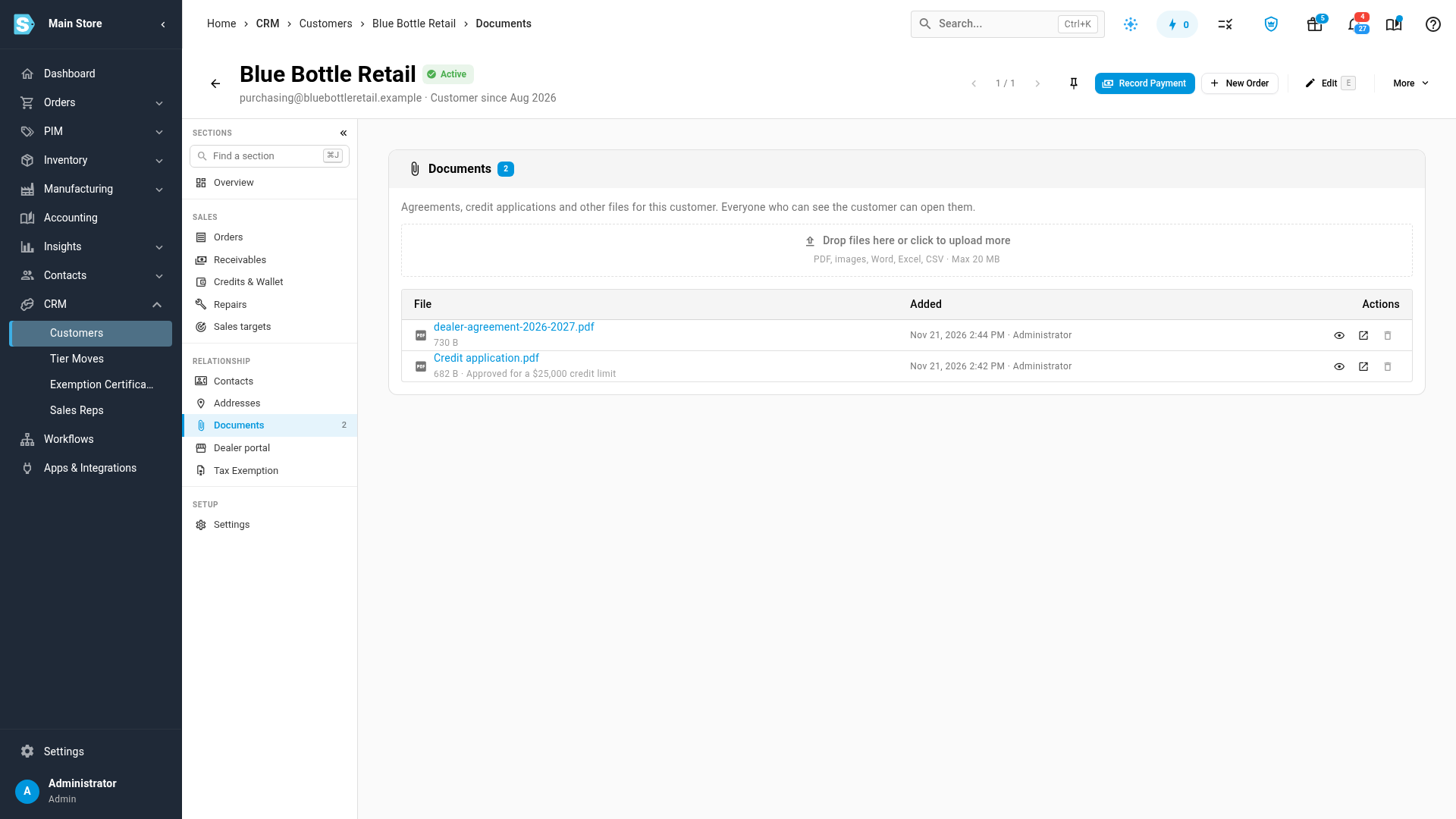
You can attach PDFs, images (PNG, JPG, GIF, WebP), Word and Excel files, CSV and plain text, up to 20 MB each.
Read the list
Each row shows:
| Column | What it tells you |
|---|---|
| File | The file name (click it to preview), its size, and the note that came with it, if any. |
| Also on | Other records the same file is attached to, such as a sales order. This column only appears when at least one file is shared. |
| Added | When the file was added, and who added it. |
| Actions | Preview, open in a new tab, and delete. |
Open or download a file
-
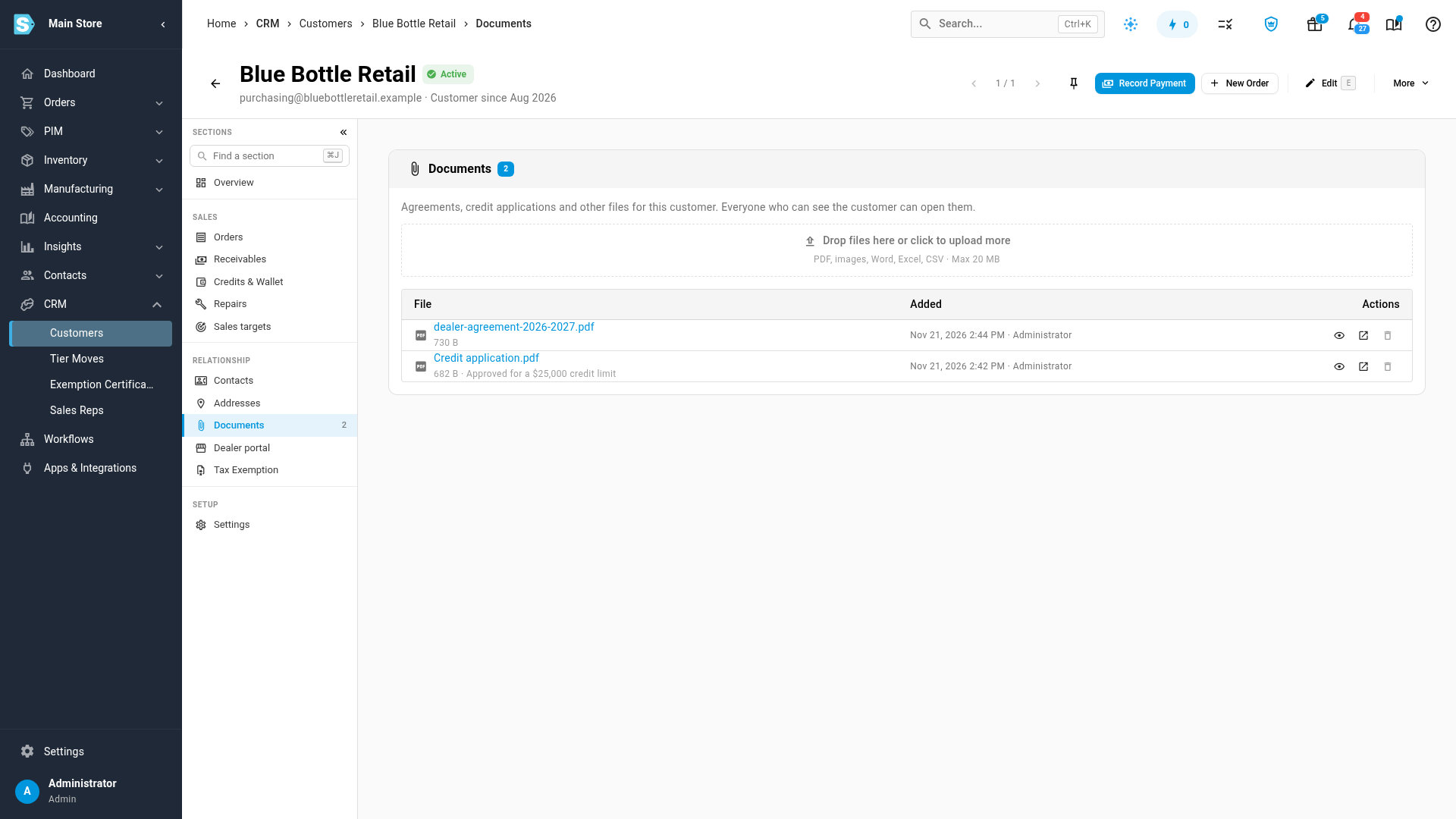
Click the file's name, or the Preview here eye icon, to look at it without leaving the page.
-
Click Open in a new tab to open the file in its own tab, where you can download or print it.
Delete a file
- Click the Delete file bin icon on the file's row.
- Confirm with Delete.
Deleting removes the file for good. If the file is also attached to other records, the confirmation names them, and the file is removed from all of them.
What happens to the files when customers change
- Merging customers: the files of the customer you merge away move to the customer you keep. See Merge duplicate customers.
- Deleting a customer: its files are deleted with it, unless a file is also attached to another record.
Next steps
- Tag a customer to group the customers whose paperwork you track.
- Set a customer's payment terms and credit limit once their credit application is approved.