Reconcile inventory to your accounting provider
SKU.io knows what your stock is worth on any day. Your accounting provider, QuickBooks Online or Xero, holds the same figure as the balance of your inventory accounts. Inventory reconciliation compares the two day by day, shows where they part ways, and lets you drill into any day to see what moved. SKU.io is treated as the source of truth for inventory, so a gap is something to explain or adjust in your books.
Before you begin
- QuickBooks Online or Xero is connected, and automatic accounting is on.
- You can manage accounting settings.
- Each warehouse is mapped to the inventory account it posts to, so SKU.io knows which stock belongs to which account.
Open it
Go to Accounting → Reconciliation and open Inventory, or go straight to Inventory reconciliation. The Connection at the top right names the provider it reads. With no accounts chosen yet, the page asks you to earmark some.

Choose the accounts to reconcile
-
Click Earmark accounts, or Configure & sync at the top right. The Configure & sync panel opens.
-
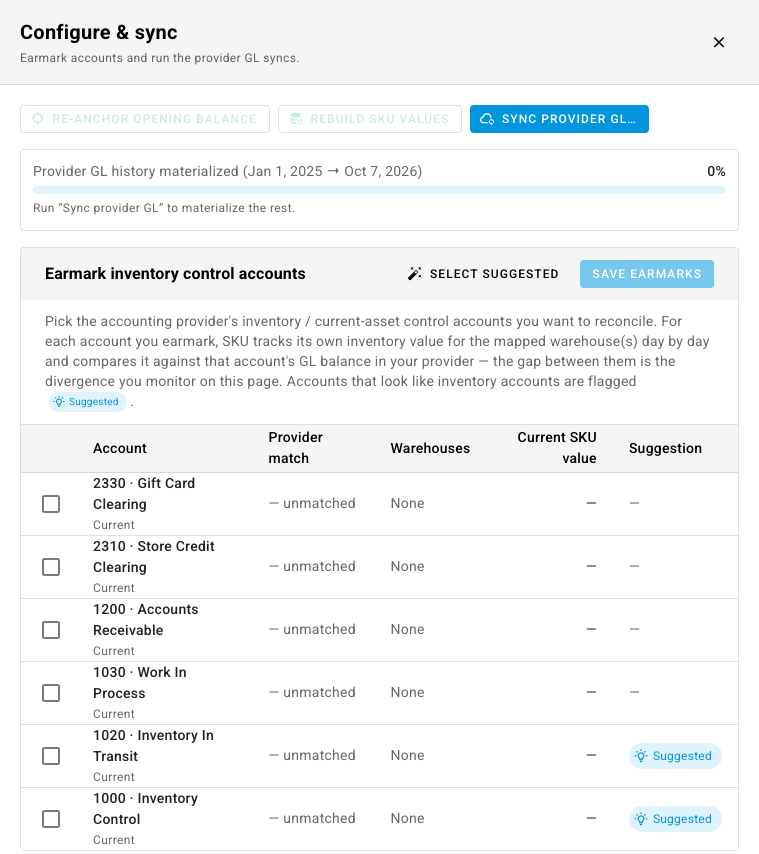
Under Earmark inventory control accounts, tick each account that holds inventory in your books, such as Inventory Control and Inventory In Transit. Accounts that look like inventory accounts carry a Suggested chip. Select Suggested ticks them all.
Each row shows the account's Provider match, the account it matched in QuickBooks or Xero, the Warehouses mapped to it, and SKU.io's Current SKU value for them.
-
Click Save Earmarks.
An earmarked account with no warehouse mapped to it has nothing to compare against. Map a warehouse to it, or remove the earmark.
Pull the balances from your books
SKU.io reads your provider's general ledger for the earmarked accounts and keeps a copy, so it can rebuild the provider's balance for every day. The bar at the top of the panel shows how much of your history it holds so far.
- In Configure & sync, click Sync provider GL….
- Choose how far back to read:
- Since last sync re-reads only what can still change: everything after your books were last closed in your provider.
- Back to opening balance reads everything back to your inventory start date.
- Custom from date reads from a day you pick, no earlier than the inventory start date.
- Check the Estimated provider API calls, and click Start Sync. It runs in the background.
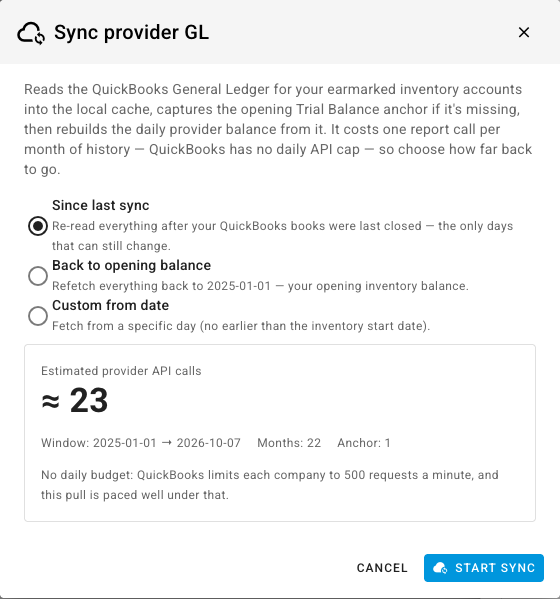
QuickBooks Online costs one report call per month of history and has no daily allowance, so the dialog only shows the estimate. Xero limits how many calls you make in a day, so the dialog also shows how much of today's allowance the sync uses, and a long history may take more than a day. SKU.io refreshes the recent days every night on its own.
Two more buttons in the panel rebuild one side or the other: Rebuild SKU values recomputes SKU.io's daily inventory value, which costs no provider calls, and Re-anchor opening balance re-reads the provider's balance on your opening day.
Read the comparison
Once accounts are earmarked and synced, the page shows a summary (Open divergence, Accounts diverging, Divergent months and Data as of) and a row per account:
| Column | What it shows |
|---|---|
| SKU value | What SKU.io says the stock in that account is worth. |
| Provider GL | The account's balance in your books. |
| Divergence | The difference, with which side is ahead. |
| Awaiting sync | Entries SKU.io has made that haven't reached your provider yet. These close on their own. |
| Opening gap | The difference on your opening day. |
| Divergent months | Months whose movement didn't match, even if the balance nets back to zero later. |
| Status | For example Matched, Opening gap, Ongoing gap or Resolved. |
Use Period to look at one year. Click an account to see it day by day, and a day to see the transactions behind its movement, grouped by type.
Close a gap
- An opening gap is a difference that was already there on your opening day, usually history from before you started using SKU.io. Click Reconcile opening on the account. The dialog separates the part that is only waiting to sync, which needs nothing, from the true residual, and can post an adjusting journal to your provider for the rest.
- An ongoing gap opened after your opening day. Click Reconcile ongoing to open Reconcile ongoing divergence. It shows where the gap came from, month by month and by transaction type, and proposes an adjusting journal: pick the balancing account, check the debit and credit, and post it.
An adjusting journal syncs to your provider like any other entry. To reconcile a whole period at month end, the close checks read these comparisons. See Inventory and the close.
Next steps
- Inventory and the close — how the comparison feeds the month-end checklist.
- Map your accounts to QuickBooks Online
- Connect Xero