Resolve an entry held as a possible duplicate
Before SKU.io sends a brand-new invoice, bill, credit note, or journal to QuickBooks Online or Xero, it looks for a document there with the same number. When it finds one whose total and date match, it links the entry to it and updates it. When the number matches but the total or date doesn't, SKU.io can't tell whether it's the same document, so it holds the entry back and asks you. Nothing is sent until you decide.
You decide one of two things:
- It's the same document. Link the entry to it, and SKU.io updates that document from now on.
- It's a different document that happens to share the number. Tell SKU.io it isn't a duplicate, and it creates a new document next to the existing one.
Before you begin
- You need permission to sync accounting entries. Without it, Not a duplicate — create anyway doesn't appear.
- Have your accounting provider open, so you can look at the document SKU.io matched.
Find the held entry
-
Go to Accounting → Needs Attention, or open the entry from Accounting → Transactions — its Sync status reads Needs Attention.
-
Open the entry. The banner at the top, This entry needs attention before it can sync, says what SKU.io found: the number of the matching document, and both totals when they differ.

-
Find that document in QuickBooks or Xero, and compare it with the entry: the supplier or customer, the date, the lines and the amount.
Link it to the same document
- On the entry, click Link to existing document.
- Pick the document from the list. SKU.io ranks the closest matches first.
The entry is now linked to that document. The next sync updates it to match the entry instead of creating another one.
Create a new document when it's different
-
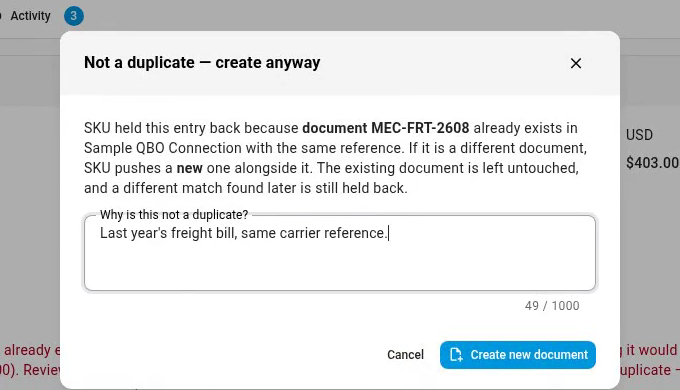
Click Not a duplicate — create anyway. It's on the banner, and on the entry's Errors tab.
-
In Why is this not a duplicate?, write why the two aren't the same — for example, that the document in your provider is last year's invoice that reused the same reference. The reason is required, and SKU.io keeps it with the entry.
-
Click Create new document.
The entry's Sync status changes to Syncing, and SKU.io sends a new document to your provider. The existing document is left as it is.
Check who made the call
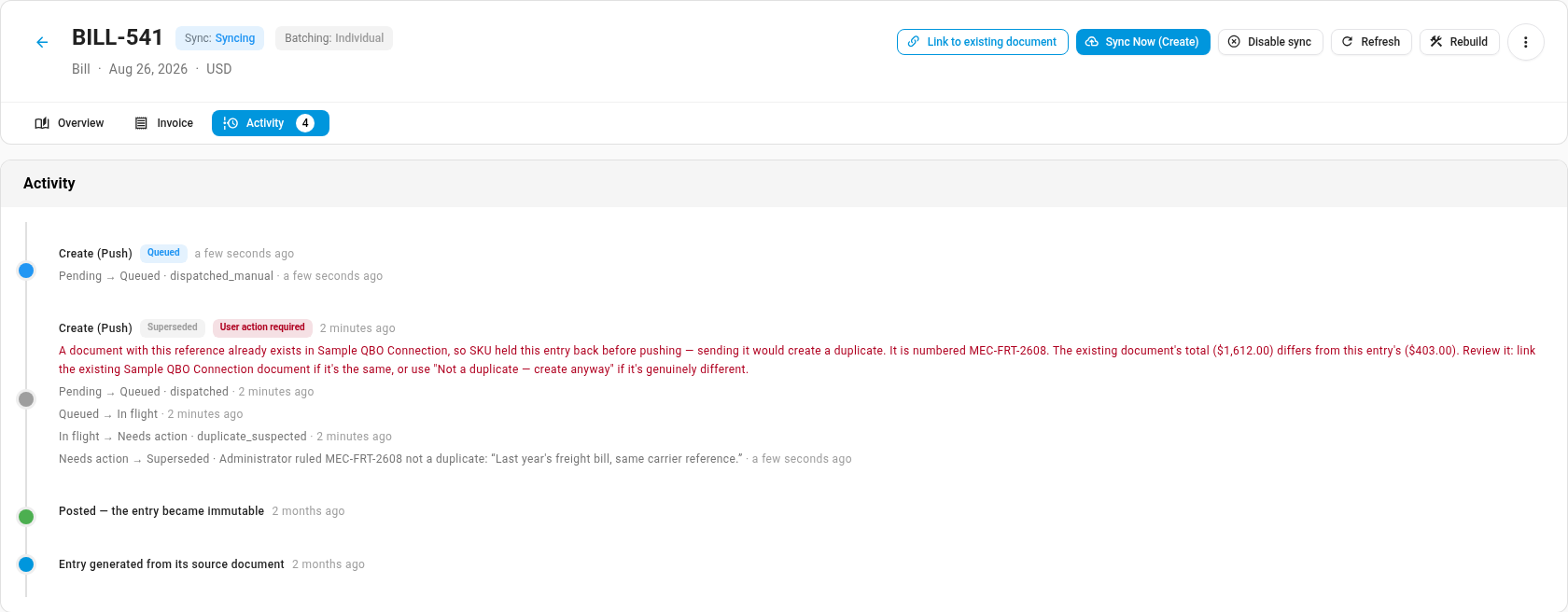
Open the entry's Activity tab. The held push shows who marked it not a duplicate, which document they dismissed, when, and the reason they gave.
What to expect afterward
- Your answer applies to that one document. If a different document in your provider matches the same entry later, SKU.io holds the entry again and asks you about that one.
- Everything else still applies. If the entry falls in a locked period, has been reversed, belongs to a batch, or is dated before your sync start date, Create new document shows why it can't send the entry, and nothing changes.
- Sync Now doesn't get past the hold. It runs the same check again and holds the entry for the same reason. Use one of the two options in this guide.
Next steps
- See why entries haven't reached your provider: the month's sync panel, which counts held entries under Needs Attention.
- Review the ledger: read an entry's debits and credits before you decide.
Video transcript
Before a new document goes to your accounting provider, it's checked for one with the same number. If one exists and the totals or dates don't match, the entry is held back. The banner at the top explains what was found. Here, a bill with the same number already exists, but its total is different. First, decide whether the two are really the same bill. If they are, click Link to existing document, and pick that bill from the list. The next sync then updates it, instead of creating a second copy. If it's a different bill, click Not a duplicate, create anyway. In the box, type why the two aren't the same, so your team knows later. That note stays with the entry. Then click Create new document to send the new bill. The entry starts syncing, and a new bill goes to your provider. The bill already there stays untouched. The Activity tab records who made the call, when, and why. And if a different document matches later, the entry is held again for review.