What each role can see
A role decides which customers its users can see. A user who is linked to a sales rep, and whose role doesn't include View all customers, sees only that rep's customers. Everything that belongs to those customers is limited the same way: their orders, quotes, invoices, credits and returns, plus search, exports, reports and the dashboard. Admins, every role you had before this setting arrived, and users you'd given permissions to one by one still see every customer.
Before you begin
- You need permission to manage roles (an Admin, or a role that grants it).
- Each rep's user account is linked to their sales rep. Open Contacts → Sales Reps, open the rep, and set Linked User. A user who isn't linked to a sales rep isn't limited this way.
- Your customers have a Default Sales Rep. That field decides which rep a customer belongs to.
Limit a role to its own customers
-
Go to Settings → Users & Permissions, and choose the Roles tab.
-
Click the edit icon on the role your sales reps use.
-
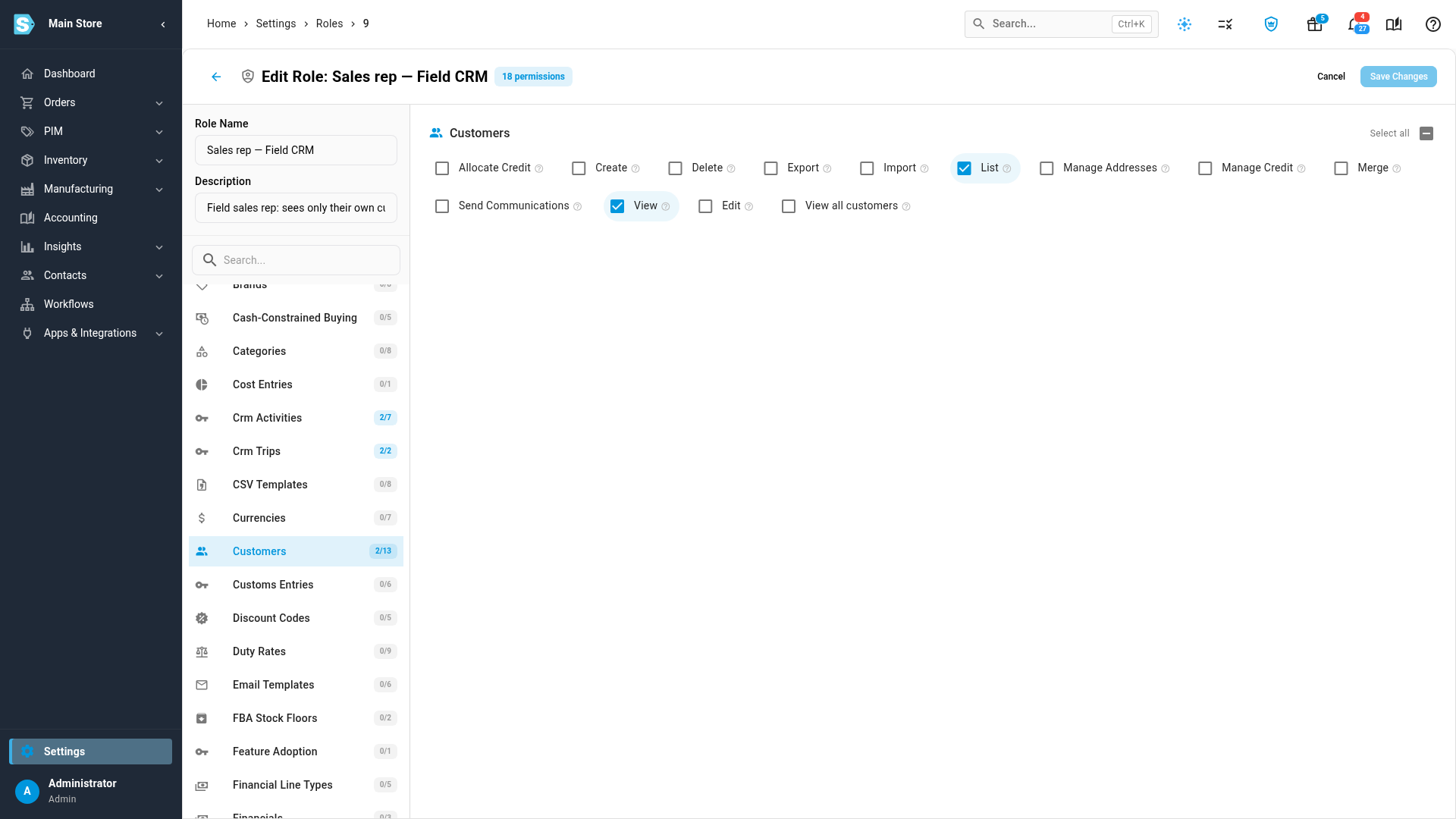
In the list of areas on the left, click Customers.
-
Clear View all customers (
customers.view_all_customers) to limit the role to each rep's own customers. Tick it to let the role see every customer. -
Click Save Changes.
The change applies on the user's next action. They don't need to sign out.
The Sales rep — Field CRM role that SKU.io creates for new accounts doesn't include View all customers, so reps with that role are limited from the start. Every other role that existed when this permission arrived was given it, so nobody lost access. A role you create yourself starts without it.
Assign a customer's sales rep
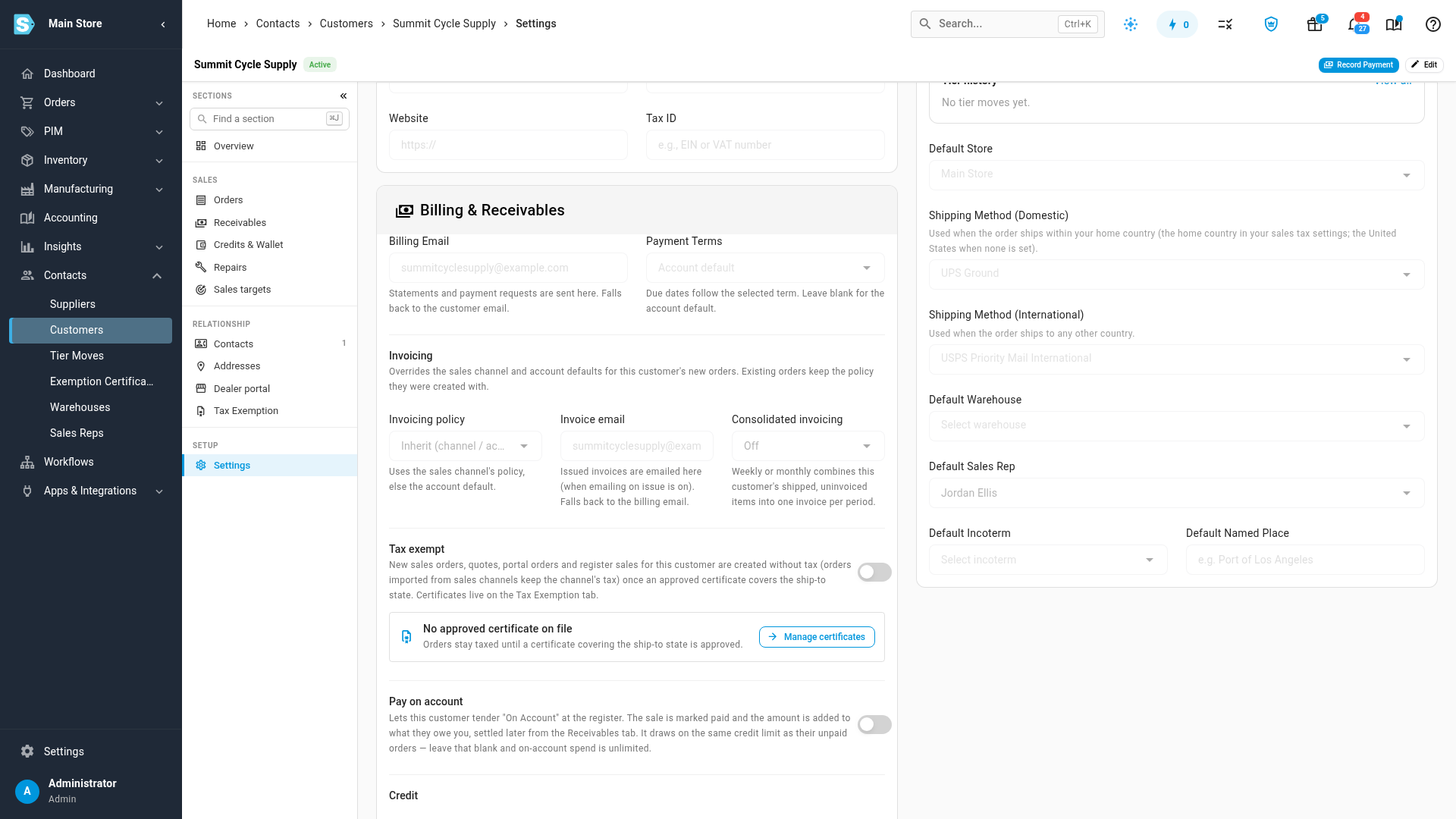
A customer belongs to the rep named in its Default Sales Rep. When you change that rep, the customer's orders, quotes and invoices move with it, including older ones.
-
Go to Contacts → Customers, and open the customer.
-
In the customer's list of sections, choose Settings.
-
In Customer Settings, click Edit.
-
Under Default Settings, choose the rep in Default Sales Rep.
-
Click Save.
A customer with no Default Sales Rep isn't visible to any limited rep. Neither is an order that has no customer, such as a walk-in sale.
What a limited rep sees
| Where | What they see |
|---|---|
| Customers, Sales Orders, Quotes, Sales Invoices, Sales Credits and RMAs lists | Only their own customers and those customers' records. A banner above the list reads Showing only your dealers — customers assigned to the rep's name. |
| A record that belongs to another rep's customer | The record doesn't open, even from a direct link. |
| Search | Only their own customers and those customers' orders. |
| Exports | Only the rows they can see in the list. |
| New orders and quotes | Only for their own customers. |
| Saved PDFs and report files | Order and credit note PDFs open from the rep's own records. Other saved files, such as packing slips and saved reports, aren't available to them by link. |
| AI assistant connections, such as Claude or ChatGPT | Not available. A limited rep can't connect an AI assistant to the account. |
| Dashboard | Widgets that can be limited show only their own customers' figures. A widget that can't, such as sales totals across the whole account, shows the notice below in its card instead of numbers. |
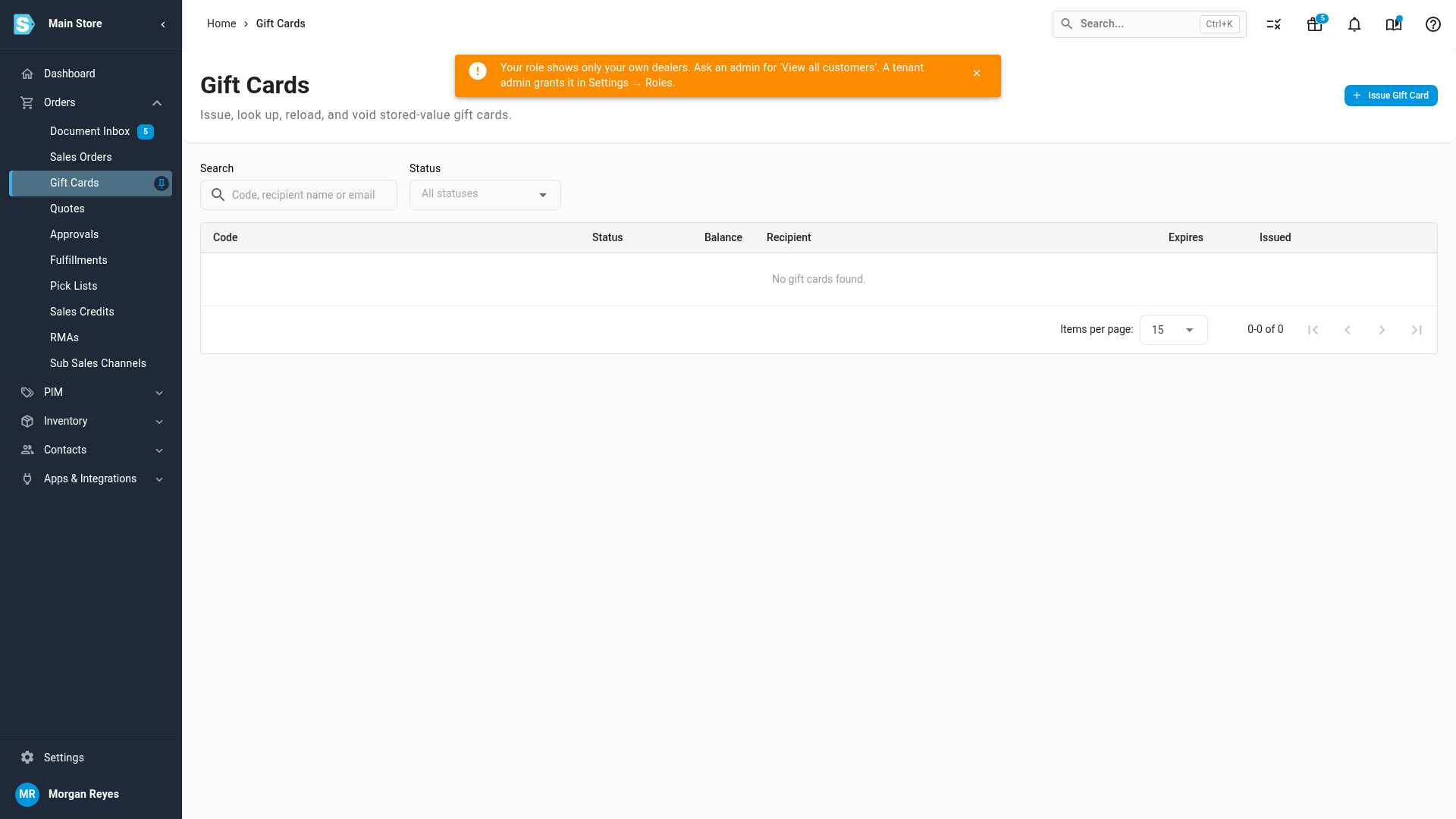
| Screens that can't be limited yet, such as Gift Cards, most reports, and fulfillment | A notice: Your role shows only your own dealers. Ask an admin for 'View all customers'. A tenant admin grants it in Settings → Roles. |
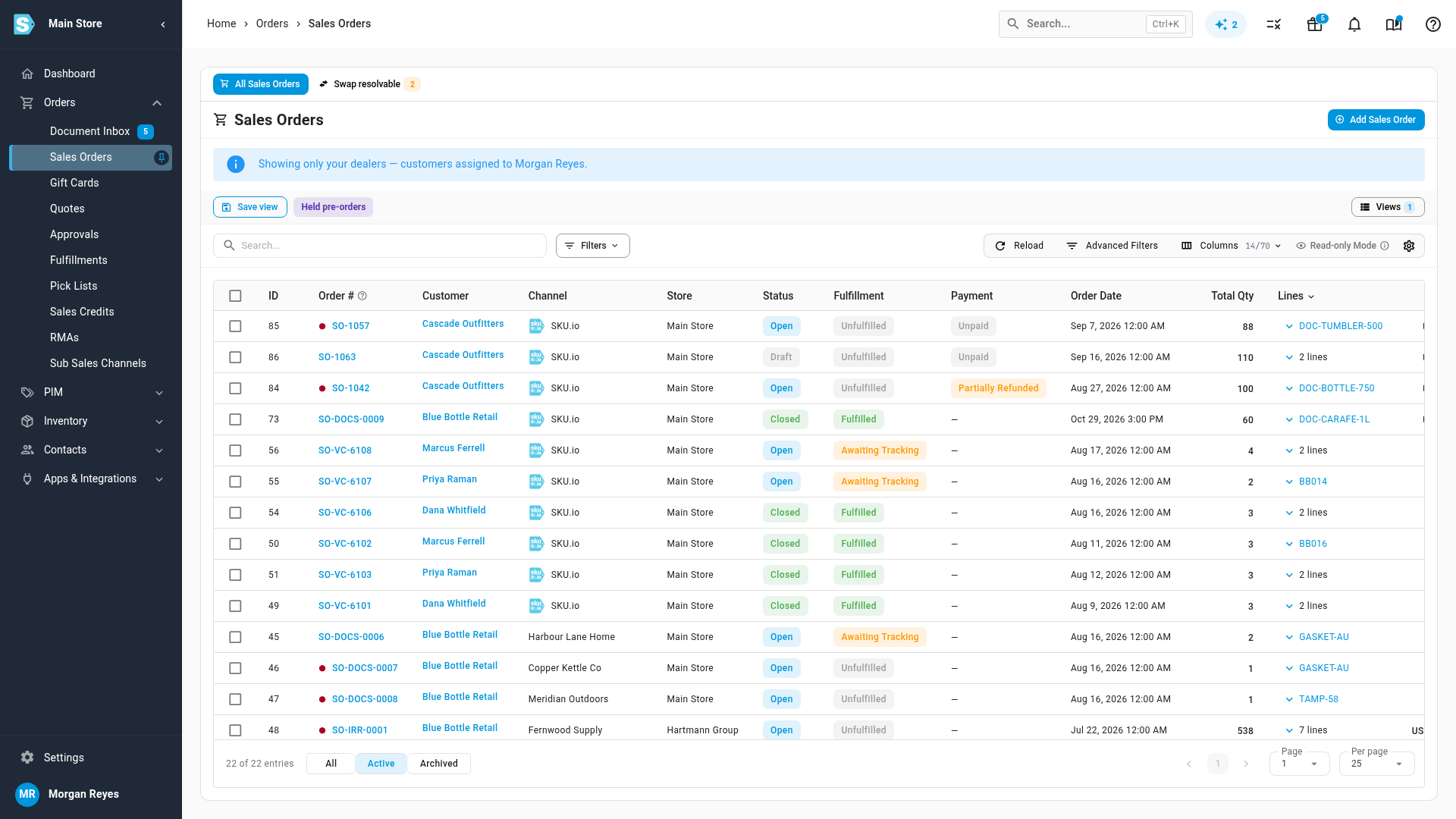
If no customers are assigned to the rep yet, their lists are empty and the banner says so: No customers are assigned to you yet. An admin assigns a customer's sales rep on the customer's page, or grants 'View all customers' in Settings → Roles.
Sales managers and teams
A limited user whose role also includes Crm Activities → View Team sees their own customers and the customers of the reps in the sales rep groups they manage. The banner then adds and your team's. A user linked to two sales reps sees both reps' customers.
A manager who isn't linked to any sales rep isn't limited. To limit a manager, link their user to a sales rep.
Who is never limited
- Admins always see every customer, even when they're also linked to a sales rep.
- Customers using the customer portal see only their own account, as before.
- Integrations, imports and scheduled jobs aren't affected.
Next steps
- Create a role — build a role and assign it to users.
- Roles and permissions reference — how View all customers fits with the other permissions.
- Create and manage users — add the people you'll link to your sales reps.
Video transcript
A sales rep can see every customer, or only the customers assigned to them, and one permission decides which. Start by opening Settings, at the bottom of the sidebar. Scroll down the settings list to Users and Permissions, and click it to open the section. Then choose Users and Permissions again, in the list that opens below. Choose the Roles tab, which lists every role in your account. Find the role your sales reps use, and click the pencil icon on its row to edit the role. In the list of areas down the left side, scroll to Customers and click the name. Its permissions appear on the right. Now look at View all customers, in the row of Customers permissions. This role does not have it ticked. Without it, a rep on this role sees only their own customers. Tick it, and the role sees every customer again. Which customers belong to a rep comes from each customer's Default Sales Rep. To check one, open Contacts in the sidebar, then choose Customers from the menu underneath, and give the customer list a moment to load. The list shows every customer in your account, because an admin always sees all of them. Open any customer from the list, and its overview page appears first. In the customer's list of sections on the left, choose Settings, near the bottom of the list. Scroll down to Default Settings, where Default Sales Rep names the rep who owns this customer. To change it, click Edit at the top of Customer Settings, choose a rep, and save. Here is what a rep with this role sees, signed in as themselves. They open Orders in the sidebar, and then choose Sales Orders from the menu that opens underneath. A banner above the list says it shows only your dealers, and names the rep. Only orders for this rep's own customers appear in the list. Customers, quotes, invoices, credits and returns are limited in the same way. Gift Cards, under Orders, is one screen that can't be limited to a rep's customers yet. Open one, and a notice explains that your role shows only your own dealers. If you need that screen, ask an admin to add View all customers to your role.