Require two-factor authentication for your team
A password on its own is one leak away from someone else signing in as your team. When you require two-factor authentication, everyone in your account has to add a second step to their sign-in, a code from an authenticator app or an emailed code, before they can keep using SKU.io. Each person gets a grace period to set it up.
Before you begin
- You need to be the account owner or an admin. Other people can see the setting but can't change it.
- Turn on two-factor authentication for your own sign-in first. The switch stays off until you do, so the rule can never lock you out. See Set up two-factor authentication. If you use emailed codes, enter one code (by signing in again, for example) before the switch becomes available.
- Tell your team before you turn it on. Anyone who uses API tokens or connected apps should set up two-factor before their grace period ends (see What your team sees).
- The screenshots come from a demonstration account.
Where to find it
Go to Settings → Users & Permissions → Require Two-Factor Authentication.
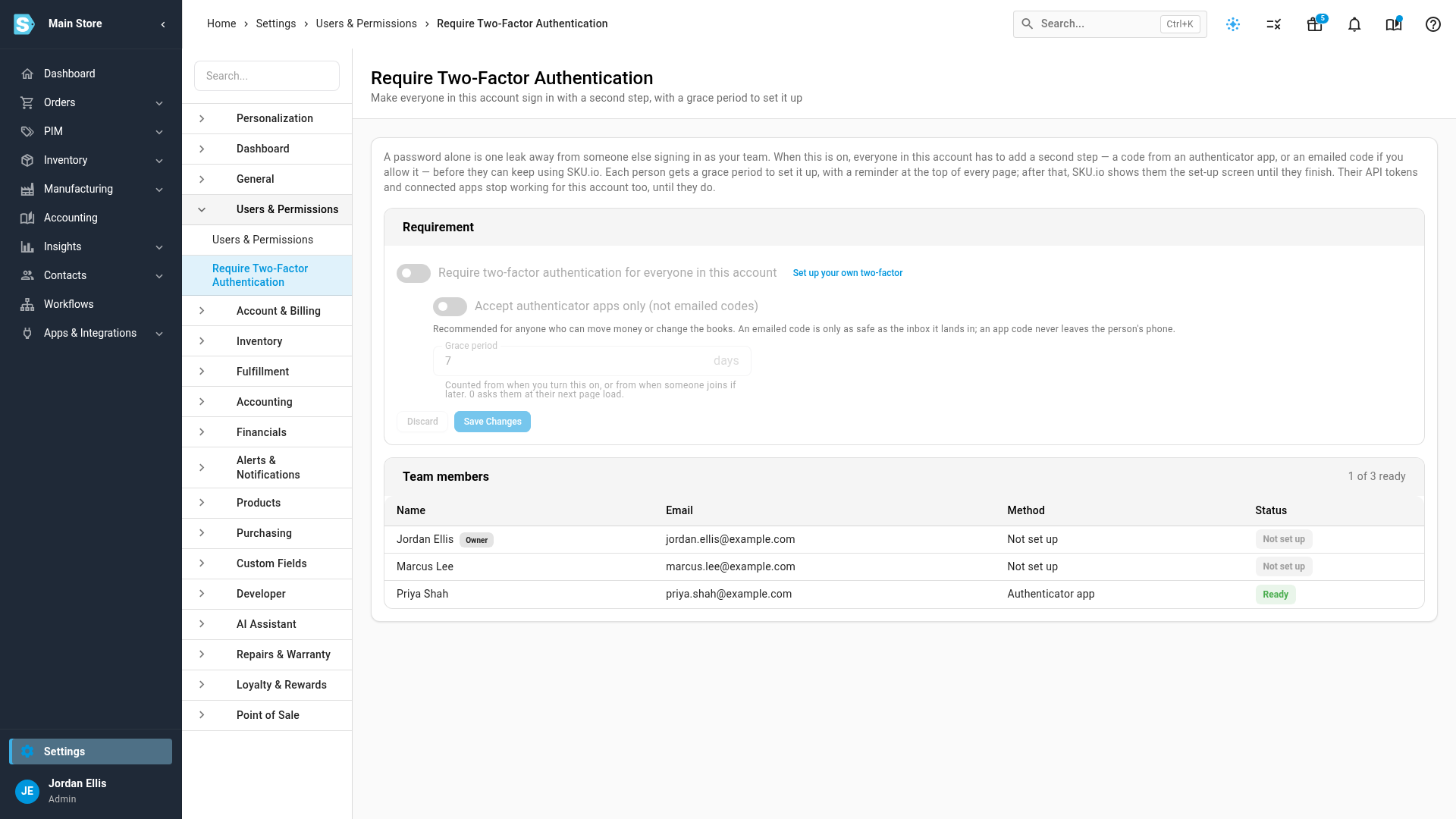
Turn on the requirement
- If the switch is greyed out, click Set up your own two-factor and turn on an authenticator app or emailed codes for your own sign-in. Then come back to this page.
- Turn on Require two-factor authentication for everyone in this account.
- Under Grace period, enter the number of days each person has to set it up. The default is 7 days, and you can enter from 0 to 90. With 0, people are asked to set it up the next time they load a page.
- To accept only authenticator apps, turn on Accept authenticator apps only (not emailed codes). An emailed code is only as safe as the inbox it lands in, so this is the better choice for anyone who can move money or change the books.
- Click Save Changes.
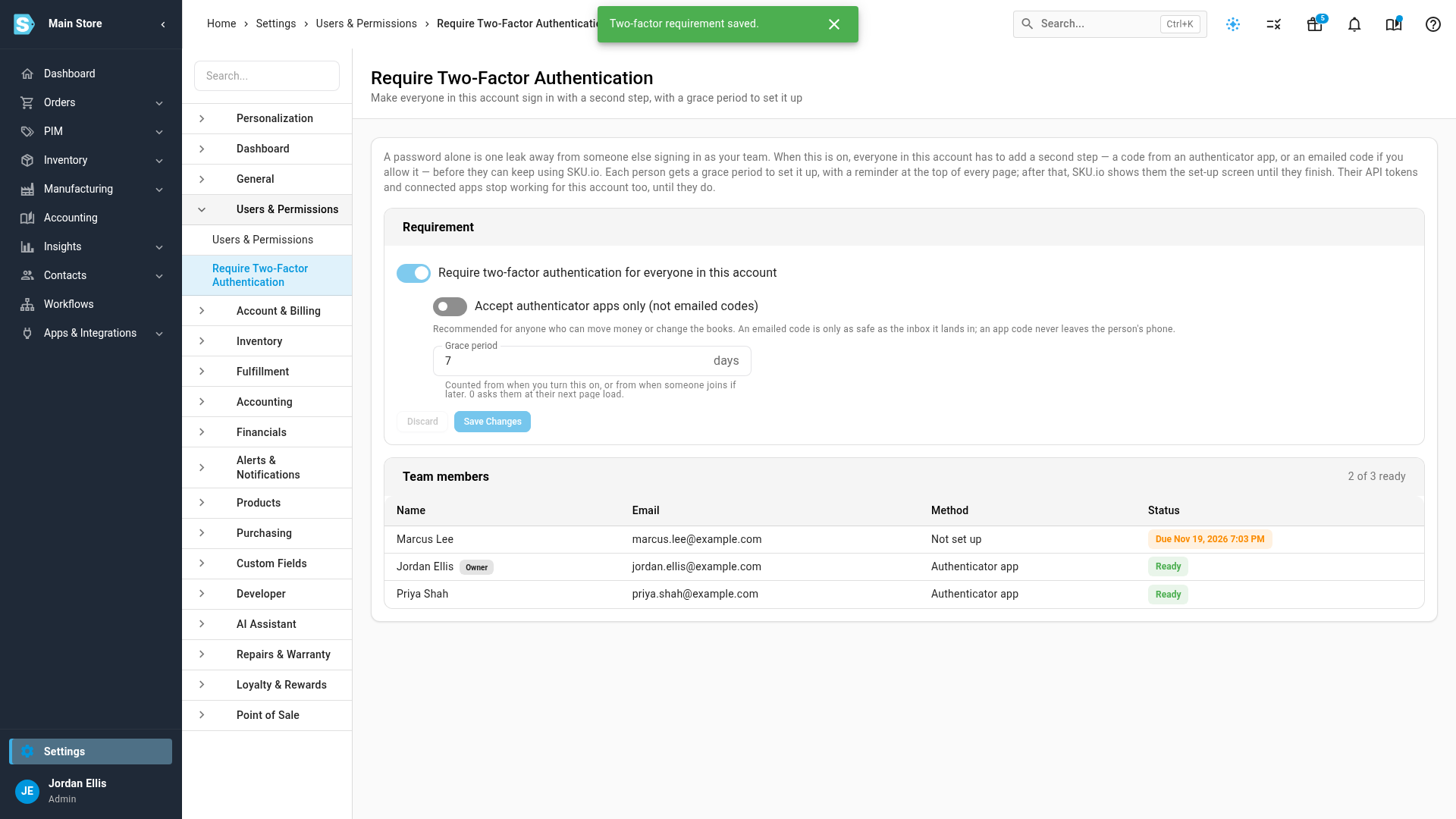
How the grace period is counted
Each person's grace period starts when you turn the requirement on. If someone joins the account later, their grace period starts on the day they join instead.
Two changes start a new grace period for everyone who hasn't met the rule:
- turning the requirement off and on again
- turning on Accept authenticator apps only while the requirement is on. People who use emailed codes then get a fresh grace period to switch to an app.
Changing only the number of days moves everyone's due date to match.
See who still needs to set it up
Team members lists everyone in the account, with the people who still need to act at the top.
| Status | Meaning |
|---|---|
| Ready | The person already meets the requirement. |
| Due date and time | The person hasn't set it up yet and must do so by this date. |
| Blocked until set up | The grace period has passed. The person can't use the account until they set it up. |
| Not set up | The requirement is off, and this person doesn't use two-factor. |
The Method column shows what each person uses: Authenticator app, Email code or Not set up.
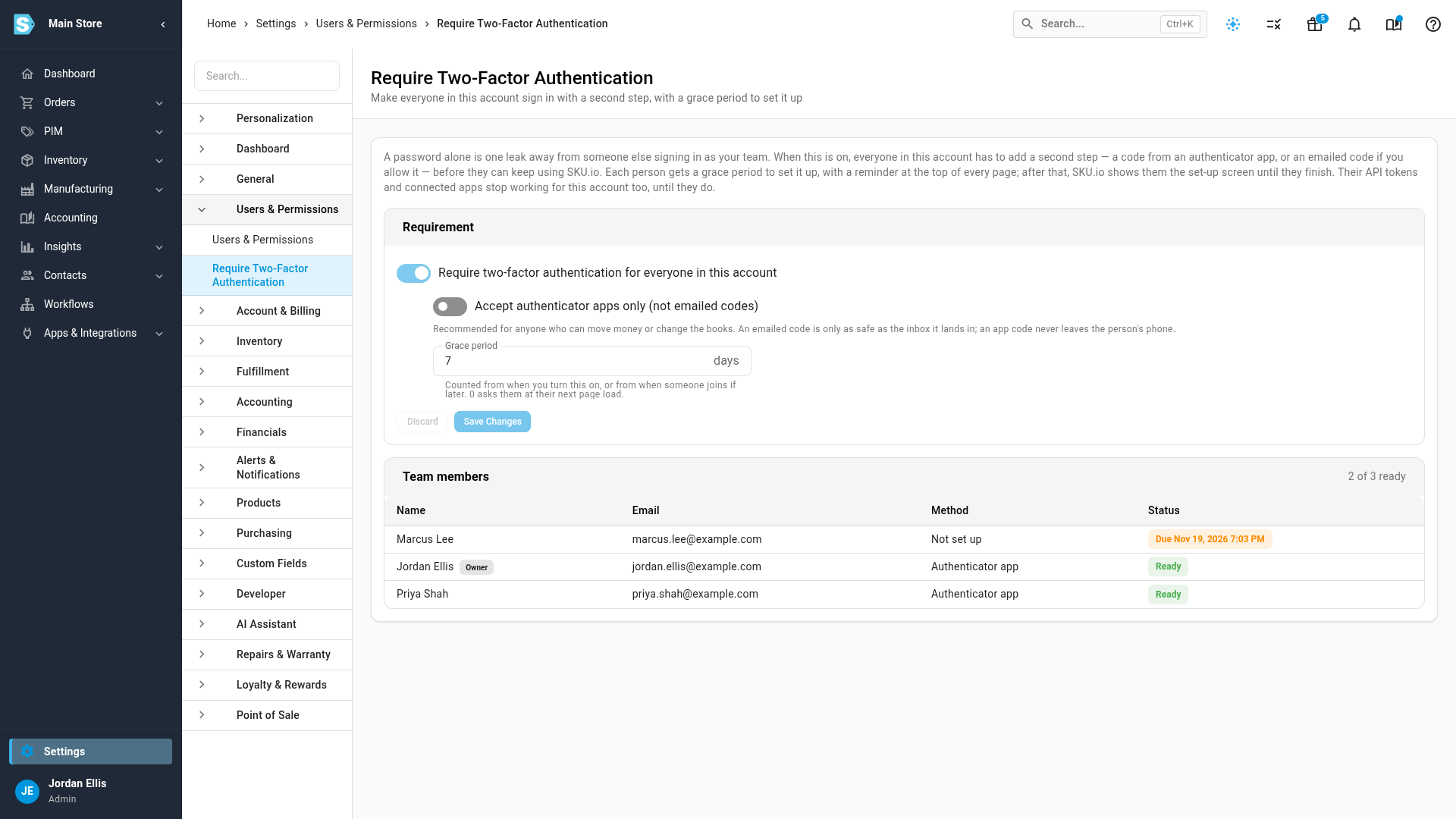
Emailed codes count only after the person has entered one. Turning on emailed codes is a single click, so it doesn't prove that the person can read the inbox until they've used a code.
What your team sees
- During the grace period, a reminder appears at the top of every page. It says how many days are left, and its Set up now button opens their Two-Factor Authentication page. They can keep working as normal.
- After the grace period, SKU.io opens a set-up screen instead of the page they asked for. It shows the same choices as their Two-Factor Authentication page. Once they finish, they click Continue and go back to where they were. People with access to more than one account can switch to another account from this screen, and anyone can sign out.
- API tokens and connected apps stop working for this account for a person who is past their grace period, until that person turns on two-factor. This includes personal access tokens, connected apps and AI assistants connected through MCP. Their tokens don't need to be replaced; they work again as soon as the person meets the rule.
The requirement applies only to this account. Someone who works in several SKU.io accounts can still use the others normally.
Turn the requirement off
Turn off Require two-factor authentication for everyone in this account and click Save Changes. Nobody is asked to set it up any more. People who already use two-factor keep it.
Next steps
- Set up two-factor authentication for your own sign-in
- Create and manage users
- Manage active sessions