Use the built-in assistant prompts
Once SKU.io is connected to your AI assistant, it offers two ready-made prompts:
| Prompt | What you get | You give it |
|---|---|---|
| Daily ops digest | Today's orders and revenue against yesterday, then stuck orders, stock at risk, failing integrations, open alerts and late purchase orders, ending with your top three actions | Nothing |
| Investigate an order | One sales order traced end to end: how it came in, stock per line, fulfillments and shipments, invoices and payments, sync problems and alerts, with a list of what looks wrong | The order number |
SKU.io works out the figures from your live data when you run the prompt and hands them to the assistant with it. The assistant writes them up, so it doesn't guess or look things up one call at a time, and its first answer arrives quickly.
Before you begin
- SKU.io is connected to your assistant. If it isn't, follow Connect an AI assistant.
- The prompts read only what your role can see. A part your role can't see is left out, and the assistant tells you which part and why.
- Not every assistant shows prompts from a connector. Claude does, and so does Claude Code. If yours doesn't, ask in words, such as "What needs my attention today?", and the assistant looks the figures up with its tools instead.
Steps
- In your assistant, open the prompts that SKU.io offers:
- Claude (web or desktop): click + in the message box, then choose the SKU.io connector and pick the prompt.
- Claude Code: type
/and pick the SKU.io prompt from the list.
- Pick Daily ops digest for the morning check, or Investigate an order to trace one order.
- For Investigate an order, enter the order number as it appears in SKU.io
or on your sales channel, such as
1042orSO-1042. - Send the prompt. The assistant writes the digest or the trace from SKU.io's figures, with a link to each record in SKU.io.
- Ask follow-up questions in the same conversation, such as "Which purchase orders are late?" The assistant looks those up with its tools. To refresh the digest later in the day, run the prompt again.
What the daily ops digest covers
- Orders and revenue so far today, against yesterday at the same time, then yesterday's full day. Drafts and cancelled orders don't count. An order edited in the last few minutes may not be in the revenue yet.
- Stuck fulfillment: orders that should have shipped and haven't.
- Stock at risk: products set to run out before more stock arrives, and negative or unreconciled stock.
- Failed syncs: integrations that are failing.
- Open alerts: your high-priority alerts.
- Overdue purchase orders: orders past their expected date.
- Top 3 actions, ranked by SKU.io by how serious each one is, the money at stake, how many records it touches and how recent it is. Fewer than three means there was nothing else worth doing first.
The digest only calls an area all clear when it checked all of it and found nothing. An area your role can't see, or a check that couldn't run just then, is named as not checked rather than clear.
What the order trace covers
Investigate an order follows one sales order through SKU.io, the same ground as the tabs on the order's page:
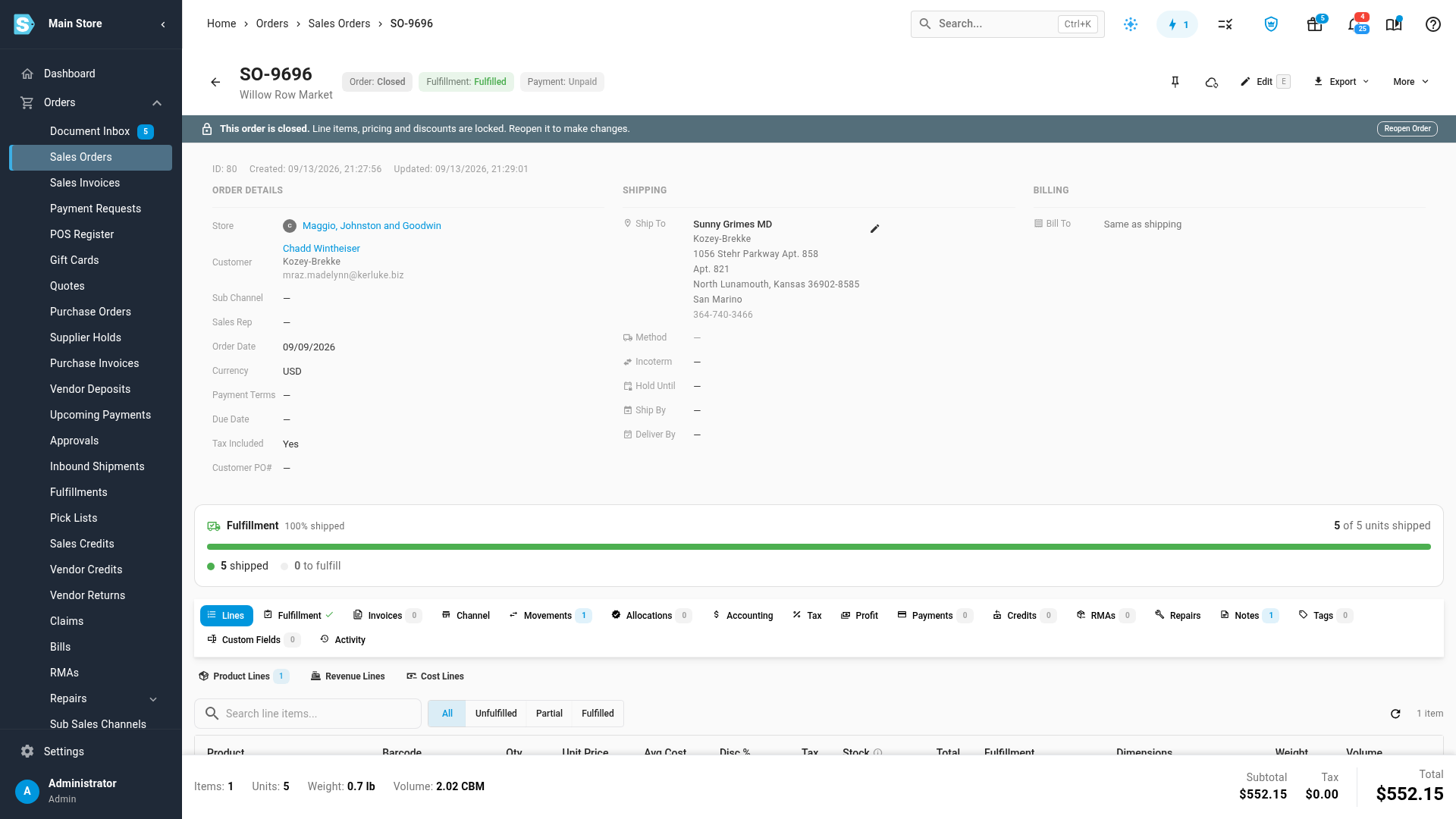
- How it came in: the sales channel and when it was imported, and whether the channel shows an error or is out of step with SKU.io.
- Lines: each product, how much is ordered, shipped, returned and still to ship, and how its stock is allocated.
- Fulfillments and shipments: each warehouse request and its status, tracking, and whether the tracking was sent back to the sales channel.
- Invoices and payments: invoices with their due dates, what's paid, and what's overdue.
- Sync problems: warehouse updates that failed or were refused, and accounting entries that failed to sync.
- Alerts: your open alerts on the order or its fulfillments.
- What looks wrong: a short list the assistant reads first, such as a delivery exception or an overdue invoice.
If the same order number exists on more than one sales channel, the assistant lists the matching orders and asks you which one to trace. Invoices need permission to view sales invoices, and payment sync problems and alerts need the matching access; without it, the trace leaves that part out and says so.
See every run
Every run of a built-in prompt is listed on Settings → Developer → MCP Server →
Activity, like any other assistant call, as prompt:daily-ops-digest or
prompt:investigate-order with Kind set to Read.
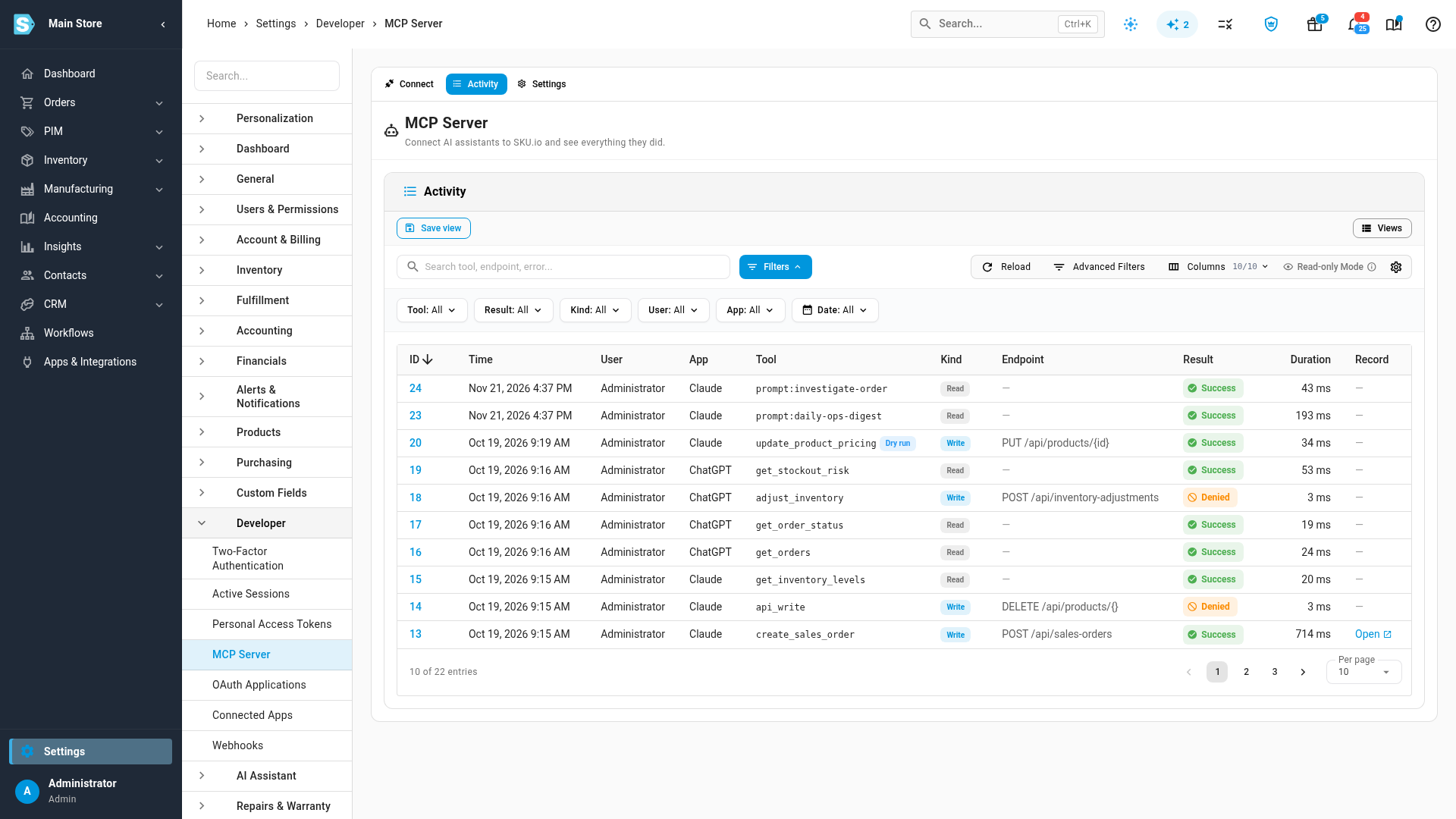
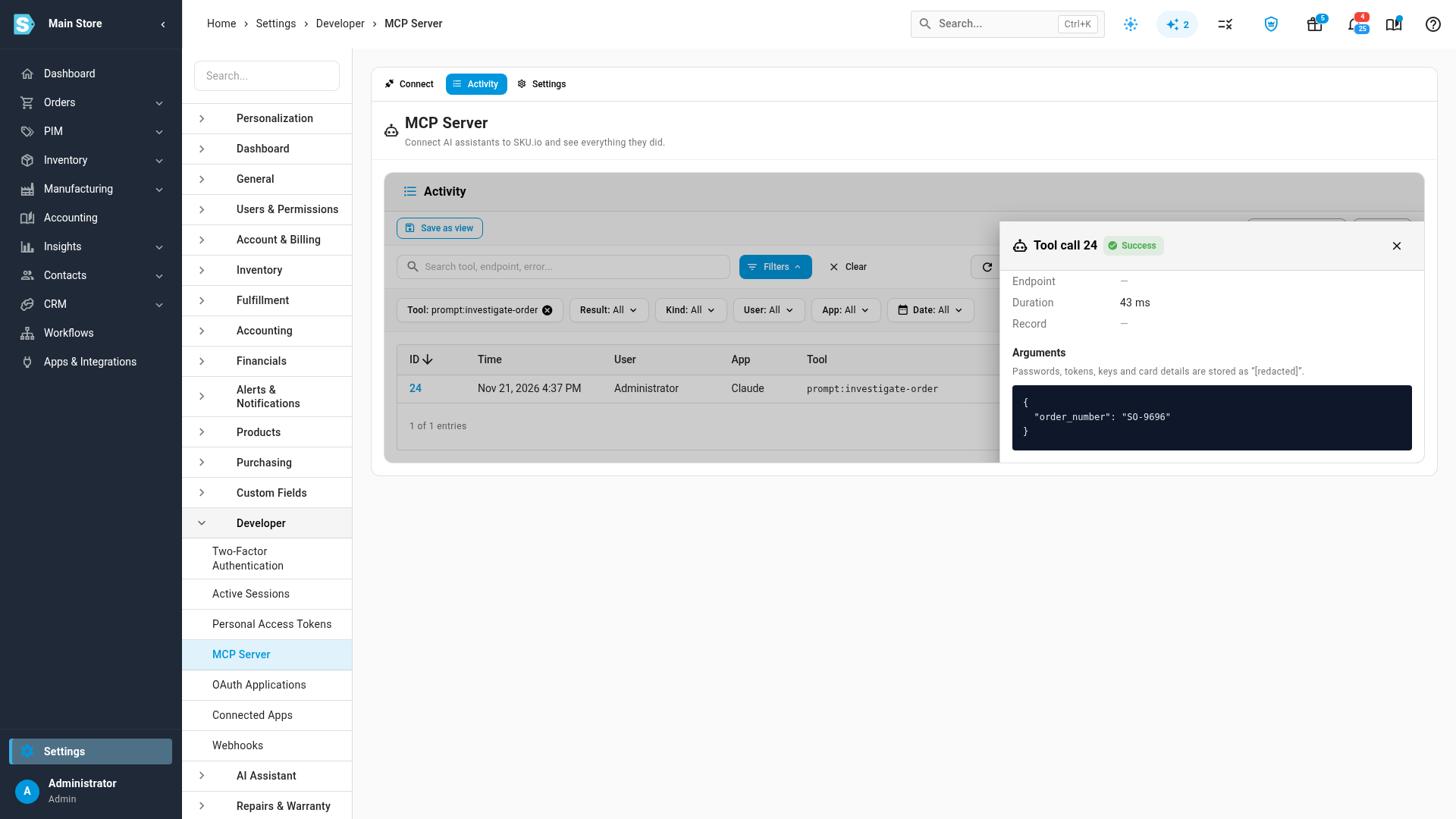
To see only prompt runs, open the Tool filter and tick
prompt:daily-ops-digest or prompt:investigate-order. Click a run's ID to see
who ran it, from which app, and, for an order trace, the order number it was given.
A run that was refused shows Denied. That happens when an admin has turned AI assistants off on the Settings tab, or when your role can't view sales orders for an order trace.
Next steps
- Connect an AI assistant — set up the connection, choose what an assistant may change, and turn assistants off.
- API scopes reference — the access areas a connection reads with.
- Review connected apps — see and revoke the assistants connected to your account.
Video transcript
Once SKU is connected to your AI assistant, it offers two ready-made prompts. SKU works out the figures from your live data, so the first answer arrives quickly. Each run is listed on the Activity tab. The daily ops digest compares today's orders and revenue with yesterday. It also flags stuck fulfillment, stock at risk, failing integrations, alerts and overdue purchasing. To see only one prompt, pick it in the Tool filter. Here, that's the order traces. Click a run's ID to see who ran it, from which app, and the order number it was given. Investigate an order follows that order from its lines and stock to shipments, invoices and payments. Then it lists anything that looks wrong.