Create & allocate vendor credits
A vendor credit is money a supplier owes you back — for returned goods, a price dispute, a rebate, an overpayment. The credits list (Orders → Vendor Credits) tracks each credit's total, what's been allocated, and what's still available, with tiles for Open Credits, Unapplied Credits, and Total Allocated.

Vendor credit or supplier invoice?
The two documents point in opposite directions. Think of a vendor credit as a negative invoice:
| Supplier invoice | Vendor credit | |
|---|---|---|
| Who owes whom | You owe the supplier | The supplier owes you |
| Effect on your balance | Increases what you owe | Reduces what you owe, or gets you a refund |
| Typical reason | The supplier bills you for goods | Returned or damaged goods, a price dispute, an over-bill, a rebate |
| Where to record it | Record a supplier invoice | This page |
If you're about to record money the supplier owes you, you want a credit, not an invoice. For money flowing the other way — prepayments you make before delivery — see Manage vendor deposits.
Three ways to create one
Click Create Vendor Credit and choose what the credit is for:
- Return goods to vendor — creates a Vendor Return, the physical return document. The credit is created from it when the supplier's credit memo arrives — the return's lines carry straight onto the credit.
- Adjust, rebate, or refund — any non-stock credit, with no stock movement: price disputes, freight errors, volume rebates, MDF, overpayments. Pick the supplier and add credit lines on the detail page (custom lines or lines pulled from a PO).
- Scan credit memo — upload the supplier's credit memo PDF and AI extraction drafts the credit for review (see Scan a supplier credit memo).
You can also Import credits from a spreadsheet, or Export the list.
When returned goods leave your stock, SKU.io takes them out at the exact cost each unit came in at when you received it — not an average — because inventory is valued FIFO (first in, first out). Your COGS and inventory value stay accurate to the penny. A return can only draw on stock you still hold: if the units have already been sold, transferred, or used up, there's nothing left to return, so record an Adjust, rebate, or refund credit instead. For how received stock becomes inventory in the first place, see How a PO becomes inventory.
Start from a purchase order
When the credit belongs to one purchase order, start it from that order so the link is already made:
- Go to Orders → Purchase Orders and open the order.
- Select the Vendor Credits tab and click Credit (or Create Vendor Credit from the empty state). You can also click Create Vendor Credit from the order's More menu (⋮).
- The Create Vendor Credit dialog opens with the Purchase Order filled in. Choose what the credit is for, as in the list at the top of this section.
- Enter the supplier's own Credit Memo # if they printed one. Leave it blank to number the credit automatically.
The tab's badge counts the order's credits. Once credits exist, a summary row shows three totals for the order:
| Total | What it means |
|---|---|
| Total Credit | The combined value of the order's active credits. |
| Allocated | How much of that credit is applied against a bill or refund. |
| Remaining | Credit still unused (Total Credit − Allocated). |
Below the summary, each credit has a row with its number, date, credit status, payment status, and amount. Click a row to open the credit — its page carries a link back to the order. Only active credits count toward these totals and toward the order's invoice reconciliation: a credit still in Draft, or a voided one, is left out.
A line that returns or writes off goods can't credit more units than you received on that order line, minus what other credits already cover — even if you ordered more. Receive the stock before you credit it. Receiving more, or voiding an earlier credit, frees up quantity.
Scan a supplier credit memo
When the supplier emails the credit memo as a document, let SKU.io read it instead of keying it in. AI reads the memo's header and lines; you check them and create the credit.
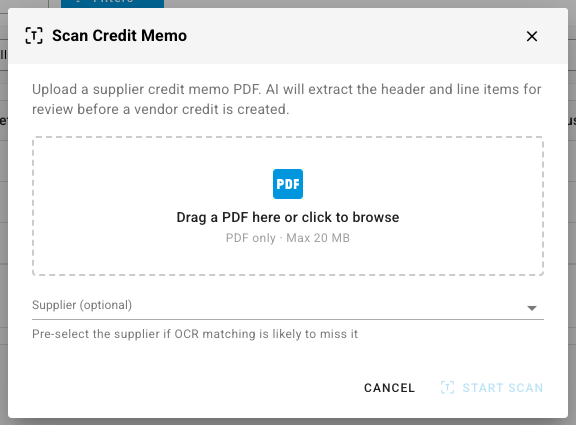
- On Orders → Vendor Credits, click Scan Credit Memo — or, in the Create Vendor Credit dialog, choose Scan credit memo.
- In the Scan Credit Memo dialog, drop the supplier's PDF (up to 20 MB) onto the upload area. If the supplier's name is hard to read on the memo, pick it in Supplier (optional) so the match can't miss. When you started from a purchase order, the order and supplier are filled in for you.
- Click Start Scan. A Scan Credit Memo: task appears in the job tray at the bottom of the screen while SKU.io reads the document.
- When the scan finishes, the Credit Memo OCR Review page opens: the memo on the left, what SKU.io read from it on the right.
On the review page, check the Credit Details:
- Supplier — shows Matched: and the supplier SKU.io found. Click Change if it's wrong.
- Purchase Order (optional) — link the credit to the order it relates to.
- Original Invoice — the purchase invoice the memo refers to, when SKU.io finds one with a matching number.
- Credit Memo #, Credit Date, Supplier PO #, Additional Reference, and a Note, with the memo's Total underneath.
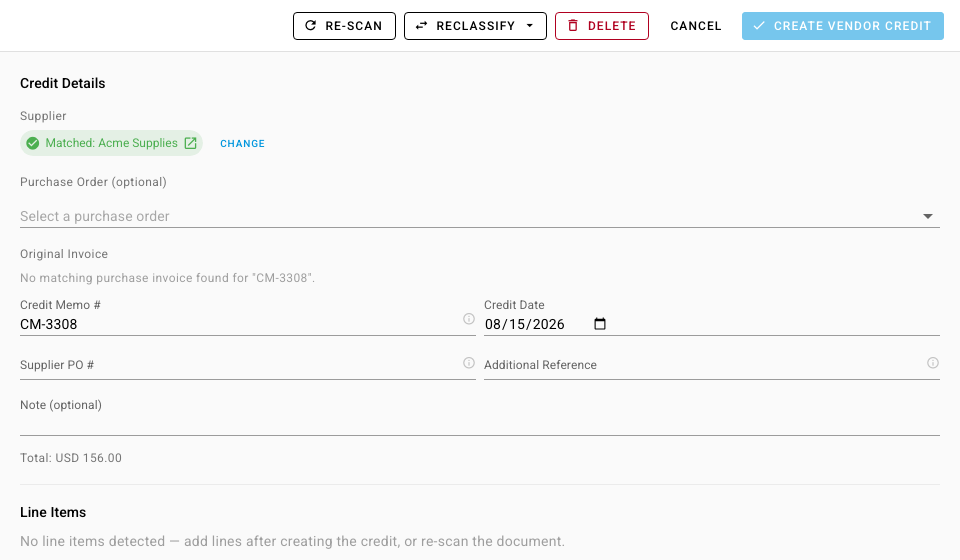
Then work through the Line Items. Each line is marked matched to product, non-product line, or no product match — an unmatched line is still credited, using its description and amount. For each line you can:
- Correct the Qty and Unit Cost, and pick a Nominal Code for where it posts (optional).
- Click the × on a line to leave it off the credit — for example, a subtotal the scan read as a line. The line is marked ignored; click the restore icon to bring it back.
- Tick Restock inventory on a product line when the units are physically going back to the supplier, so the credit takes them out of your stock. Leave it clear for a price-only credit.
When everything's right, click Create Vendor Credit. The button stays disabled until the credit has a supplier and at least one included line, every included line has a quantity of 1 or more, and no line is 100,000 or more; hover it to see what's missing.
The page header also has Re-scan (read the document again), Reclassify (it's really a supplier invoice, not a credit), and Delete (discard the scan).
Already attached the memo to a credit? Open the credit's Documents tab and click Scan Credit Memo on the file to read its lines into that credit.
Scanned documents also land in the Document Inbox. If a document scanned as a supplier invoice turns out to be a credit, reclassify it as a credit there — no need to upload it again.
Resolve an over-billed invoice with a credit
When a supplier bills you for more than you ordered or received, the invoice's 3-Way Match tab flags the line Over-billed and offers Resolve with credit. Click it, check the quantities in the Resolve over-bill with vendor credit dialog, and confirm. SKU.io raises a vendor credit against the same order for the excess — for example, 5 extra bottles billed at $8.50 raise a $42.50 credit — and the line reconciles. See Invoicing and the 3-way match.
The credit page
A credit like VC-00001 has two statuses. Its Credit status starts at Draft while you build it; Authorize moves it to Open, you set it to Closed when no further activity is expected, and Void reverses it. (A credit created to resolve an over-billed invoice skips Draft and starts Open.) Its Payment status runs from Unapplied to Applied — Partially Applied part-way, and Refunded when the supplier pays the money back. The page also has tabs for Lines, Return Shipments, Allocations, Payments, Accounting, Movements, Documents, Tags, Notes, and Activity. Build the lines (Add From PO / Add Custom Line), then Authorize.
Allocate it
An open credit's balance nets against what you owe the supplier — allocate it from the credit's Allocations tab, or watch it appear as available credit on the supplier's Payables and in the purchase invoice payment flow. The supplier statement nets credits & deposits available against the total open. To spread a credit over the supplier's oldest open bills in one step, use Auto-Apply to Oldest Bills; see Auto-apply a vendor credit to open bills.
An active credit also counts toward its purchase order being fully invoiced: a credited quantity settles the order line the same way a billed quantity does. So an order settled partly by a credit still reaches Invoiced — if the supplier bills 8 of 10 units and credits the other 2, the line reconciles to 10. See Invoicing and the 3-way match.
Each credit posts its own entries to your accounting, separate from the purchase order's entry for received stock, and your connected accounting software (such as Xero or QuickBooks) mirrors them — so the credit shows on the supplier's account there too.
Next steps
- Return goods to a vendor — the physical half.
- Reduce the cost of goods with a vendor credit — when you keep the goods and the credit lowers their cost.
- Invoicing and the 3-way match — how credits settle a purchase order's lines.
- Manage vendor deposits — prepayments, the money flowing the other way.
Video transcript
A vendor credit is money the supplier owes you back. Create one from a goods return, as an adjustment or rebate, or by scanning the credit memo. Each credit tracks its own status and payment status, with the lines behind it. Authorize the credit, and its balance nets against what you owe the supplier.