Auto-apply a vendor credit to open bills
Instead of picking a bill for each part of a vendor credit, let SKU.io spend the credit for you. Auto-Apply to Oldest Bills settles the supplier's open bills, oldest first, until the credit runs out, and only uses bills in the credit's own currency.
Before you begin
- The credit is Open and has a remaining balance. See Create & allocate vendor credits.
- The supplier has unpaid bills (purchase invoices) in SKU.io.
Auto-apply the credit
-
Go to Orders → Vendor Credits and open the credit. The footer shows how much is Remaining.
-
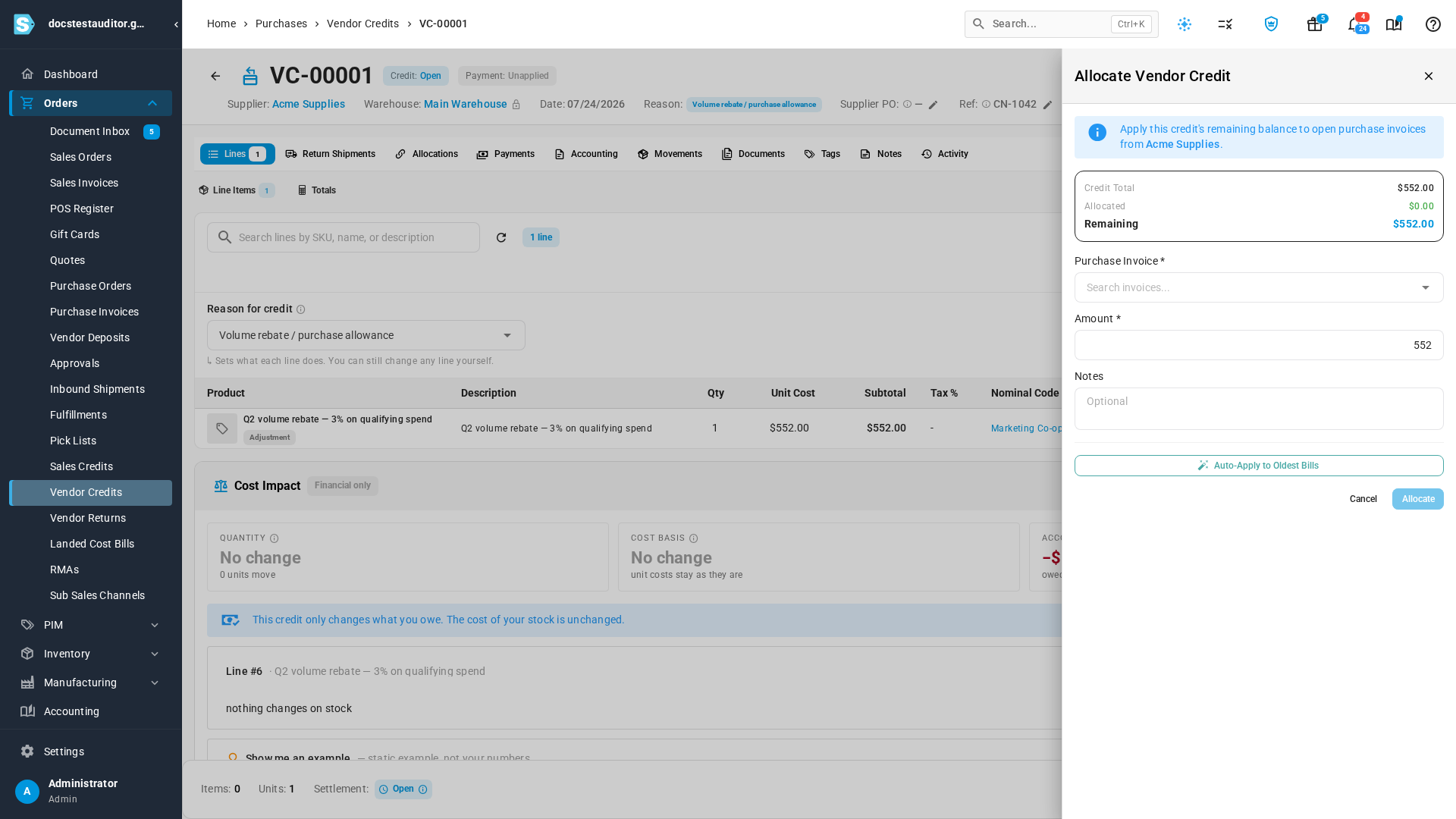
Click Allocate.
-
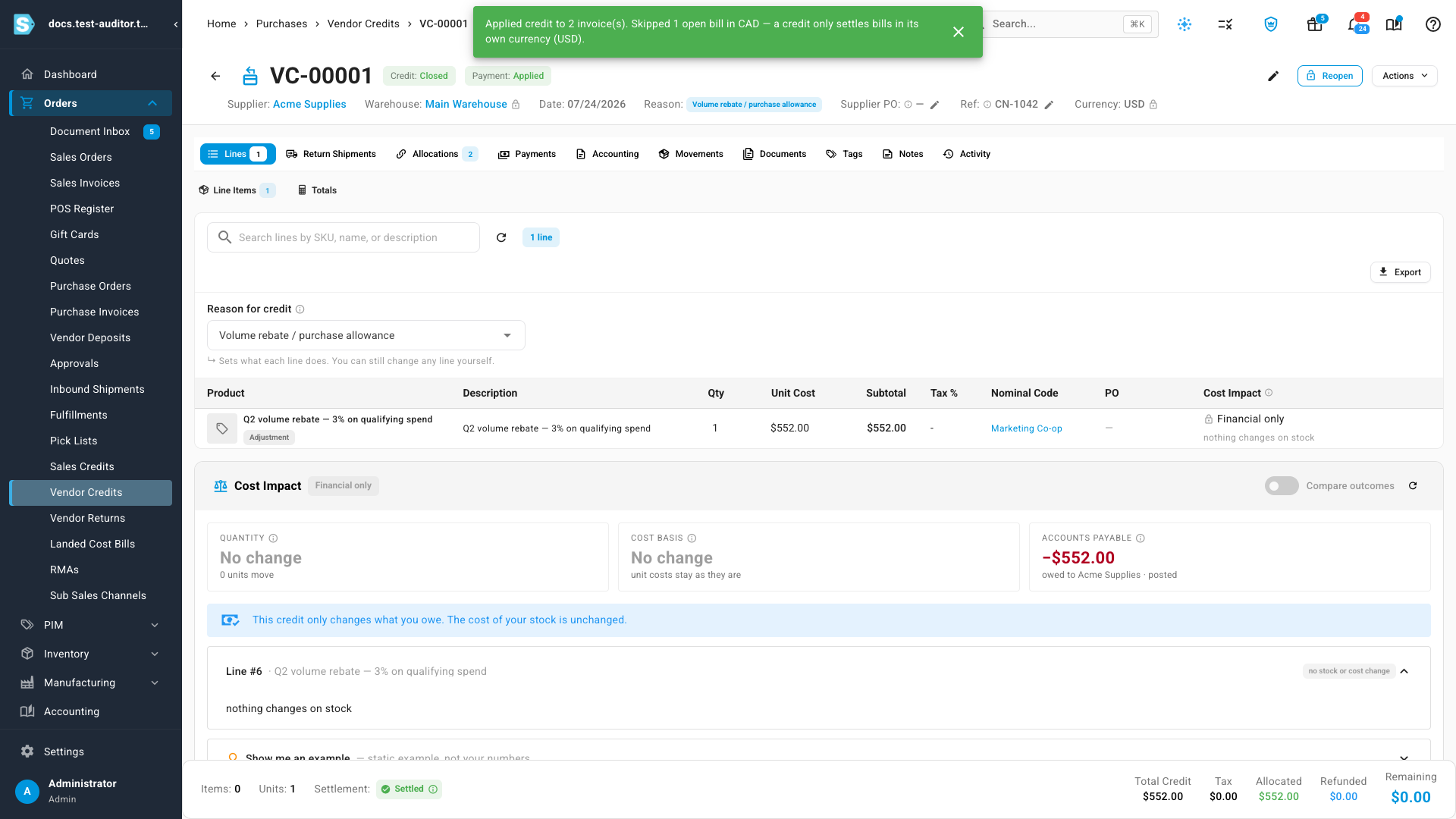
Click Auto-Apply to Oldest Bills. SKU.io applies the credit to the supplier's open bills, oldest first. Each bill takes as much as it still owes, until the credit's balance is used up.
-
Open the Allocations tab to see which bills the credit went to, and how much each took. When the whole balance is applied, the credit's status changes to Closed.
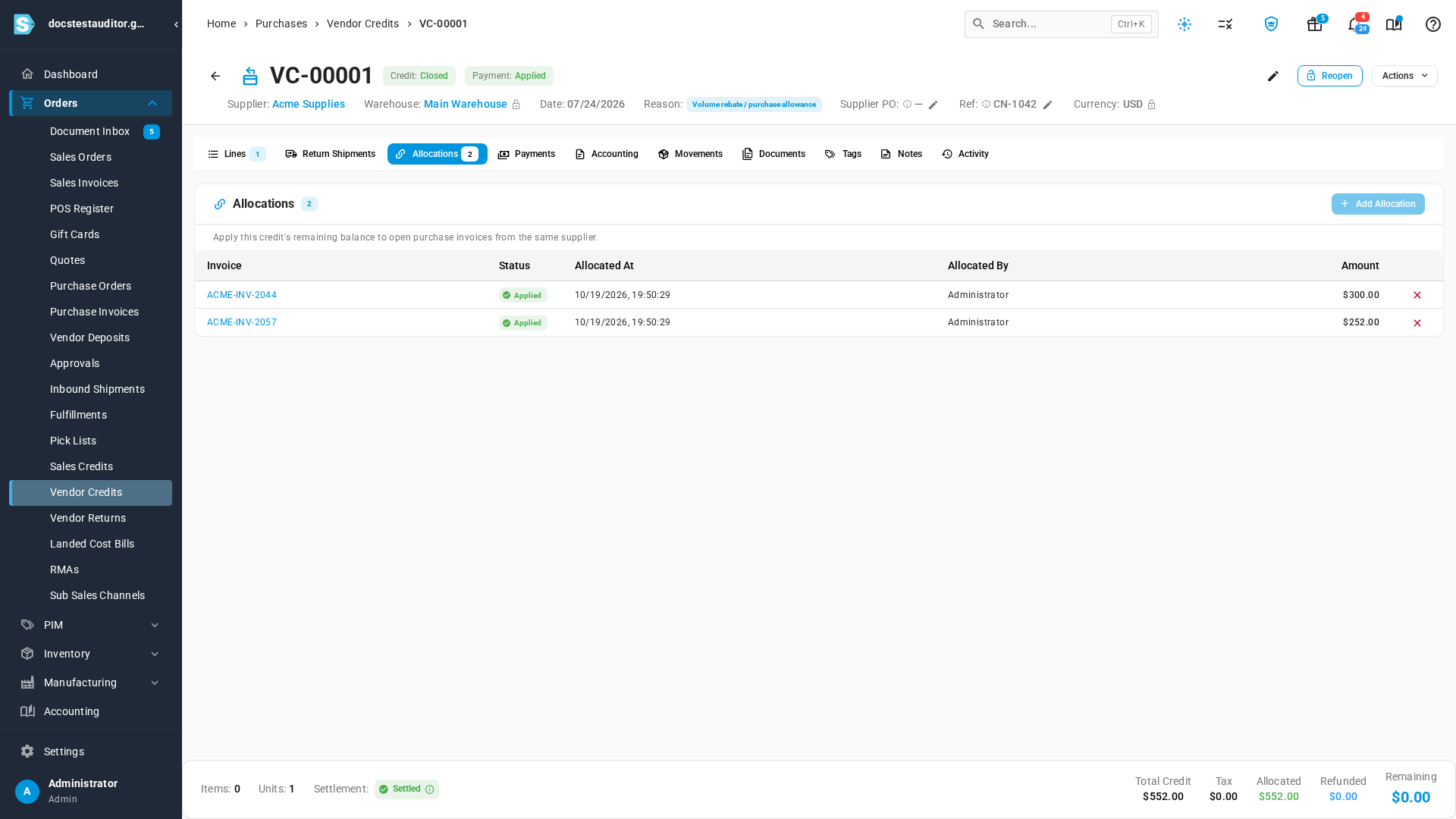
To undo one allocation, click the remove icon on its row on the Allocations tab.
Bills in another currency
A credit only settles bills in its own currency. Auto-apply skips the supplier's bills in any other currency, even older ones, and tells you which it skipped:
- When it settled some bills: Applied credit to 2 invoice(s). Skipped 1 open bill in CAD — a credit only settles bills in its own currency (USD).
- When every open bill is in another currency, nothing is applied and the message starts No open bills in USD for this supplier — 1 open bill in CAD was skipped.
To settle a bill in another currency, ask the supplier for a credit in that currency.
Next steps
- Create & allocate vendor credits: create a credit, and allocate it to one bill by hand.
- Track and pay purchase invoices: see what's still owed on each bill.
Video transcript
A vendor credit is money a supplier owes you. This one, from Acme Supplies, still has five hundred fifty-two dollars to apply. At the top right, click Allocate. The drawer shows what's left to apply. You can apply the credit to one bill by hand, or let SKU.io do it. Click Auto-Apply to Oldest Bills. SKU.io settles the supplier's open bills, oldest first, until the credit runs out. It only uses bills in the credit's own currency, which is US dollars here. The message names any bill it skipped, like this supplier's older bill in Canadian dollars. Open the Allocations tab to see where the credit went. With the whole balance applied, the credit closes itself.