Mark a product unavailable at a supplier
Suppliers often can't ship a product for a while: it's out of stock at their end, production is delayed, it's being reprinted, or it isn't released yet. Record that as a supplier hold: the product is unavailable at that supplier until a date, for a reason from your own list. Planning, purchase orders and the dates your customers see all take the hold into account. The hold stays on the list until the supplier can ship again, so it never goes stale without anyone noticing.
A hold is about one product at one supplier. If another supplier can still ship the product, planning orders from them instead. A hold isn't a lifecycle state: the product stays active and can still be backordered.
Before you begin
- The product is linked to the supplier on its Suppliers section. See Manage a product's suppliers if it isn't.
- To place, change or end holds, you need the Suppliers Edit permission (
suppliers.update). - To change the reason list or the hold settings, you need the permission to change settings (
settings.update).
Mark a product unavailable
-
Open the product, then click Suppliers in its sections.

-
On the row of the supplier that can't ship, open the ⋮ menu and choose Mark unavailable….
-
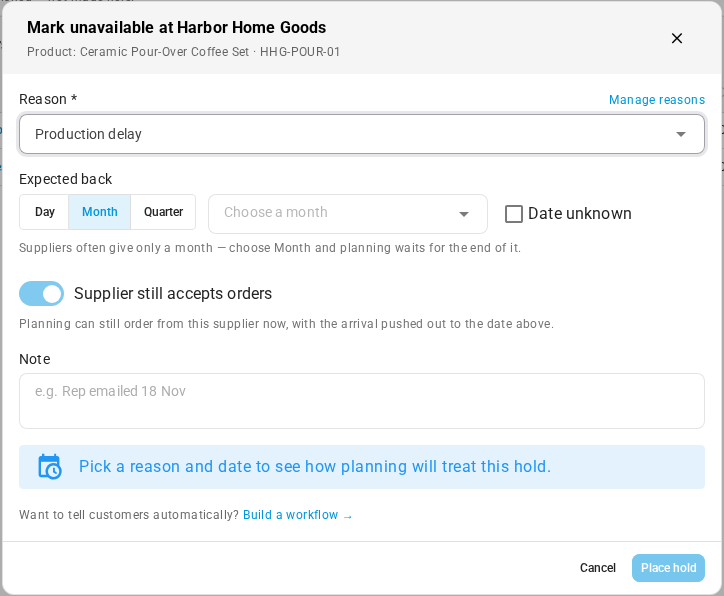
In Reason, pick the reason the supplier gave you. The list is yours to change; see Hold reasons and settings.
-
Under Expected back, choose Day, Month or Quarter to match what the supplier told you, then pick the date, month or quarter. If they gave no date, tick Date unknown.
-
Leave Supplier still accepts orders on if the supplier takes orders now and ships them when stock is back. Turn it off if they won't take orders until then.
-
Optionally, add a Note for your team, such as who told you and when. Customers never see the note.
-
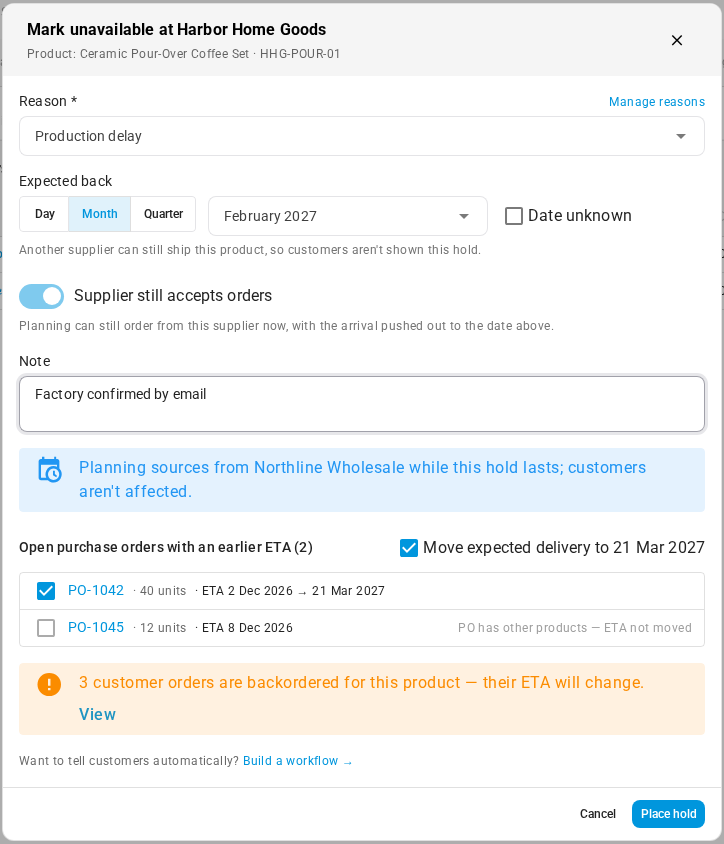
Read the preview before you save. It says when planning treats the product as available again and its earliest arrival, and the wording customers get (see What customers see). If another supplier can still ship the product, the preview says instead that planning sources from that supplier while the hold lasts and that customers aren't affected.
-
Check the open purchase orders listed under the preview. These are orders to this supplier for this product with an expected delivery before the earliest arrival. Keep Move expected delivery to… ticked to move them out to that date, or untick a purchase order to leave it alone. A purchase order that also carries other products is listed, but its date isn't moved (PO has other products — ETA not moved).
-
Click Place hold.
The message Hold saved — planning updated appears. The supplier's row shows the hold, for example Production delay · Feb 2027. When another supplier is still available, a note under the table says that planning sources from that supplier while the hold lasts.

To change the hold later, open the same ⋮ menu on the row. It now offers Edit hold…, Confirm date (the supplier repeated the same date), Mark available and Discontinued at supplier…. Clicking the hold itself opens the supplier product.
How the dates work
A hold carries three dates. The dialog shows all three before you save.
| Date | What it is | Example (Month, February 2027, 21-day lead time) |
|---|---|---|
| Expected back | What the supplier told you. A month or a quarter counts until its last day, because "February" can mean any day in February. | February 2027 |
| Available again for planning | The last day of that date, plus the Buffer after the supplier's date setting (0 days unless you change it). | 28 Feb 2027 |
| Earliest arrival | The available-again date plus the supplier's lead time for the product. Supplier closures you've recorded push it out further. | 21 Mar 2027 |
Customers get the earliest arrival plus the Customer date padding setting (7 days unless you change it), shown at the same precision as the supplier's date. In this example, that's Production delay — expected March 2027. A day-precision hold shows a day, and a quarter shows the quarter, such as Q1 2027. A hold with no date says Date to be confirmed.
What planning does
Demand Planning, the MRP Engine and Replenishment all read the same hold.
| The product's suppliers | What planning does |
|---|---|
| Another supplier can still ship it | Orders from that supplier while the hold lasts. |
| Every supplier is on hold, and the supplier still accepts orders | Still orders from the held supplier now, with the arrival pushed out to the earliest arrival. A purchase order it creates gets that date as its expected delivery. |
| Every supplier is on hold, and the supplier doesn't accept orders | Holds the order until the supplier is available again, and doesn't suggest buying from them before then. |
| The date is unknown, and the supplier still accepts orders | Orders, but assumes the wait set in Assumed wait when the date is unknown (60 days unless you change it). |
Once the hold's date passes, planning treats the supplier as available again, even before you confirm a new date. See Due and Overdue holds.
Purchase orders
-
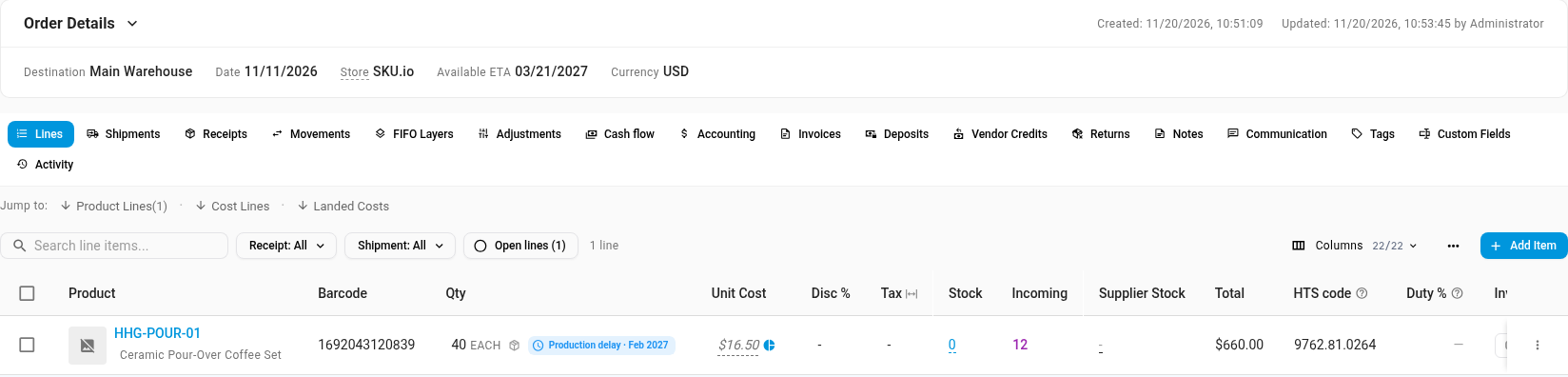
A held product's line on a purchase order to that supplier shows the hold, for example Production delay · Feb 2027.
-
A purchase order that carries only the held product can have its expected delivery moved when you place the hold (step 8 above).
-
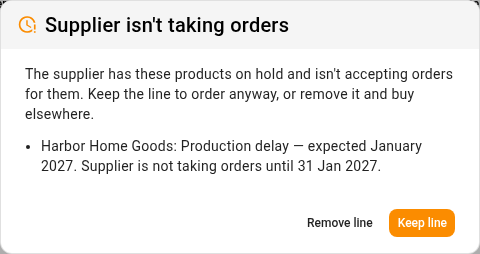
When you add a held product to a purchase order and the supplier isn't taking orders, SKU.io asks before keeping the line: Supplier isn't taking orders, with the reason and date. Click Keep line to order anyway, or Remove line to buy it elsewhere. When the supplier still accepts orders, the line is added without asking.
When stock of the product arrives from that supplier and you receive it, the hold ends by itself.
Work the Supplier Holds list
Go to Orders → Supplier Holds to see every hold in one place.
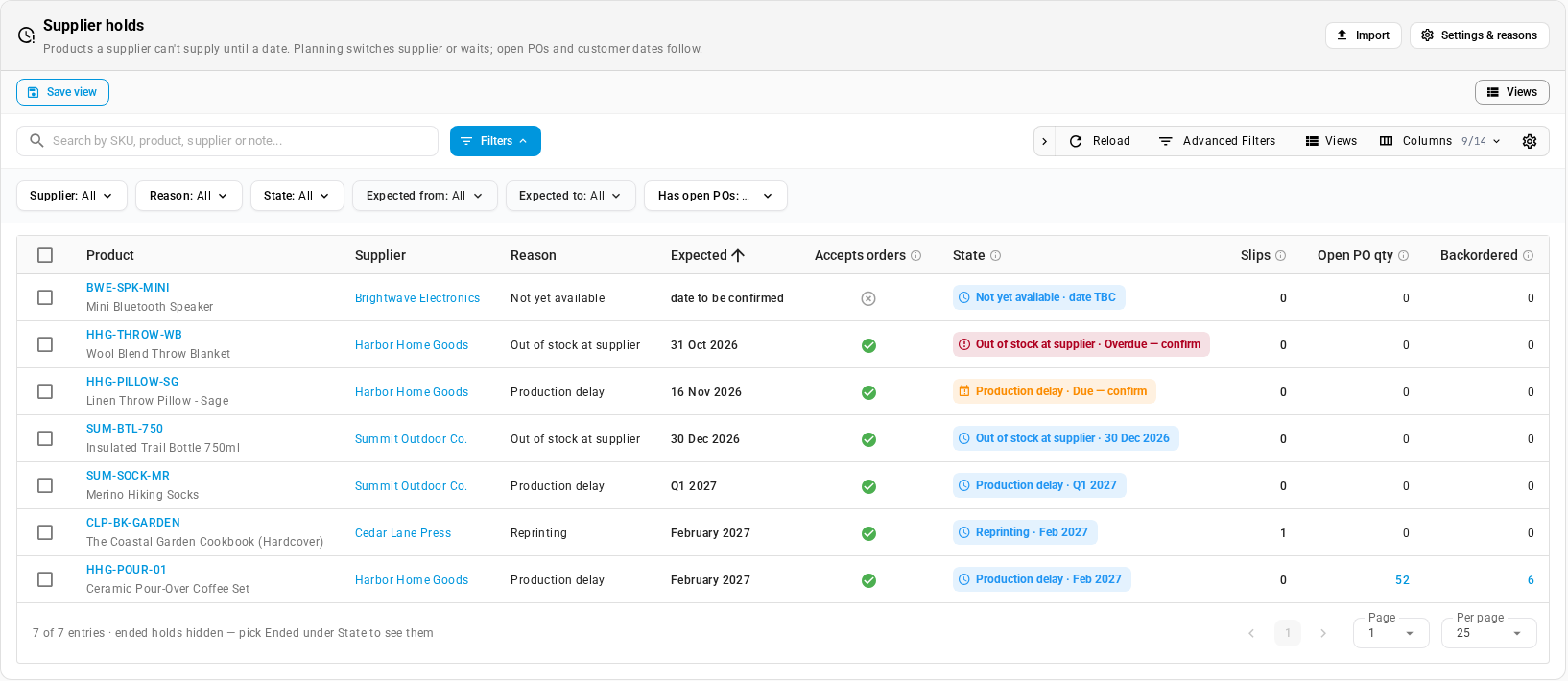
- Filter by Supplier, Reason, State (Active, Due, Overdue, Ended), the Expected from and Expected to dates, and Has open POs. Ended holds stay hidden unless you pick Ended under State.
- Columns include the reason, the expected date, whether the supplier still accepts orders, the state, Slips (how many times the date has moved later), Open PO qty and Backordered. Precision and Last confirmed are hidden to start with; use Columns to show or hide any of them.
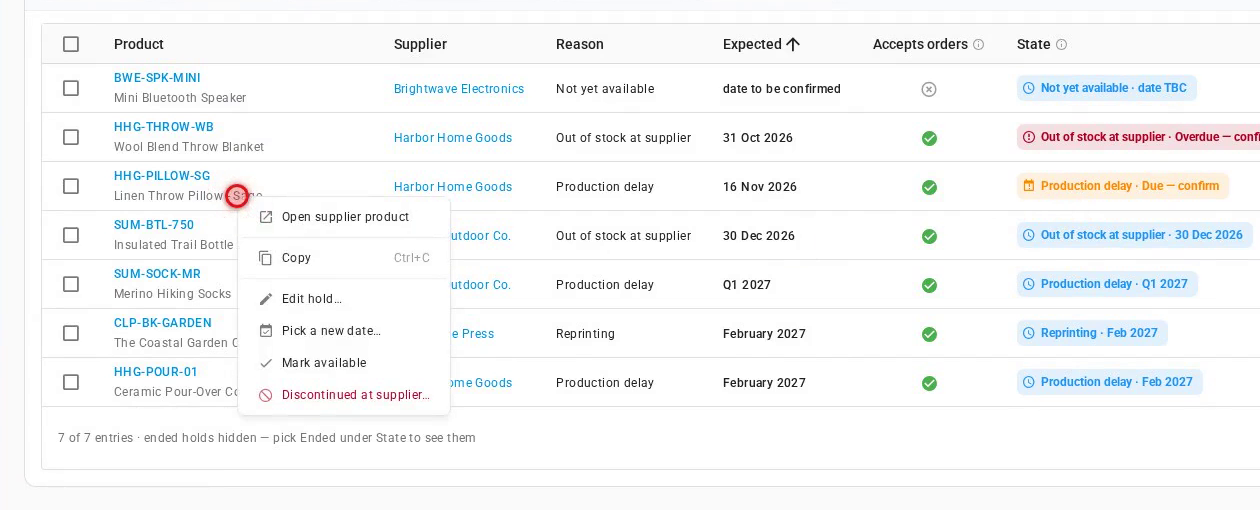
- Act on a hold with the icons at the end of its row, or right-click the row: Edit hold…, Confirm date (the supplier repeated the same date), Mark available (the supplier can ship again) and Discontinued at supplier… (the supplier won't stock it again; this ends the hold and marks the product discontinued at that supplier).
- Import adds or updates holds from a file, and Settings & reasons opens the hold settings.
Due and Overdue holds
A hold never ends just because its date passes, because supplier dates often slip. Once the date passes, the hold shows as Due — confirm on the list and on the product. Planning goes back to ordering from the supplier as normal, and the hold stays on the list until someone acts on it. After the Overdue after setting (14 days unless you change it), it turns red: Overdue — confirm.
To deal with a Due or Overdue hold:
-
On Orders → Supplier Holds, right-click the hold and choose Pick a new date….
-
Ask the supplier, then either:
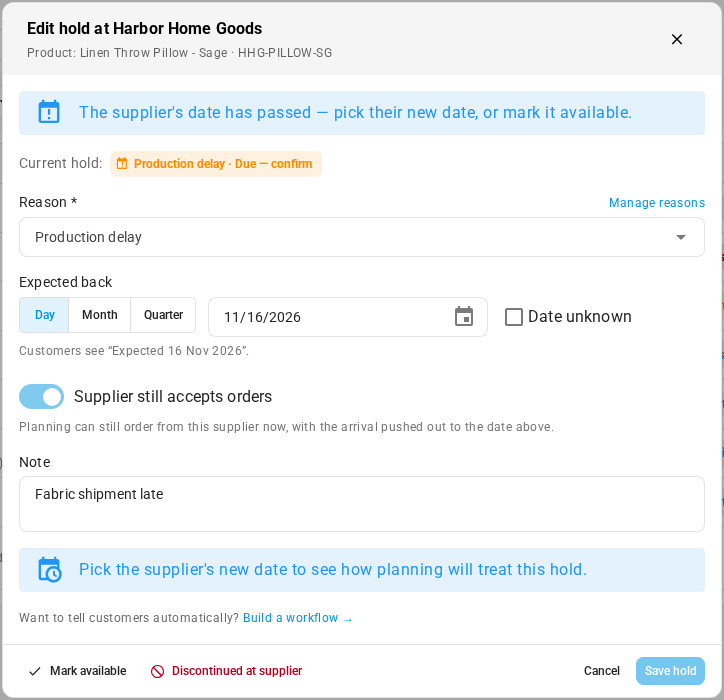
- set their new date under Expected back and click Save hold. The hold is active again and its Slips count goes up; or
- click Mark available if the product is available again. The hold ends.
When the dialog opens on a hold whose date has passed, it says The supplier's date has passed — pick their new date, or mark it available.
If a supplier keeps moving the date, SKU.io suggests a lifecycle review for the product after the number of slips in Suggest a lifecycle review after (3 unless you change it).
Hold reasons and settings
Go to Settings → Purchasing → Supplier Holds, or click Settings & reasons on the holds list.
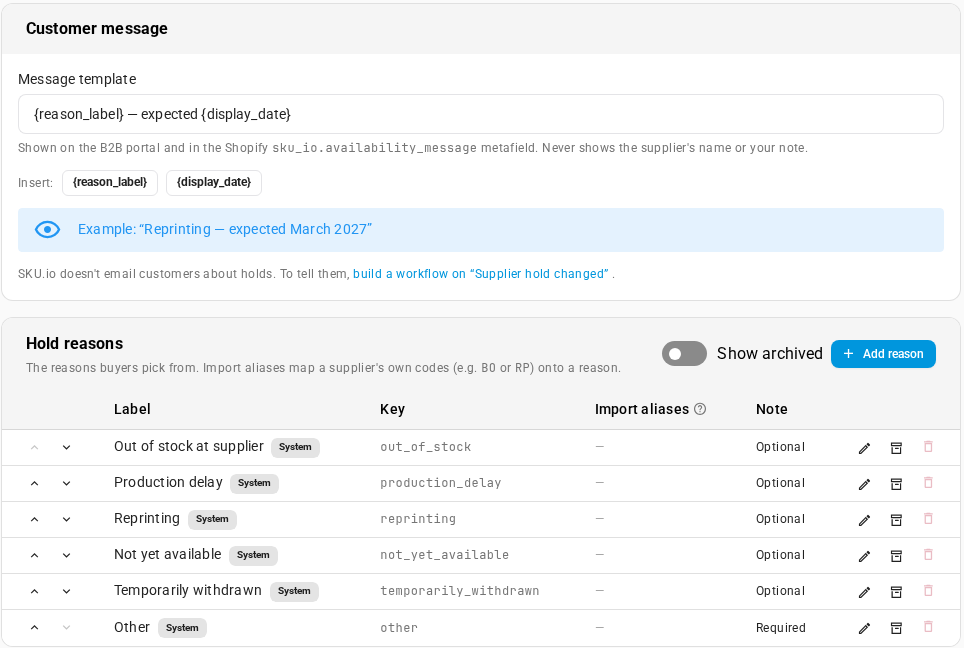
Hold reasons is the list buyers pick from. It starts with Out of stock at supplier, Production delay, Reprinting, Not yet available, Temporarily withdrawn and Other. You can:
- click Add reason to add your own;
- edit a reason to rename it, choose whether it needs a note (Other does), or add Import aliases: the supplier's own codes for that reason, so an imported file can use them;
- reorder reasons with the arrows, or archive one you no longer use. An archived reason leaves the list, but holds that use it keep their label. Show archived brings archived reasons back into view.
| Setting | What it does | Starts at |
|---|---|---|
| Buffer after the supplier's date | Days added to the supplier's date before planning treats the product as available again | 0 days |
| Assumed wait when the date is unknown | Extra lead time planning uses when there's no date and the supplier still accepts orders | 60 days |
| Overdue after | Days after the date before a Due hold turns Overdue | 14 days |
| Suggest a lifecycle review after | How many times the date can move later before SKU.io suggests a lifecycle review | 3 slips |
| Customer date padding | Days added to the dates customers see, so you under-promise | 7 days |
| Message template | The wording customers see. Insert {reason_label} and {display_date}; the example underneath updates as you type | {reason_label} — expected {display_date} |
Click Save changes when you're done.
What customers see
Customers see a hold only when they'd otherwise get no date: the product is out of stock, nothing on order covers it, and every supplier that could ship it is on hold. While another supplier can still ship it, customers aren't told about the hold.
When that's the case:
- the customer portal shows your message, for example Production delay — expected March 2027, and the product can still be backordered;
- if you publish back-in-stock dates to Shopify, the variant's
sku_io.available_datecarries the customer date,sku_io.availability_statussayssupplier_hold, andsku_io.availability_messagecarries the same message for your theme to show; - backordered customer orders that nothing on order covers get the customer date as their expected date.
The message never includes the supplier's name or your note.
Tell customers automatically
SKU.io doesn't email customers about holds. To tell them, build a workflow:
-
Click build a workflow on "Supplier hold changed" at the bottom of the Customer message card in the settings. The hold dialog's Build a workflow → link opens the same thing. The workflow builder opens with the Supplier Hold Changed trigger in place.
-
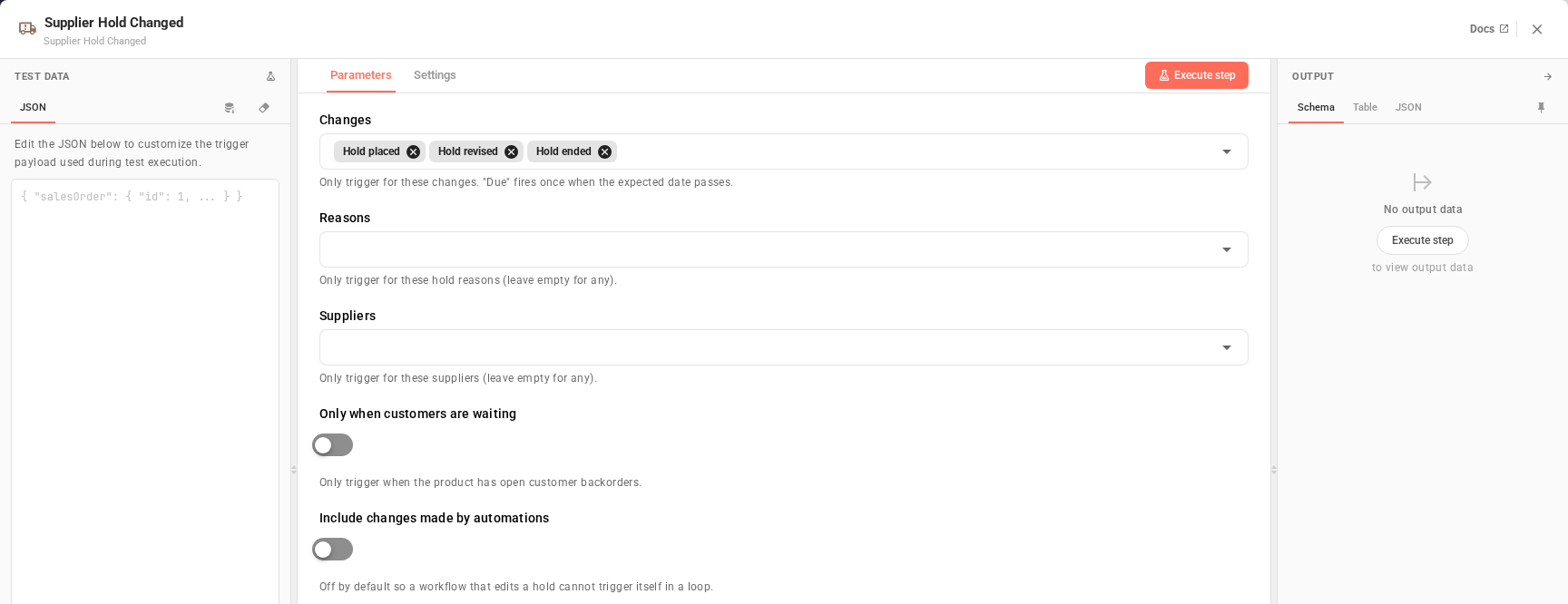
Double-click the trigger to choose when it fires:
- Changes: Hold placed, Hold revised and Hold ended to start with. You can add when a hold is confirmed or falls due.
- Reasons and Suppliers: pick the reasons or suppliers to fire for, or leave them empty to fire for every hold.
- Only when customers are waiting: fire only when the product has open customer backorders.
- Include changes made by automations: off, so a workflow that changes a hold can't set itself off again.
-
Add the steps you need after the trigger, such as Send Email with one of your own email templates. The trigger passes along the hold, the product, the supplier and the customer orders waiting on it. See Build a workflow from scratch.
-
Publish the workflow.
To tell another system instead, subscribe to the Supplier Availability Changed webhook (supplier_product.availability_changed). See Subscribe to webhooks.
FAQ
Is a supplier hold the same as discontinuing the product? No. A hold is temporary and has a date (or "date unknown"). Use Discontinued at supplier… when the supplier won't carry the product again; it ends the hold and marks the product discontinued at that supplier.
Can customers still order a held product? Yes. A hold doesn't stop backorders. Customers who are waiting see the expected date, when no other supplier can ship it.
The date passed and nothing changed. Is that right? Yes. A hold never ends on its own date. It turns Due — confirm, planning goes back to normal, and it waits for you to pick a new date or mark it available. Receiving stock from that supplier ends it automatically.
Why do customers see a later date than the supplier gave me? Customers get the earliest arrival (the supplier's date plus the lead time) plus your Customer date padding. A month or quarter also counts to its last day.
Can I put the same product on hold at two suppliers? Yes, one hold per supplier. Customers only see a date once every supplier that could ship the product is on hold.
Where do I change the reasons? Settings → Purchasing → Supplier Holds, under Hold reasons. Renaming a reason relabels its existing holds.
Next steps
- Forecast & replenish stock: see the plan that holds feed into.
- Show back-in-stock dates on your Shopify store: publish the customer dates to your storefront.
- Build a workflow from scratch: send your own message when a hold changes.
Video transcript
When a supplier says a product is unavailable until a date, record a supplier hold. Open the product, then choose Suppliers from the sections on the left. Each supplier row has its own availability. Use the menu at the end of the supplier's row, and choose Mark unavailable from the list. Start by picking the reason the supplier gave you, from the Reason list. The list is your own, so you can rename reasons or add more. Here, the factory has a production delay. Then set when it's expected back. Choose Day, Month or Quarter to match the supplier's date. Then open the month list, and pick the month they expect it to ship again. If they couldn't give you any date at all, tick Date unknown instead. Keep Supplier still accepts orders on if they take orders now and ship later. Turn it off if they won't take orders until then. Then add a note for your team, such as who told you and when. The preview shows how planning treats the hold. Here another supplier can still ship the product, so planning sources from them, and customers aren't affected. Below it, you'll find the open purchase orders due before the new arrival. Their expected delivery moves out to that date. You'll also see how many customer orders are waiting on this product. SKU.io doesn't email customers about holds. The last step shows where to set that up. When it all looks right, save the hold with Place hold. The supplier's row now shows the hold. While it lasts, planning orders from your other supplier. With no other supplier, planning waits, or orders now for a later arrival. To see every hold in one place, open Orders, then Supplier Holds. Use the filters across the top to narrow the list by supplier, by reason, or by state. A hold whose date has passed shows as Due, confirm with supplier. Planning goes back to normal, but the hold stays here until you deal with the hold. Right-click the hold you want to update, and in the menu that appears, choose Pick a new date. The dialog tells you the supplier's date has passed. First, switch the precision from Day to Month. Then open the month list, and pick the new month the supplier gave you. If the product is actually back, you'd click Mark available instead. Otherwise, click Save hold, and the hold is active again. Click Settings and reasons to manage the reason list. Here you rename reasons, add your own, or archive an old reason. You also set planning buffers, and the message customers see. To tell customers, click the link to build a workflow on the Supplier hold changed trigger. Double-click the trigger to choose when it fires. You can limit it to the reasons and suppliers you pick. Then add a send email step with your own template. Or reach your own system with a webhook.