Take pre-orders with a release date
Sell a product before it goes on sale, such as a book before its publication date, and ship every order on the day it releases. Give the product a release date. Until that day the product is a pre-order: its orders are allocated stock as usual, but nothing is sent to your warehouse or 3PL. On the release date SKU.io releases the orders, and they ship like any other order.
Before you begin
- The Products → Edit permission (
products.update) to set a release date. - The Sales Orders → View permission (
sales_orders.index) to see the held orders. - Stock for the product. A pre-order line is allocated stock when the order is approved, just like any other line. Lines you can't cover from stock are backordered as usual.
Set a product's release date
-
Go to PIM → Products, search for the product, and click its SKU to open it.
-
On the Overview, click Edit on the Product Details card.
-
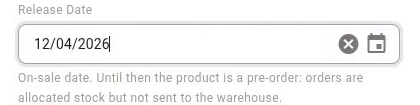
In Release Date, enter the day the product goes on sale. Leave it empty for a product that is already on sale.
-
Click Save. While the date is in the future, a purple Pre-order · releases date chip shows next to the product's name and next to the field.
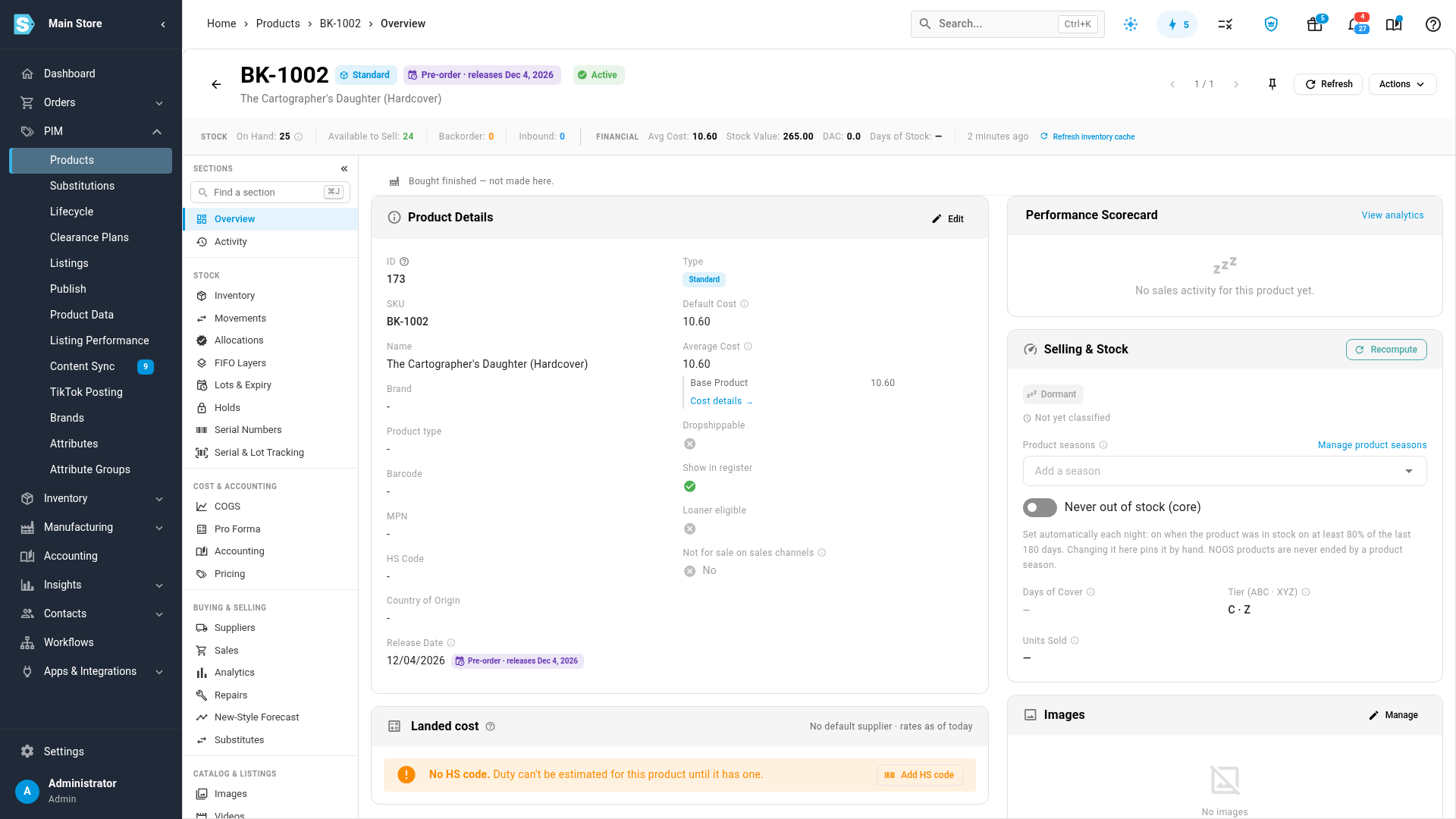
Open orders for the product are updated within seconds. Anything that hasn't been sent to your warehouse yet is held back.
To set release dates for many products at once, use bulk edit or the release_date column of a product import. Products changed by a bulk edit or an import have their open orders updated within the hour.
How a held order looks
Open an order that includes the product. Its header and the product's line both carry the Pre-order · releases date chip. Hover over the header chip for a short explanation.
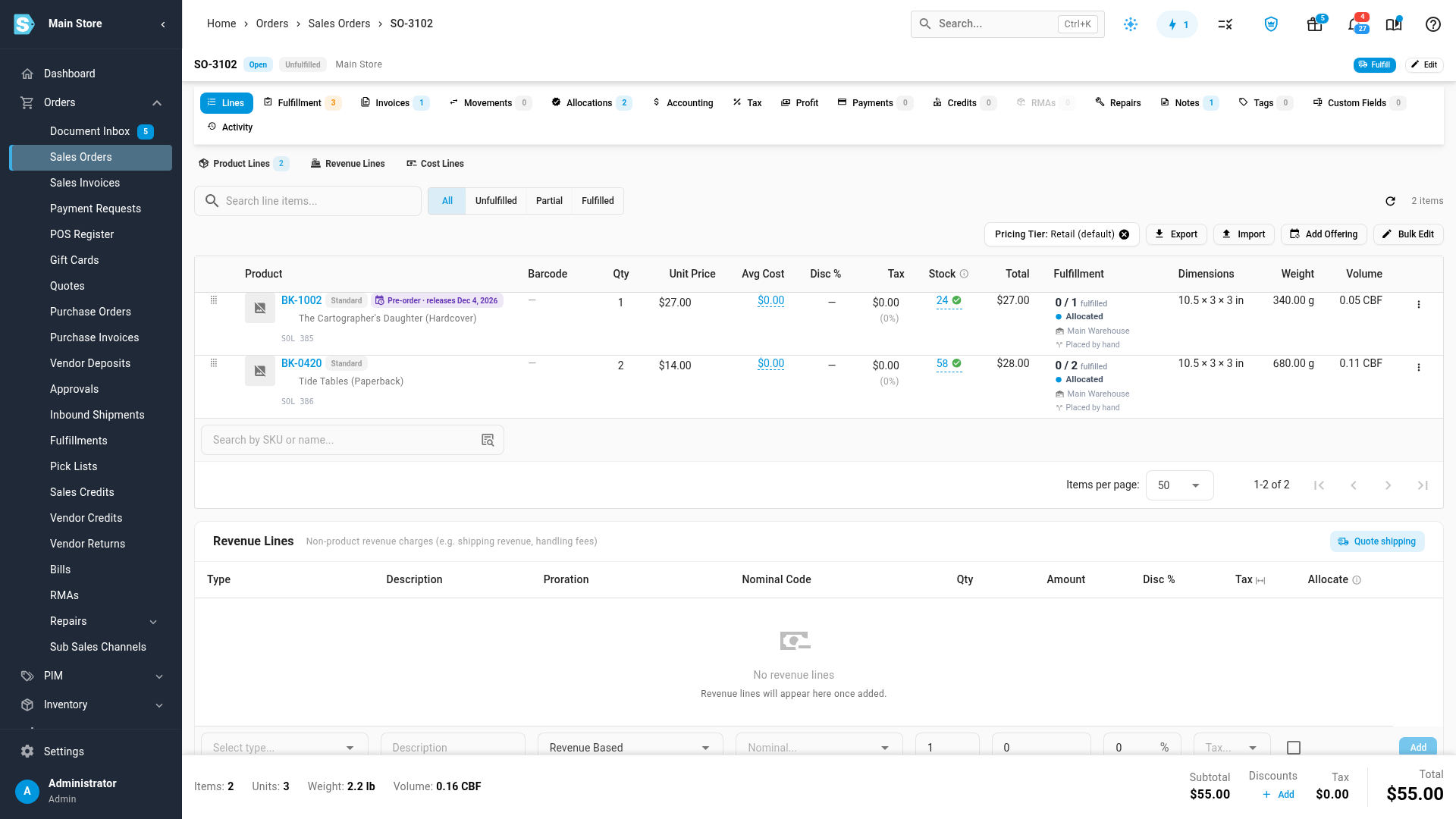
- The pre-order line keeps its allocated stock, so the units can't be sold twice.
- The pre-order line isn't sent to your warehouse or 3PL, even when the warehouse dispatches automatically.
- If an order has several pre-order lines with different dates, the header shows the latest date and each line shows its own.
Orders with in-stock items too
Other items on the same order follow your partial dispatch settings (Set up fulfillment dispatch), exactly as they would with a backordered line:
| Partial dispatch | What ships |
|---|---|
| On, and Partial Dispatch Enabled on the warehouse | The in-stock items ship now. The pre-order item follows on its release date, as a second shipment. |
| Off for every warehouse | Nothing ships until the release date. Then everything ships together. |
| Partial Dispatch Enabled off on one warehouse | That warehouse's items wait together until the release date. |
See every held pre-order
- Go to Orders → Sales Orders.
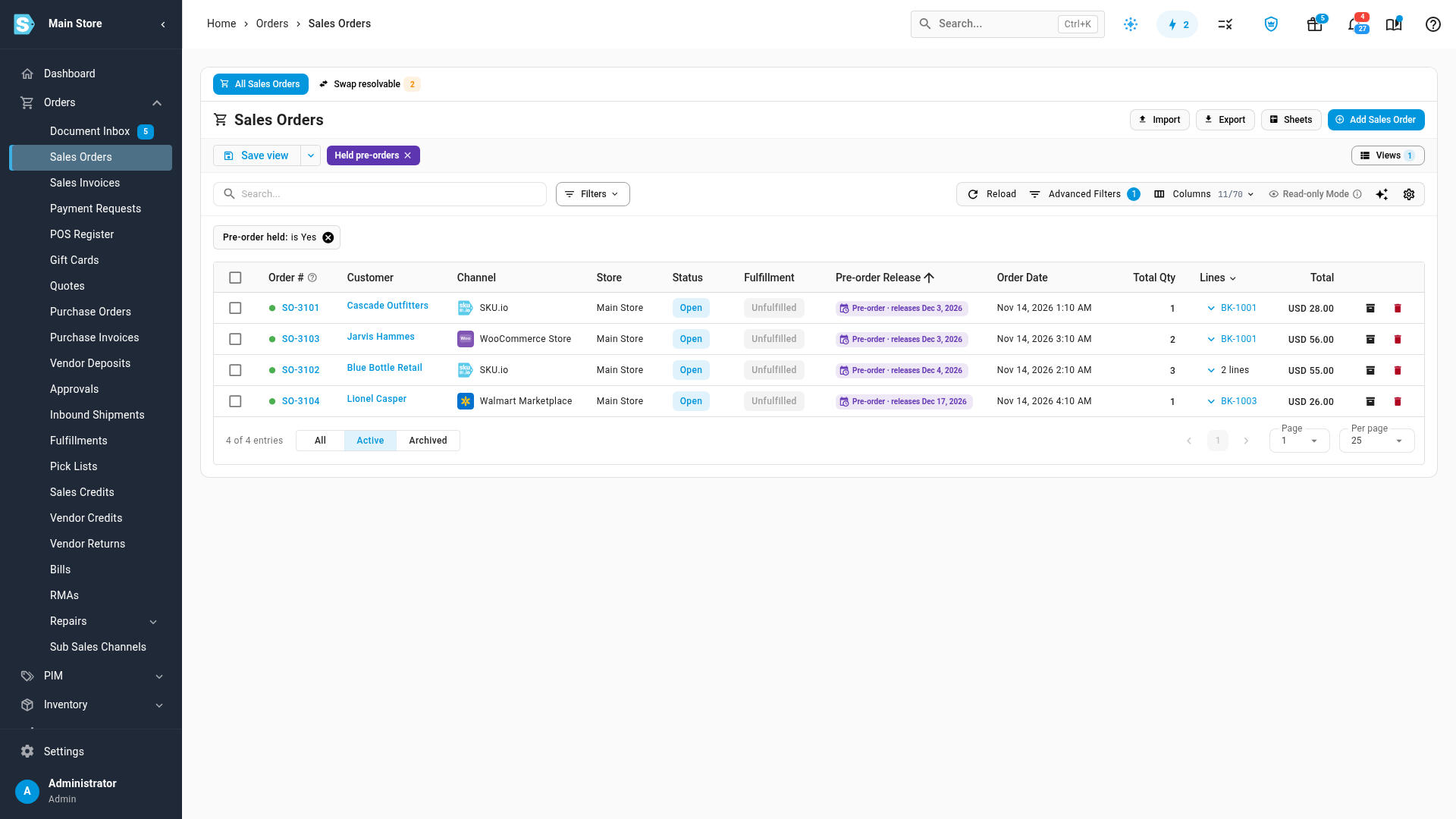
- Click Views above the list, and choose Held pre-orders. SKU.io adds this saved view for you.
The view lists every open order that is waiting for a release date, with the soonest release first. Its Pre-order Release column shows the date. You can also add the Pre-order Release column to any view with Columns, and filter any view with the Pre-order held advanced filter (in the Fulfillment group).
Plan with the Release Schedule
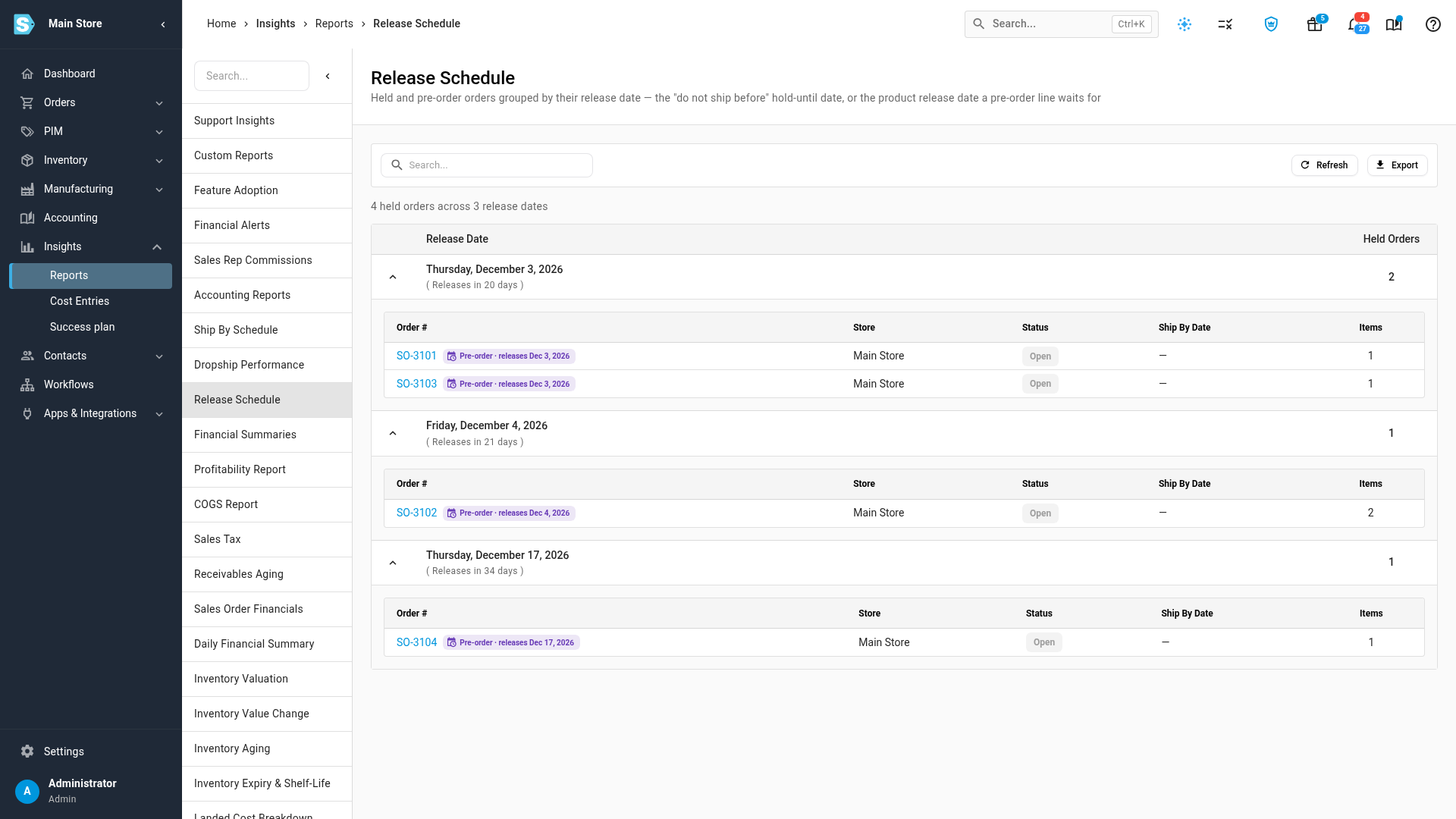
For a calendar view, go to Insights → Reports, and choose Release Schedule. Held orders are grouped under the day they release, with the number of days left. The same report also lists orders on a Hold Until date. An order held both ways is listed once, on the later date. See Plan shipments with the ship-by and release schedules.
On the release date
SKU.io checks release dates every hour. Once a product's release date arrives in your account's time zone, its held orders are released. They get a fulfillment and ship like any other order. Orders for a warehouse that dispatches automatically are sent on that check. Orders for other warehouses are ready for you to fulfill.
To change the plan:
- Release early: clear the product's release date, or set it to today. Its orders are released straight away.
- Postpone: move the release date later. Orders that haven't been sent yet stay held, and the chips show the new date.
Drop-ship lines, and lines fulfilled from stock a sales channel holds (such as Amazon FBA), are never held. The supplier or channel ships them on its own schedule.
When a book goes out of print
When a title stops being available, set its lifecycle state to Out of print. It works like Discontinued: you sell through the remaining stock, but it isn't reordered, backordered or planned. See Lifecycle states reference.
Next steps
Video transcript
To take orders before a product goes on sale, give it a release date. Open PIM in the sidebar, and then choose Products to see your whole catalog. In the search box above the list, type part of the product's name, and then press Enter. When the product appears in the list, click its SKU, and the product page opens on its Overview tab. On the Overview, find the Product Details card, and click Edit. Scroll down to Release Date, and type the day the product goes on sale. The help text below it explains the rule: until that day, the product is a pre-order. When the date is in, click Save at the top of the card. SKU.io now marks the product as a pre-order, with its release date. Until that day, its orders keep their stock, but nothing is sent to your warehouse. Now look at an order for the product. Open Orders in the sidebar, and choose Sales Orders to see the list of your orders. Then find an order that includes the product, and click its order number. At the top, the order carries the same pre-order label, with the release date. Scroll down to the lines, and the pre-order line carries the same label. Other items on the order still ship now, if your warehouse allows partial dispatch. To see every order waiting for a release, go back to Sales Orders. Click Views, at the top right, above the list of orders. Then choose Held pre-orders, a saved view that SKU.io creates in every account. It lists each held order, with the soonest release first. For a calendar of upcoming releases, open Insights in the sidebar, and then choose Reports from the menu below it. The Reports page opens with a list of every report. In that list, find the Release Schedule, and choose it from the others. Held orders are grouped under the day they release, with the number of days left. On the release date, SKU.io releases these orders automatically, and they ship like any other order. To release a product early, clear its release date, or move it to today.