Route out-of-stock lines to dropship suppliers
When a product is out of stock in your own warehouses, SKU.io can route the order line to a supplier that has it and ship it from there. You control this with one switch for the whole account, the Warehouse Priority list, and a few settings on the product and supplier. With the supplier's automation on, SKU.io also creates the dropship purchase order and sends it to the supplier.
How routing picks a dropship supplier
SKU.io walks the Warehouse Priority list from the top for each line. Each supplier's dropship warehouse is a row in that list, so it's tried at the point where you place it. A line routes to a supplier's dropship warehouse only when all of these are true:
- Enable drop-shipping is on for your account.
- The product is marked Dropshippable.
- The supplier is linked to the product.
- The supplier's dropship warehouse is active, with dropship turned on.
- The supplier's stock feed for that warehouse says the product is in stock, or has enough quantity for the line.
A line your own warehouses can fill never reaches the dropship rows ranked below them. Move a dropship row above a warehouse to prefer the supplier sooner.
Before you begin
- You need permission to change warehouse settings and suppliers.
- Keep supplier stock current, because routing follows it. See Track supplier inventory.
Turn on drop-shipping
- Go to Settings, open Fulfillment, and choose Warehouses. The Warehouse Settings page opens.
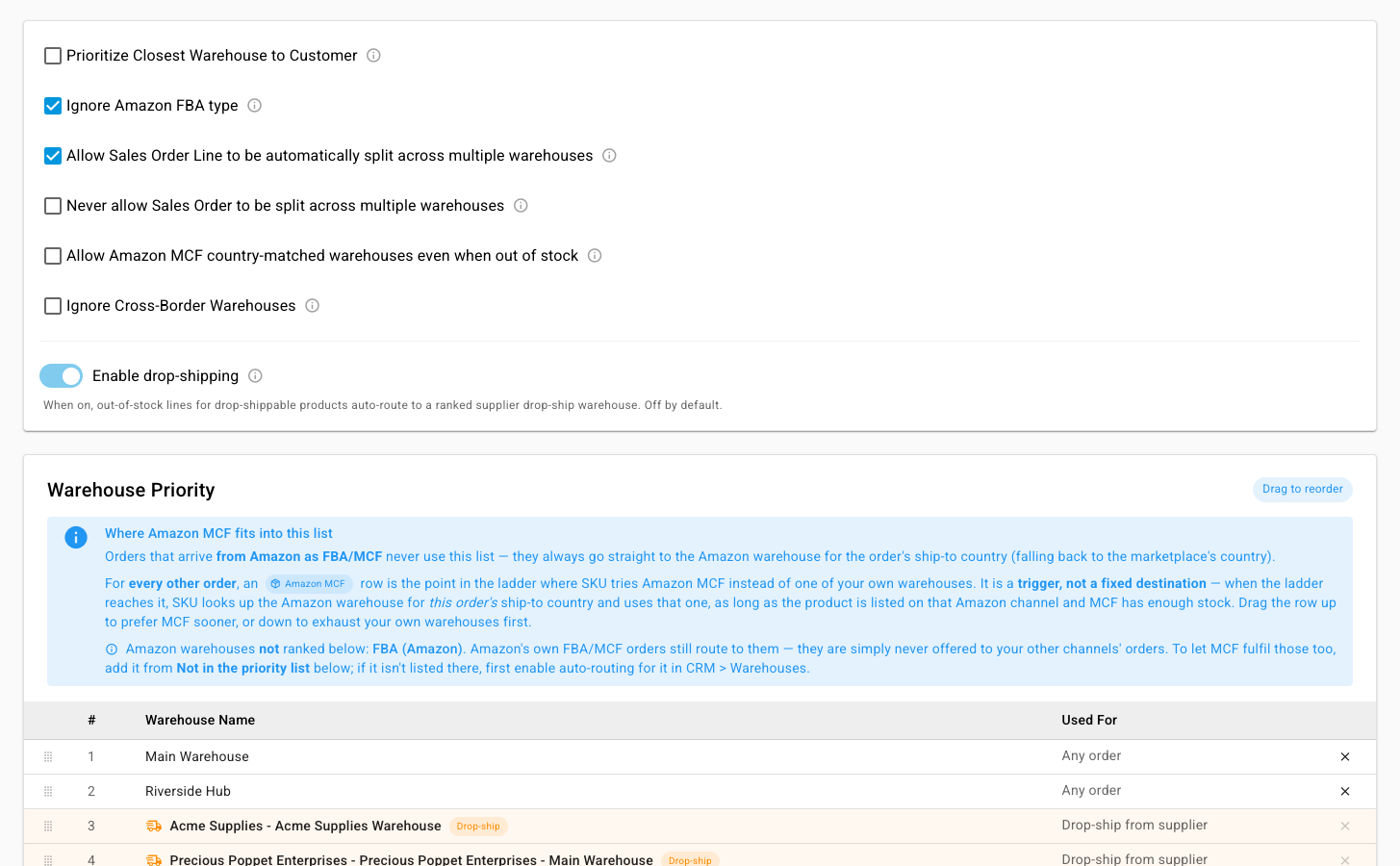
- Turn on Enable drop-shipping. It's off by default.
- Under Warehouse Priority, each supplier's dropship warehouse now appears as its own row, marked Drop-ship and used for Drop-ship from supplier. Drag each one to where it should be tried, relative to your own warehouses.
- Click Save.
Mark products as dropshippable
Open the product, edit it, and turn on Dropshippable. Only the product needs to be marked. There's no separate switch for each supplier and product.
Check a product's dropship status
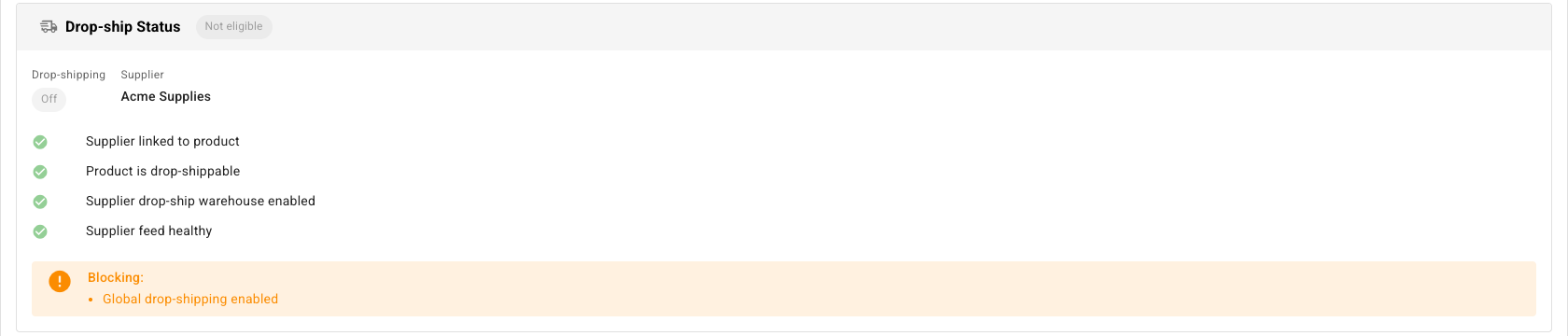
Open a supplier product: from the supplier's Products tab, or the product's Suppliers tab. The Drop-ship Status card shows Eligible or Not eligible, whether Drop-shipping is on, and a checklist:
- Supplier linked to product
- Product is drop-shippable
- Supplier drop-ship warehouse enabled
- Supplier feed healthy
Anything unticked is listed under Blocking, so you know exactly what to fix.
Let the supplier's purchase orders create and send themselves
Routing puts the line on the supplier's dropship warehouse. To have SKU.io create the dropship purchase order too:
- Go to Contacts → Suppliers, open the supplier, and open the Settings tab.
- Click Edit. In the Dropship section, turn on Automate Dropship Fulfillment. SKU.io creates a dropship purchase order when an order routes to this supplier and the supplier has stock.
- Turn on Automate Dropship PO Submission to send those purchase orders to the supplier automatically, then choose Submit immediately or Batch on a schedule. For batches, set up to three times a day.
- Save your changes.
The supplier needs a purchase order email for submission to work. Without one, SKU.io warns you, and dropship purchase orders are created but not sent.
Without these automations, a routed line waits on the order's Fulfillment tab for you to create the dropship request yourself.
Next steps
- Create a dropship request — the manual path, and recording the supplier's tracking.
- Warehouse routing and the warehouse lock
- Reconcile money on dropship orders