Set your sales credit numbering
SKU.io numbers every sales credit automatically when it's created, such as SC-0042. Settings → General → Sales Credits decides what those numbers look like. Set it before your team starts issuing credits, or whenever you want the numbers to carry on from another system.
Before you begin
- You need permission to change settings.
- Changes apply to new sales credits only. Credits you've already created keep their numbers.
Steps
-
Click Settings at the bottom of the left sidebar.
-
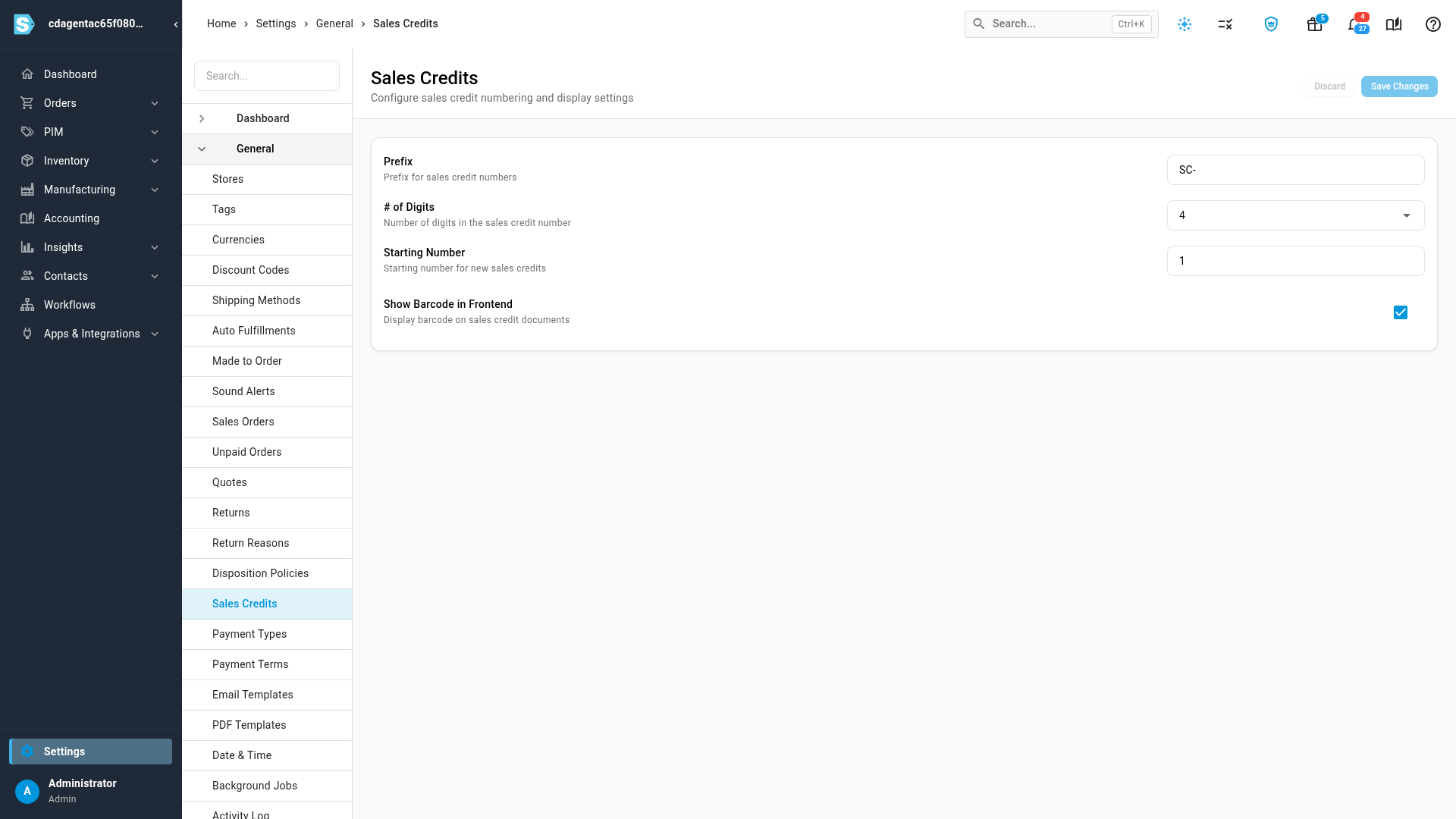
Click the General card to expand it, then click Sales Credits. The list is long, so scroll down to find it.
-
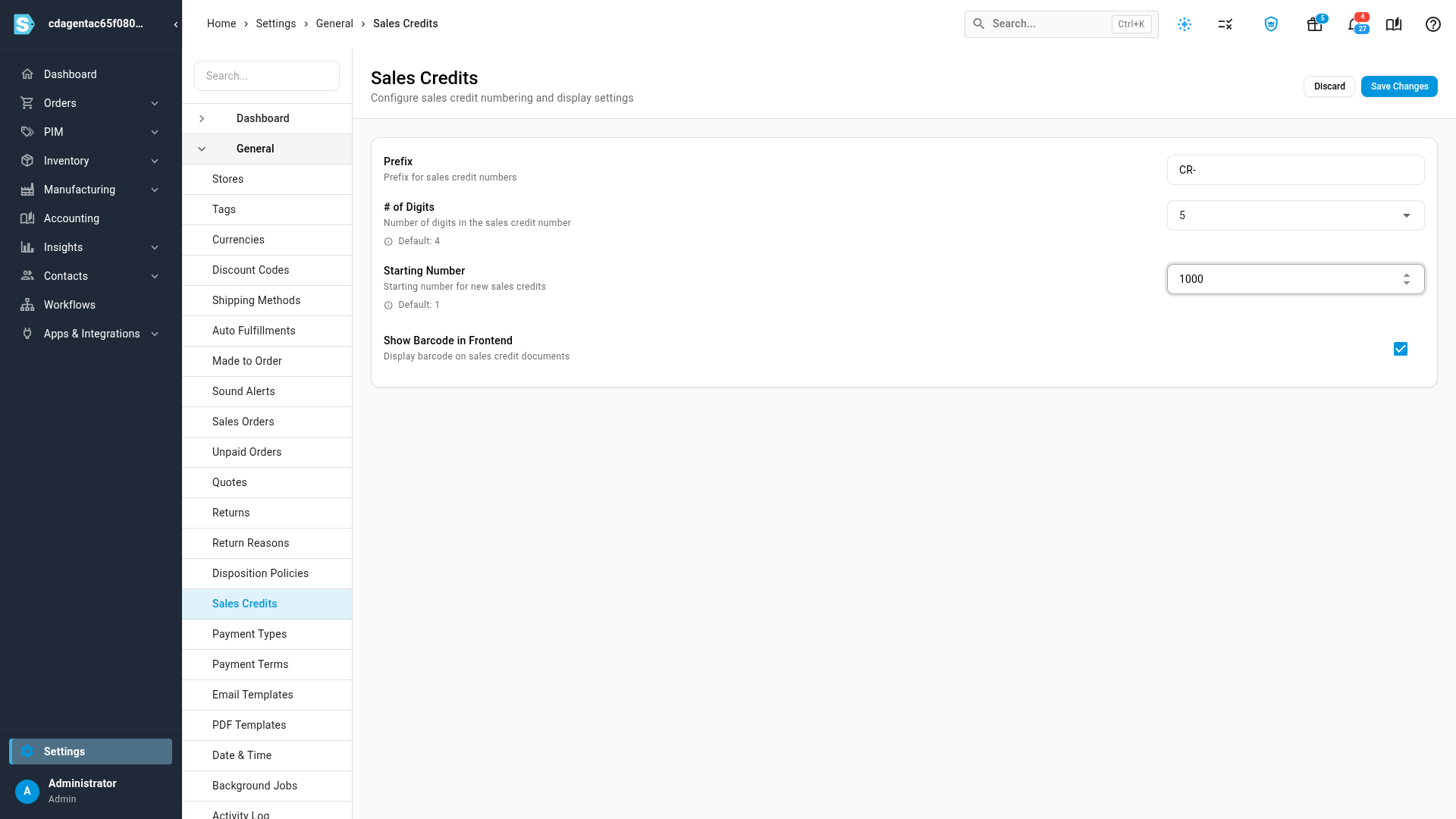
In Prefix, type the text that starts every number, including any separator, such as
CR-. Leave it empty for plain numbers. -
In # of Digits, choose how many digits follow the prefix, from 1 to 10. Shorter numbers are padded with leading zeros: with 5 digits, credit 42 is CR-00042. A number that needs more digits isn't cut short. It grows instead.
-
In Starting Number, enter the lowest number the next credit can get.
-
Click Save Changes at the top right. Settings saved successfully confirms it.
How the next number is chosen
When a credit is created, SKU.io finds the most recent credit whose number starts with the current prefix and adds one. If that's lower than Starting Number, the credit gets the starting number instead.
| You want to… | Do this |
|---|---|
| Carry on from your old system, where you'd reached 999 | Set Starting Number to 1000. The next credit is 1000, then 1001, and so on. |
| Jump ahead | Raise Starting Number above your latest credit's number. |
| Start a fresh series | Change the Prefix. The first credit with the new prefix gets the Starting Number. |
| Go back to a lower number | You can't reuse numbers. A Starting Number below your latest credit has no effect, and numbering carries on from the latest one. |
Sales credits are numbered from their own series, separate from sales orders and purchase orders. To change sales order numbers, see Set your sales order defaults and numbering.
Next steps
- Create and allocate a sales credit: issue a credit, which takes its number from these settings.
- Configure returns settings: choose the default returns warehouse and whether blind receiving is allowed.
Video transcript
Every sales credit gets its number automatically. To choose how those numbers look, open Settings at the bottom of the left sidebar. Click the General card to expand it. Its list is long, so scroll down to find Sales Credits. Click Sales Credits to open its settings. The prefix comes first in every number. Type it exactly as you want it to appear, including any dash. You can also leave it empty for plain numbers. Number of digits pads the running number with leading zeros. With five digits, number one shows as four zeros and a one. Bigger values are never cut short. Starting Number is the lowest number the next credit can get. Raise it to jump ahead, for example to carry on from your old system. If your credits are already past it, numbering simply continues from the last one. Click Save Changes at the top right. The next sales credit you create uses the new prefix, digits, and starting number. Credits you have already created keep their numbers.