Message a supplier from a purchase order
Questions about a purchase order (PO) — the ship date, a substitution, a short delivery — usually get settled by email, in one person's inbox. The PO's Communication tab keeps that conversation on the order instead: you email the supplier from the PO, their replies come back to the same thread, and your team's internal notes sit alongside. Anyone who opens the PO sees what was said, when, and by whom.
Before you begin
- You need the Update purchase orders permission to send messages and notes. Anyone who can view the PO can read the conversation.
- The supplier needs an email address on file.
- For supplier replies to land back on the PO, turn on Enable Email Intake under Settings → Purchasing → Document OCR.
- WhatsApp and SMS need a messaging account under Settings → Purchasing → WhatsApp / SMS and a WhatsApp / SMS number on the supplier. Until both are set, those channels are locked.
Open the conversation
- Go to Orders → Purchase Orders and open the PO.
- Click the Communication tab. A number on the tab counts unread messages.
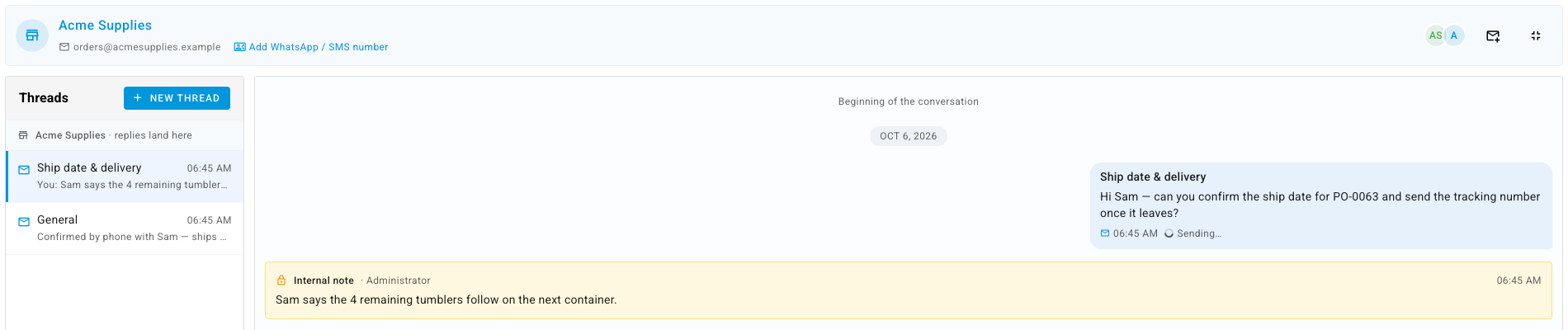
The header names the supplier and the email address messages go to. On the left, Threads lists the PO's conversations, newest activity first. When you submit the PO, SKU.io opens a General thread and logs events in it, such as Purchase order submitted to Acme Supplies and the supplier's confirmation answers.
Start a thread
Use one thread per topic so a long order doesn't turn into one tangled email chain.
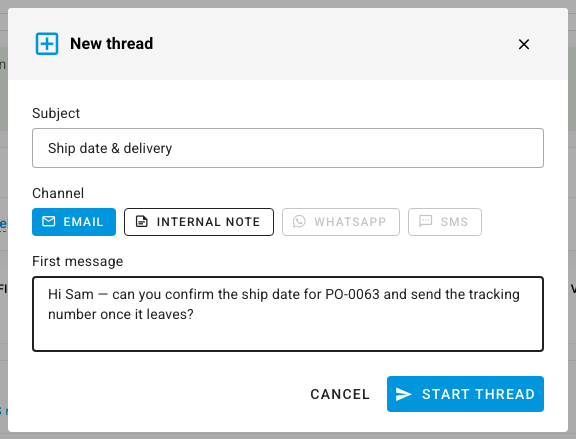
- Click New thread.
- Enter a Subject — for example, Ship date & delivery.
- Pick the Channel: Email to write to the supplier, or Internal note to start a thread only your team sees.
- Write the First message.
- Click Start thread.
Send a message or add a note
- Open the thread.
- Under Send via, choose Email or Internal note.
- For an email, check the Subject — click the pencil to change it.
- Type the message. Click the paperclip to attach files.
- Press Enter or click the send button. Press Shift+Enter for a new line.
For a few seconds after you send an email, it shows a countdown with Undo — click it to take the message back before it leaves. Internal notes are highlighted in yellow, marked Internal note, and never sent to the supplier.
To find something later, filter the thread to Email, WhatsApp, SMS, Notes, or System, or use Search this thread.
Capture replies and outside email
With Enable Email Intake turned on, a supplier who replies to a message from the PO lands back in the same thread — the composer reminds you that the supplier can reply straight to this thread.
Some conversations start in your own mail client. To file those on the PO too:
- This PO's address. Click the envelope icon in the conversation header to copy the PO's own address, then CC it on any email you send from Gmail or Outlook. The email and the replies to it are filed on this PO.
- Your account's correspondence address. Settings → Purchasing → Document OCR lists a Supplier Correspondence (PO Communication) address. CC it and put the PO number in the subject — for example, [PO-0063] Ship date — and the message is filed on that PO.
Image-only emails and auto-replies are dropped.
See every conversation with a supplier
A supplier's Communication tab — under Contacts → Suppliers — gathers the messages, notes, and events from all of that supplier's purchase orders into one list, newest first. Each entry links to its PO. Filter by Email, Notes, or System, or search the messages.

Next steps
- Get a purchase order confirmed by the supplier — let the supplier accept or change the order from a link.
- Approve and submit a purchase order — send a one-off templated email with the PO documents attached.
- Keep a supplier's price lists and documents — where other supplier files belong.