Get a purchase order confirmed by the supplier
Sending a purchase order (PO) isn't the same as the supplier agreeing to it. SKU.io closes that gap: every PO it emails carries a private confirmation link, the supplier answers line by line, and their answer lands on the PO — accepted, changes requested with the quantities they can do, or rejected. When you change a PO after sending it, SKU.io flags the difference until you send the revised order.
Before you begin
- You need the Approve purchase orders permission to submit a PO, and Update purchase orders to record or apply a supplier's response.
- For SKU.io to email the PO, the supplier needs a purchase order email address and a Submission Format other than Manual. With Manual, you place the order yourself and record the supplier's answer by hand — see Record a response yourself.
Send the PO for confirmation
- Open an approved PO and click Submit.
- In the Send PO-0063 to Acme Supplies? dialog, add an optional Message to supplier. It prints on the PO and in the email; internal notes are never sent.
- Click Send.
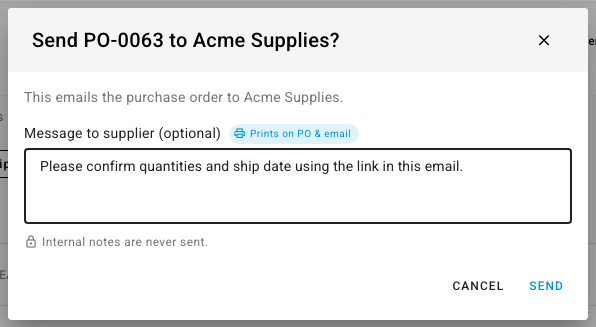
SKU.io emails the PO with a Confirm this order button and records the version the supplier received as Rev 1. The PO shows a banner while you wait:

What the supplier sees
The Confirm this order button opens a page on your SKU.io address — no login, no account, and nothing to install. The link works for this one PO only, and the page reminds the supplier not to share it.
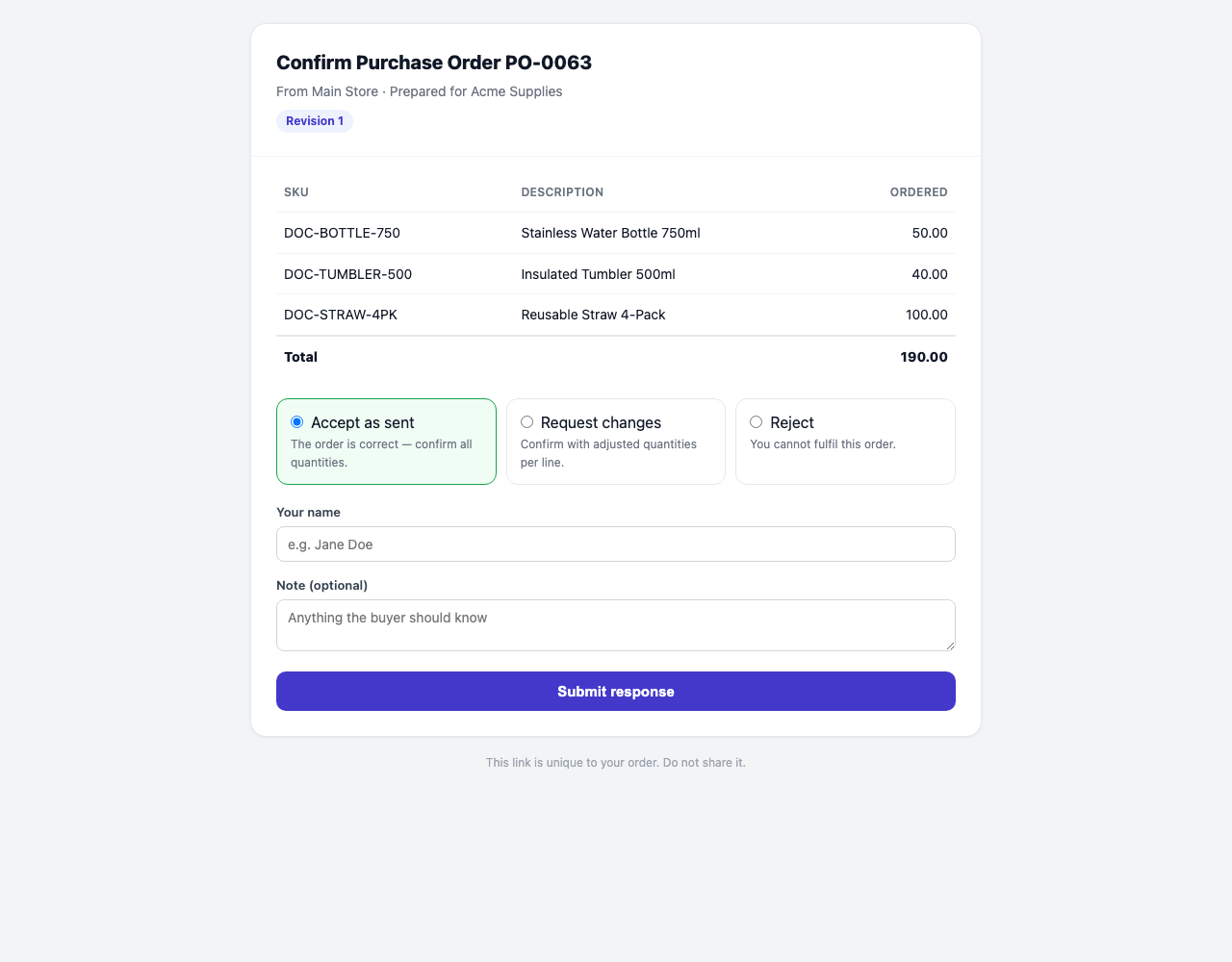
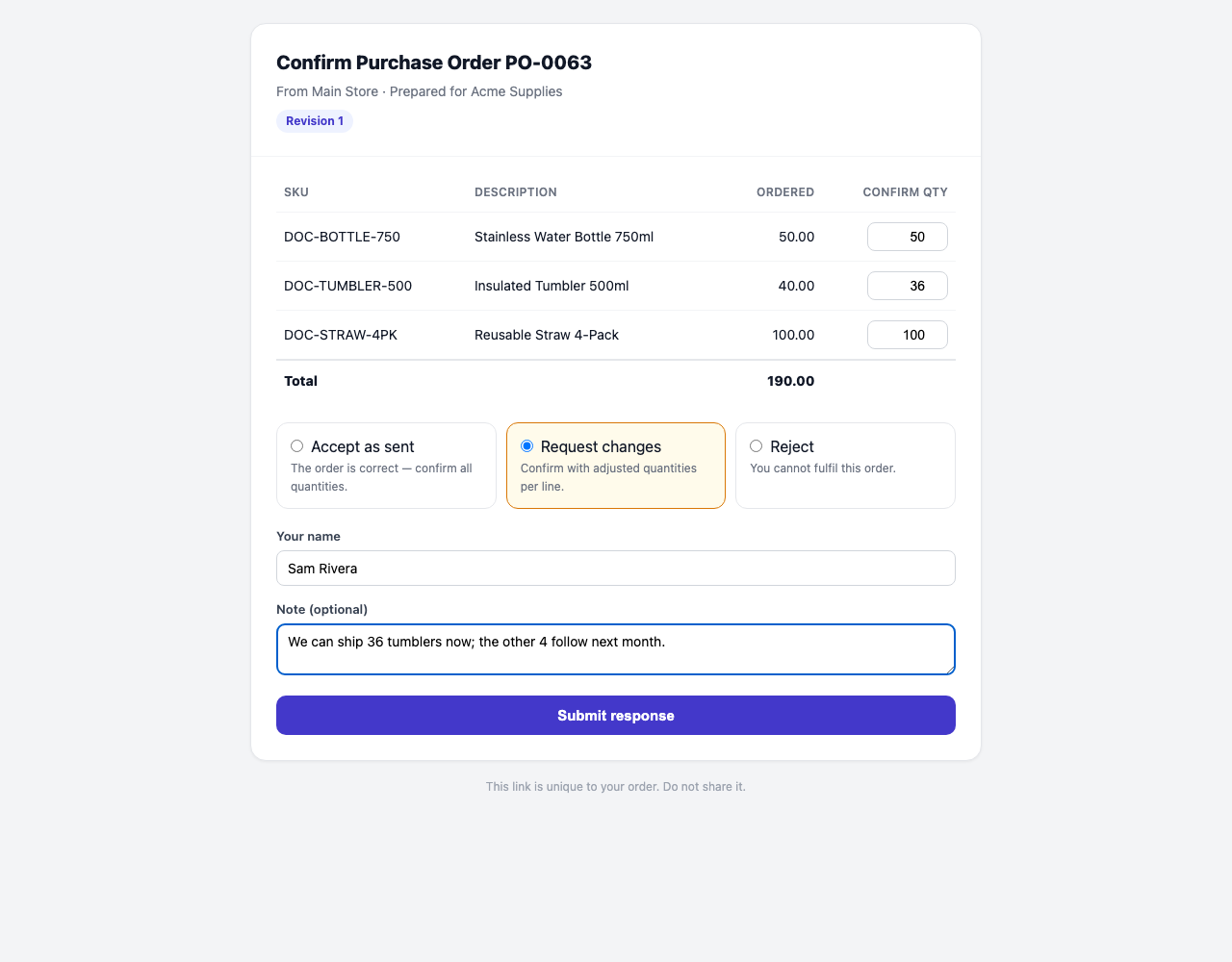
The supplier picks one of three answers, adds their name and an optional note, and clicks Submit response:
| Answer | What the supplier does |
|---|---|
| Accept as sent | Confirms every line as ordered. |
| Request changes | A Confirm qty column appears; they enter the quantity they can supply on each line. |
| Reject | Tells you they can't fulfil the order. |
They see a thank-you page when it's done. If they open the link again, they can change their answer — the page tells them they've already responded and that submitting again updates it.
SKU.io has no supplier login or self-service portal. Suppliers work with you by email and by these one-order links, so there's nothing to set up or manage for them. To keep the conversation itself on the PO, see Message a supplier from a purchase order.
Track the supplier's answer
The answer appears on the PO as soon as the supplier submits it, and it's logged on the PO's Communication tab with their note.
Accepted. The banner turns into a green Confirmed by supplier strip with the revision and the date. Who answered, and how — through the link or recorded by a teammate — shows beneath it.

Changes requested. The PO's Submission status becomes Change Request (Supplier), and a Supplier requested changes banner lists each line they changed — for example, DOC-TUMBLER-500 40 → 36 — with their note and name. Nothing on the PO changes until you decide:
- Click Apply supplier changes to set each changed line to the quantity the supplier confirmed. A line can't drop below what you've already received; SKU.io skips any line where it would.
- The PO now differs from the version the supplier holds, so it shows Modified after sending. Re-send it so the supplier has the corrected order.
If you'd rather not accept their quantities, leave the PO as it is and reply to the supplier from the Communication tab.
Rejected. The rejection and the supplier's note are logged on the Communication tab as Supplier declined the order. Decide whether to cancel the PO or source the stock elsewhere.
Record a response yourself
When a supplier answers by phone, by email, or the PO was submitted manually, record their answer so the PO still reflects it:
- On the PO's banner, click Record supplier response.
- Choose Accepted as sent, Changes requested, or Rejected.
- Enter the Responder — the person at the supplier who answered.
- For Changes requested, enter each line's Confirmed quantity. Optionally tag the reason in Exception.
- Add a Note, then click Save response.
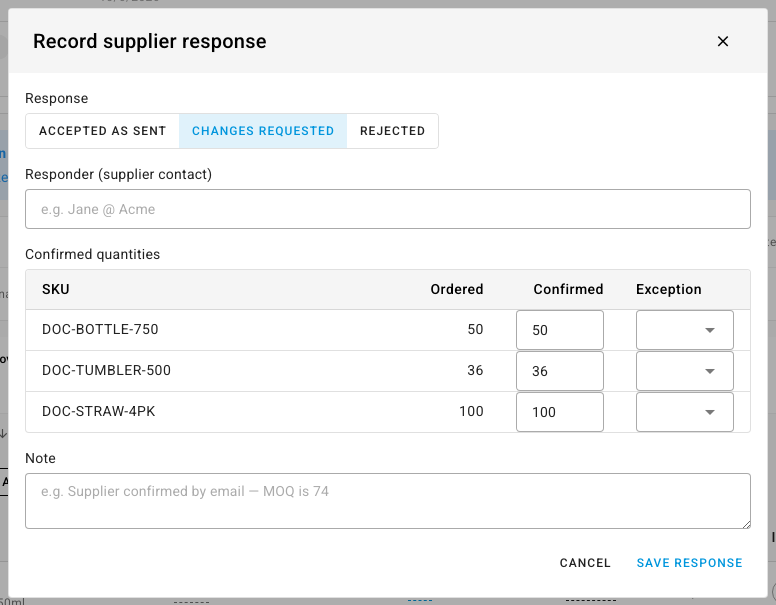
A recorded response behaves exactly like one from the link, and the PO says recorded internally so everyone can tell the two apart. To correct it later, click Update response on the confirmed strip.
Change a PO after you send it
Any change to a sent PO — a quantity, a cost, the Incoterm — creates a gap between your copy and the supplier's. SKU.io shows a Modified after sending banner until you close it:
-
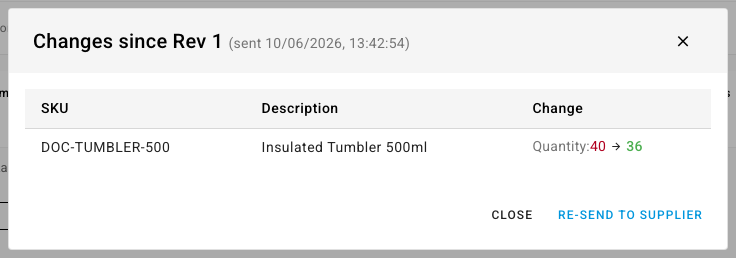
View changes lists every difference since the last revision the supplier received — for example, Quantity: 40 → 36 on one line.
-
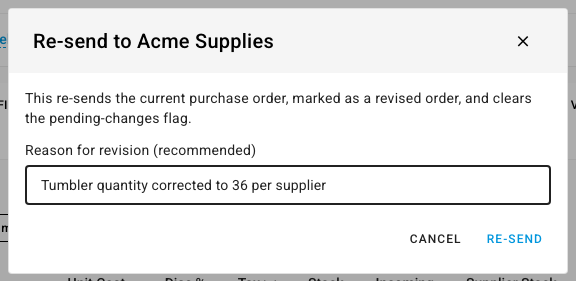
Re-send to supplier emails the current PO marked as a revised order and records the next revision (Rev 2). Enter a Reason for revision — it's optional but recommended — and click Re-send. The banner returns to Sent to supplier — awaiting confirmation for the new revision, with a fresh chance for the supplier to confirm.
-
The × dismisses the banner without sending — the supplier keeps the last revision. Any later change brings the banner back.
For a PO submitted manually, the button reads Record a new revision instead, and SKU.io doesn't email anything.
Next steps
- Message a supplier from a purchase order — keep the back-and-forth on the PO.
- Receive stock against a PO — once the order's confirmed and on its way.
- How purchase order status works — where Change Request (Supplier) sits among the submission statuses.