Close, reopen, and short-close a purchase order
A purchase order (PO) usually closes itself: the moment every line is fully received, SKU.io marks the order Closed for you. But sometimes you need to step in — stop receiving early, undo a close, or trim a single line when a supplier tells you the rest is never coming. This guide covers those four hands-on actions and how each one interacts with the automatic status.
Short-close is the term you'll meet most often here. To short-close a line means to lower the quantity you're still expecting on that one line down to what you'll actually receive — you accept a short shipment on purpose and release the unshipped units. (More on exactly what happens in Short-close a line that came up short.)
Which action do I need?
| You want to… | Use | Scope | Reversible? |
|---|---|---|---|
| Stop receiving the whole order early | Close | Entire PO | Yes — Reopen |
| Receive/edit/invoice a closed PO again | Reopen | Entire PO | Yes — Close again |
| Accept a short shipment on one line and release the rest | Short-close | One line | Yes — Undo short-close |
| Remove a line ordered in error | Delete a line | One line | No — permanent |
The last two rows in detail, and the trade-offs between them, are in Close, short-close, or delete — which to use at the end.
Before you begin
- You need the Cancel purchase orders permission to close or reopen a PO. The Close and Reopen items only appear in the More menu (⋮) when you have it.
- Short-closing a line and undoing a short-close are available wherever you can edit the PO's lines.
- Open the purchase order you want to work with from Purchasing → Purchase Orders. The examples below use PO-DOCS-0001 (supplier Acme Supplies, destination Main Warehouse).
Close an open purchase order
Closing an Open PO by hand is useful when you don't expect the rest of the order and want to stop further receiving — for example, the supplier confirms they can't fulfill the outstanding units.
You can only close a PO whose order status is Open. On a Draft PO, Close is grayed out with the reason "A draft can't be closed. Approve it first, or delete it.", and on a cancelled PO it reads "This PO is cancelled." A Closed PO shows Reopen in its place.
Items in the PO's More menu that don't apply right now stay visible but grayed out, with the reason underneath. For example, Create Backorder PO reads "Backorder POs aren't available for Amazon FBA or AWD POs." on an Amazon PO, and Reconcile shortfall… reads "Everything on this PO is received, so there is no shortfall." when nothing is missing.
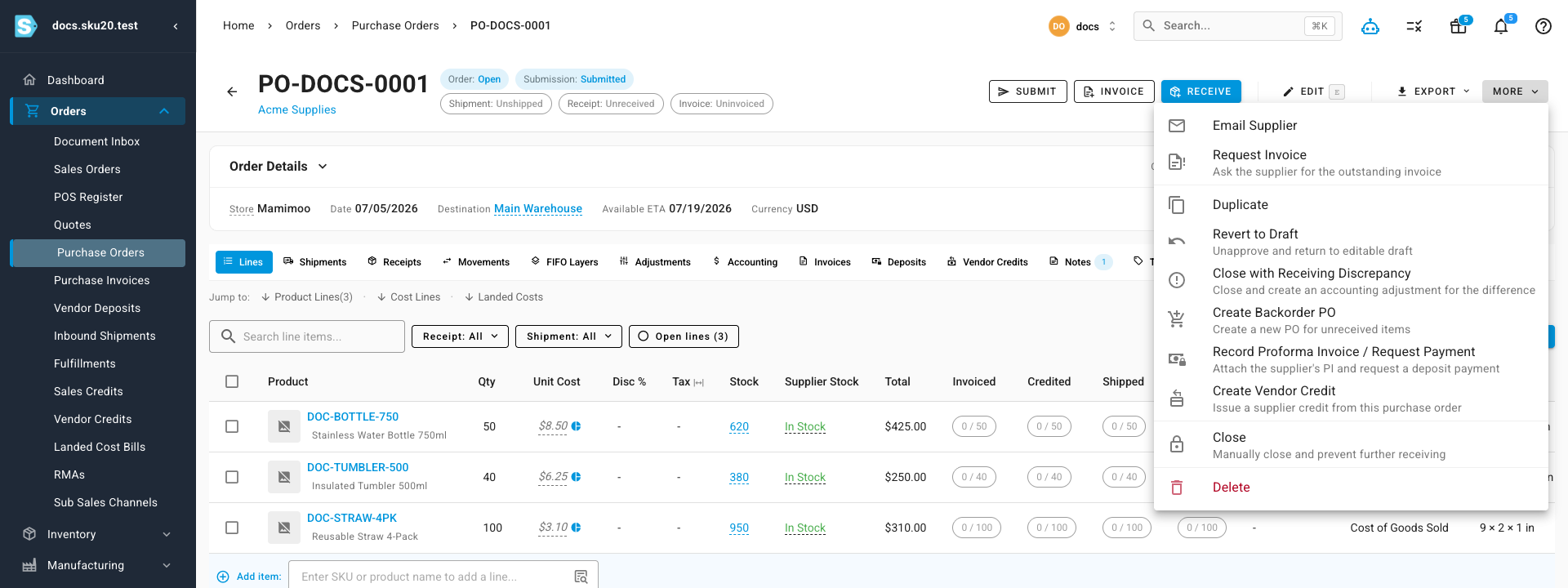
- Open the purchase order and click the More menu near the top of the page.
- Click Close ("Manually close and prevent further receiving").
- If the PO still has unreceived items, the Close Purchase Order dialog opens and warns that closing will prevent further receiving. Enter an optional Reason (up to 500 characters), such as "Supplier unable to fulfill remaining items."
- Click Close PO.
What you'll see: the PO's order status changes to Closed, and its incoming inventory figures refresh. (Incoming inventory is stock you expect but haven't physically received yet — the opposite of on-hand inventory, which is what's already in the warehouse. Closing the PO stops expecting the unreceived units, so the incoming number drops.) If you entered a reason, it's saved as a pinned note reading Manually closed: Supplier unable to fulfill remaining items, and the close is recorded in the activity log as a manual-close event.
When the PO has nothing left outstanding, clicking Close closes it immediately — there's no reason dialog to fill in.
Closing a PO because a supplier shipped fewer units than ordered and you want to book an accounting adjustment for the shortfall is a separate action — Close with Receiving Discrepancy — not a plain manual close. It sets the receipt status to Received For Less. See Receive stock against a PO.
If you close a PO with Close with Receiving Discrepancy, its receipt status becomes Received For Less, a terminal state. Later line edits or receipt recalculations leave it alone — SKU.io won't move it back on its own. The only way out is to undo the receiving discrepancy, and that's blocked once the discrepancy has posted to your accounting software. Use it only when you've genuinely accepted the shortfall.
Reopen a closed purchase order
Reopen a Closed PO when you need to receive, edit, or invoice against it again. You can only reopen a PO whose order status is Closed; anything else returns "Only closed purchase orders can be reopened."
- Open the closed purchase order and click the More menu.
- Click Reopen ("Reopen to allow receiving and editing").
What you'll see: the order status returns to Open and inventory figures refresh.
If you reopen a PO that was fully received, SKU.io will not silently re-close it when an unrelated edit — a price change, invoice matching, or another line change — recalculates its receipt status. Automatic closing only fires the first time a PO crosses into fully received, so your choice to keep it open is preserved.
Short-close a line that came up short
Short-closing works at the line level. Use it when a supplier confirms they won't ship the remaining units on a line. When you short-close:
- The units you cancel are released from backorder — a backorder is stock you've ordered that hasn't arrived yet and is still owed to you. Releasing them tells SKU.io to stop waiting.
- The line's ordered quantity drops to match what you actually expect to receive.
- The cancelled units can be re-ordered later on a follow-up PO.
A line can be short-closed while it still has outstanding (unreceived) quantity and has no active short-close already applied.
- On the purchase order's lines, open the line's row menu (⋮) and click Short-close line ("Release outstanding qty").
- In the Short-close PO line dialog, review the Ordered, Received, and Outstanding figures and the resulting New ordered quantity.
- In Quantity to cancel, enter how many outstanding units the supplier won't ship. This defaults to the full outstanding balance — lower it if only some of the remaining units are being cancelled.
- Add an optional Reason, such as "Supplier confirmed remainder unavailable."
- If the units are still expected on an open inbound shipment, answer Did the supplier ship the missing N units? See When the units are on an open inbound shipment.
- Click Short-close line.
What you'll see: the line's ordered quantity is lowered to the new value, an audit event records how many units were released, and the PO's receipt and shipment status refresh.
When the units are on an open inbound shipment
When the units you're cancelling are still expected on an inbound shipment that has already left the supplier, the dialog asks Did the supplier ship the missing N units? It names each shipment and how many units it still expects. The short-close button stays disabled until you answer. The same question appears when you short-close several lines at once and in the Reconcile Shortfall window.
| Answer | What happens to the shipment | Supplier fill rate |
|---|---|---|
| No, the supplier short-shipped | The shipment's expected quantity drops to what arrived. It becomes Received, or Closed if nothing arrived. | The missing units count against the supplier. |
| They shipped, but it didn't arrive (lost or damaged) | This isn't a short-close. Instead of the short-close button, the dialog offers two actions, filled in with the missing units: Close with receiving discrepancy writes off the part of those units you were billed for but didn't receive, and Create vendor credit opens a draft vendor credit for them at the PO price. Either one takes the units off the line and the shipment, closes the shipment received short, and lists the units as Shipped, not received under Supplier Shipment Shortfalls on Inbound Shipments → Discrepancies, so you can raise a carrier claim. The line reads Lost in transit. | The units don't count against the supplier. |
| They're still coming separately | This isn't a short-close. The button changes to Move N to a new shipment, and the units move to a new in-transit shipment. The line keeps its ordered quantity. | No change. |
Each answer adds an entry to the PO's activity log naming the shipment, the units, and the reason. Units planned on a shipment that hasn't left yet come off that shipment automatically, without the question. When no open shipment holds the units, the dialog doesn't ask.
In the worked example below, if all 100 units were on one shipment and 60 arrived, answering No, the supplier short-shipped leaves that shipment at 60 / 60 and the supplier's fill rate for the line at 60%. Answering They shipped, but it didn't arrive (lost or damaged) and then closing with a receiving discrepancy or a vendor credit also leaves the shipment at 60 / 60, but the fill rate stays at 100% and the 40 units appear under Supplier Shipment Shortfalls as Shipped, not received.
Close with receiving discrepancy needs the Receiving Discrepancies nominal code mapped under Ledger › Settings; until it is, the action is grayed out and says so. To reverse a lost-in-transit close, use the line's undo, which reads Undo receiving discrepancy or Undo lost-in-transit close. Undoing a vendor-credit close leaves the vendor credit in place, so void it yourself if you no longer need it.
A worked example
You ordered 100 units at $8.50 each and have received 60. The supplier says the final 40 are out of stock and won't ship.
| Field | Value |
|---|---|
| Ordered | 100 |
| Received | 60 |
| Outstanding | 40 |
| Quantity to cancel | 40 |
| New ordered quantity | 60 |
After short-closing, the line reads 60 ordered / 60 received — fully received — and the $340 you would have paid for the missing 40 units (40 × $8.50) is no longer expected on this PO. If you still need those 40 units, raise them on a new PO.
Because a short-close can make a line count as fully received, short-closing the last outstanding line can automatically close the entire PO.
The quantity you cancel must leave a new ordered quantity that's at least the received amount and less than the original ordered quantity. In the example, you can cancel anywhere from 1 to 40 units. Cancelling all 40 (down to the 60 received) is allowed; trying to cancel more than 40 — which would push the line below the 60 already received — is rejected, as is short-closing a line that has no outstanding units.
Short-close several lines at once
When more than one line came up short, a reconciliation banner appears above the lines: "N lines came up short and can be reconciled." (Here, reconcile means bringing the ordered quantity into agreement with what actually arrived.)
- Use Show outstanding to filter the grid to just those short lines.
- Use Short-close N to short-close all the under-received lines together.
Lines where the supplier hasn't billed for everything (under-invoiced) — as opposed to hasn't shipped everything (under-received) — are reconciled with mark final invoice instead. See Record a supplier invoice.
Short-close stale lines
A line goes stale when it has sat unreceived for 90 days or more, was never invoiced or settled, and the same product has since been re-ordered and received on a later purchase order. It usually means the supplier never shipped it and you bought the stock again elsewhere.
- A stale line shows a Stale chip. Hover it to see the later purchase order, with a link to open it.
- Click Short-close stale lines to short-close them together. The reason is filled in for you as "Not shipped; re-ordered on" and the later order's number, and you can edit it.
- To find every purchase order with stale lines, filter the purchase order list on Has Stale Lines?.
When you short-close an older order to clear an opening balance instead, the reconcile window suggests short-close only when the order has receipts after your inventory start date, and says why.
Undo a short-close
A line can hold only one active short-close at a time. To change the cancelled quantity, undo the existing short-close first, then apply a new one.
- On the short-closed line, open the row menu (⋮) and click Undo short-close ("Restore original quantity").
What you'll see: the line's original ordered quantity is restored and the PO's statuses refresh. If the short-close lowered an open inbound shipment, undoing it restores that shipment's expected quantity and status and removes its shipment shortfall. Units trimmed from a shipment that hadn't left yet aren't put back.
Undo is available only while the short-close is still active. A short-close that was already reversed returns "Short-close event has already been reversed."
How manual and automatic status changes fit together
- A PO auto-closes the moment it becomes fully received, and auto-reopens from closed if later corrections drop its received total back below the ordered total.
- Manual Close overrides an open PO to closed even when units are still outstanding; manual Reopen overrides a closed PO back to open and is preserved against unrelated recalculations.
- Short-close lowers a line's target rather than the PO's status directly, which can cascade into an automatic close once every line is satisfied.
For the full set of status values and how they transition, see How purchase order status works and the status reference.
Close, short-close, or delete — which to use
| Action | When to use it | What it keeps |
|---|---|---|
| Short-close a line | The supplier is shipping some but not all of a line | Keeps the received units, releases the backorder, preserves the audit trail |
| Close the PO | You're done receiving the whole order early and want to stop any further receiving | Keeps everything; just prevents new receipts |
| Delete a line | The line was ordered in error and has no receipts or invoices | Nothing — the line is gone |
Deleting a line removes it and its ordered quantity for good — there's no undo. SKU.io won't let you delete a line that already has a supplier invoice or any received stock, and you can't delete the last remaining line on a PO. When a line was genuinely ordered by mistake and is still clean, delete is the right tool; otherwise short-close it so you keep the paper trail. See Edit a PO and its line items.