Scan barcodes on the warehouse floor
The warehouse jobs in SKU.io can be done with a barcode scanner instead of a keyboard: receiving, put-away, picking, counting, taking in returns and recording serials. They all run in the browser. There's no separate app to install: you use the same screens on a desktop, a tablet or a handheld scanner's browser, and they rearrange themselves for a small screen.
What you need
- A scanner that types. Any barcode scanner that works as a keyboard and presses Enter after each scan will work, whether it's a USB or Bluetooth gun or the scanner built into a handheld. Each scan field also takes typed input: type a SKU or bin code and press Enter.
- Barcodes on your products. Each product's Barcode is on its detail page. Scan fields also accept the SKU.
- Barcodes on your bins, for put-away and picking. Turn on bins and print bin labels first. See Manage warehouse locations.
- A browser on the device. Sign in at your SKU.io address. See Use SKU.io on your phone.
The scanning jobs
| Job | Where | How scanning works | Guide |
|---|---|---|---|
| Receive a purchase order | The PO's Receive drawer, Barcode Scan Mode | Each scan adds the Case Size to the matching line's Receive Qty. | Scan barcodes to receive |
| Put stock away | Inventory → Put Away → Scan Mode | Scan the destination bin, then the item, then put it away. | Put away stock with a scanner |
| Pick orders | Orders → Pick Lists | Scan each bin as you reach it, then each item you pick. | Work the picks |
| Count stock | A stock take's Barcode Scan | Each scan adds one to that product's count. | Scan to count |
| Take in customer returns | RMAs → Receive Station | Scan an RMA, an order number or a product to stage the return. | Receive returns at the Receive Station |
| Record serial numbers | Wherever serials are entered on receipt | Scan each unit's serial. | Receive serials |
| Move a pallet | Inventory → LPNs / Pallets | Give a pallet a barcode, then move everything on it in one step. | Move stock on pallets with LPNs |
Receiving by scan, at a glance
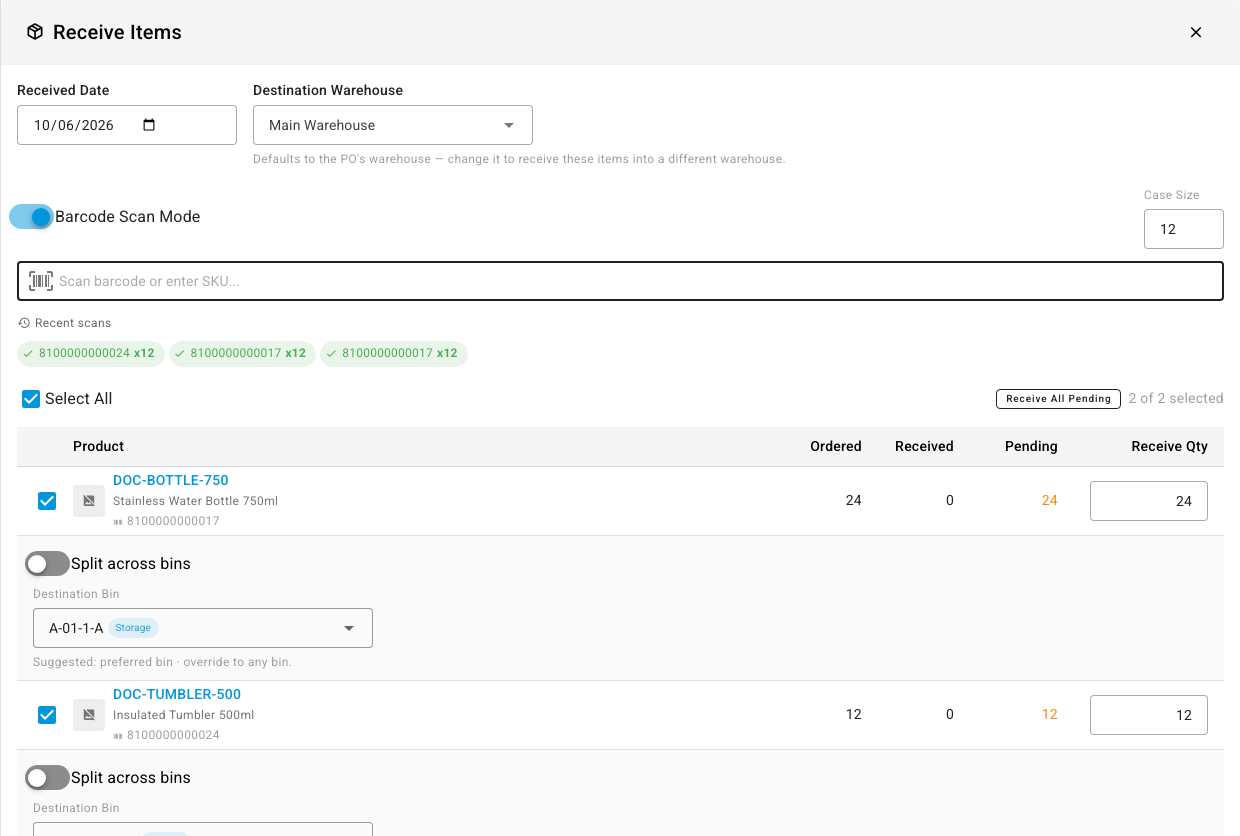
On a purchase order, open Receive and switch on Barcode Scan Mode. Set Case Size to the number of units one scan stands for, then scan. Each scan selects its line and adds the case size to Receive Qty. In a warehouse with bins, each line also shows the Destination Bin it's received into.
Next steps
Last verified:
Was this helpful?