Move stock on pallets with LPNs
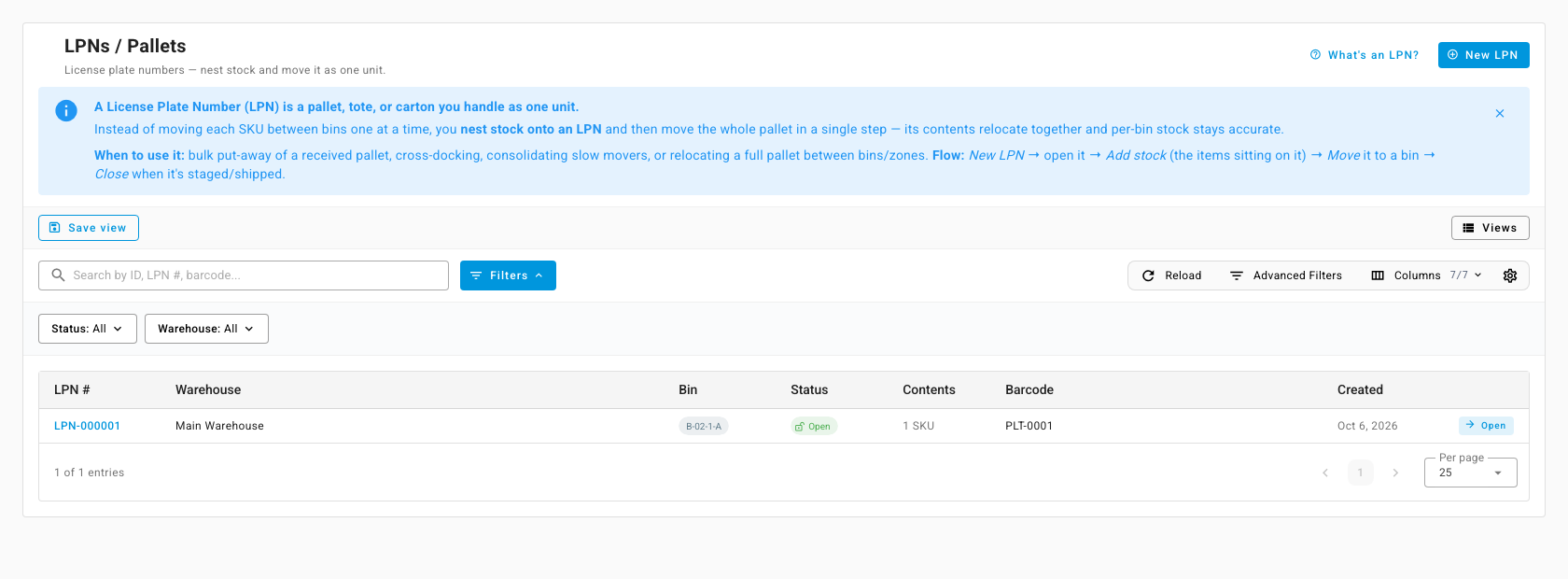
A License Plate Number (LPN) is a pallet, tote or carton that you handle as one unit. You record which products sit on it, and then you can move the whole pallet to another bin in one step. Its contents move together, and the stock in each bin stays accurate. Use LPNs for bulk put-away of a received pallet, cross-docking, consolidating slow movers, or moving a full pallet between zones.
An LPN doesn't hold stock of its own. It labels stock that's already in a bin, so stock goes into the bin first, through receiving or put-away, and then onto the LPN.
Before you begin
- Warehouse Locations (Bins) is on, and the warehouse has its own Warehouse Locations switch on. LPNs only exist in warehouses with bins. See Manage warehouse locations.
- The stock you'll put on the pallet is already in the bin where the pallet sits.
Create an LPN
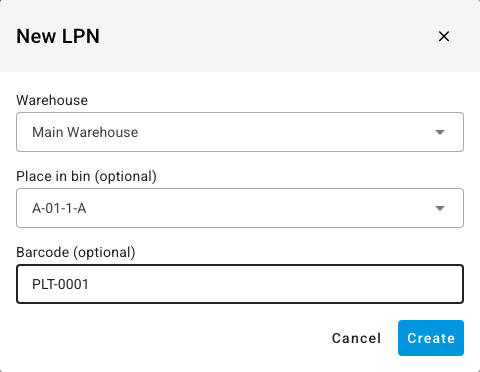
- Go to Inventory → LPNs / Pallets and click New LPN.
- Choose the Warehouse.
- In Place in bin (optional), choose the bin where the pallet sits, for example
A-01-1-A. You can leave it Unplaced and place it later by moving it. - Optionally, enter a Barcode (optional): the pallet label or SSCC printed on it.
- Click Create.
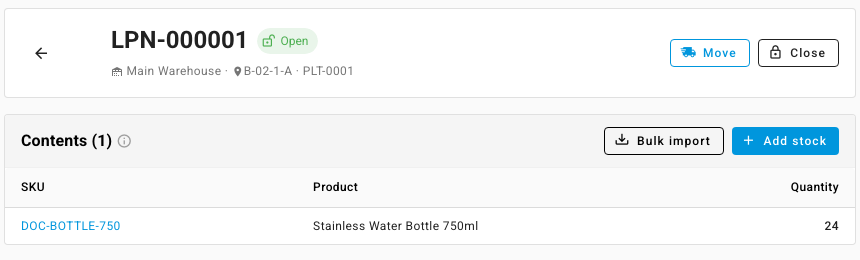
What you'll see: the LPN opens with its number (for example, LPN-000001), the status Open, its warehouse, bin and barcode, and an empty Contents list.
Record what's on the pallet
- On the LPN, click Add stock.
- Search for the product by SKU or name, and enter the Quantity on the pallet.
- Click Add.

You can't put more of a product on the pallet than its bin holds. If you try, the message names both numbers, for example "The LPN's bin holds 24 of this product but 30 would be on the pallet."
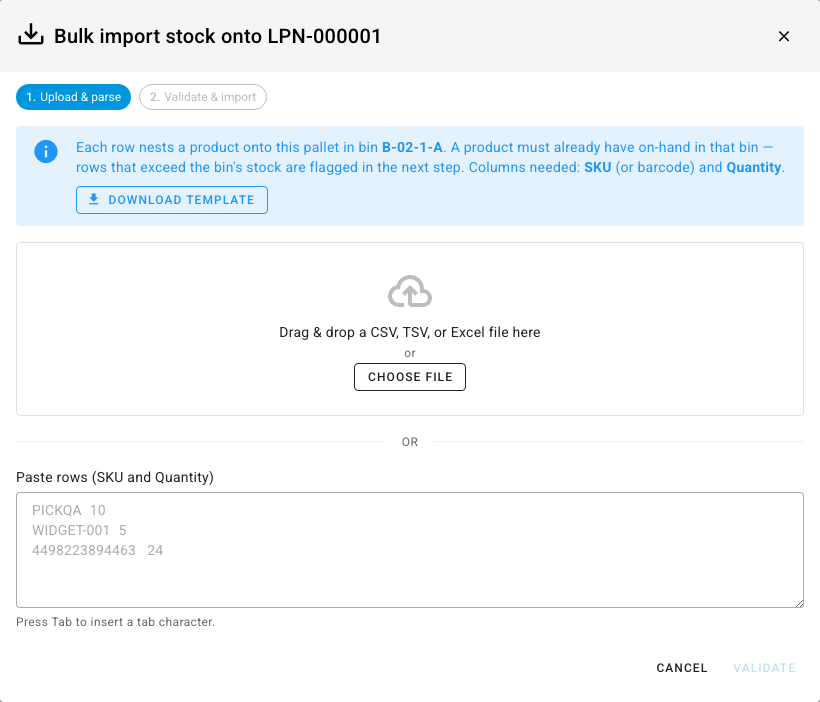
To load many products at once, click Bulk import. Upload a CSV, TSV or Excel file, or paste rows, with a SKU (or barcode) and a Quantity for each product. The import checks every row against the bin's stock and lets you review matches, unmatched SKUs, and rows over the bin's stock before you import.
Move the pallet
- On the LPN, click Move.
- Choose the Destination bin.
- Click Move.
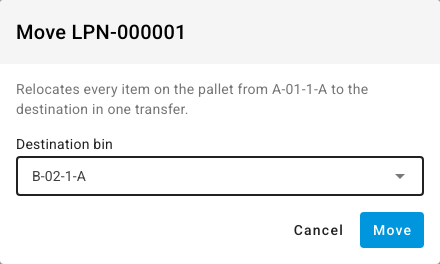
What you'll see: the LPN shows its new bin. Everything on it moved in a single location transfer, which you can find on the History tab of Inventory → Put Away.
Close the LPN
When the pallet is staged or shipped, click Close on the LPN. A closed LPN can't take more stock and can't be moved.
Find an LPN
Inventory → LPNs / Pallets lists every LPN with its LPN #, Warehouse, Bin, Status, Contents and Barcode. Search by ID, LPN number or barcode, or filter by Status and Warehouse.