Put away stock with a scanner
Scan Put-Away walks you through the put-away queue one item at a time, sized for a phone, tablet or handheld scanner. For each item you scan the bin you're filing it into, scan the item to confirm it, and put it away. Each confirmed item is a location transfer, so per-bin stock stays right as you go.
Before you begin
- Warehouse Locations (Bins) is on under Settings → Fulfillment → Warehouse Locations, and the warehouse has its own Warehouse Locations switch on. See Manage warehouse locations.
- There's stock waiting in a put-away source, such as the RECEIVING staging bin or RETURNS.
- Your bins have barcodes, or you can type bin codes such as
A-01-2-A. - A barcode scanner that types into the page and presses Enter, or a keyboard.
Check the queue
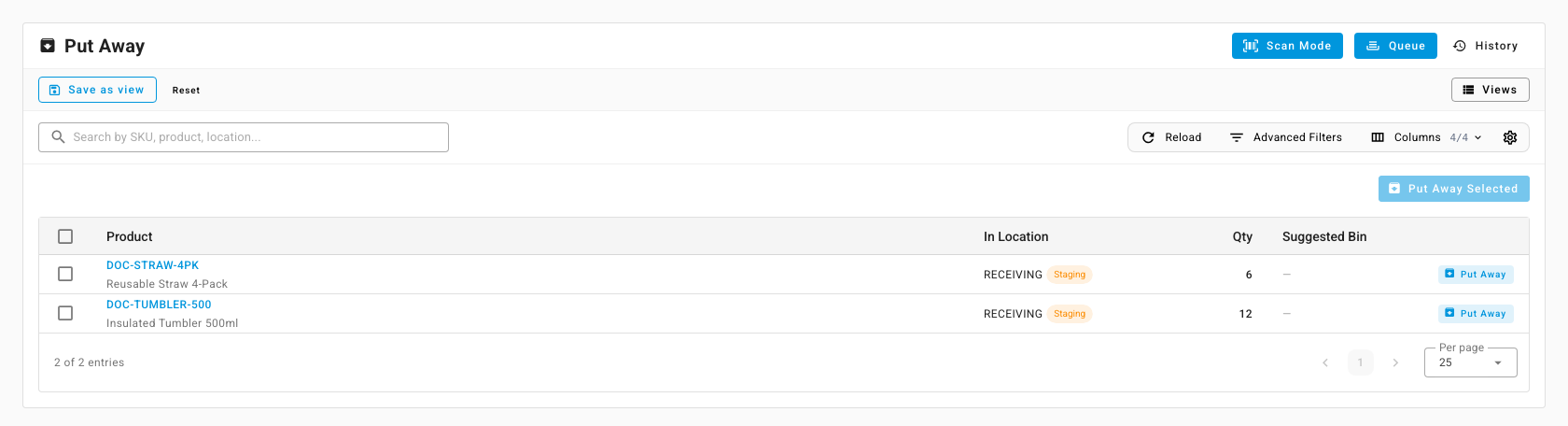
- Go to Inventory → Put Away. The Queue tab lists each product waiting to be put away, the bin it's In Location, the Qty, and a Suggested Bin when the product has a preferred bin.
- Use the Warehouse filter to choose the warehouse. The list opens on your first direct warehouse, which may not be the one with bins.
Scan each item into a bin
-
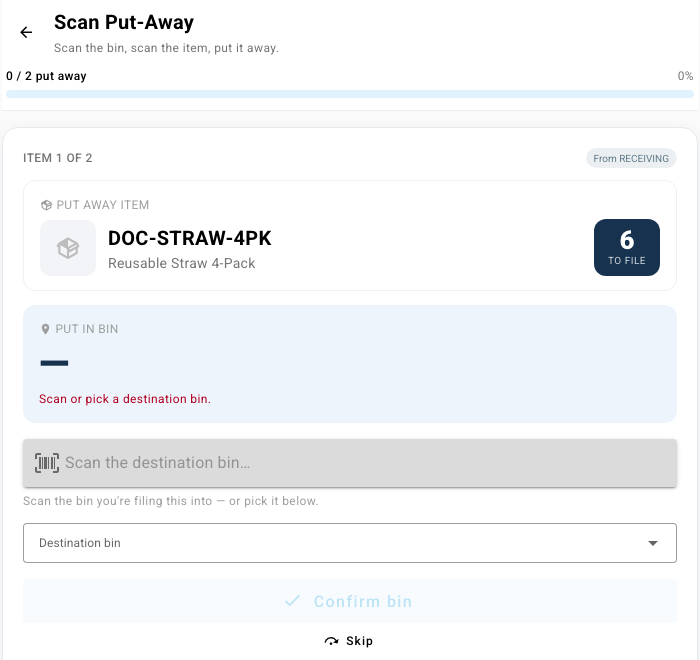
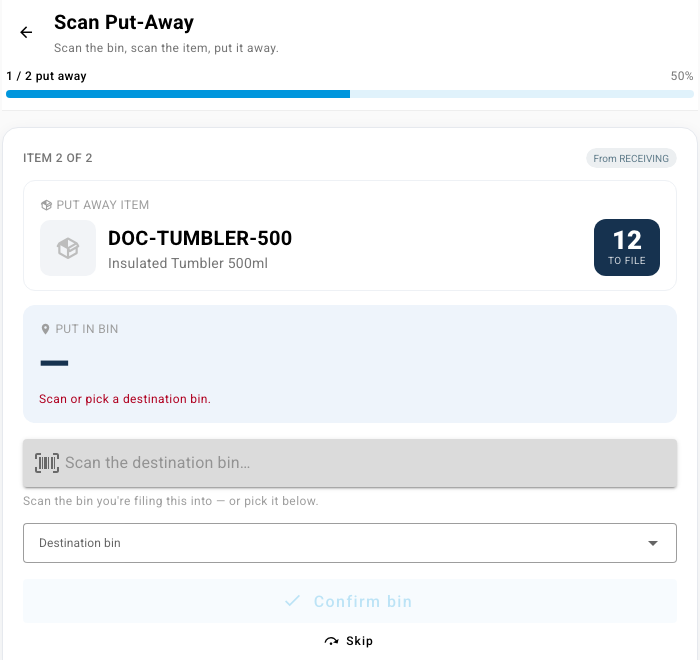
Click Scan Mode. Scan mode works through the waiting items of every warehouse with bins, not only the one in the filter. The Scan Put-Away screen shows the first item, how many units to file, and the bin it's coming from.
-
Scan the destination bin's barcode, or type its code and press Enter. You can also pick the bin from Destination bin and click Confirm bin.
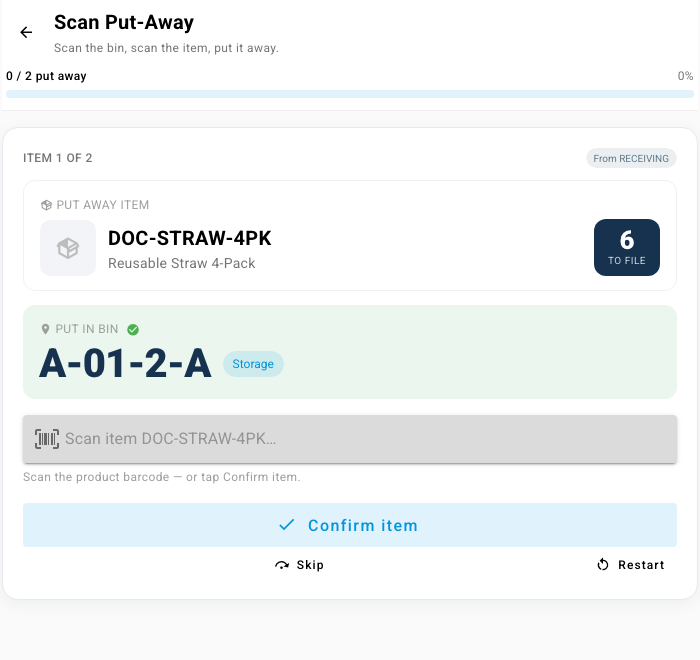
What you'll see: the bin appears under Put in bin, and the screen asks for the item.
-
Scan the product, or click Confirm item.
-
If you're filing only part of the stock, change Quantity with the minus and plus buttons.
-
Click Put away (for example, Put away 6 to A-01-2-A).
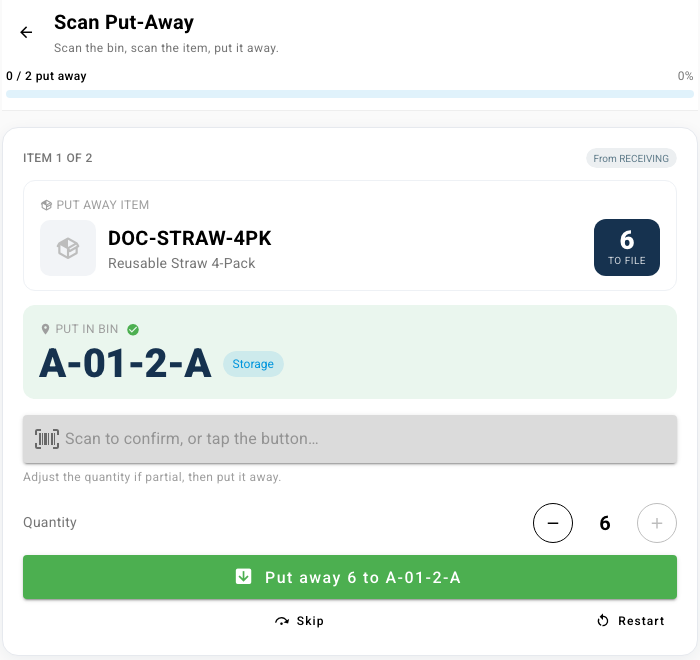
What you'll see: the progress bar moves on, and the next item appears. A wrong scan shows a message, such as "Wrong item — expected DOC-STRAW-4PK.", and nothing moves.
Skip or start over
- Skip leaves the current item in the queue and moves to the next one.
- Restart clears the bin and item you've scanned for the current item.
- When every item is filed, the screen shows Put-away complete. Click Back to Put-Away to return to the queue.
Next steps
- Move stock between bins (location transfers): put away several lines at once from the queue, and review the History tab.
- Move stock on pallets with LPNs
- Scan barcodes on the warehouse floor