Top up pick faces from reserve bins
A pick face is the bin your pickers take an item from first, usually a shelf near the packing area. Bulk stock waits in reserve bins further back. Replenishment keeps each pick face stocked: you give the face a minimum and a maximum, and when it drops below the minimum it appears on the Replenishment screen with a suggested bin to pull from and a suggested amount, ready to move in one click.
Before you begin
- Warehouse Locations is turned on, both in Settings → Fulfillment → Warehouse Locations and on the warehouse itself. With it off, the Replenishment screen says "Warehouse Locations is turned off".
- The warehouse has at least one location of type Primary Pick (the pick face) and one of type Reserve that holds stock of the same product.
- To set thresholds you need permission to manage warehouse locations (
warehouses.manage_locations). - To refill a pick face you need permission to transfer inventory (
inventory.transfer).
Steps
-
Go to Inventory → Warehouse Locations, search for your warehouse, and click its name to open it.
-
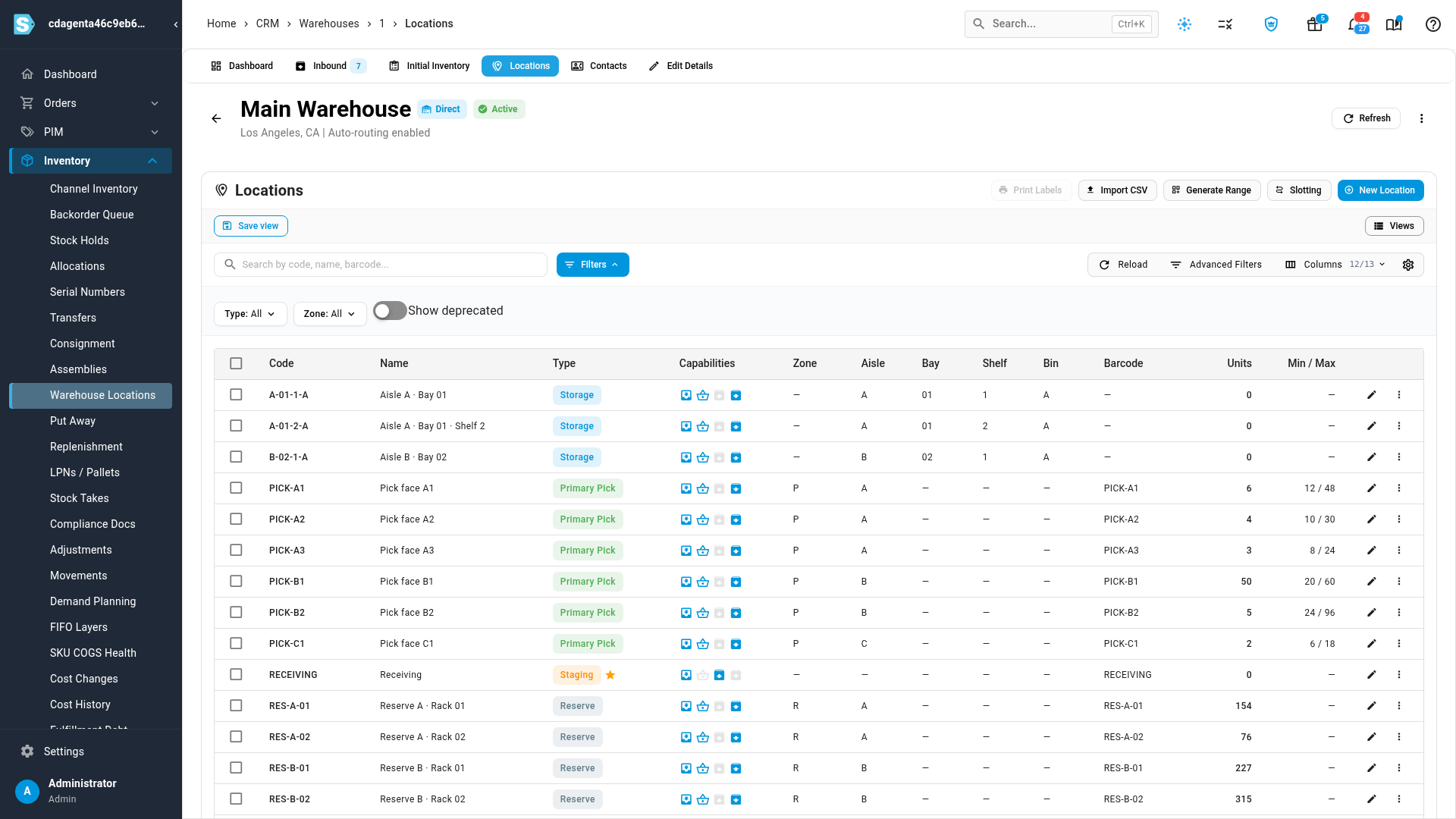
Click the Locations tab.
-
Find the Primary Pick location you want to keep stocked, and click its pencil icon (Edit).
-
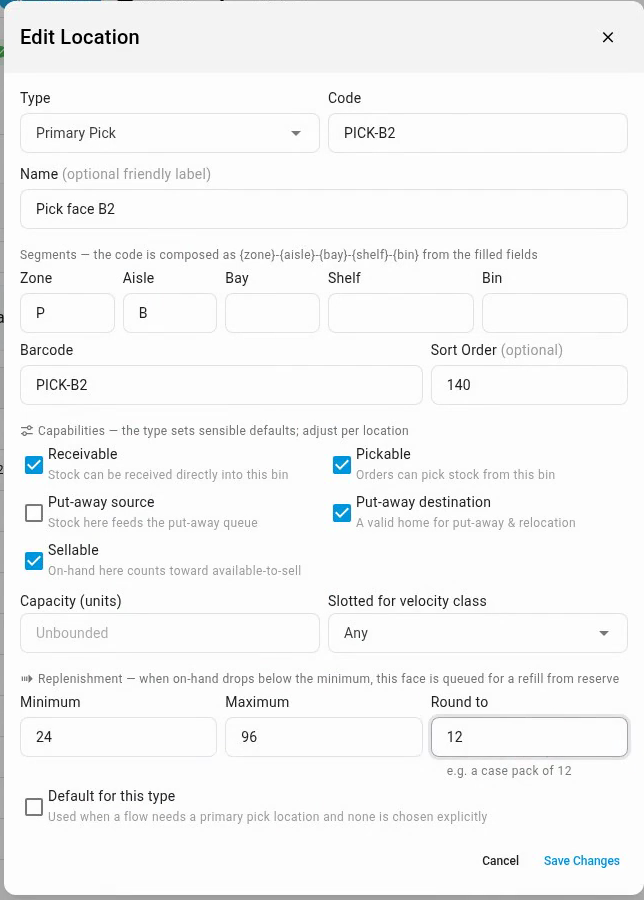
Under Replenishment, enter a Minimum. When the face holds less than this, it appears on the replenishment queue.
-
Enter a Maximum, the level a refill brings the face back up to. Leave it blank to refill to the minimum.
-
Optionally, enter Round to, such as a case of 12, so suggested refills are always whole cases.
-
Click Save Changes. The Min / Max column now shows the face's thresholds, for example 24 / 96.
-
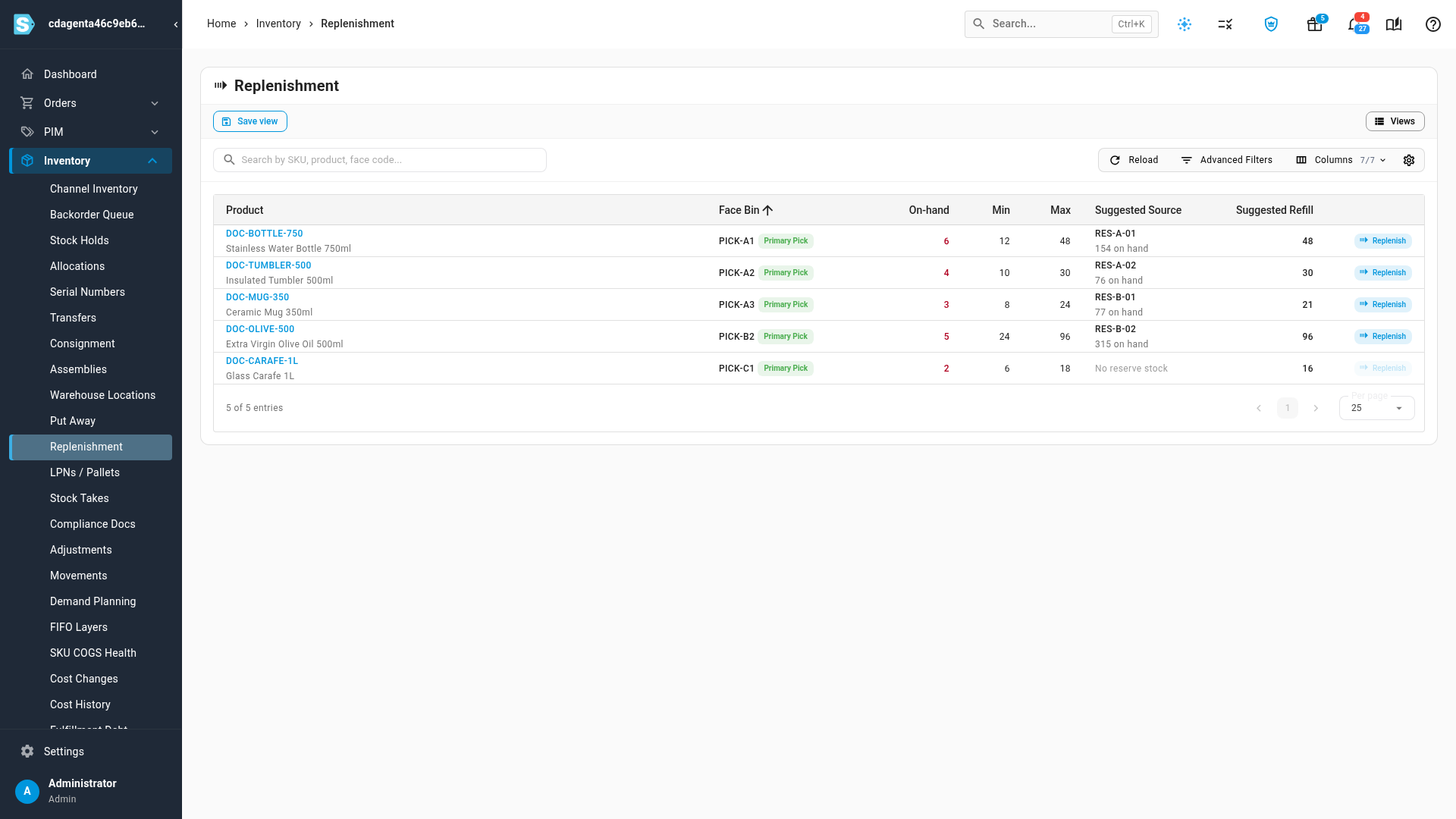
Go to Inventory → Replenishment. Every pick face below its minimum is listed. See Reading the queue.
-
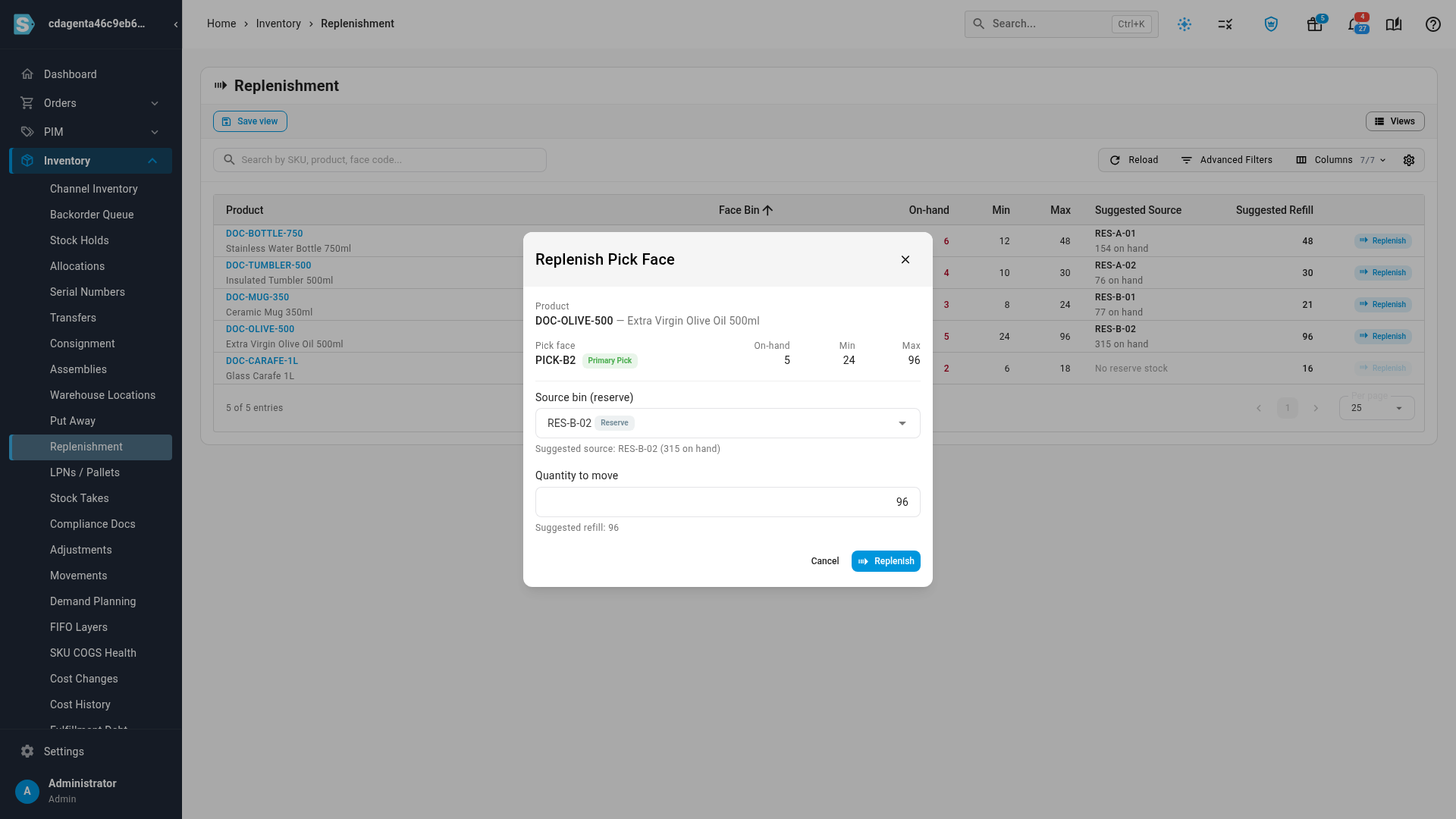
On the row you want to refill, click Replenish. The Replenish Pick Face dialog opens with the suggested source bin and quantity already filled in.
-
Change the Source bin (reserve) or Quantity to move if you're pulling from somewhere else, then click Replenish.
SKU.io moves the stock from the source bin into the pick face as a location transfer, numbered LT-######, and shows "Replenishment LT-###### completed." The face is no longer below its minimum, so its row leaves the queue. Your warehouse's total on-hand doesn't change; only the bins it sits in do.
Reading the queue
| Column | What it shows |
|---|---|
| Product | The product sitting in the pick face, with a link to the product. |
| Face Bin | The pick face's code, tagged Primary Pick. |
| On-hand | How many units the face holds now, in red because it's below the minimum. |
| Min / Max | The face's thresholds. |
| Suggested Source | The Reserve bin in the same warehouse holding the most of this product, with its on-hand count. No reserve stock means no reserve bin holds it, and Replenish is unavailable until one does. |
| Suggested Refill | The units to move to bring the face up to its Maximum (or its Minimum when no maximum is set), rounded up to the next multiple of Round to. Because it rounds up, a refill can leave the face slightly above its maximum. |
Use the search box (SKU, product name or face code) and the Warehouse filter to narrow the list. A face that was refilled in the last couple of minutes stays off the queue, so two people working the list at once don't refill the same face twice. If someone else refills it first anyway, Replenish shows "Location … no longer needs replenishment" instead of moving more stock.
Good to know
- Thresholds only apply to Primary Pick locations, so the Replenishment fields appear only for that type. Changing a location to another type clears its thresholds.
- Maximum must be at least Minimum, and Round to must be greater than zero. Maximum and Round to need a Minimum. To stop replenishing a face, clear all three fields.
- The source bin list in the Replenish Pick Face dialog offers every pickable bin in the warehouse, with how many units of the product each holds.
Next steps
- Move stock between bins (location transfers), which explains the transfer a replenishment creates.
- Put away stock with a scanner, for getting received stock into your reserve bins.
- Manage preferred bins, to choose which bins a product's stock goes to.
Video transcript
A pick face is the bin your pickers take stock from first. Replenishment refills it from your reserve bins before it runs out. To set one up, open Inventory in the sidebar, then click Warehouse Locations. Type your warehouse's name in the search box, then click its name in the list. Then click the Locations tab, in the row of tabs above the warehouse's name. Every bin in this warehouse is listed here, with its type and the units it holds. Find a Primary Pick location, and click the pencil icon on its row. In the Replenishment section at the bottom of the dialog, enter a Minimum. When the face holds less than this, it joins the queue. A refill then brings the face back up to the Maximum. Round to keeps each suggested amount in whole cases, such as a case of twelve. Click Save Changes to store the thresholds on this location. The Min and Max column now shows the face's thresholds. Now open Inventory in the sidebar again, and click Replenishment, a little further down the list. Each row is a pick face that has dropped below its minimum. On-hand is its current stock, next to its Min and Max. For each row, Suggested Source is the reserve bin with the most of that product on hand. Suggested Refill is the amount to move, rounded up to your Round to quantity. When no reserve bin holds the product, the row says No reserve stock. To refill a face, click Replenish on its row. The dialog starts with the suggested source bin, and the suggested quantity to move. Change either one if you pull from a different bin. When the source and the quantity look right, click Replenish. The stock moves from the reserve bin into the pick face. It's topped up now, so its row leaves the queue.