Set up supplier closures and inbound cutoffs
Factories shut for Chinese New Year, Tết and Golden Week, then take weeks to get back to full output. Amazon stops receiving around peak season. A purchase order that crosses one of these takes longer than its usual lead time, and an order placed too late arrives after you've sold out. A closure tells SKU.io when these happen, so Demand Planning, the Inventory Planning report and your Auto-Replenishment schedules move the order dates and quantities for you.
Nothing changes until you add a closure. Forecasts for suppliers without one are exactly as before.
Before you begin
- To add or edit closures, you need the Suppliers → Edit permission (
suppliers.update). To view them, you need Suppliers → View (suppliers.index). - Closures move order dates by working forward from a lead time, so give each supplier a Lead Time. See Set a supplier's lead times, per warehouse.
Choose the type
| Type | Use it for | What it does |
|---|---|---|
| Supplier closure | A factory that stops producing and shipping, such as Chinese New Year | An order whose production runs into the closure takes longer by the closed days, plus a Ramp after reopening while output recovers. |
| Inbound cutoff | A warehouse that stops receiving, such as Amazon's peak-season restrictions | Stock due to arrive during the cutoff is pushed past it, and orders are sized to cover through it. It applies only to the warehouses you pick. |
Add Chinese New Year
-
Go to Settings → Purchasing → Supplier Closures.
-
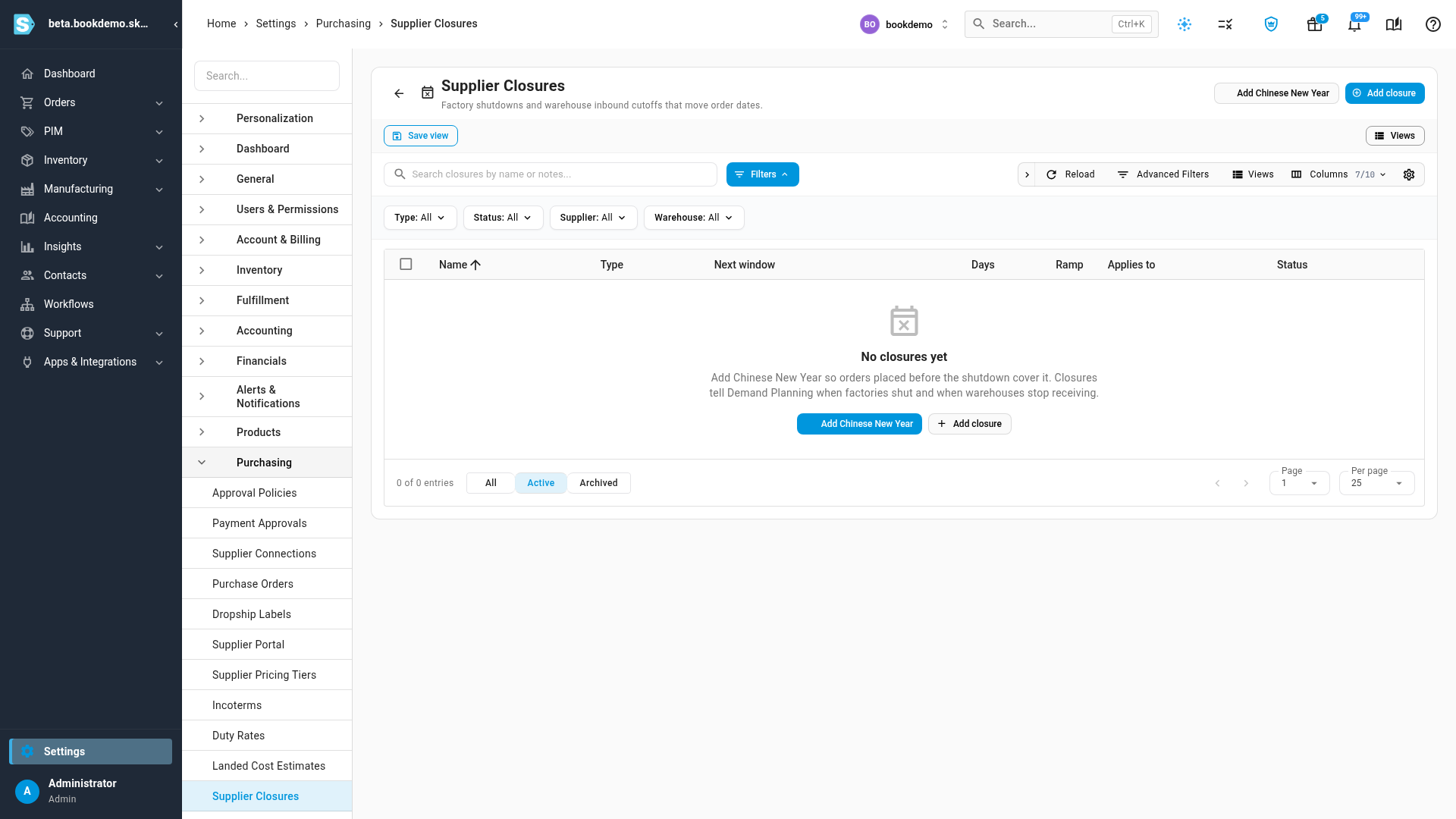
With no closures yet, the page shows No closures yet. Click Add Chinese New Year. Once you have closures, click Add closure instead and pick the preset.
-
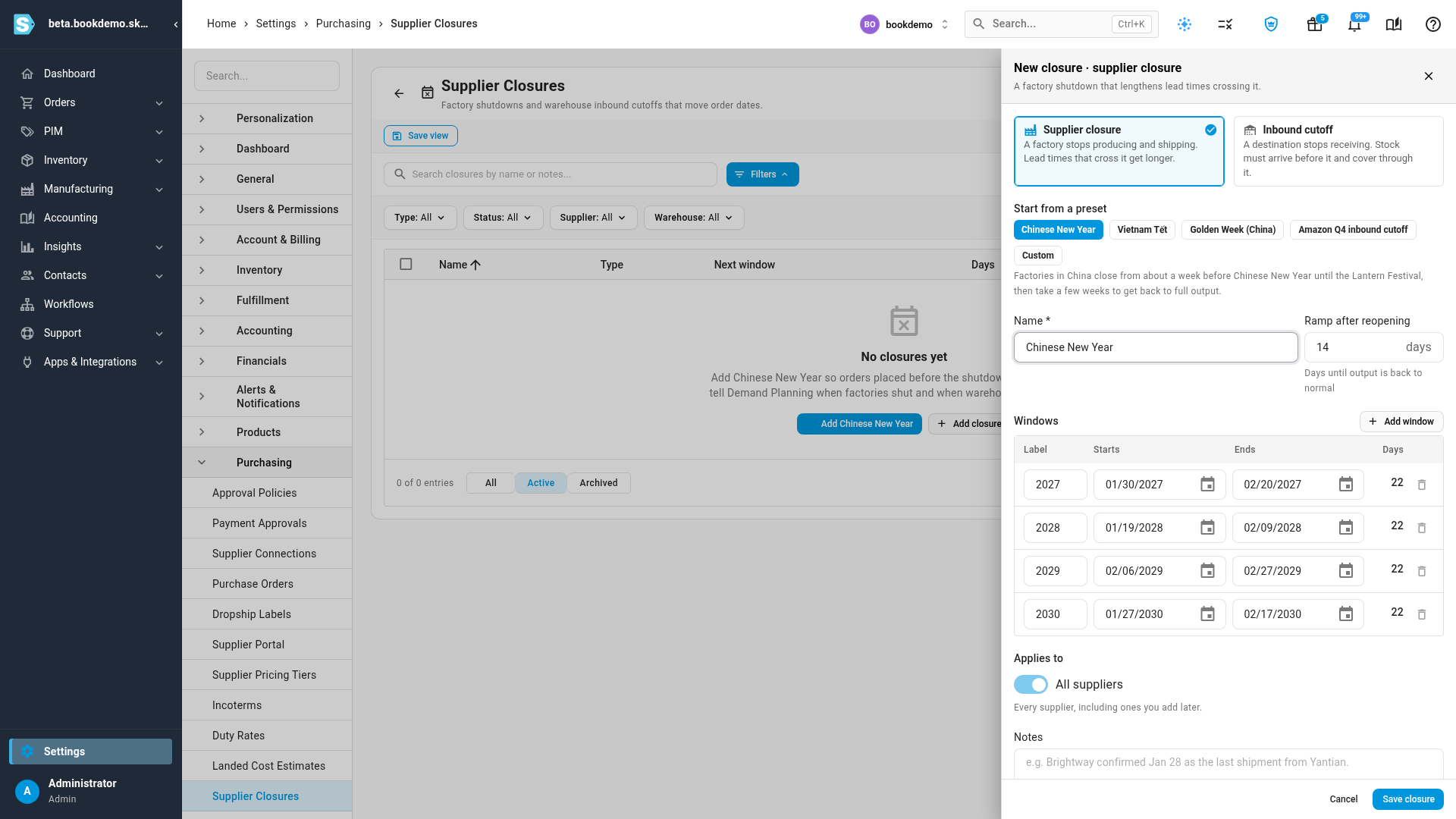
The editor opens as New closure · supplier closure, filled in from the preset:
- Name: Chinese New Year.
- Ramp after reopening: 14 days until output is back to normal.
- Windows: one row per year, each with a Label, Starts and Ends, and the number of Days. The preset covers about a week before the holiday through the Lantern Festival.
-
Check the dates against what your suppliers tell you, and change any that differ. Click Add window to add a year, or the bin icon to remove one.
-
Under Applies to, leave All suppliers on to cover every supplier, including ones you add later. Turn it off to pick suppliers.
-
Optionally, add Notes, for example the last shipment date your supplier confirmed.
-
Check the line at the bottom, for example Adds up to 22 closed days + 14-day ramp to orders whose production window crosses it.
-
Click Save closure.
Add another closure
-
On Settings → Purchasing → Supplier Closures, click Add closure.
-
Choose Supplier closure or Inbound cutoff.
-
Under Start from a preset, pick one, or Custom to start blank:
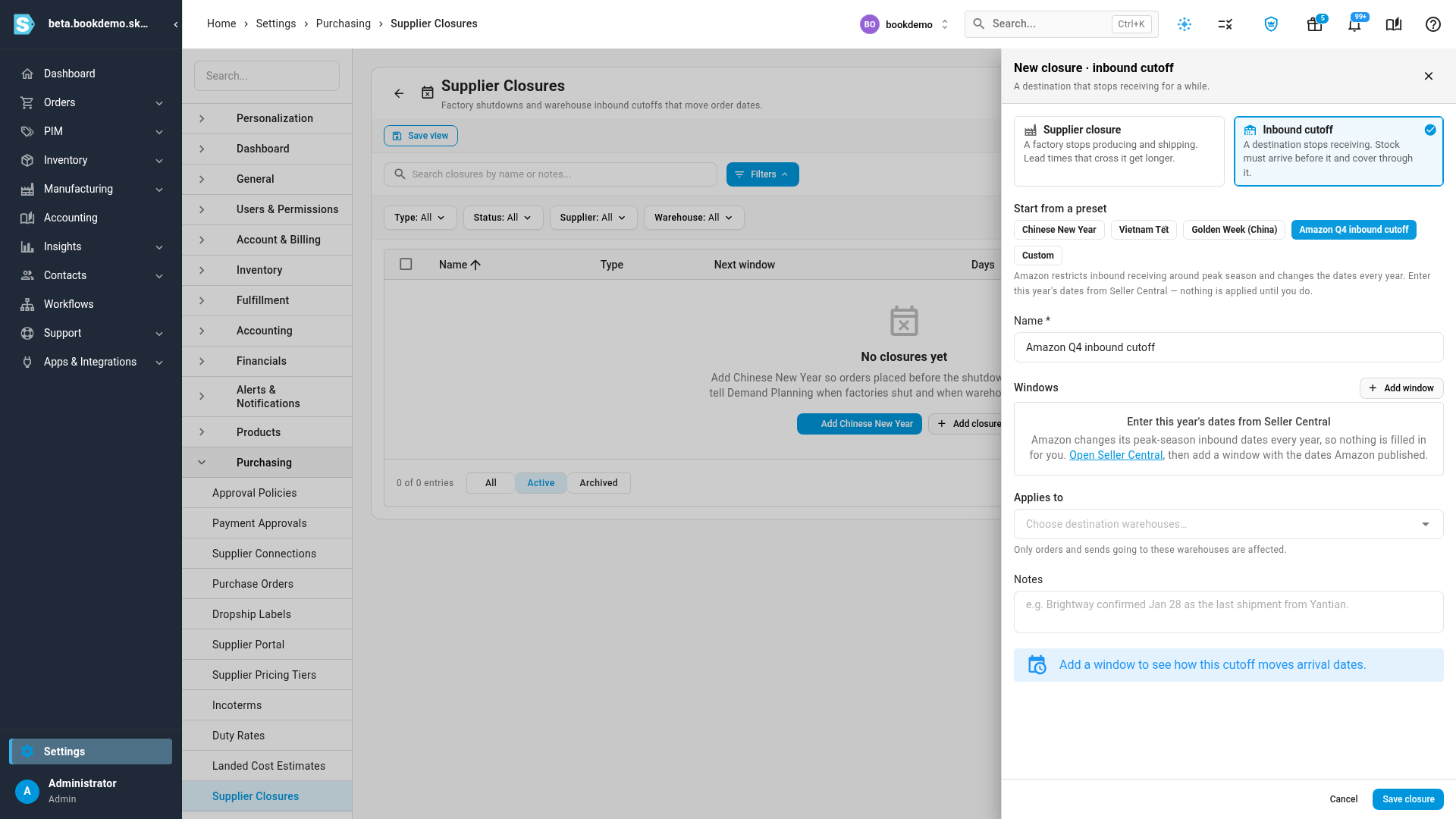
Preset Type What it fills in Chinese New Year Supplier closure The coming years' dates and a 14-day ramp. Vietnam Tết Supplier closure The coming years' dates and a 7-day ramp. A year whose date sources disagree is left out, so add it yourself. Golden Week (China) Supplier closure October 1 to 7 each year and a 3-day ramp. The exact days change each year, so check them. Amazon Q4 inbound cutoff Inbound cutoff No dates. Amazon changes them every year, so the editor says Enter this year's dates from Seller Central, with an Open Seller Central link. Picking a different preset after you've edited the windows asks Replace your windows? before it replaces them.
-
Enter a Name, and the dates under Windows. A closure needs at least one window, and can hold up to 20.
-
For a supplier closure, set Ramp after reopening, from 0 to 60 days.
-
Under Applies to:
- For a supplier closure, keep All suppliers, or turn it off and choose the suppliers.
- For an inbound cutoff, choose the destination warehouses. Only orders and sends going to those warehouses are affected.
-
Click Save closure.
The editor won't save when:
- a window ends before it starts;
- two windows in the same closure overlap;
- a supplier closure has no suppliers and All suppliers is off;
- an inbound cutoff has no warehouses;
- another active closure already has the same name.
An inbound cutoff moves the arrival dates of purchase orders and transfers going to that warehouse. Sends planned in the Send Planner use the network's own receiving blackouts instead, so add the same dates there for Amazon.
Add a closure from a supplier
- Go to Contacts → Suppliers, open the supplier, and open its Settings.
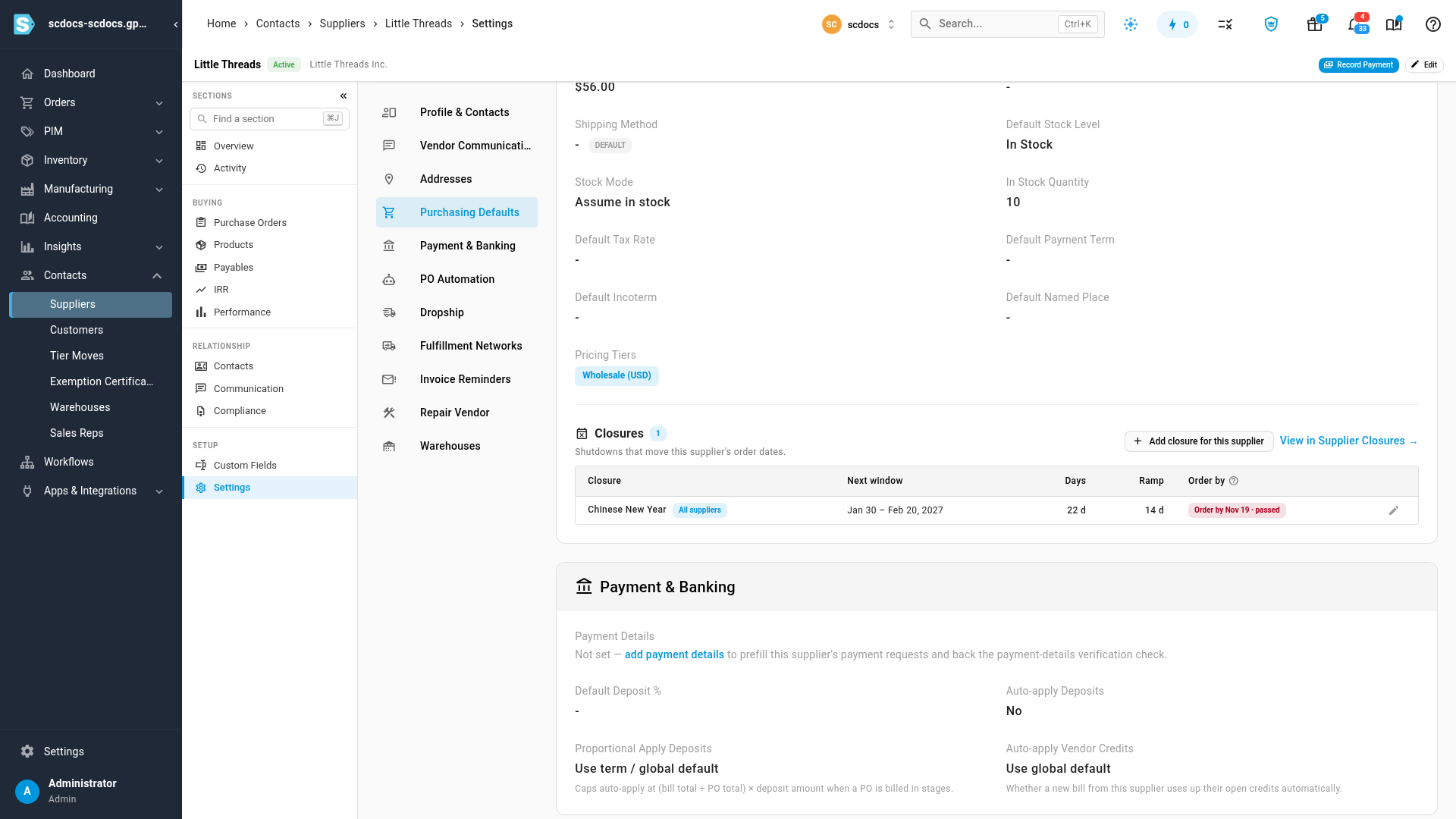
- Under Purchasing Defaults, find Closures. It lists the closures that apply to this supplier, including those for All suppliers, with the next window and the ramp.
- Click Add closure for this supplier to open the editor with the supplier already chosen. With none yet, click Add Chinese New Year for this supplier.
View in Supplier Closures → opens the settings list, filtered to this supplier. The supplier's Overview also shows its upcoming closures.
Manage your closures
The Supplier Closures list shows each closure's Name, Type, Next window, Days, Ramp, Applies to and Status: Upcoming, Active now or Past. Search by name or notes, and filter by Type, Status, Supplier or Warehouse.
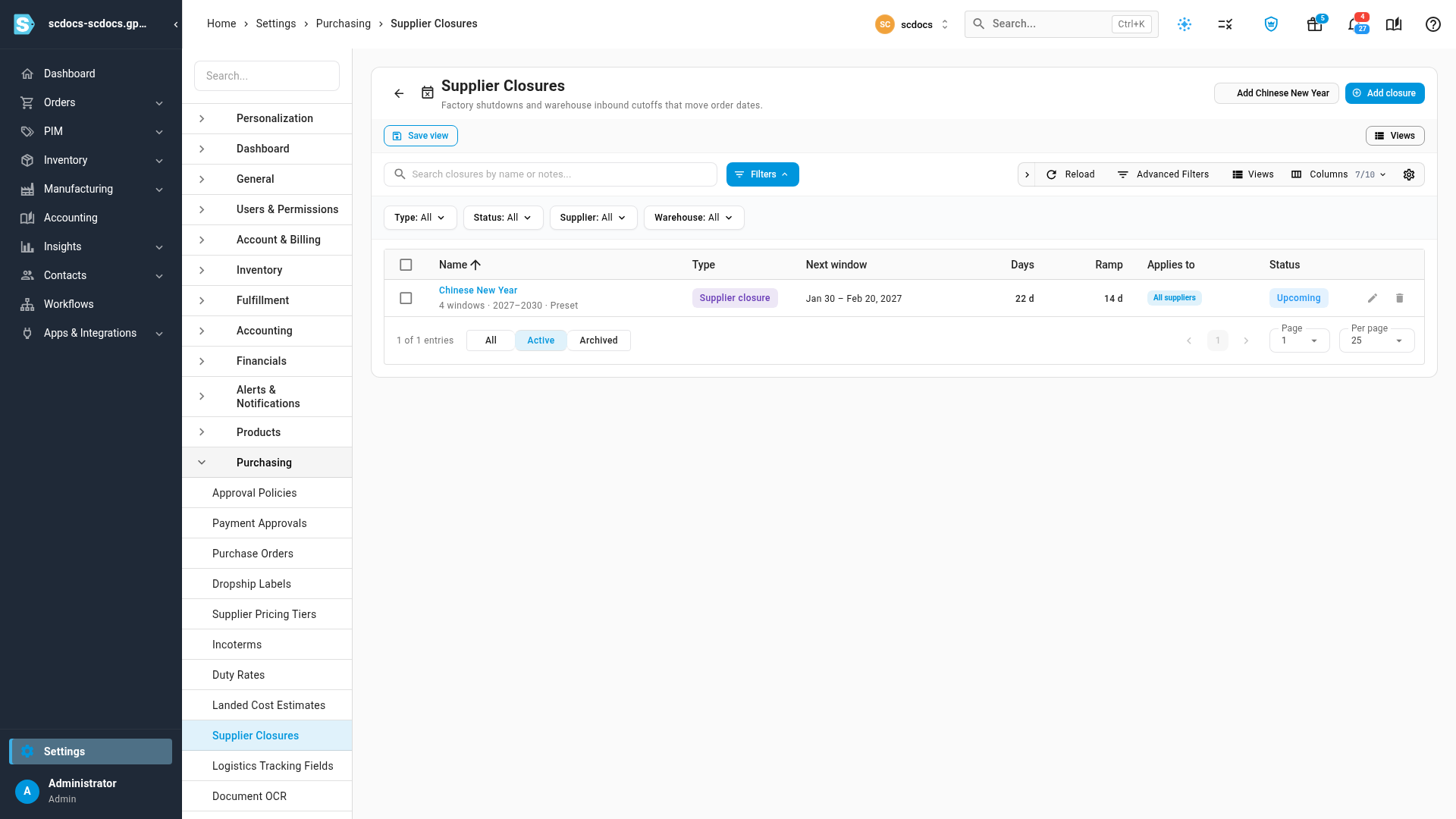
Click the pencil icon on a row to edit it, or the bin icon to delete it. Deleting can't be undone, so archive a closure you no longer need instead: select one or more and click Archive. Archived closures stop moving order dates and are hidden from the list. To see them, choose Archived or All at the bottom of the table, and select them and click Unarchive to bring them back.
Get warned before an order-by date
Each Auto-Replenishment schedule can warn you when a closure means an order has to go out soon, even on a day when nothing needs ordering. See Replenish stock on a schedule.
Next steps
- How closures change lead times and order-by dates to read the numbers a closure produces.
- Forecast demand and replenish stock to order ahead of the closure.
Video transcript
When a factory shuts for a holiday, every order that runs into the shutdown arrives late, so start in Settings, under Purchasing, on Supplier Closures. With nothing set up yet, the page offers to add Chinese New Year, the most common shutdown. Click Add Chinese New Year. The editor fills in the coming years' dates, and a fourteen day ramp after the factories reopen. Check the dates against what your suppliers tell you. Leave All suppliers on, so it covers every supplier, including new ones. The line at the bottom says how many days it can add. When the dates look right, click Save closure. The list now shows the closure, with its next window, its closed days and its ramp. Next, see what the closure does to a forecast. Go to Inventory, then Demand Planning, from the menu on the left. Click the Suppliers list, and pick a supplier with a long lead time, such as one that ships by sea. Close the list once you've picked it. Scroll down past the options to the bottom of the form. Then click Build Forecast. The results take a few seconds, and give each supplier its own tab. A banner names the closure, and says when to order before it. Each line shows its order-by date, or Order now when even today is too late.