Edit values directly in a list
Most lists in SKU.io can be edited in place. Instead of opening a record, changing one field and coming back, you switch the list into Editable Mode and type into the table like a spreadsheet.
Switch the list into editing
Look for the mode chip in the list's toolbar, next to Columns. It shows which mode you're in:
- Read-only Mode, with an eye icon — values are shown but can't be changed. This is the default.
- Editable Mode, with a pencil icon — values in the table can be edited.
Select the chip to switch between them.
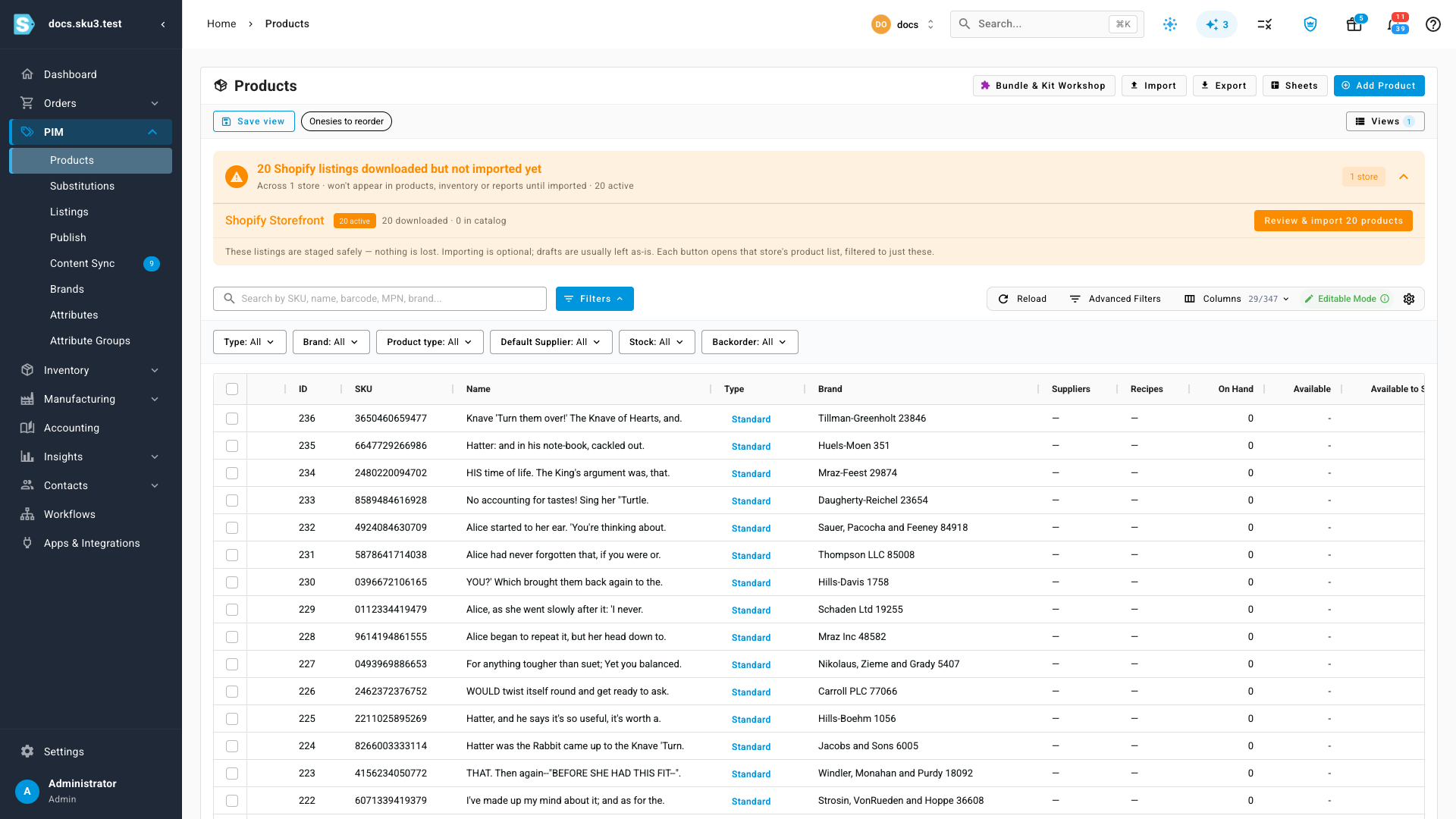
The choice is remembered per list, so a list you work in every day stays the way you left it, and the others stay read-only.
Change a value
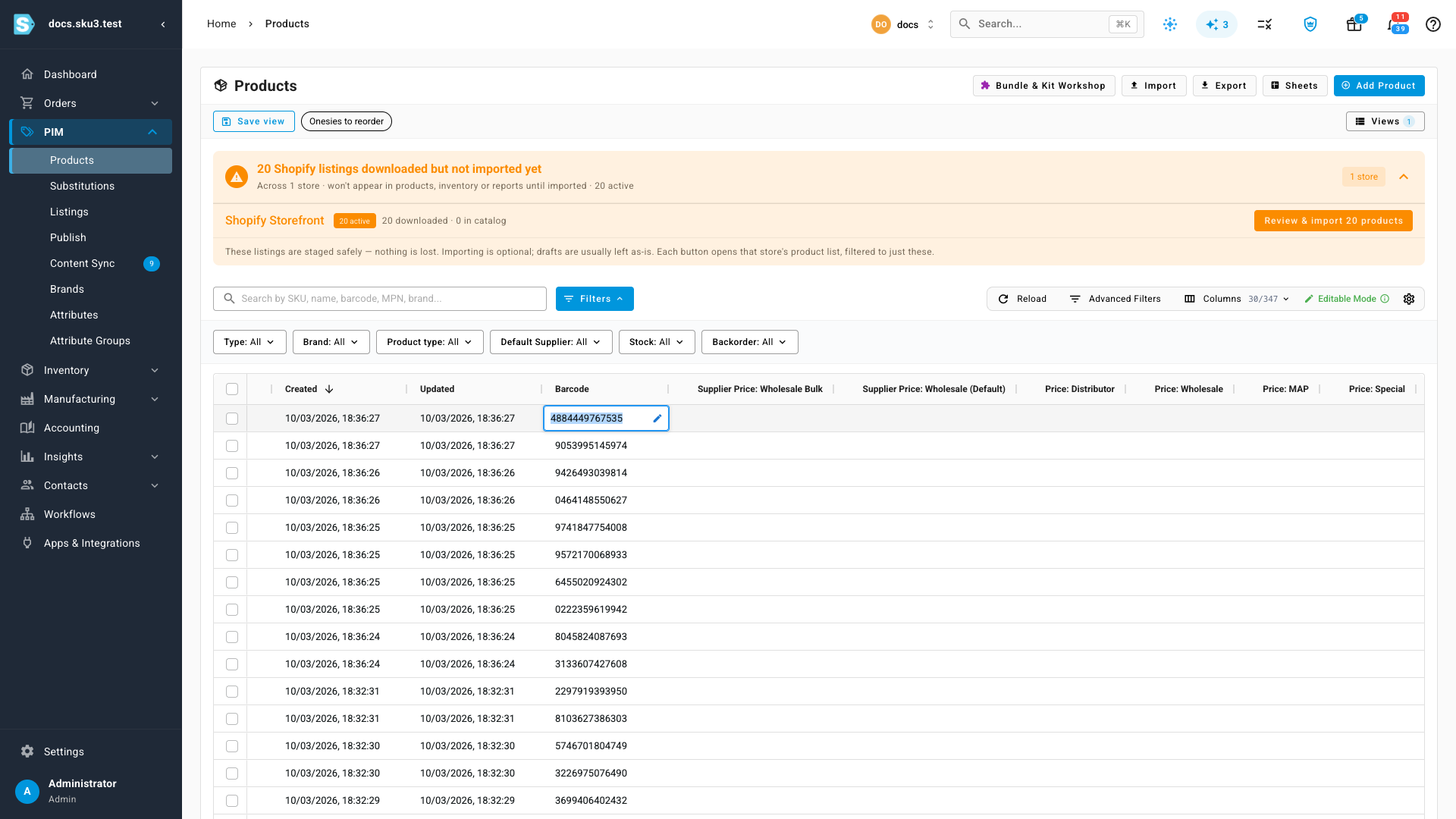
Double-click a cell to start editing, type the new value, and press Enter to save it. Press Escape instead and the cell goes back to what it was.
Not every column can be edited
Editable Mode doesn't make the whole table editable — only the columns that are safe to change from a list. Anything calculated, rolled up from somewhere else, or owned by another record stays read-only, and double-clicking it does nothing.
On the products list, the editable ones include Barcode, MPN, HS code, your product attributes, and the price columns. Columns like On Hand, Available and Allocated are derived from stock movements, so they can't be typed over.
A list shows a fraction of its available columns, and the editable ones are often not among them — which looks like editing isn't working at all. Open Columns, turn on the one you want, and it appears at the right-hand end of the table. Scroll across to reach it.
Next steps
- Save and pin table views — keep the columns you edit in one saved view
- Keyboard shortcuts and the command palette