Total a column with Calculate
Some lists have a summary row pinned to the bottom of the table. Under each number column it says Calculate. Pick a calculation and the cell shows the answer, worked out across every row that matches your search and filters, not only the page you're looking at.
Before you begin
The summary row appears on these lists:
| List | Where |
|---|---|
| Products | PIM → Products |
| Movements | Inventory → Movements |
| Ledger entries | Accounting, the entries table |
| Daily Financial Summary | Insights → Reports |
| Inventory Planning | Insights → Reports |
| Real-time Inventory | Insights → Reports |
| Sales Order Financials | Insights → Reports |
Only columns that hold numbers, such as quantities and amounts, offer Calculate. The cell is empty under text columns.
Add a calculation
-
Open the list and apply the search and filters you want. The calculation follows them.
-
Scroll to the summary row at the bottom of the table. It stays in view while you scroll the rows.
-
Click Calculate under the column you want to total.
-
Choose a calculation:
Choice What it shows Sum The total of the column Average The mean value Min and Max The smallest and the largest value Range The gap between the smallest and the largest value Count A further menu: Count all, Count values, Count unique values, Count empty and Count not empty None Removes the calculation from this column 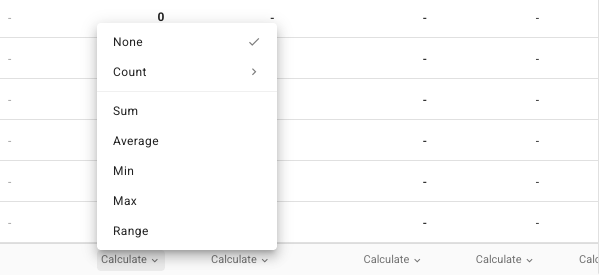
The cell now shows the name of the calculation and its result, for example SUM 9,009.2. Money columns show the result as an amount.
A rate column, where adding the values would mean nothing, offers only the calculations that make sense for it, such as Weighted average.
Some reports also show a smaller page figure under the result. That's the same calculation over the rows on the current page only, next to the total for every matching row.
Calculate over selected rows only
By default a calculation covers every row that matches your filters. To check a handful of rows instead:
- Tick the rows you want.
- A toggle appears at the left of the summary row: Selected (2) and All (222), with the counts for your list.
- Click Selected. Every calculation in the row switches to the ticked rows.

Click All to go back. When you clear the selection, the row returns to All on its own.
Your choices are remembered
SKU.io remembers which calculation you picked for each column, per list, in this browser. Come back to the list tomorrow and the same totals are waiting under the same columns. On another computer or browser, you start without them.
Next steps
- Choose and freeze table columns: bring the column you want to total into view.
- Save and pin table views: save the filters a total depends on.