Account rules import and export reference
You can keep your account rules in a spreadsheet: export the current list, edit it, and import it back. This page lists every column and the rules the import follows.
The spreadsheet actions are in the Import / Export menu at the top of Accounting → Settings → Product accounts:
- Export rules CSV downloads every rule, in order, as a CSV file.
- Download template downloads a CSV with one row per top-level category. Each row is named after its category, with the accounts left blank. Fill in the accounts you want and delete the rows you don't need.
- Import rules sheet uploads a CSV and shows you what it would do before anything is saved.

Before you begin
- Viewing, exporting and downloading the template need the List permission under Accounting in your role. Importing also needs Manage Settings under Accounting.
- The categories, brands, suppliers, tags and accounts your file names must already exist. The import never creates them, and an unknown name stops the import.
How an import works
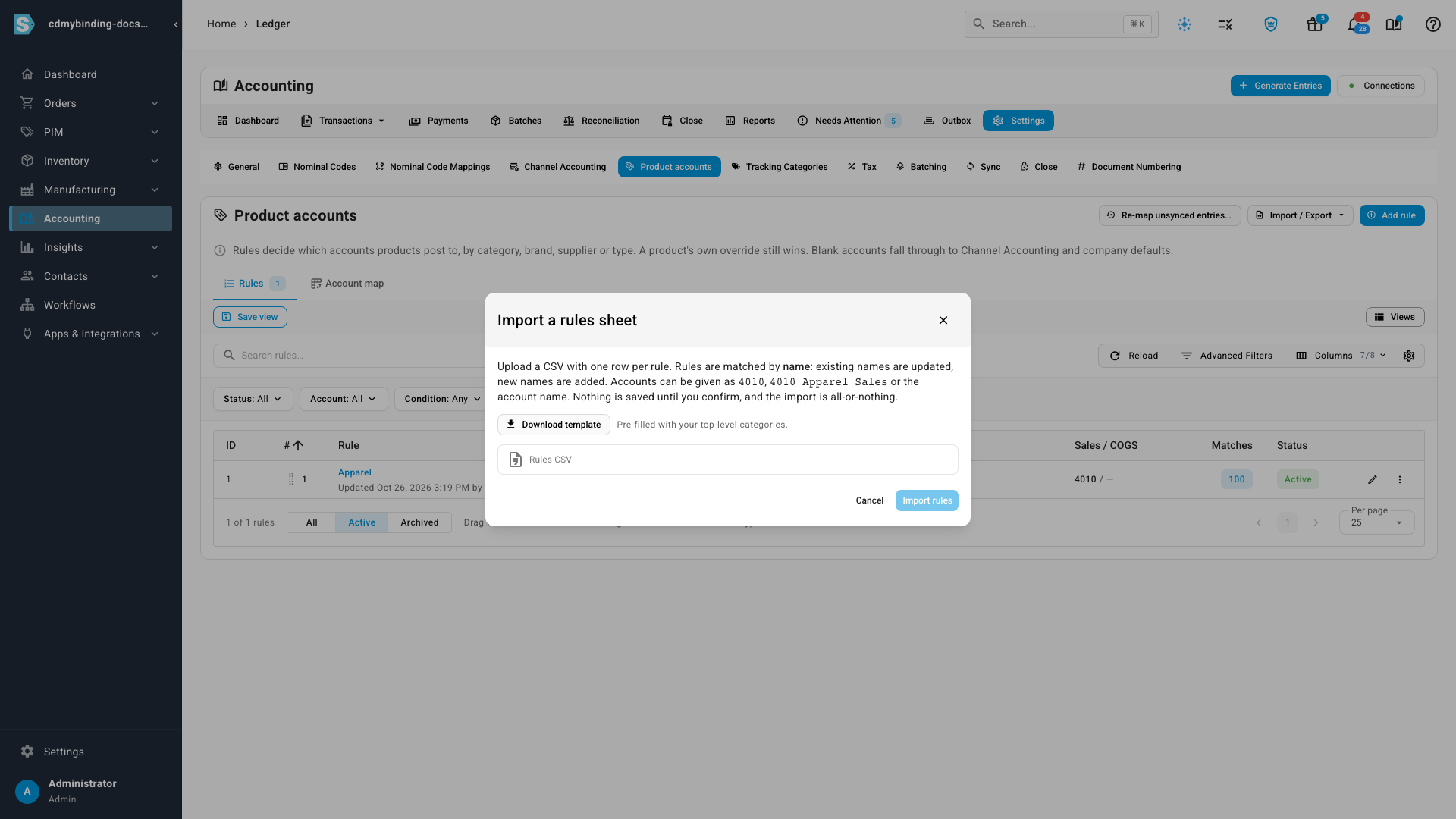
- Rows match existing rules by name. The match ignores upper and lower case. A row whose name matches an existing rule updates that rule. A row with a new name adds a rule. Rules that aren't in the file are left alone. The import never deletes a rule.
- The whole file is checked first. Click Import rules and SKU.io reads every row before saving anything. You then see how many rules will be added and updated, how many products will change account, and a table of each rule with its conditions and Add or Update.
- It's all or nothing. If any row has a problem, nothing is saved. The dialog lists each problem with its row number (the header is row 1), so you can fix the file and upload it again. The first 20 problems are shown.
- Confirm to save. When the file is clean, confirm and the rules are saved together. Products move to their new accounts in the background, and you can follow that in the job tray.
The same name may appear only once in a file. A repeated name is reported against each row that uses it.
Columns
Column headers ignore upper and lower case. Only name is required in the file. Any other column you leave out, or leave blank, takes the default shown below.
The rule
| Column | Required | Accepted values | Blank means | Notes |
|---|---|---|---|---|
name | Yes | Any text | — | Identifies the rule. A row with a blank name is an error. |
position | No | A whole number, 1 or more | New rules go above the first broader rule; updated rules keep their place | 1 is the top of the list. Rules are checked from the top, and the first match wins for each account. |
is_active | No | 1 or 0 (also yes/no, true/false) | 1 (active) | An inactive rule stays in the list but matches nothing. |
channel_accounts_take_priority | No | 1 or 0 | 0 | When 1, a sales channel's own Sales, COGS or Discount account wins over this rule for orders from that channel. |
When a product matches
A rule needs at least one condition. Different columns must all match. Several values in one cell are alternatives: separate them with a pipe, as in Apparel|Accessories, and the product needs to match only one of them.
| Column | Accepted values | Blank means | Notes |
|---|---|---|---|
category | Category names, separated by | | Any category | A name used by two categories is an error. Rename one of them first. |
include_subcategories | 1 or 0 | 1 | When 1, a product in a subcategory of the named category also matches. |
category_scope | primary or any | primary | primary checks only the product's primary category. any checks every category the product is in. |
brand | Brand names, separated by | | Any brand | |
default_supplier | Supplier names, separated by | | Any supplier | Matches the product's default supplier only. |
product_type | standard, bundle, kit, matrix, blemished or manufactured, separated by | | Any type | An unknown type is an error that lists the accepted ones. |
tag | Tag names, separated by | | Any tag | |
sku_prefix | Up to 5 SKU beginnings, separated by | | Any SKU | Ignores upper and lower case: bb matches BB010. |
Where matching products post
Leave an account blank to let it fall through to your channel accounts and then the company default.
| Column | The account for | Expected kind of account |
|---|---|---|
sales_account | Sales | Income |
cogs_account | Cost of goods sold | Expense |
inventory_account | Stock on hand | Asset |
in_transit_account | Stock in transit | Asset |
accrued_purchases_account | Goods received but not yet billed | Liability |
discount_account | Discounts | Income |
Write an account in any of these ways:
- the account number on its own:
4010 - the number and the name:
4010 Apparel Sales,4010 - Apparel Salesor4010: Apparel Sales - the name on its own:
Apparel Sales
The export writes the number and the name, so an exported file always imports back cleanly. A name shared by two accounts is an error; use the number instead. An archived account is an error that names it, so you can unarchive it or choose another.
If an account isn't the kind the column expects, such as an expense account in sales_account, the preview says so and asks you to confirm before it imports. This catches a mistyped number without blocking an account you chose on purpose.
Cells that start with a formula character
Spreadsheet programs treat a cell that starts with =, +, - or @ as a formula. The export protects such values by starting them with an apostrophe, and the import removes that apostrophe again, so names like -Clearance survive the round trip.
Next steps
- Map product accounts with rules: add, order and check rules on screen.
- Import products: set or clear a single product's own accounts from a product sheet.
- Chart of accounts reference: the default accounts and what posts to each.